
howtosimply.com/guides/how-to-hide-apps-on-a-nothing-phone/ · Checked October 2026 · 4a) Pro (A069P, EEA), Nothing OS 4.1, Android 16 (build FroggerPro-B4.1-260907-1153-EEA · Nothing Phone
In this guide
Open the app drawer, touch and hold the app and tap the crossed-out eye (Hide icon), then OK. The app moves to a Hidden folder at the bottom of the drawer; it still shows in Settings. No PIN is needed. To lock apps away, use Private space, which needs a screen lock.
5 of 5 steps with real screenshots · 4 official sources below
- Device
- Android
- Shown on
- Nothing Phone (4a) Pro (A069P, EEA), Nothing OS 4.1, Android 16 (build FroggerPro-B4.1-260907-1153-EEA)
- App
- Phone
- Real screenshots
- 5 of 5 steps
- Checked
- October 2026
- Sources
- 4 official, linked below
Step by step
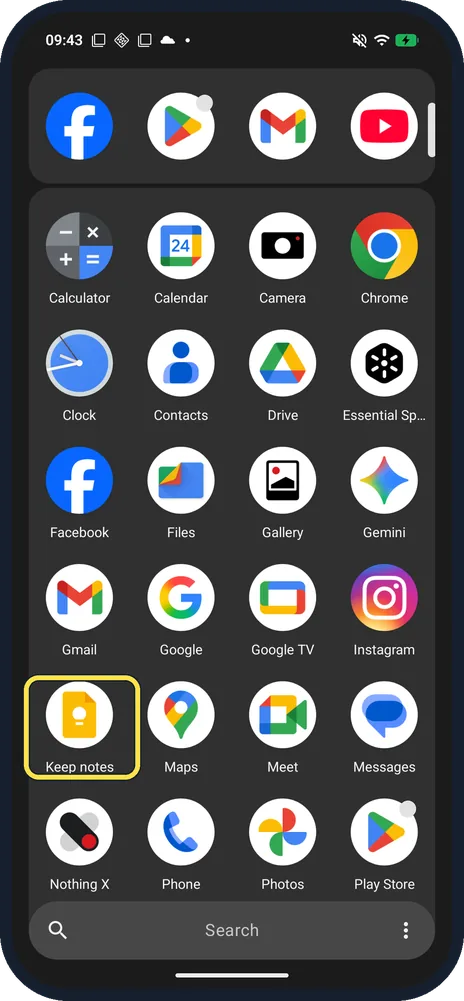
Open the app drawer
Swipe up from the Home screen and find the app. Ours was Keep notes.
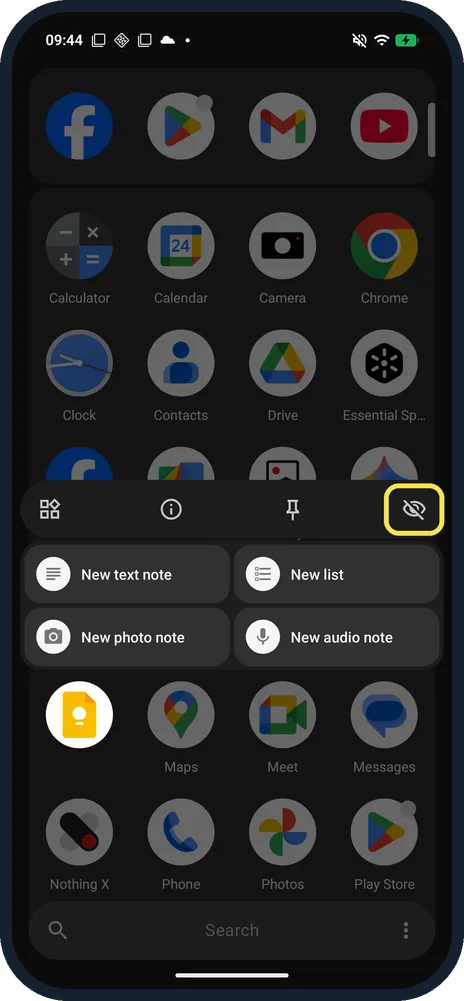
Touch and hold the app, then tap the crossed-out eye
A row of icons opens above the app's shortcuts. The crossed-out eye at the right is Hide icon.
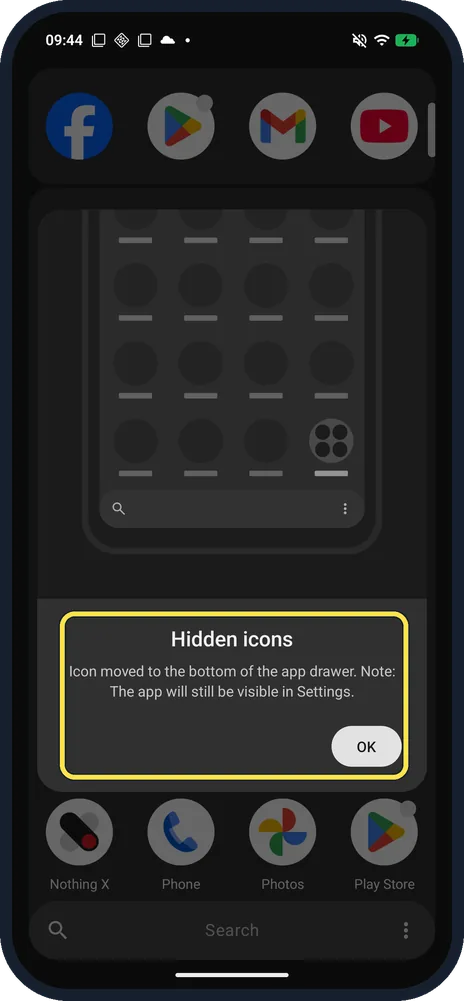
Tap OK
The Hidden icons note says: Icon moved to the bottom of the app drawer. Note: The app will still be visible in Settings.
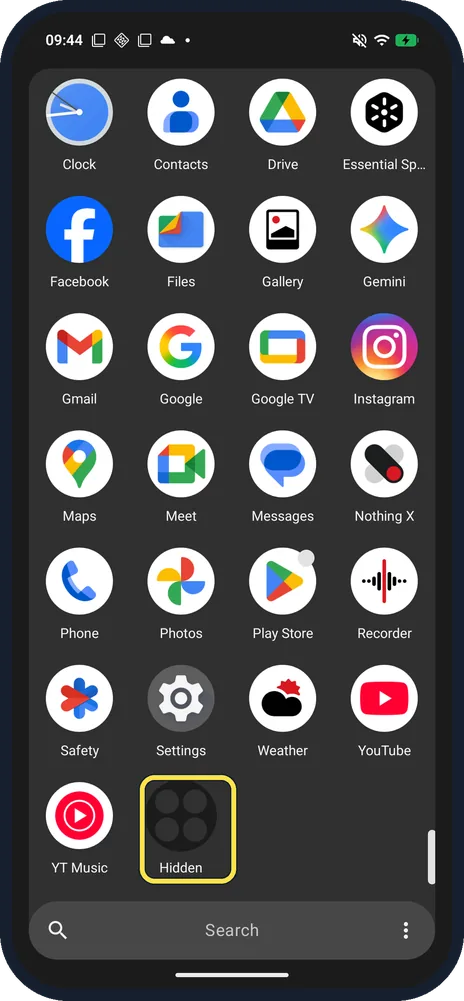
Find the Hidden folder
Scroll to the bottom of the drawer. The app is gone from its place and a Hidden folder has appeared.
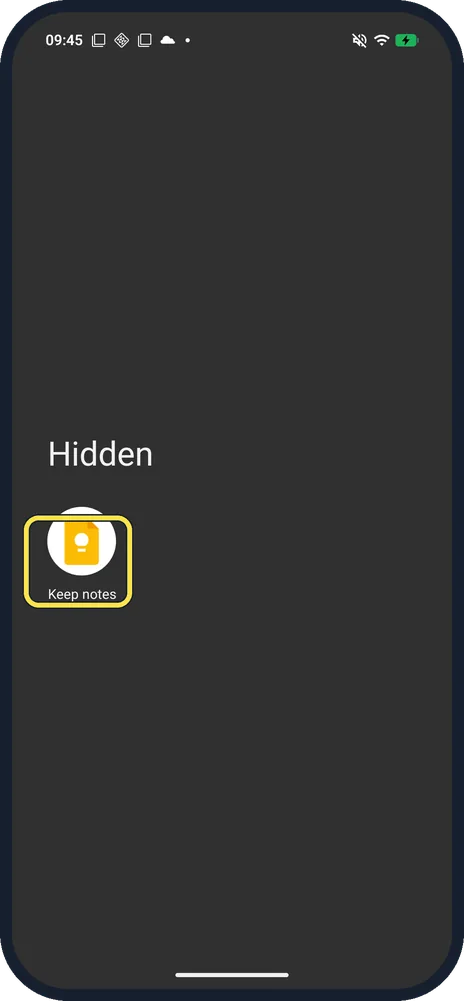
Open Hidden to use the app
Tap the folder. Keep notes was inside; tap an app there to open it.
If you do not see this option
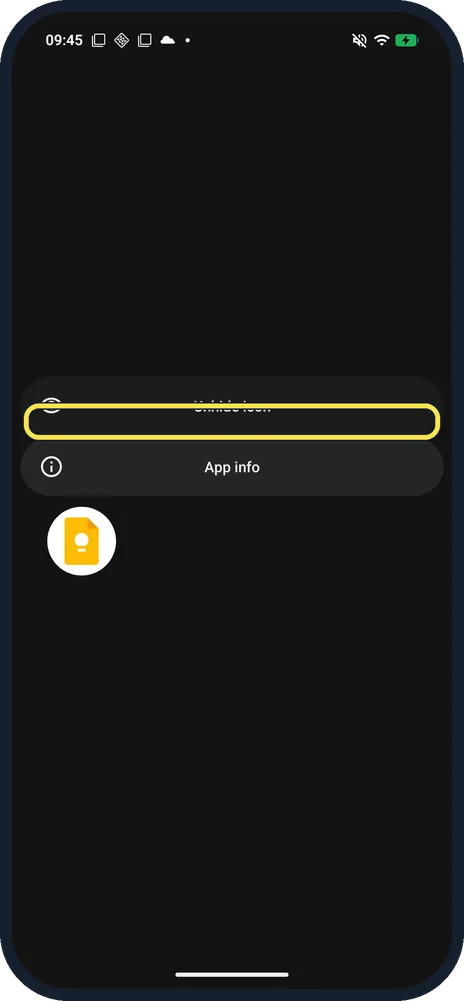
- Want it back? Open the Hidden folder, touch and hold the app and tap Unhide icon. Ours went back to its alphabetical place.
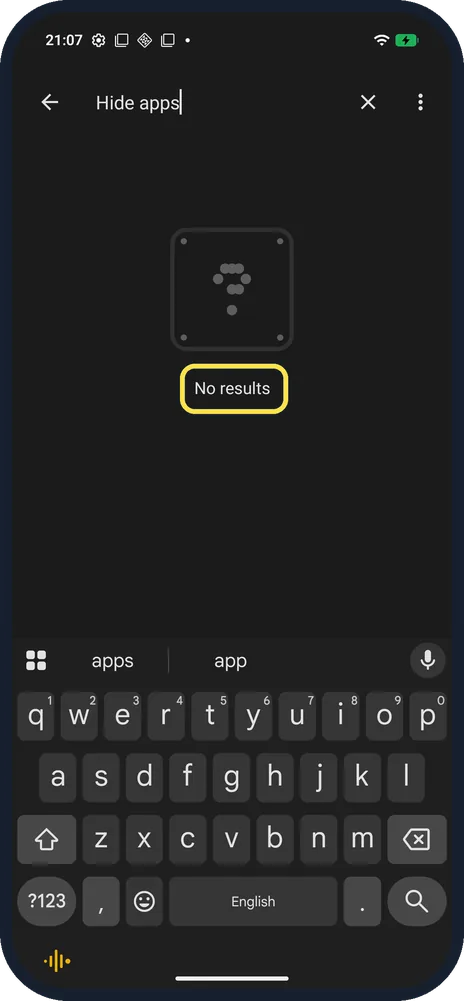
- Looked in Settings? A Settings search for Hide apps found no results on ours: hiding is done in the app drawer.
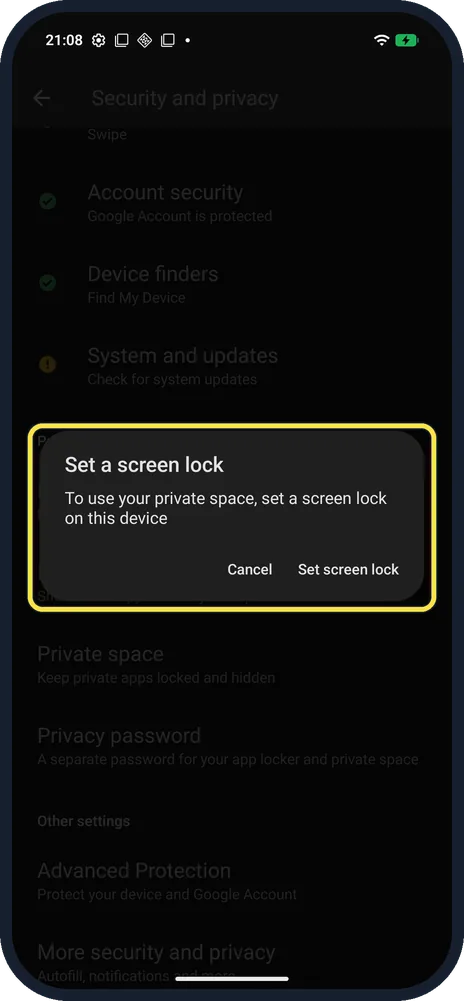
- Hide apps behind a lock? Use Private space: Settings, Security and privacy, Private space. Nothing says apps there don't appear in the regular app list, recent apps or notifications. Ours had no screen lock, so it stopped at Set a screen lock. Source: What is Private Space?
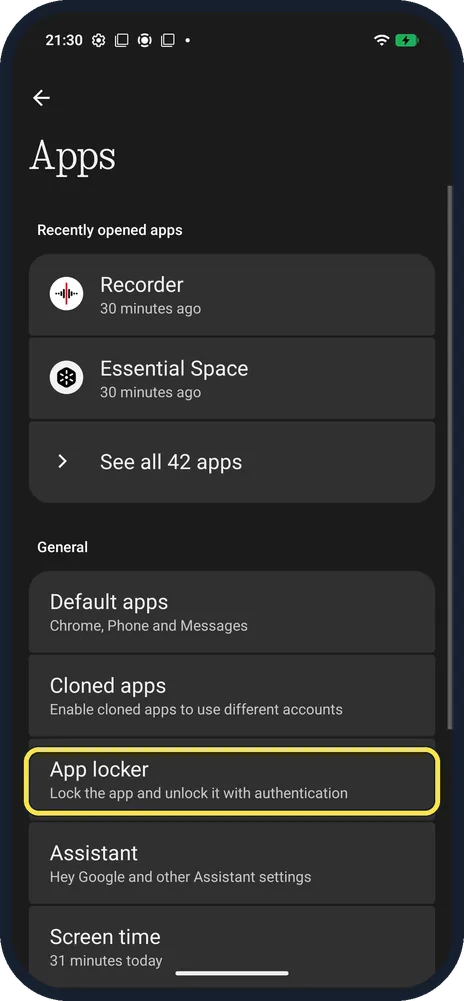
- Just lock an app? Settings, Apps, App locker: lock the app and unlock it with authentication. Privacy password (Settings, Security and privacy) sets a separate password for the app locker and private space. Source: What is Privacy password?
- Where is Private Space after setup? Nothing says swipe right in the app drawer to open it (left in some languages), and tap Add under Private apps to move an app in. Sources: How do I hide app icons on Phone?, What is Private Space?
If this does not work
- Hidden app still easy to find? Hide icon only moves it into the Hidden folder, and the note says it stays visible in Settings. For privacy, use Private space. Source: What is Private Space?
- No screen lock yet? Nothing says Settings, Security & privacy, Device unlock, Screen lock: choose Pattern, PIN or Password. Source: How do I set my lock screen password?
About this guide
The screenshots are from our Nothing Phone (4a) Pro, the European model A069P, with Nothing OS 4.1 and Android 16 (build FroggerPro-B4.1-260907-1153-EEA, security update 1 September 2026), in Dark theme. We hid Keep notes for the screenshots and unhid it afterwards. The Settings search and Private space pictures are from the earlier build 260424.
Good to know
To sort the drawer instead, see Smart App Drawer.
In short: App drawer, hold the app, crossed-out eye, OK: it moves to the Hidden folder. For a lock, use Private space.
- Nothing Support: What is Privacy password?
- Nothing Support: How do I hide app icons on Phone?
- Nothing Support: What is Private Space?
- Nothing Support: How do I set my lock screen password?
Links checked in October 2026. Menus and features can change after software updates. These steps match the version named at the top.
Did this guide work for you?
Sorry about that. What happened?