GOOGLE PIXEL
How to use the privacy dashboard on a Google Pixel (Android 17)

In short
Open Settings, tap Security and privacy, then Privacy dashboard under the Privacy heading. It shows which apps used Location, Camera and Microphone in the past 24 hours. Tap Location to see a timeline of when each app used it.
5 of 5 steps show a real screenshot from our Pixel 10a. Each step was checked against the maker's own instructions, linked at the end.
Steps
- 1
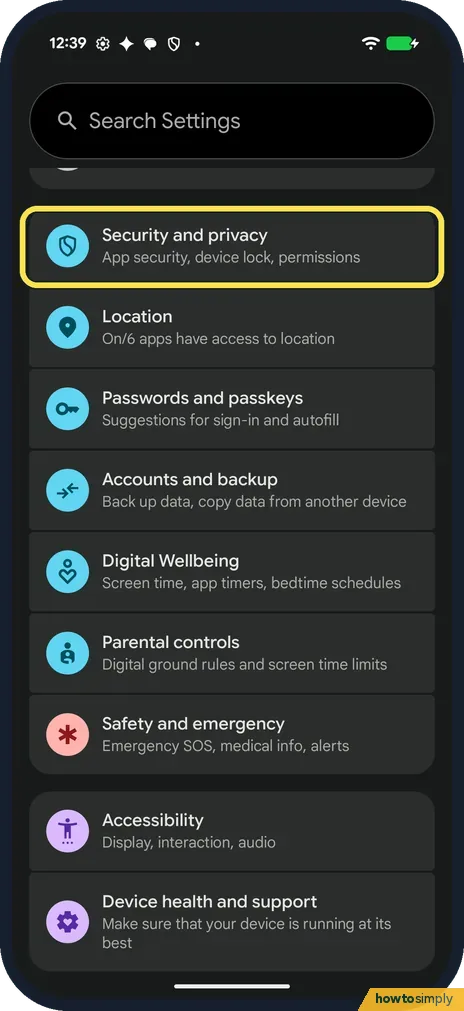
Open Security and privacy
Open Settings and tap Security and privacy: App security, device lock, permissions.
- 2
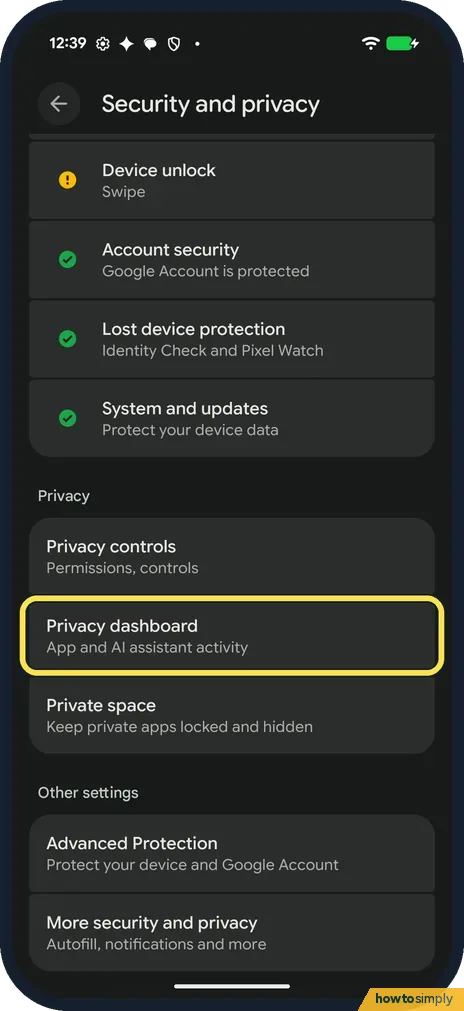
Tap Privacy dashboard
Scroll down to the Privacy heading. Privacy dashboard is the second row, below Privacy controls. Tap it.
- 3
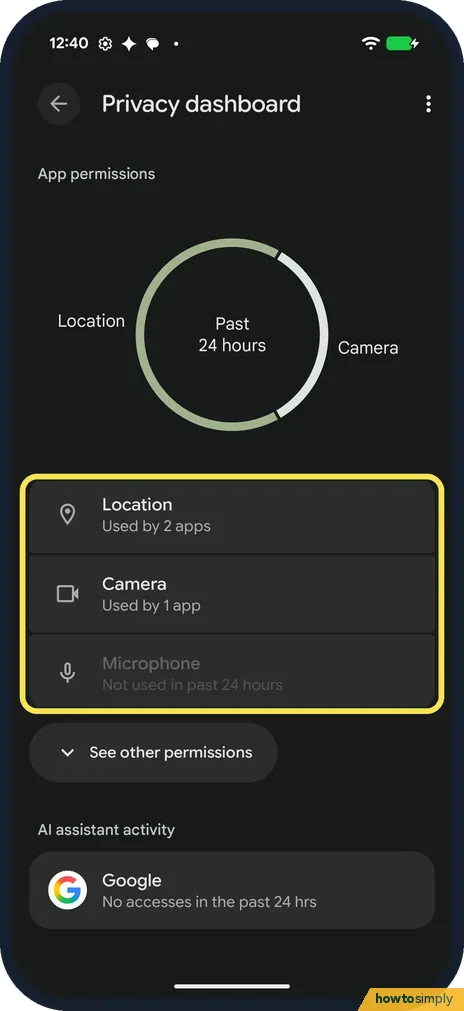
Check the past 24 hours
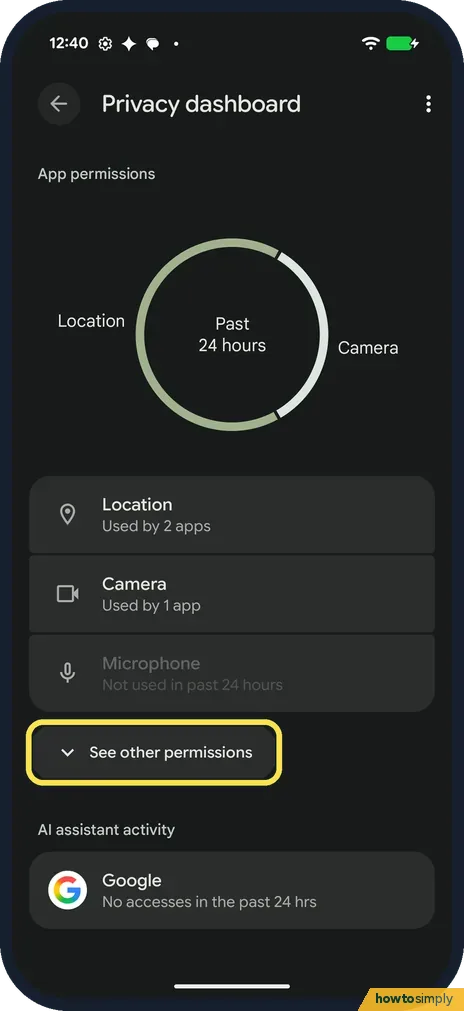
A ring at the top says Past 24 hours. Below it, ours showed Location: Used by 2 apps, Camera: Used by 1 app, and Microphone: Not used in past 24 hours, in grey.
- 4
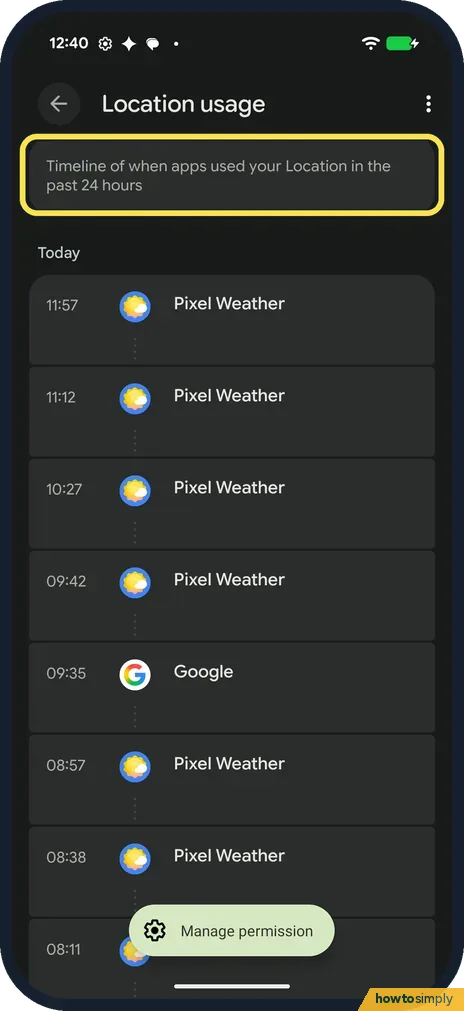
Tap Location for the timeline
Tap Location. The Location usage page is a timeline of when apps used your Location in the past 24 hours. Ours listed Pixel Weather seven times between 08:11 and 11:57, and Google at 09:35. A Manage permission button floats at the bottom; we did not tap it.
- 5
See other permissions
Go back to the dashboard. Below Microphone, See other permissions opens the rest of the list. We did not open it. Google says to select a permission to find the apps that used it.
If you do not see this option
- Looking under Privacy controls? On ours Privacy dashboard is its own row on the Security and privacy page, under the Privacy heading, just below Privacy controls. Google says that if you don't see it, you may need to tap Privacy again. Source: Manage permissions from the privacy dashboard
- Only 24 hours? Google says the dashboard covers the last 7 days on Android 13 and 24 hours on Android 12. Ours, with Android 17, said Past 24 hours. Source: Manage permissions from the privacy dashboard
- Microphone row greyed out? On ours Microphone was grey and said Not used in past 24 hours. Location and Camera, which apps had used, were not.
- Want the full list by permission? Google says Permission manager, under Security and privacy, then Privacy, lets you check apps by permission type, such as Contacts or Calendar, not only the last 24 hours. Source: Change app permissions on your Android phone
If this does not work
- Want to stop an app using a permission? Google says to tap the permission, then one of the apps listed, to update it. Or go app by app: change app permissions on a Pixel.
- Want to block the camera for every app? The dashboard only shows use. The Camera access switch is under Privacy controls: turn off camera and microphone access.
- Device may be at risk at the top? Our Security and privacy page showed it, with Set a screen lock, because ours had only a swipe to unlock. It did not stop the dashboard from opening.
- An app you never open uses a permission? Google describes a Pause app activity if unused setting, under Unused app settings, that removes permissions from apps you have not used for a while.
Good to know
Turn location off, or see which apps have it: change location settings on a Pixel. Block the camera or mic for all apps: turn off camera and microphone access.
On a Xiaomi phone the dashboard is there too, but harder to find: open the privacy dashboard on a Xiaomi phone.
The dashboard only reports; opening it changes nothing. For apps that need a permission now and then, Google says Allow only while using the app limits it to the times you are actively using that app, which is often a good middle ground.
About this guide
- Device
- Android
- Shown on
- Google Pixel 10a, Android 17 (build CP3A.261005.005)
- App
- Settings
- Path
- Settings › Security and privacy › Privacy dashboard
- Real screenshots
- 5 of 5 steps
- What we did
- Observed: looked at each screen, changed nothing
- Checked
- October 2026
- Sources
- 1 official, linked below
Sources
Links checked October 2026. Menus and features can change with updates.Spotted a mistake? Menus change with updates, and we want every step to match your screen. Email us about this page or use the contact form. We read every report, and fixes are listed on What changed.
Liked this guide?
Follow us for new guides and short how-to videos.
Did this guide work for you?
Sorry about that. What happened?