GOOGLE PIXEL
How to change location settings on a Google Pixel (Android 17)

In short
Open Settings, Location. Use location turns it on or off for the whole phone. Recent access shows which apps used it, App location permissions shows which apps may, and Location Services has Location Accuracy and Wi-Fi and Bluetooth scanning.
8 of 8 steps show a real screenshot from our Pixel 10a. Each step was checked against the maker's own instructions, linked at the end.
Steps
- 1
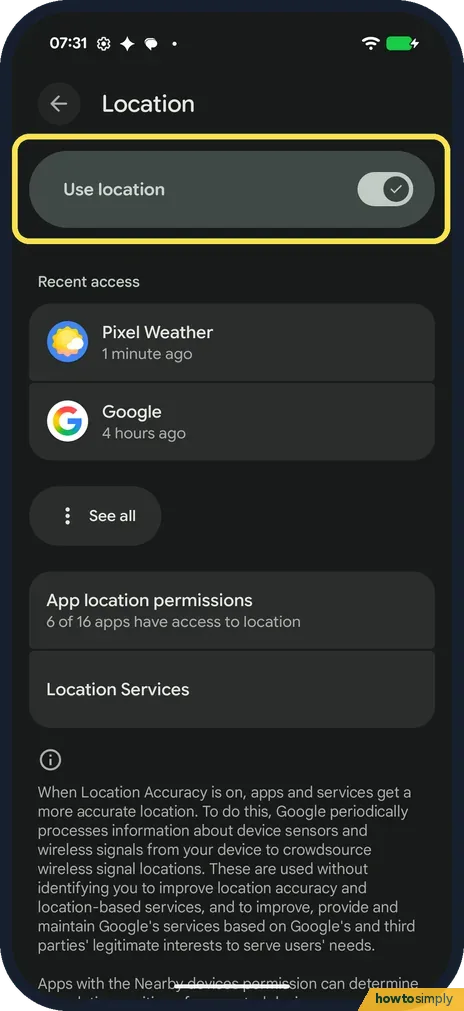
Open Location
Open Settings and tap Location. Use location is at the top. Ours was on. Google says that when it is off, your location isn't shared with any apps.
- 2
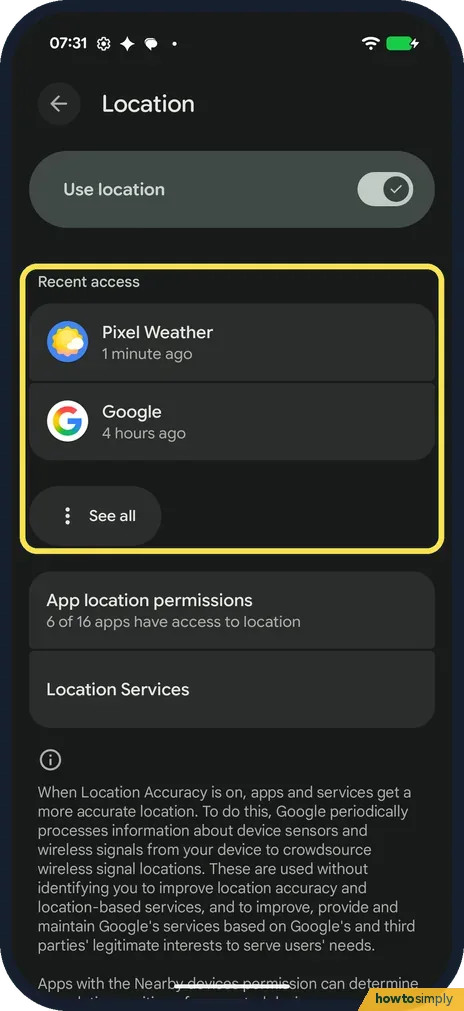
Check Recent access
Recent access lists the apps that used your location lately. Ours showed Pixel Weather, 1 minute ago, and Google, 4 hours ago. See all shows the rest.
- 3
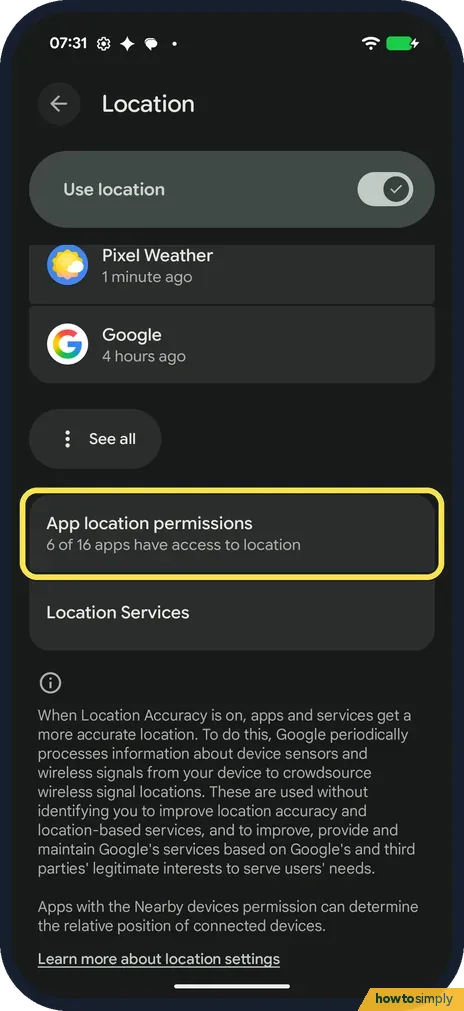
Open App location permissions
Scroll down and tap App location permissions. Ours said 6 of 16 apps have access to location.
- 4
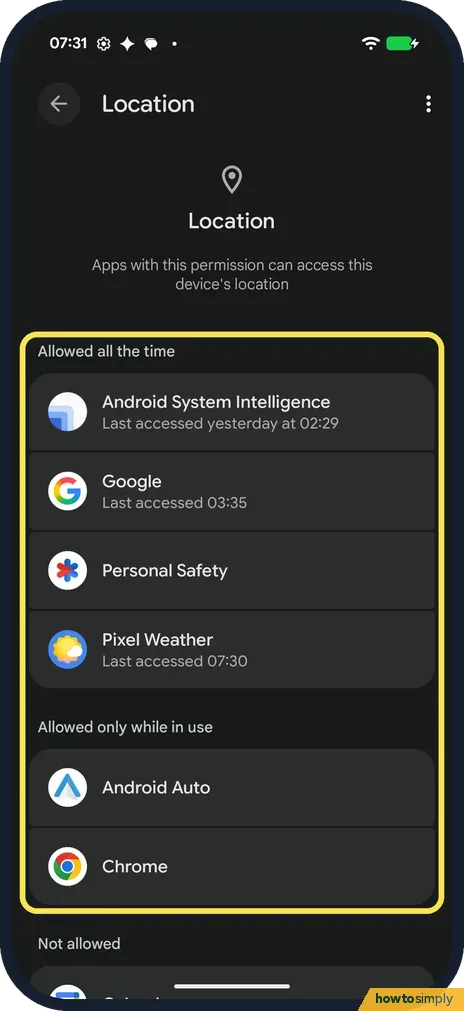
See which apps have it
Apps are sorted into Allowed all the time, Allowed only while in use and Not allowed. Ours had Android System Intelligence, Google, Personal Safety and Pixel Weather all the time, and Android Auto and Chrome while in use. Tap an app to change it.
- 5
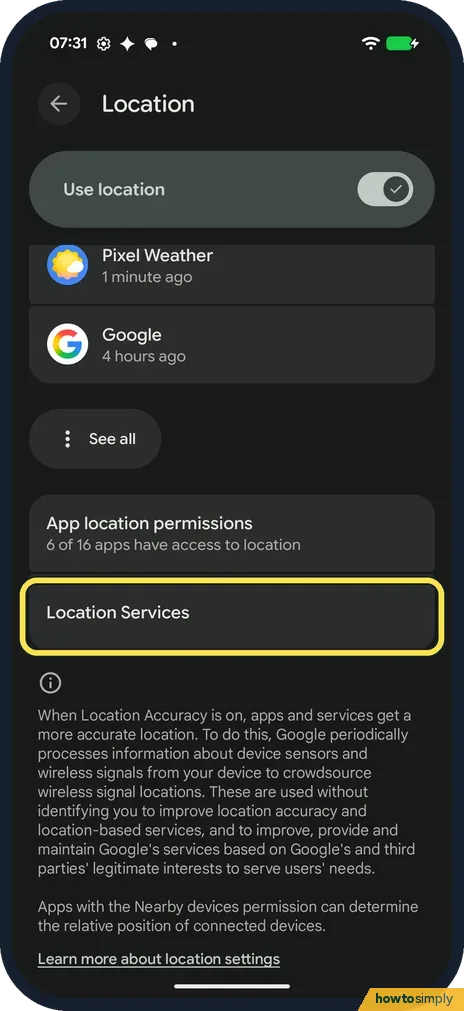
Open Location Services
Back on Location, tap Location Services.
- 6
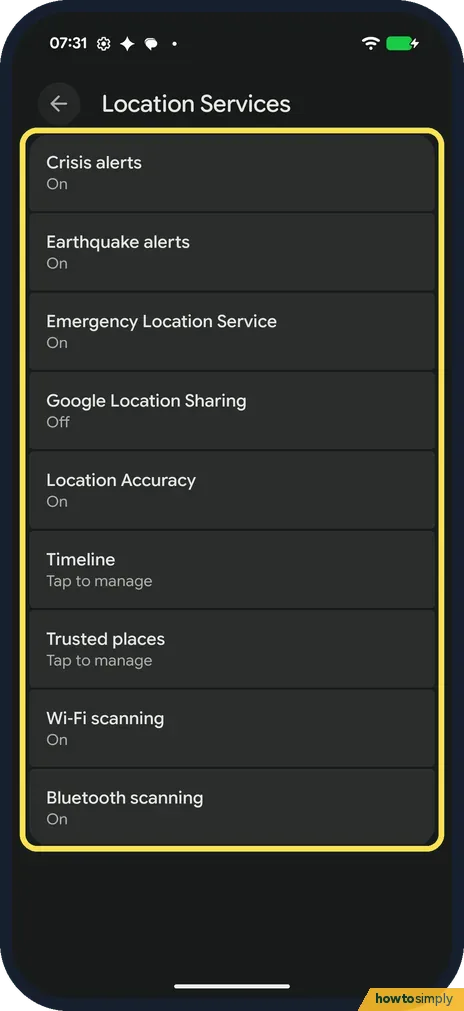
Check the services
Ours listed Crisis alerts, Earthquake alerts, Emergency Location Service, Google Location Sharing (Off), Location Accuracy, Timeline, Trusted places, Wi-Fi scanning and Bluetooth scanning. Everything with a switch was On except Google Location Sharing.
- 7
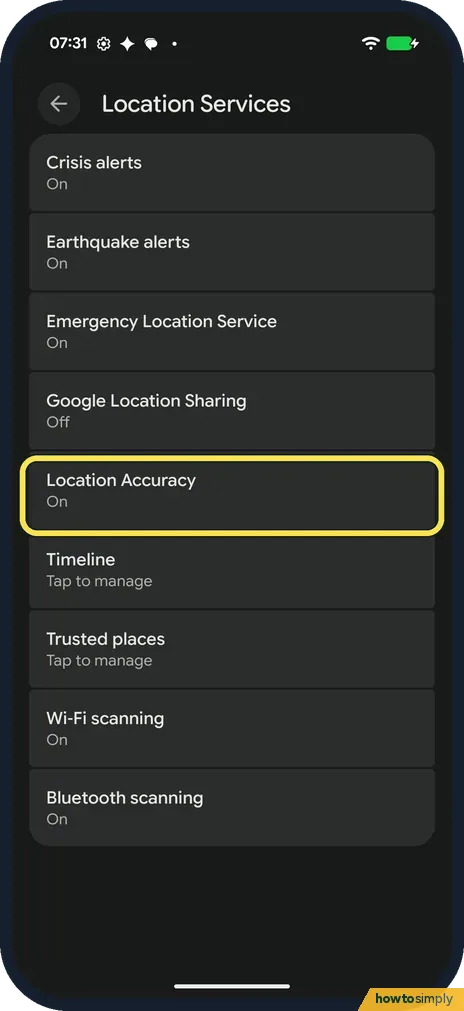
Location Accuracy
The Location page says that when Location Accuracy is on, apps and services get a more accurate location, using device sensors and wireless signals. Ours was on.
- 8
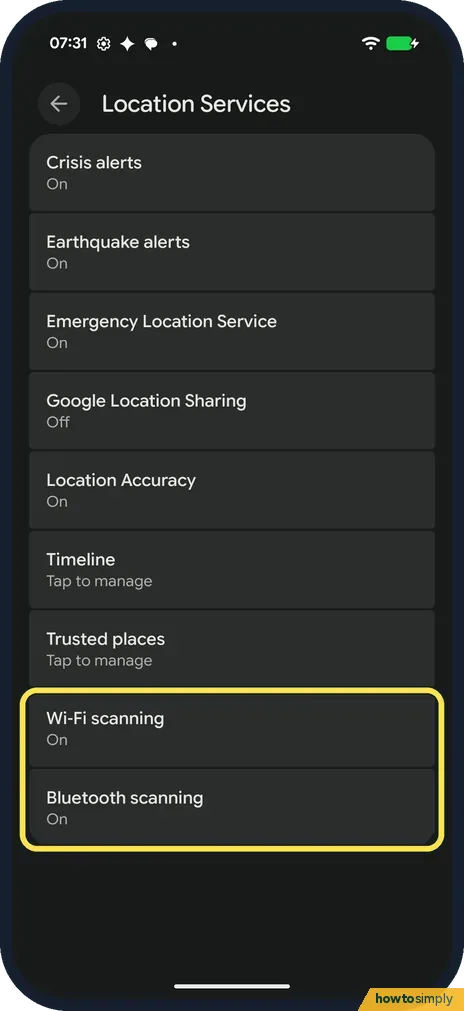
Wi-Fi and Bluetooth scanning
Google says these let the phone scan for nearby Wi-Fi access points or Bluetooth devices to help apps get better location info. Both were on on ours.
If you do not see this option
- Want precise or approximate location? Google says that on Android 12 and higher you can manage each app's precise location permission separately. We didn't open an app's page to check. Source: Manage your Android device's location settings
- Want a Quick Settings tile? Google says you can add Location to Quick Settings. Source: Manage your Android device's location settings
If this does not work
- Maps shows you in the wrong place? Check that Use location and Location Accuracy are on, then see Google Maps showing the wrong location.
- An app keeps asking for location? Tap the app under App location permissions and pick a choice. The same choices are in Permission manager: how to change app permissions on a Google Pixel.
- Location poor indoors? Google says Location Accuracy adds Wi-Fi and mobile networks to GPS and sensors, which matters most indoors or when GPS satellites are blocked. Check it is on.
- Earthquake alerts or the time zone stopped working? Google lists earthquake alerts and location-based time zones among the features that stop when location is off. Turn Use location back on if you rely on them.
Good to know
Camera, microphone and the rest are in Permission manager: how to change app permissions.
Turning Use location off does not block emergency help: Google says emergency location services or your mobile operator can still send your location automatically. Google Maps location sharing stops, finding a lost device may not work, and Timeline does not save the places you visit, even if it is on. Turning location back on restores everything; app permissions you set stay as they were. See also how to check Find Hub is on.
About this guide
- Device
- Android
- Shown on
- Google Pixel 10a, Android 17 (build CP3A.261005.005)
- App
- Settings
- Path
- Settings › Location: Use location › Recent access › App location permissions › Location Services
- Real screenshots
- 8 of 8 steps
- What we did
- Observed: looked at each screen, changed nothing
- Checked
- October 2026
- Sources
- 2 official, linked below
Sources
Links checked October 2026. Menus and features can change with updates.Spotted a mistake? Menus change with updates, and we want every step to match your screen. Email us about this page or use the contact form. We read every report, and fixes are listed on What changed.
Liked this guide?
Follow us for new guides and short how-to videos.
Did this guide work for you?
Sorry about that. What happened?