
howtosimply.com/guides/how-to-check-battery-health-on-a-nothing-phone/ · Checked October 2026 · 4a) Pro (A069P, EEA), Nothing OS 4.1, Android 16 (build FroggerPro-B4.1-260424-1447-EEA · Nothing Phone
In this guide
Open Settings, Battery and tap Battery information at the bottom: Maximum capacity, Cycle count, Production date and First use. Ours: 100 %, 1 cycle, made 2026-01-16, first used 2026-10-06.
4 of 4 steps with real screenshots · 2 official sources below
- Device
- Android
- Shown on
- Nothing Phone (4a) Pro (A069P, EEA), Nothing OS 4.1, Android 16 (build FroggerPro-B4.1-260424-1447-EEA)
- App
- Settings
- Path
- Settings › Battery › Battery information
- Real screenshots
- 4 of 4 steps
- Checked
- October 2026
- Sources
- 2 official, linked below
Step by step
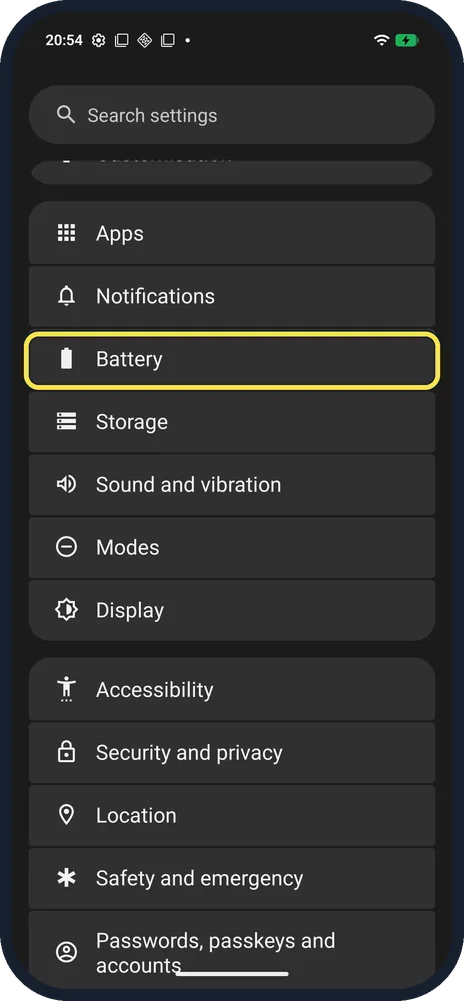
Open Battery
Open Settings and tap Battery.
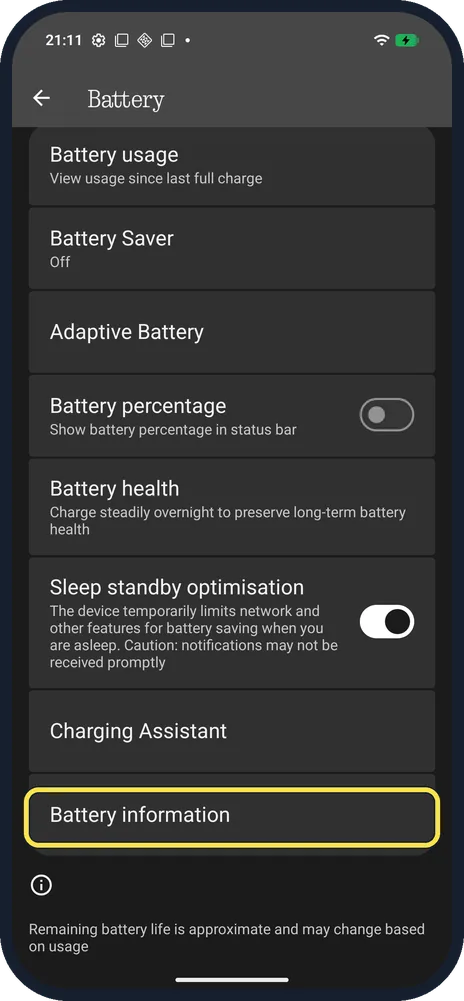
Tap Battery information
Scroll down; it is the last row.
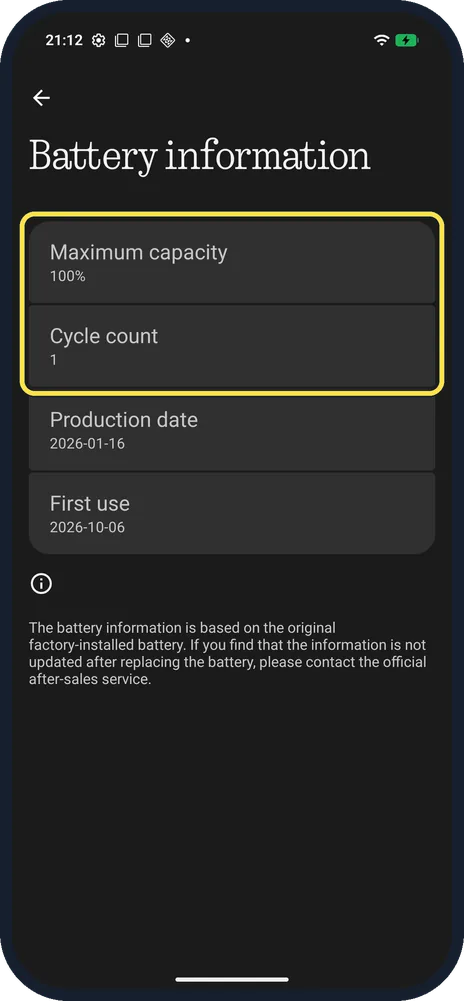
Read capacity and cycle count
Ours said Maximum capacity 100% and Cycle count 1.
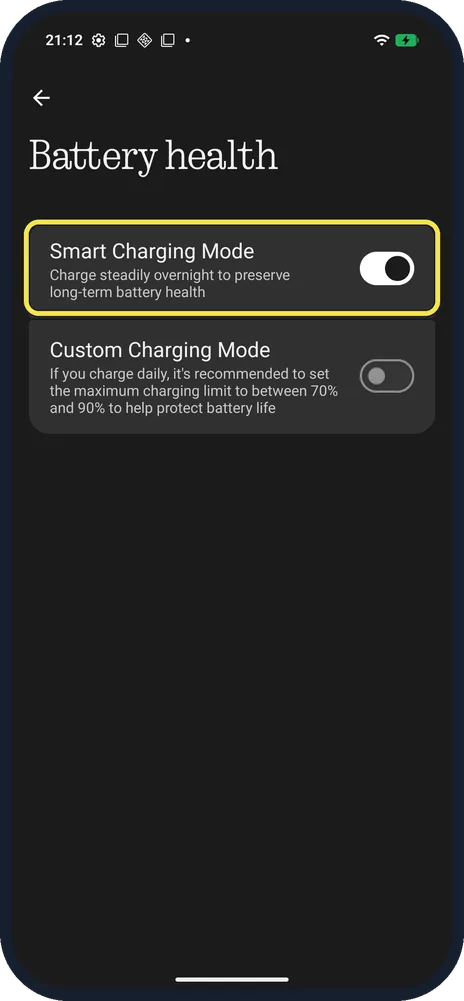
Leave Smart Charging Mode on
Back on Battery, tap Battery health. Smart Charging Mode charges steadily overnight to preserve long-term battery health. It was on in ours.
If you do not see this option
- Capacity not under Battery health? On ours, Battery health only holds the charging modes. Maximum capacity and Cycle count are under Battery information, the last row of the Battery page, so scroll down.
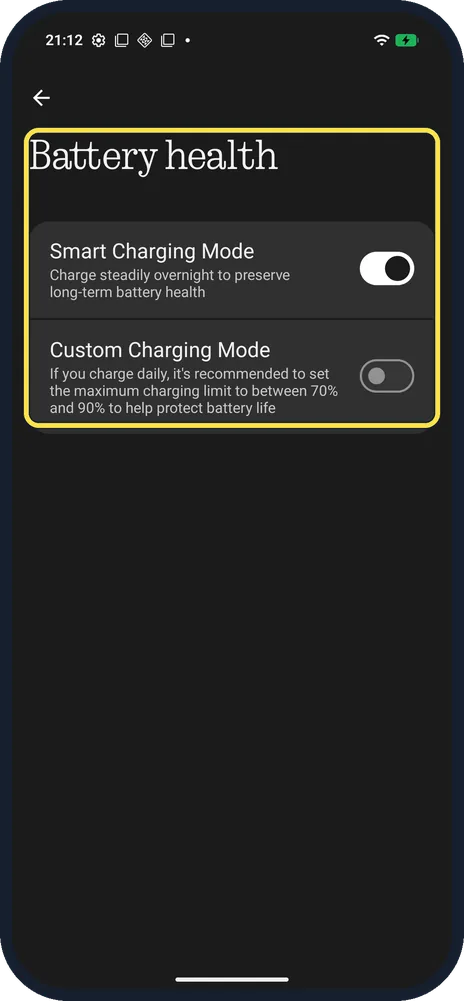
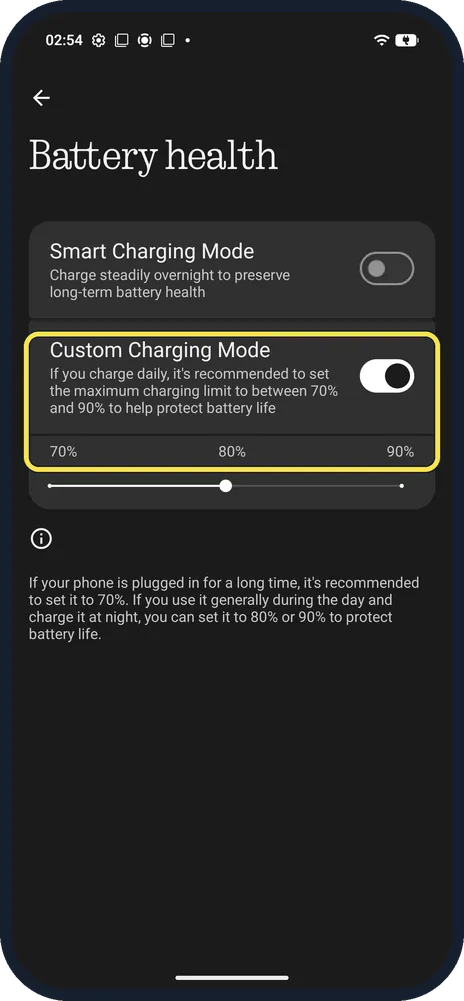
- Want a charging limit? It is not on the main Battery page: open Battery health. Custom Charging Mode showed a 70% / 80% / 90% slider on ours, set to 80%, and turning it on switched Smart Charging Mode off. The page recommends 70% if the phone stays plugged in for a long time. We set both back as they were.
If this does not work
- Charging slowly? Nothing says other chargers may be treated as non-standard and limited. Use the official adapter and cable, avoid using the phone while charging, and restart it. Source: What do I do if charging is slow or doesn't fully charge?
- Replaced the battery and numbers didn't change? The page says the information is based on the original factory-installed battery; contact official after-sales service.
- Charging speed changes with the weather? Nothing says low and high temperatures both slow charging and recommends 20°C to 30°C. Source: At which temperature does the Phone charge best?
- Want tips on the phone? Charging Assistant on the Battery page lists tips and can show a notification when charging doesn't reach the fastest speed.
About this guide
Nothing OS 4.1 shows battery capacity and cycles, which is useful when buying a used phone.
The screenshots are from our Nothing Phone (4a) Pro, the European model A069P, with Nothing OS 4.1 and Android 16 (build FroggerPro-B4.1-260424-1447-EEA), in Dark theme.
Good to know
To show the percentage at the top, see show battery percentage.
In short: Settings, Battery, Battery information.
- Nothing Support: What do I do if charging is slow or doesn't fully charge?
- Nothing Support: At which temperature does the Phone charge best?
Links checked in October 2026. Menus and features can change after software updates. These steps match the version named at the top.
Did this guide work for you?
Sorry about that. What happened?