GOOGLE PIXEL
How to scan a QR code on a Google Pixel (Android 17)
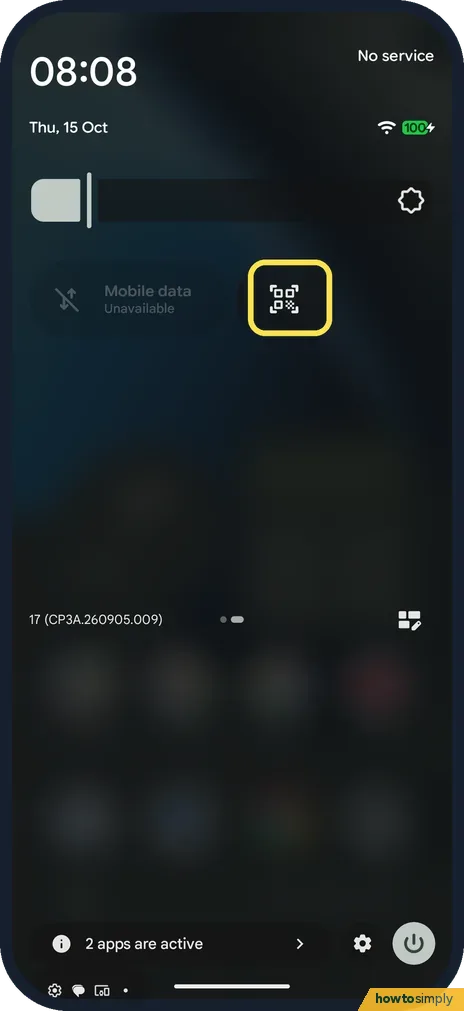
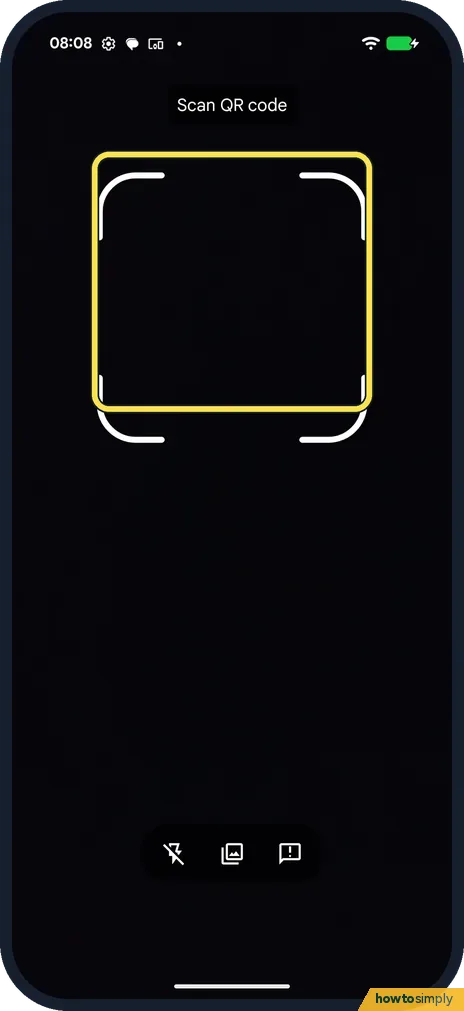
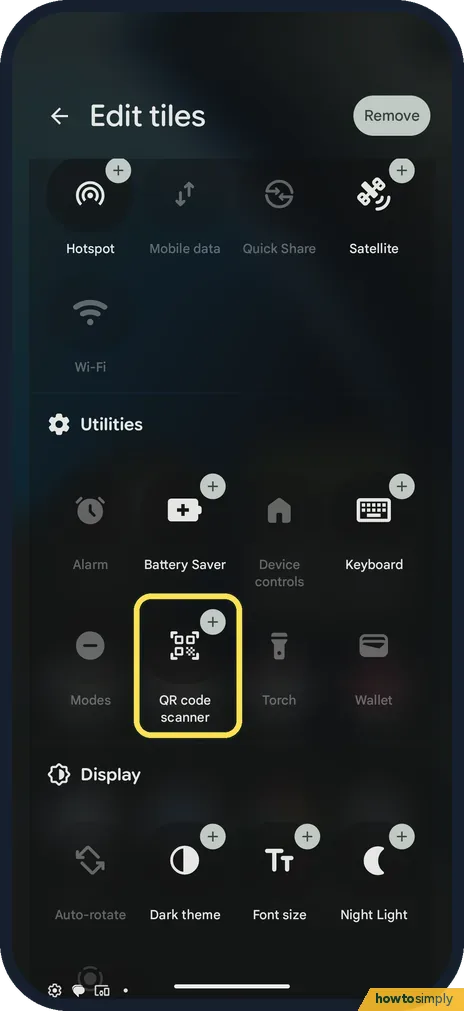
Swipe down twice from the top and tap the QR code scanner tile. Point the phone at the code inside the frame. If the tile isn't there, add it in Edit tiles, under Utilities.

3 of 3 steps show a real screenshot from our Pixel 10a. Each step was checked against the maker's own instructions, linked at the end.
Steps
- 1
Find the scanner tile
Swipe down twice from the top and swipe to the next page if needed. Tap the QR code scanner tile.
- 2
Point at the code
Scan QR code opens. Hold the code inside the frame. The buttons at the bottom turn on the torch, pick a picture and give feedback.
- 3
No tile? Add it
Open Edit tiles (the edit button in Quick Settings). Under Utilities, tap + on QR code scanner.
If you do not see this option
- Tile not on the first page? Google says it may be on another page of Quick Settings, or you may need to add it. Source: Scan QR codes on your Pixel phone
- Prefer the Camera app? Google says the Camera app can scan codes too when Camera scan suggestions is on. Source: Scan QR codes on your Pixel phone
If this does not work
- Code is on a picture? Use the picture button at the bottom of the scanner.
- Too dark to scan? Turn on the torch with the button at the bottom left.
- Scanner sees the code but nothing happens? Google's tips: hold the phone steady so the code isn't blurry, and keep the whole square on screen. Move closer if it is small, but don't cut off the corners.
- Glare on a shiny menu or screen? Google suggests scanning in a well-lit area and avoiding shadows and glare on the code. Tilt the phone slightly so the reflection moves off the square.
- Picture looks hazy? A smudged lens is a common cause. Google says to wipe it with a soft cloth, then try again.
- Camera does not react to the code? Google says to check that Camera scan suggestions is on in the Camera's settings, under More settings. You don't need to take a picture: wait a moment for a bubble or link, then tap it.
Good to know
Arrange your tiles: how to edit Quick Settings tiles.
Google says a QR code can open a website, show a restaurant menu or connect you to a Wi-Fi network. Scanning does not change any setting on its own: you decide what to do with the result. The scanner only uses the camera while it is open, so it has no lasting effect on battery or privacy.
Codes are also a quick way to share a network with a guest. To show a code for your own Wi-Fi, see how to share a Wi-Fi password on a Google Pixel.
About this guide
- Device
- Android
- Shown on
- Google Pixel 10a, Android 17 (build CP3A.260905.009)
- App
- Quick Settings
- Path
- Quick Settings › QR code scanner
- Real screenshots
- 3 of 3 steps
- Checked
- October 2026
- Sources
- 1 official, linked below
Sources
Links checked October 2026. Menus and features can change with updates.Spotted a mistake? Menus change with updates, and we want every step to match your screen. Email us about this page or use the contact form. We read every report, and fixes are listed on What changed.
Liked this guide?
Follow us for new guides and short how-to videos.
Did this guide work for you?
Sorry about that. What happened?