
howtosimply.com/guides/how-to-reset-or-delete-the-advertising-id-on-a-samsung-galaxy/ · Checked October 2026 · Samsung Galaxy A57 5G (SM-A576B), One UI 8.5, Android 16
In this guide
Open Settings, Security and privacy, More privacy settings and tap Ads. Reset advertising ID gives apps a new ID from now on; Delete advertising ID removes it, so apps can no longer use it to show you personalised ads.
5 of 5 steps with real screenshots · 1 official source below
- Device
- Android
- Shown on
- Samsung Galaxy A57 5G (SM-A576B), One UI 8.5, Android 16
- App
- Settings
- Path
- Settings › Security and privacy › More privacy settings
- Real screenshots
- 5 of 5 steps
- What we did
- Observed: looked at each screen, changed nothing
- Checked
- October 2026
- Sources
- 1 official, linked below
Step by step
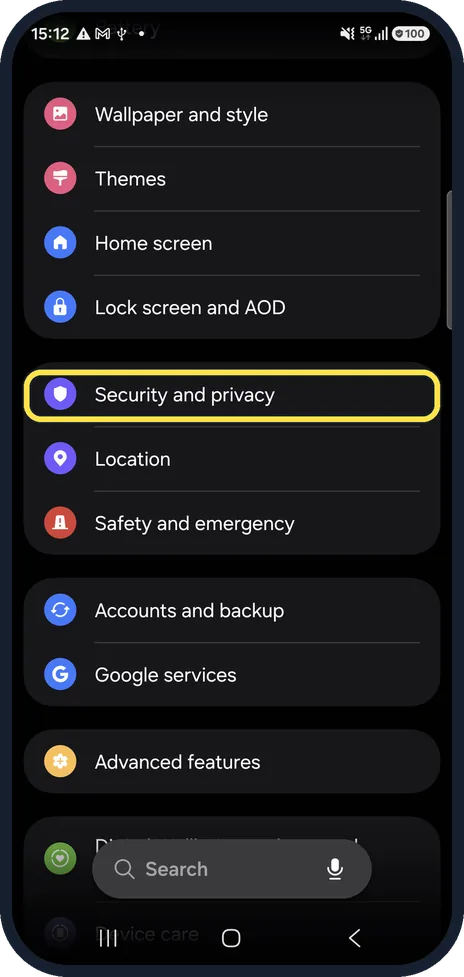
Open Security and privacy
Open Settings and tap Security and privacy.
Watch these steps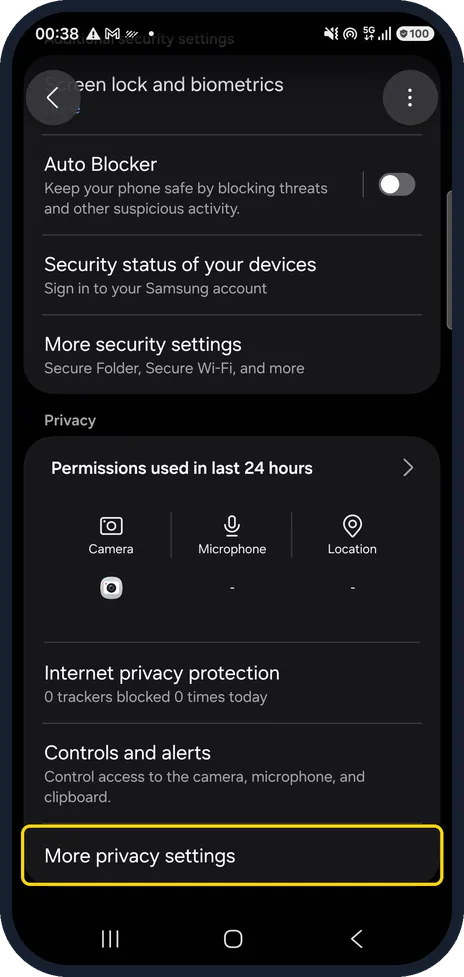
Tap More privacy settings
Scroll down and tap More privacy settings.
On our Galaxy it is the last row in the Privacy section, below Controls and alerts.
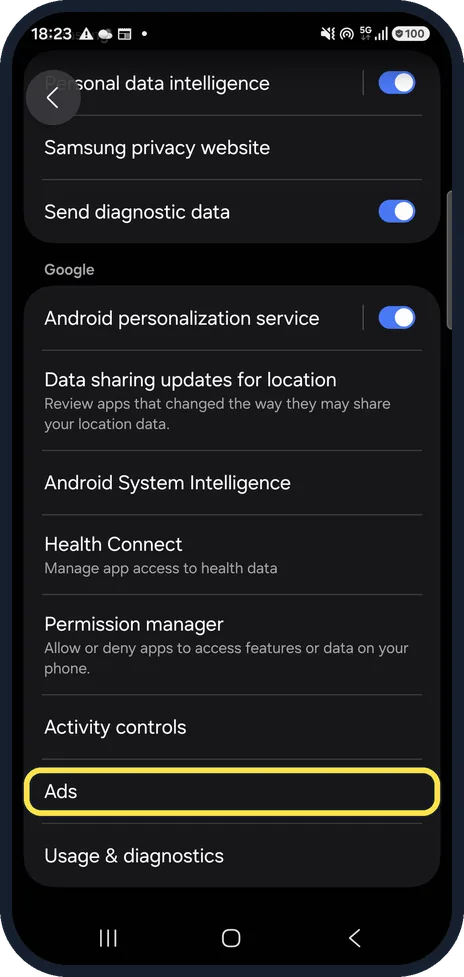
Tap Ads
Scroll down to the Google heading and tap Ads.
On our Galaxy, Ads sits between Activity controls and Usage & diagnostics.
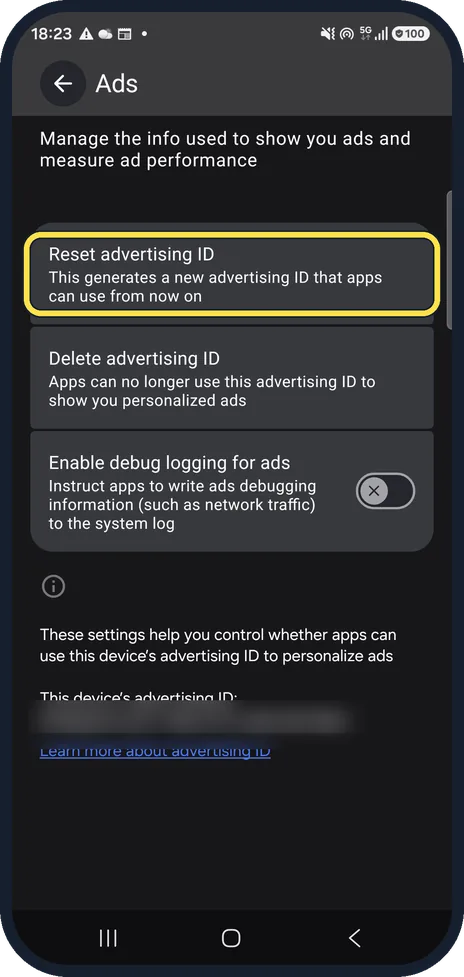
Reset the ID
Tap Reset advertising ID. The screen says this generates a new advertising ID that apps can use from now on.
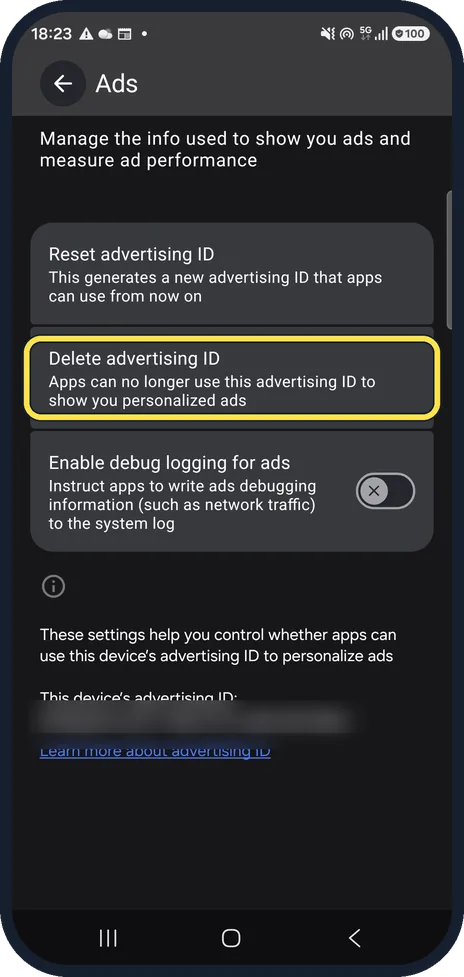
Or delete the ID
Tap Delete advertising ID instead. Apps can then no longer use this ID to show you personalised ads.
Google's Play Console Help says apps that ask for a deleted ID get a string of zeros.
Watch these steps
If you do not see this option
- More privacy settings is not on the first screen On our Galaxy it is the last row of Security and privacy, under the Privacy heading below Controls and alerts. Scroll right down.
- Ads is not near the top Ads is under the Google heading on More privacy settings, below Samsung's own options such as Send diagnostic data. On our Galaxy it is just above Usage & diagnostics. Source: Advertising ID
If this does not work
- Apps still show ads Deleting or resetting the ID only stops apps using the old ID for personalised ads. Ads still appear.
- You are unsure what reset did Reset advertising ID does not turn tracking off; the Ads screen says it generates a new advertising ID that apps can use from now on. Use Delete advertising ID if you want apps to stop using it.
- You changed the debug option by mistake Enable debug logging for ads is a separate switch on the Ads screen and has nothing to do with resetting or deleting. On our Galaxy it was off; tap it again to switch it back off.
About this guide
Apps use the advertising ID to link what you do across apps for personalised ads. Resetting it breaks that link; deleting it stops apps using it at all.
The screenshots are from a Samsung Galaxy A57 with One UI 8.5 in dark mode. On older One UI versions a few names and positions may differ. Our phone's ID is blurred. We only looked at these screens and changed nothing.
Good to know
Samsung's own options are higher on More privacy settings, such as Send diagnostic data.
Deleting the ID does not remove ads. You still see ads, only less personalised ones.
On our Galaxy, the Ads screen lists three options: Reset advertising ID, Delete advertising ID and Enable debug logging for ads, which was switched off.
In short: Settings, Security and privacy, More privacy settings, Ads: Reset advertising ID or Delete advertising ID.
Links checked in October 2026. Back up anything you want to keep before you reset or delete. Menus can change after software updates.
📷 See real photos from the Galaxy A57 in our Camera Lab, next to 10 other phones.
Did this guide work for you?
Sorry about that. What happened?