
howtosimply.com/guides/how-to-turn-on-the-glyph-interface-on-a-nothing-phone/ · Checked October 2026 · 4a) Pro (A069P, EEA), Nothing OS 4.1, Android 16 (build FroggerPro-B4.1-260424-1447-EEA · Nothing Phone
In this guide
Open Settings, tap Glyph Interface and turn on the Glyph Interface switch. The same page sets the light brightness, what lights up (ringtones, notifications, Essential Notifications) and a Bedtime schedule that turns the lights off at night.
4 of 4 steps with real screenshots · 5 official sources below
- Device
- Android
- Shown on
- Nothing Phone (4a) Pro (A069P, EEA), Nothing OS 4.1, Android 16 (build FroggerPro-B4.1-260424-1447-EEA)
- App
- Settings
- Path
- Settings › Glyph Interface
- Real screenshots
- 4 of 4 steps
- Checked
- October 2026
- Sources
- 5 official, linked below
Step by step
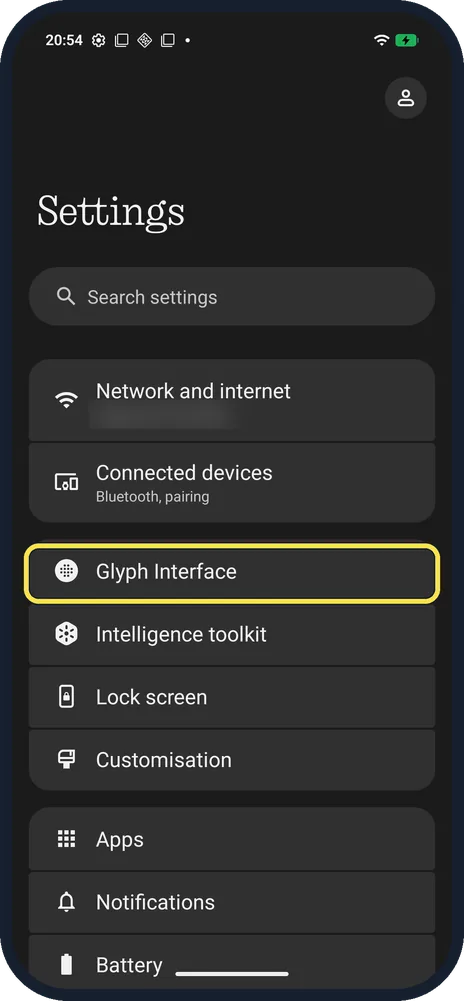
Open Glyph Interface
Open Settings; it is the third row, under Connected devices.
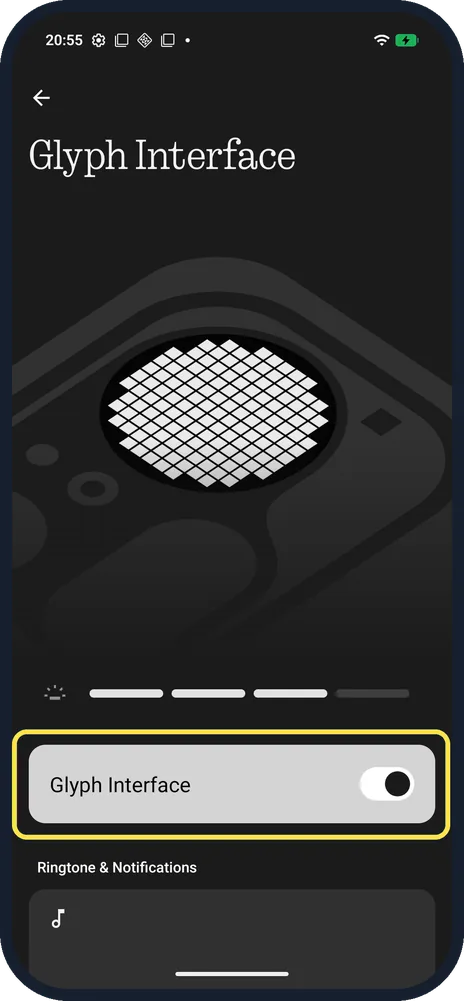
Turn on the Glyph Interface switch
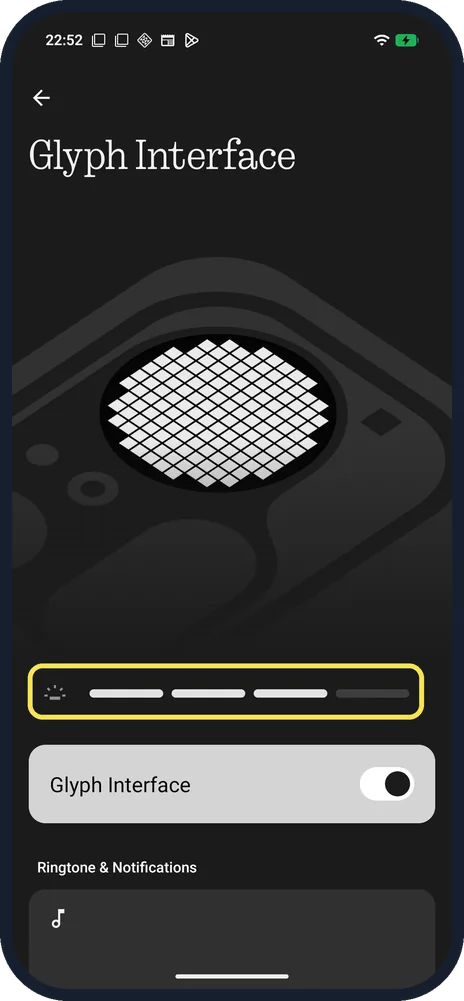
The picture shows the lights; the slider above the switch sets brightness.
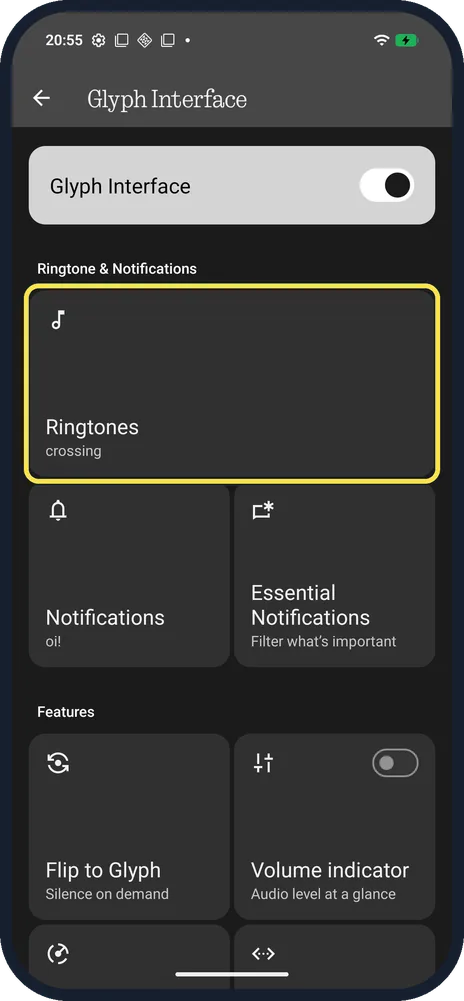
Pick what lights up
Scroll down: Ringtones, Notifications and Essential Notifications each have their own light pattern. Features below include Flip to Glyph, Glyph Timer and Glyph Progress.
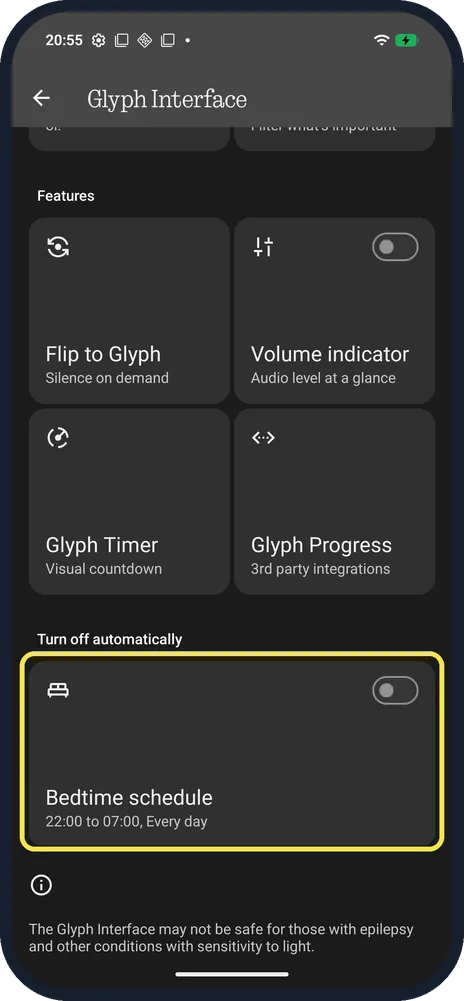
Set a Bedtime schedule
Under Turn off automatically, Bedtime schedule turns the lights off during set hours. Ours was set for 22:00 to 07:00, Every day, with its switch off.
If you do not see this option
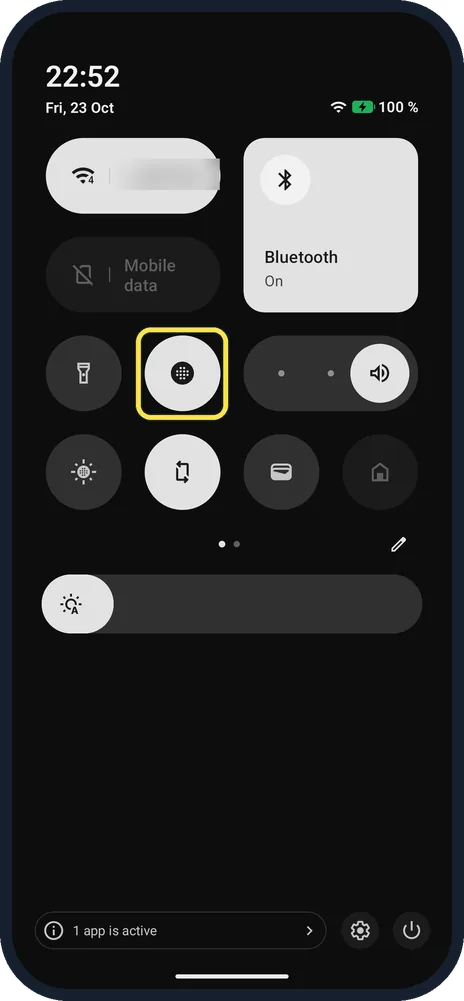
- Faster on and off switch? Nothing says you can also swipe down to Quick Settings and tap Glyphs, or find the Glyph setting in the control centre. On ours the Glyphs tile (dot-grid icon) was on the first page, next to the torch. Source: How do I turn the Glyph Interface on/off? · Source: How do I turn the Glyph light on/off?
- Lights too bright? Nothing says to slide the bar on the Glyph Interface page to adjust brightness. On ours the slider sits just above the main switch. Source: How do I adjust the brightness of the Glyph Interface?
- Sensitive to flashing light? Nothing's note: the Glyph Interface may not be safe for people with epilepsy or other light-sensitive conditions. Leave it off if that applies. Source: What is the Glyph Interface?
If this does not work
- Lights don't flash for calls? Check that Bedtime schedule isn't switched on (ours was set for 22:00 to 07:00 but off). Nothing says every preset Nothing ringtone and notification sound has its own Glyph pattern, so pick a Nothing sound. Source: What is the Glyph Interface?
- Phone silent face down? That is Flip to Glyph: with the Glyph side facing up on a flat surface, the phone goes silent and alerts show as light only. See Flip to Glyph. Source: What is the Flip to Glyph feature?
About this guide
The Glyph Interface is the light panel on the back of Nothing phones. On our (4a) Pro it was on, with a Bedtime schedule from 22:00 to 07:00.
The screenshots are from our Nothing Phone (4a) Pro, the European model A069P, with Nothing OS 4.1 and Android 16 (build FroggerPro-B4.1-260424-1447-EEA), in Dark theme. The brightness and Quick Settings pictures were taken later, after the phone updated to build B4.1-260907-1153.
Good to know
Next, pick a light pattern for calls in Glyph ringtones.
For a countdown on the back of the phone, use the Glyph Timer.
In short: Settings, Glyph Interface, switch on; Bedtime schedule at the bottom.
- Nothing Support: How do I turn the Glyph Interface on/off?
- Nothing Support: How do I turn the Glyph light on/off?
- Nothing Support: How do I adjust the brightness of the Glyph Interface?
- Nothing Support: What is the Glyph Interface?
- Nothing Support: What is the Flip to Glyph feature?
Links checked in October 2026. Menus and features can change after software updates. These steps match the version named at the top.
Did this guide work for you?
Sorry about that. What happened?