GOOGLE PIXEL
How to change Gboard keyboard settings on a Google Pixel (Android 17)

In short
Open Settings, System, Keyboard, Keyboard apps and tap Gboard. Preferences has the number row, emoji key, comma and full stop keys. Theme sets the colours. Corrections, Glide typing, Voice typing, Clipboard, Dictionary and Translate are on the same list.
10 of 10 steps show a real screenshot from our Pixel 10a. Each step was checked against the maker's own instructions, linked at the end.
Steps
- 1
Open Keyboard apps
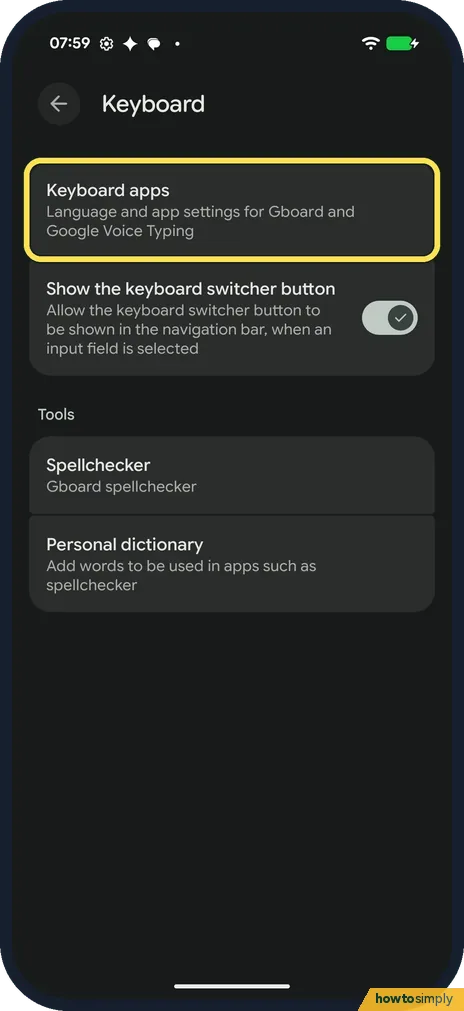
Open Settings, tap System, then Keyboard. Tap Keyboard apps: Language and app settings for Gboard and Google Voice Typing. There was no On-screen keyboard row on ours.
- 2
Tap Gboard
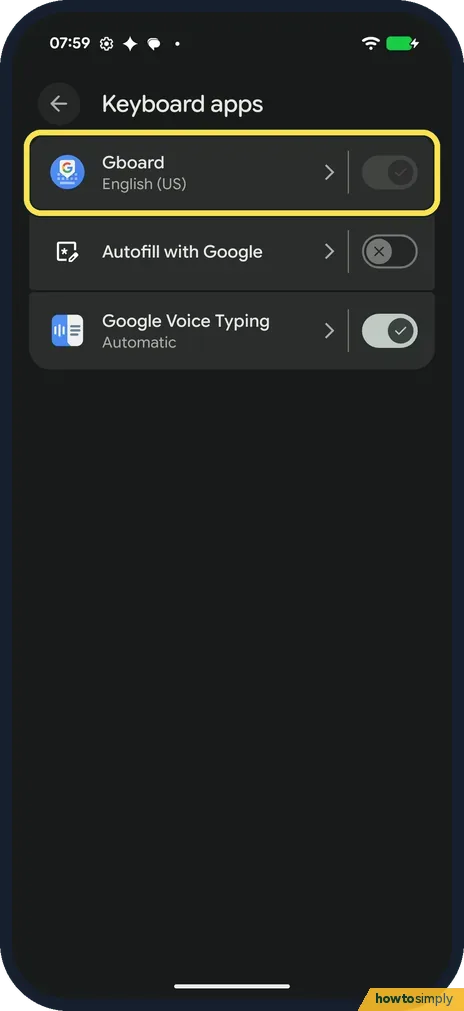
Tap the Gboard name. Ours said English (US); its switch was on but dimmed. Autofill with Google was off and Google Voice Typing on.
- 3
Open Preferences
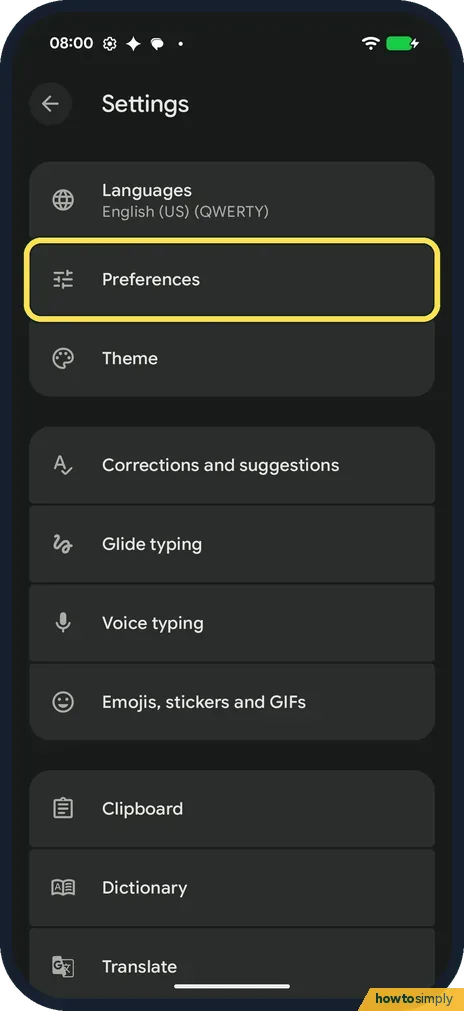
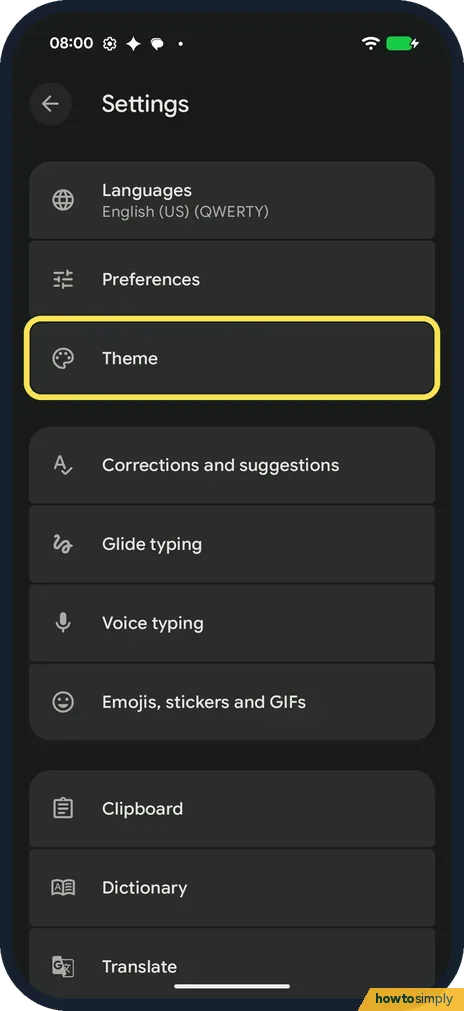
Gboard's Settings list starts with Languages, which was English (US) (QWERTY) on ours, then Preferences and Theme. Tap Preferences.
- 4
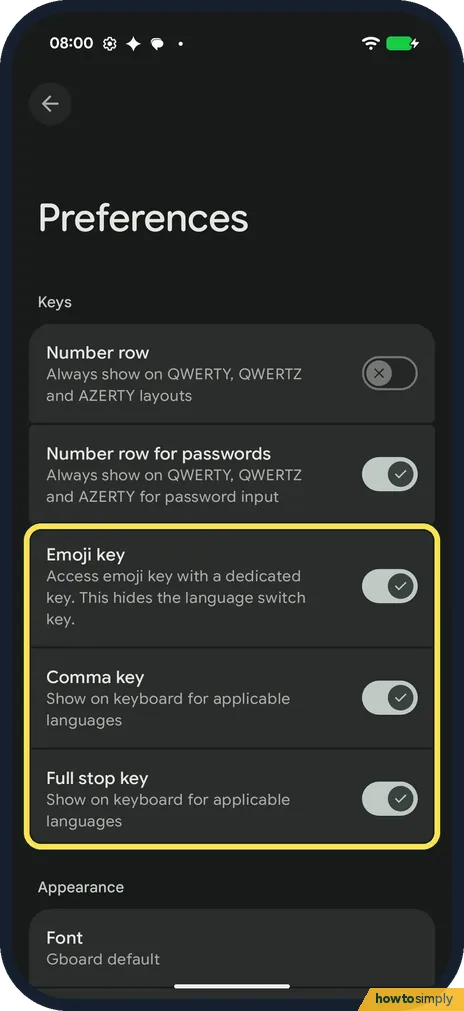
Number row
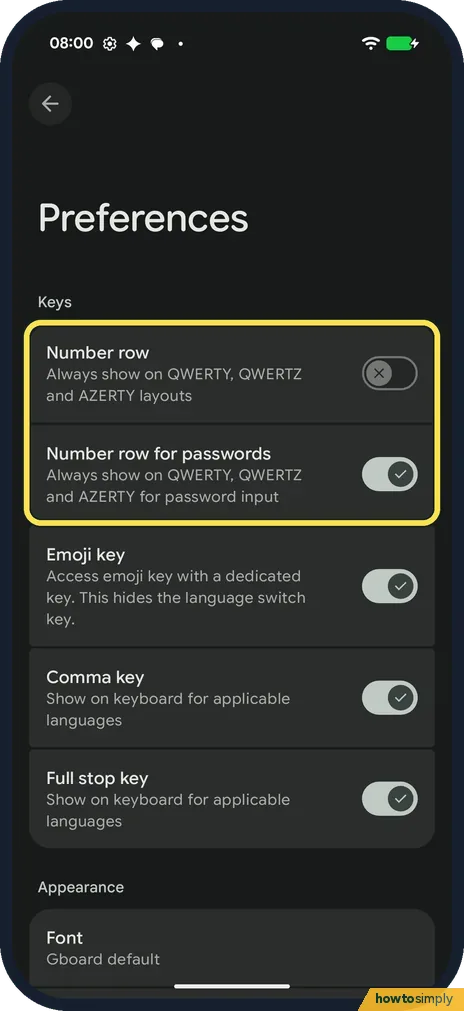
Under Keys, Number row always shows the numbers on QWERTY, QWERTZ and AZERTY layouts. It was off on ours. Number row for passwords, on, shows it only when you type a password.
- 5
Emoji, comma and full stop keys
Emoji key gives emoji a key of its own; the page says this hides the language switch key. Comma key and Full stop key show those keys for applicable languages. All three were on.
- 6
Open Theme
Back on Settings, tap Theme.
- 7
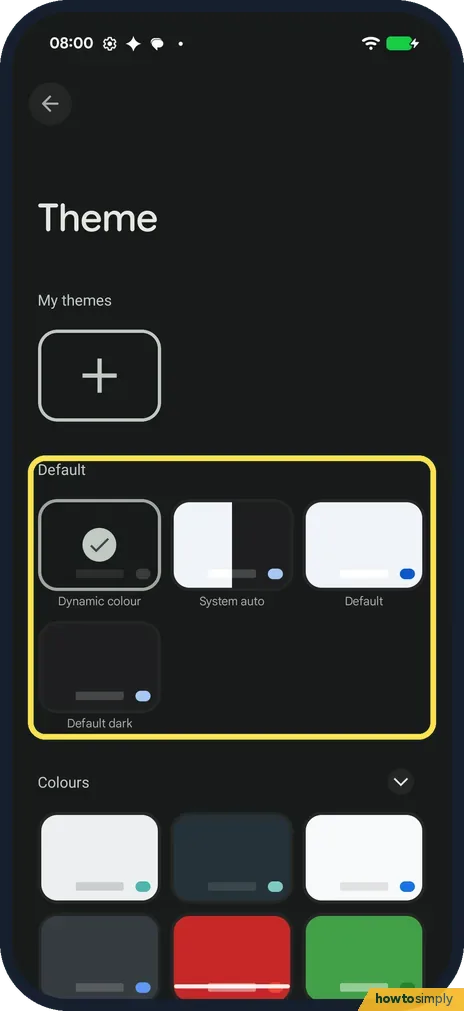
Pick a theme
Under Default are Dynamic colour, System auto, Default and Default dark. Ours was Dynamic colour. Colours, further down, has more. Google says to select a theme, then confirm it.
- 8
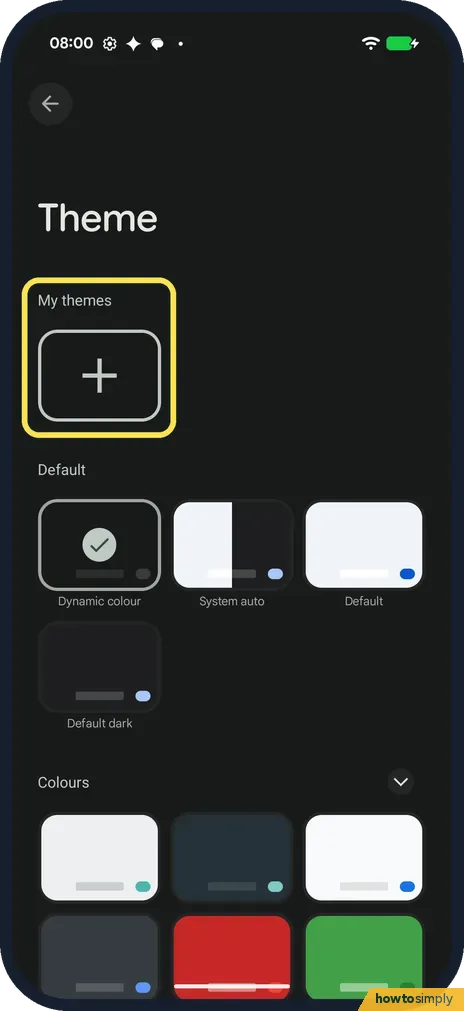
Or make your own
The + under My themes adds a theme of your own. We didn't open it.
- 9
Typing and suggestions
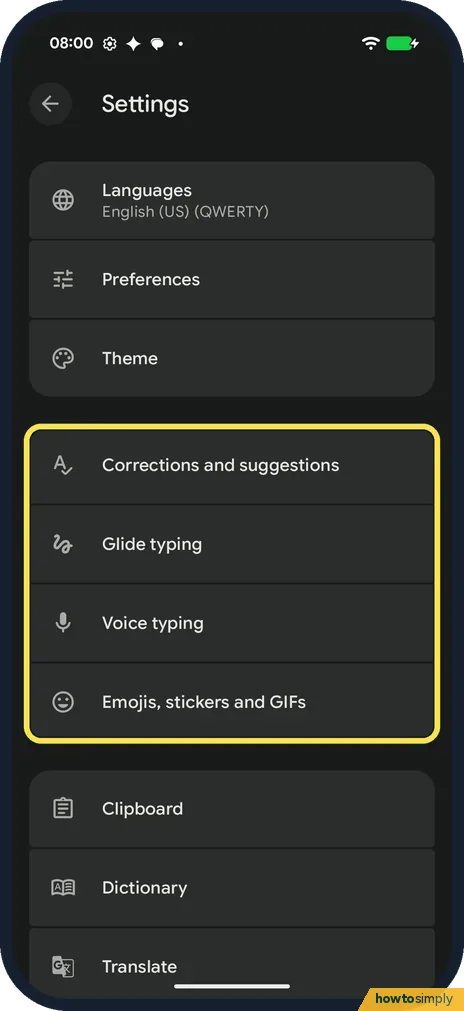
Corrections and suggestions, Glide typing, Voice typing and Emojis, stickers and GIFs each have their own page.
- 10
Clipboard, Dictionary and Translate
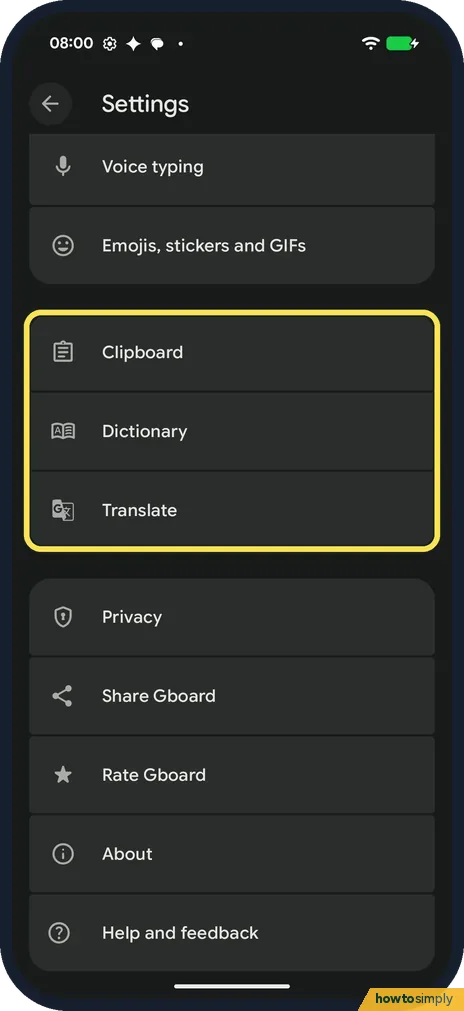
Further down are Clipboard, Dictionary and Translate, then Privacy, Share Gboard, Rate Gboard, About and Help and feedback.
If you do not see this option
- No On-screen keyboard row? Google's Gboard help still talks about the on-screen keyboard settings. On our Pixel with Android 17 that list is Settings, System, Keyboard, Keyboard apps. Source: Fix problems with Gboard
- Gboard not in the list? Google says Gboard can drop out of the keyboard list after an update. Turn it back on in the keyboard list in Settings. Source: Fix problems with Gboard
- Quicker way in? Google says you can open Gboard's settings from the keyboard: tap where you type, tap the Menu at the top of the keyboard, then Settings. Source: Change your keyboard theme, sound, or vibration
If this does not work
- Another keyboard keeps opening? Google says to use the globe key to switch back to Gboard. Show the keyboard switcher button, on on ours, also puts a switch button in the navigation bar.
- Gboard lags or freezes? Google says to clear Gboard's cache, force stop it, and keep only one or two languages on. See how to clear an app's cache on a Google Pixel.
- No vibration on key presses? Google says key sounds and vibration are under Preferences, Key tap, and that turning off the phone's vibration overrides Gboard's.
- Voice typing won't start? Google says to tap Microphone at the top of the keyboard, and that talk-to-text doesn't work with all languages. Check that the language you speak is one Gboard can type by voice.
Good to know
To type in a second language, Google says to open Gboard's Settings, tap Languages, then Add keyboard, and pick the language and layout.
Changes in Gboard's settings apply at once, in every app where you type. Google says you can also give Gboard a background, such as a photo or a colour, from Theme.
About this guide
- Device
- Android
- Shown on
- Google Pixel 10a, Android 17 (build CP3A.261005.005)
- App
- Settings
- Path
- Settings › System › Keyboard › Keyboard apps › Gboard: Preferences (number row
- Real screenshots
- 10 of 10 steps
- What we did
- Observed: looked at each screen, changed nothing
- Checked
- October 2026
- Sources
- 3 official, linked below
Sources
Links checked October 2026. Menus and features can change with updates.Spotted a mistake? Menus change with updates, and we want every step to match your screen. Email us about this page or use the contact form. We read every report, and fixes are listed on What changed.
Liked this guide?
Follow us for new guides and short how-to videos.
Did this guide work for you?
Sorry about that. What happened?