GOOGLE PIXEL
How to use the Accessibility button and volume keys shortcut on a Google Pixel (Android 17)

In short
Each accessibility feature has its own shortcut. Open the feature, such as Settings, Accessibility, Magnification, tap its shortcut row and tick Accessibility button or Volume keys. Settings, Accessibility, Accessibility shortcuts stays greyed out until one feature's shortcut is on.
5 of 5 steps show a real screenshot from our Pixel 10a. Each step was checked against the maker's own instructions, linked at the end.
Steps
- 1
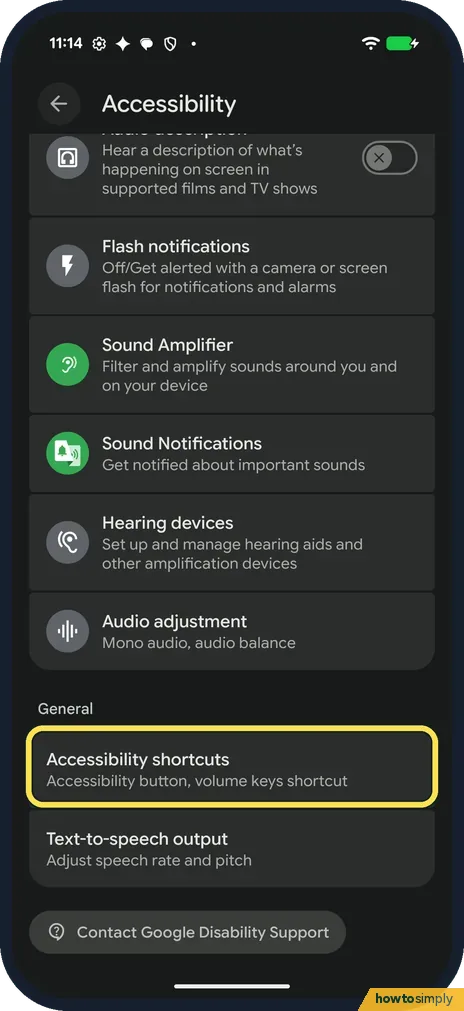
Find Accessibility shortcuts
Open Settings and tap Accessibility. Scroll to General, below Audio adjustment. Accessibility shortcuts: Accessibility button, volume keys shortcut. Tap it.
- 2
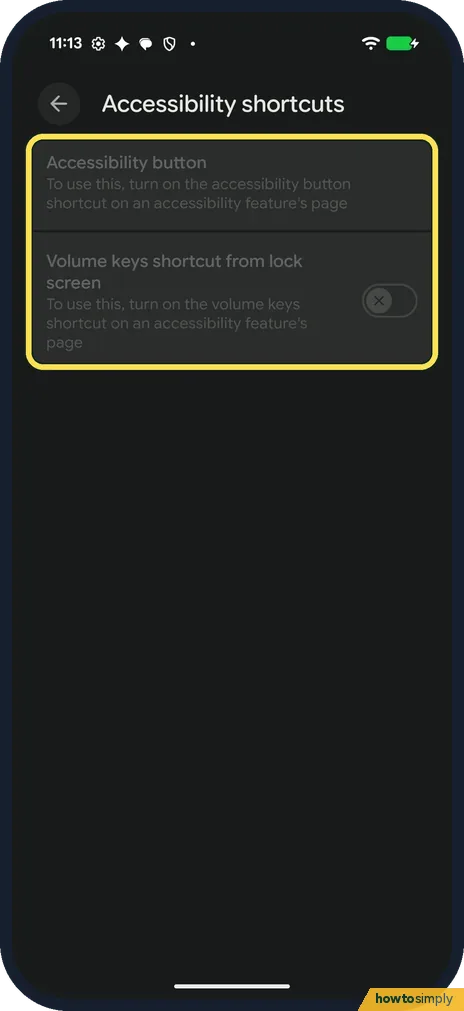
Both rows are greyed out
The page has two rows: Accessibility button and Volume keys shortcut from lock screen. On ours both were greyed out: To use this, turn on the accessibility button (or volume keys) shortcut on an accessibility feature's page.
- 3
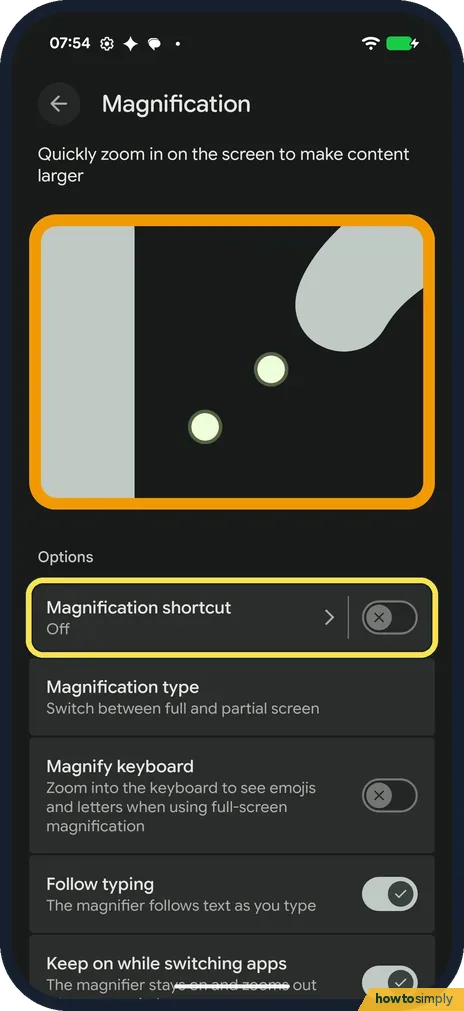
Open a feature's shortcut
So start from the feature. Google says to select the app in Accessibility, then its shortcut setting. For Magnification (under Display), tap the words Magnification shortcut. It was Off on ours.
- 4
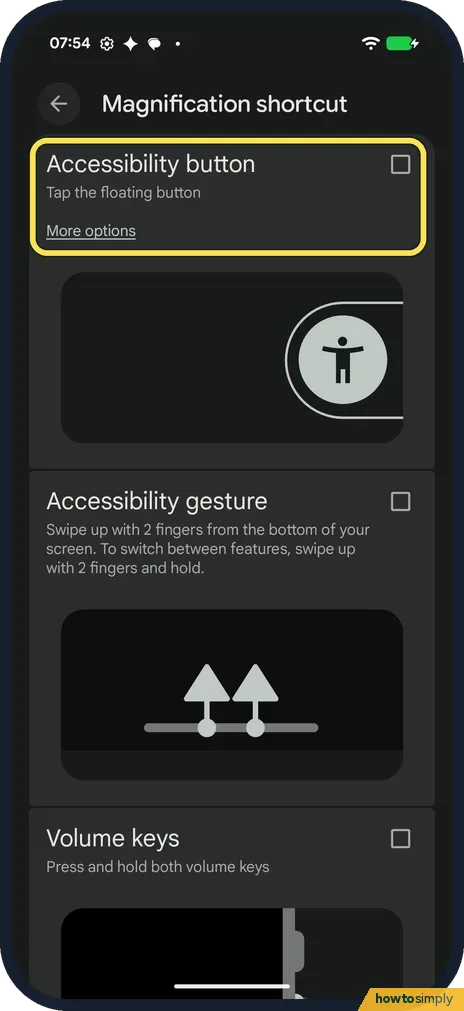
Tick Accessibility button
Tick Accessibility button: Tap the floating button. More options, under it, sets the button up. Nothing was ticked on ours.
- 5
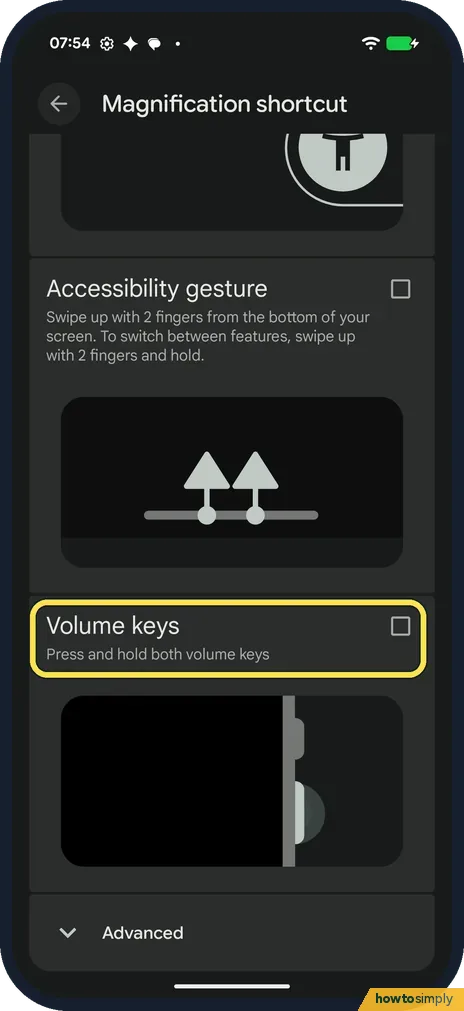
Or tick Volume keys
Lower down, tick Volume keys: Press and hold both volume keys. Google says holding both keys then starts the feature.
If you do not see this option
- Rows still greyed out? The page on ours says to turn on the accessibility button or volume keys shortcut on an accessibility feature's page first. No feature had one on ours, so both rows stayed grey.
- Google says Accessibility, Accessibility button? Google's help gives that path for the floating button settings. On our Pixel 10a with Android 17 the row is on a page called Accessibility shortcuts, under General. Source: Use accessibility shortcuts
- Older Android? Google says some of these steps only work on Android 12 and up, and removing a shortcut needs Android 14 and up. Source: Use accessibility shortcuts
- Other shortcut types? Google also lists a Quick Settings shortcut (swipe down from the top), a two-finger swipe up from the bottom, and, for Magnification, triple tap the screen. With TalkBack on, the swipe uses three fingers. Source: Use accessibility shortcuts
If this does not work
- Several features on one shortcut? Google says to touch and hold the Accessibility button, or hold both volume keys, and pick the feature from the menu. Edit shortcuts in that menu changes which ones are listed.
- Volume keys don't work when locked? Volume keys shortcut from lock screen, on the Accessibility shortcuts page, controls that. On ours it was off and greyed out until a feature uses the volume keys.
- Using a keyboard? Google says that with the volume keys shortcut on for an app, Ctrl + Alt + Z on an external keyboard does the same.
- Feature turns on by accident? Holding both volume keys, for example in a pocket or while gripping the phone, can start it. Google advises turning off the shortcut after you turn off TalkBack, so it does not come on by accident.
Good to know
Google says the floating button can be dragged, made smaller by dragging it to the edge, and given a size and transparency when not in use.
More on the example feature: how to zoom in with Magnification. Also in Accessibility: one-handed mode. Google says that with 3-button navigation the Accessibility button can also sit in the navigation bar: how to switch navigation.
To remove a shortcut, Google says to go back to the feature's page in Accessibility and unselect its shortcut, then save. The feature itself stays as it was; only the quick way to start it goes.
If you put TalkBack on the volume keys, learn how to turn it off before you try it. TalkBack changes how touch works until it is off again.
About this guide
- Device
- Android
- Shown on
- Google Pixel 10a, Android 17 (build CP3A.261005.005)
- App
- Settings
- Path
- Settings › Accessibility › Accessibility shortcuts
- Real screenshots
- 5 of 5 steps
- What we did
- Observed: looked at each screen, changed nothing
- Checked
- October 2026
- Sources
- 1 official, linked below
Sources
Links checked October 2026. Menus and features can change with updates.Spotted a mistake? Menus change with updates, and we want every step to match your screen. Email us about this page or use the contact form. We read every report, and fixes are listed on What changed.
Liked this guide?
Follow us for new guides and short how-to videos.
Did this guide work for you?
Sorry about that. What happened?