
howtosimply.com/guides/how-to-use-live-transcribe-on-a-google-pixel/ · Checked October 2026 · build CP3A.260905.009 · Google Pixel 10a, Android 17
In this guide
Go to Settings, Accessibility, Live Transcribe and tap Open Live Transcribe. Allow the microphone, and speech around you appears as text on screen. It is built into Pixel phones, so there is nothing to install.
4 of 4 steps with real screenshots · 1 official source below
- Device
- Android
- Shown on
- Google Pixel 10a, Android 17 (build CP3A.260905.009)
- App
- Settings
- Path
- Settings › Accessibility › Live Transcribe › Open Live Transcribe
- Real screenshots
- 4 of 4 steps
- Checked
- October 2026
- Sources
- 1 official, linked below
Step by step
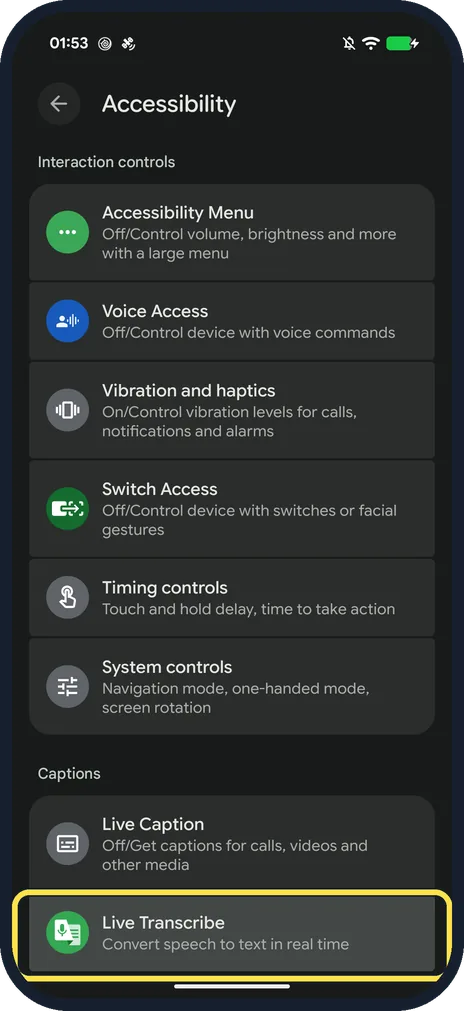
Open Live Transcribe in Accessibility
Open Settings and tap Accessibility. Under Captions, tap Live Transcribe: Convert speech to text in real time.
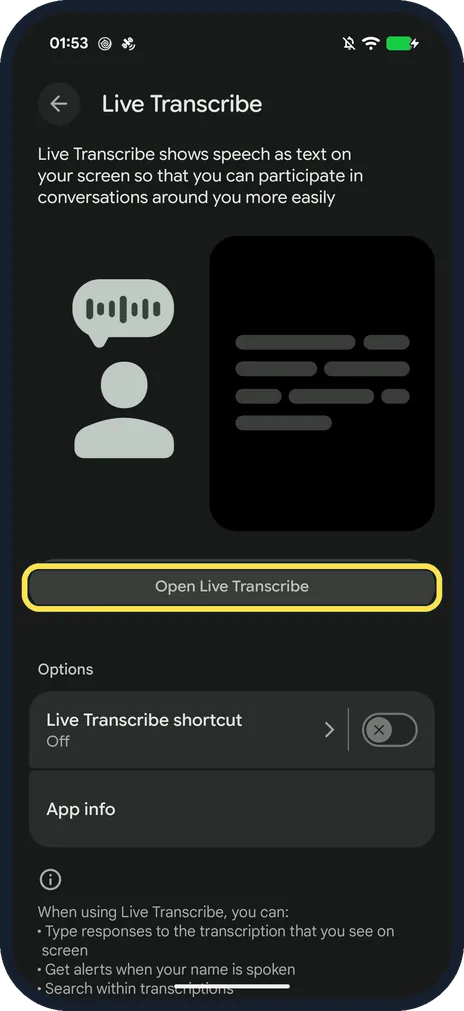
Tap Open Live Transcribe
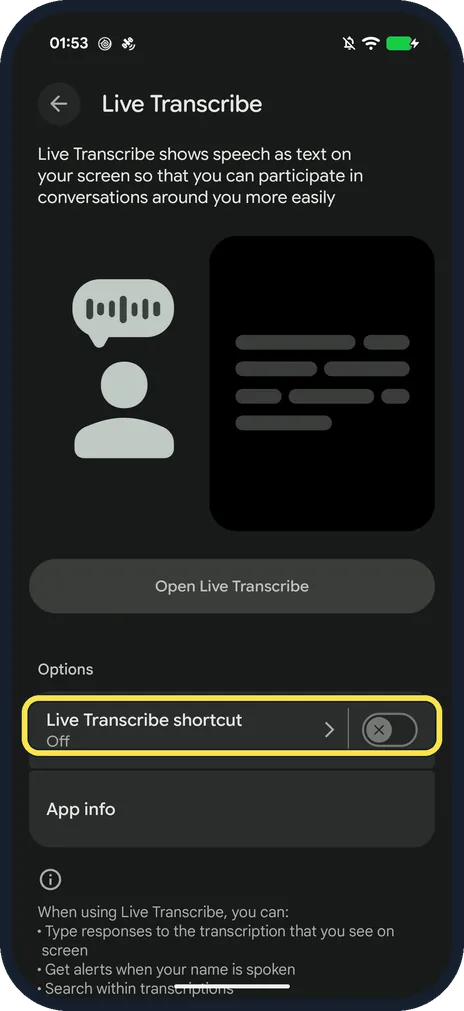
The page explains it shows speech as text on your screen. Tap Open Live Transcribe.
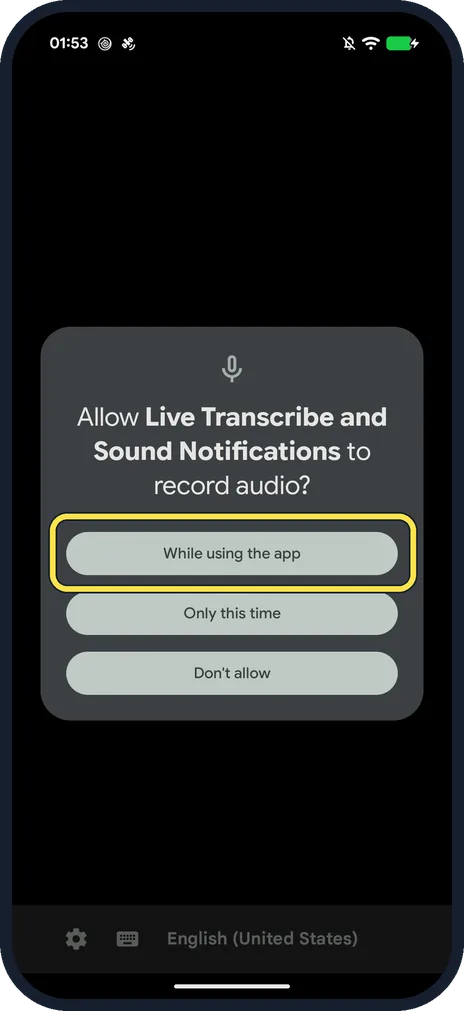
Allow the microphone
Ours asked to allow Live Transcribe and Sound Notifications to record audio. Tap While using the app.
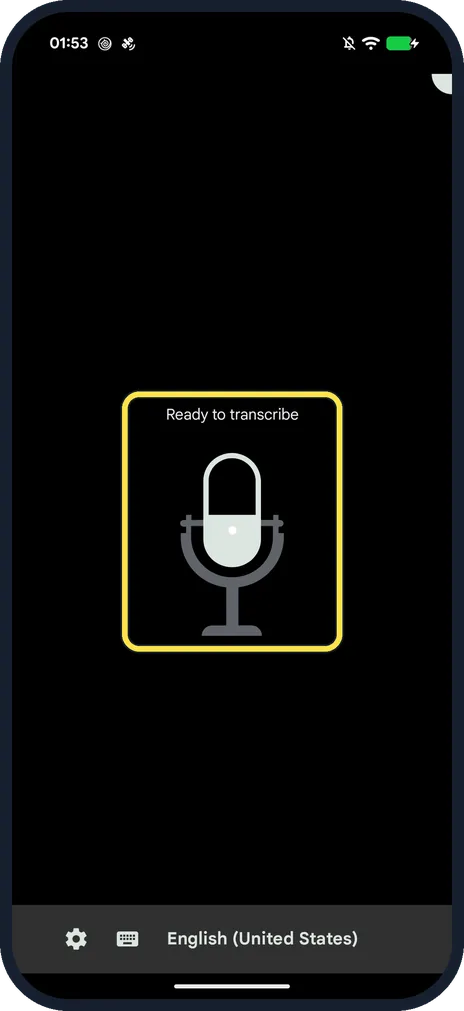
Start talking
It says Ready to transcribe. Hold the phone near the person speaking; their words appear on screen. The bar at the bottom shows the language (English (United States) on ours) and settings.
If you do not see this option
- Not on a Pixel? Google says Live Transcribe is already installed on Pixel phones and select other Android phones. On other phones, search Settings for Live Transcribe and, if it isn't there, download the app from Google Play. Source: Use Live Transcribe
- Your language isn't offered offline? Google says all Pixels on Android 12 or later can download several languages for offline use, but some Android 8 to 11 phones can only download English. Pick languages under Settings, Additional settings, Primary language. Source: Use Live Transcribe
- Want it one tap away? Turn on Live Transcribe shortcut on the same page; ours was Off.
- Want to reply by typing? Google says to tap Type at the bottom of the screen. Source: Use Live Transcribe
If this does not work
- Nothing appears when people talk? Check you are online, unless you downloaded an offline language, and hold the microphone closer. Source: Use Live Transcribe
- Still nothing with a poor connection? Download your language for offline use: in Live Transcribe, tap Settings, Additional settings, then the download symbol next to the language. Google says Transcribe offline then turns on automatically. Source: Use Live Transcribe
- Want captions on videos instead? Live Caption sits just above Live Transcribe in Accessibility, under Captions.
About this guide
Live Transcribe turns speech into text in real time, for anyone who is deaf or hard of hearing, or for a noisy room. Google says it needs an internet connection unless you use an offline language.
The screenshots are from our Google Pixel 10a with Android 17, in Dark mode, taken on 24 October 2026. We opened Live Transcribe and allowed the microphone, but did not transcribe anyone.
Good to know
Set up an accessibility shortcut: how to use the accessibility button and volume keys shortcut.
In short: Settings, Accessibility, Live Transcribe, Open Live Transcribe, allow the mic, talk.
Links checked in October 2026. Menus and features can change after software updates. These steps match the version named at the top.
Did this guide work for you?
Sorry about that. What happened?