GOOGLE PIXEL
How to use Adaptive Sound and media player settings on a Google Pixel (Android 17)

In short
Open Settings, Sound and vibration, Adaptive Sound and turn on Use Adaptive Sound to tune the speaker to the room. Media, on the same page, has Pin media player for Quick Settings and Show media on lock screen. On ours Adaptive Sound was off and both media switches on.
5 of 6 steps show a real screenshot from our Pixel 10a. Each step was checked against the maker's own instructions, linked at the end.
Steps
- 1
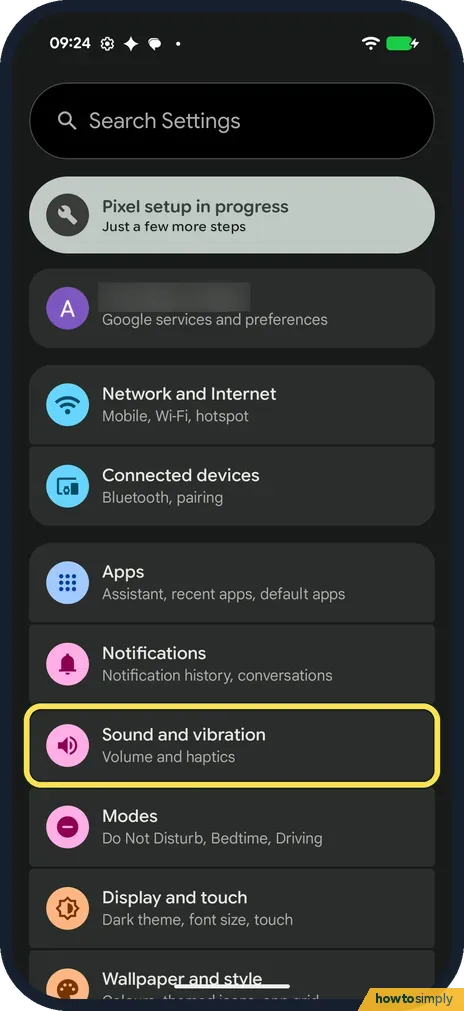
Open Sound and vibration
Open Settings and tap Sound and vibration: Volume and haptics.
- 2
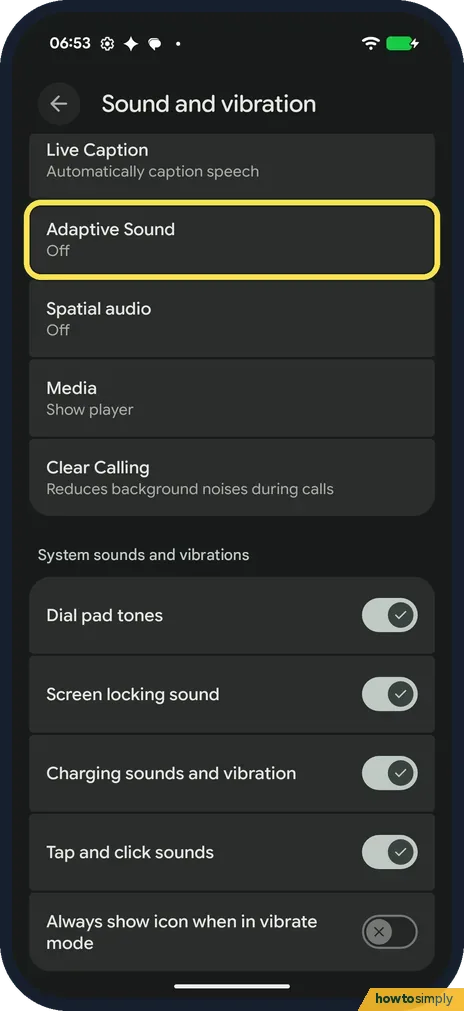
Tap Adaptive Sound
Scroll down. Adaptive Sound is below Live Caption. Ours said Off. Tap it.
- 3
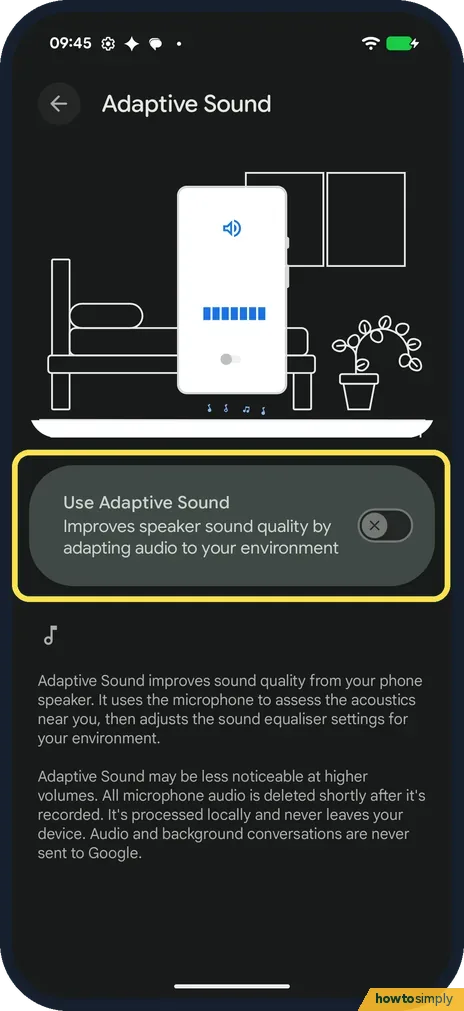
Turn on Use Adaptive Sound
Turn on Use Adaptive Sound: Improves speaker sound quality by adapting audio to your environment. It was off on ours. The page says it uses the microphone to assess the acoustics near you, and that the audio is processed locally and never leaves your device.
- 4
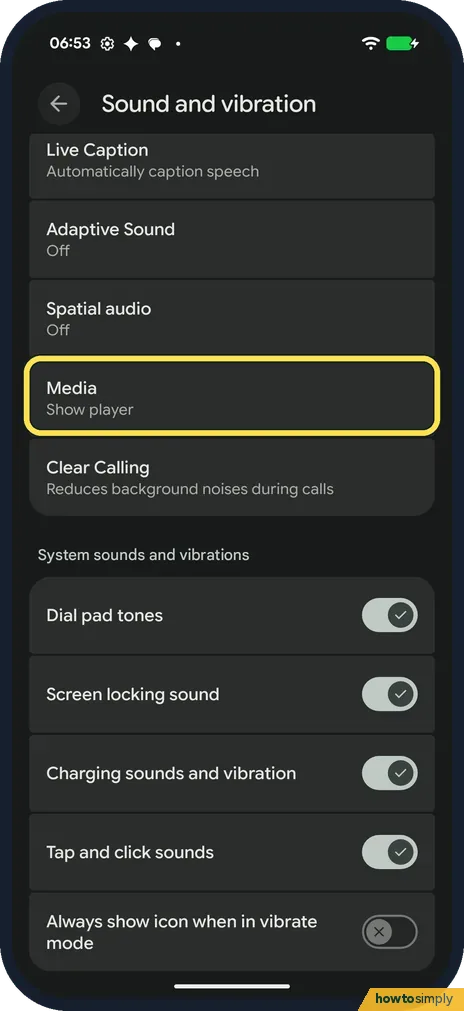
Tap Media
Back on Sound and vibration, Media is below Spatial audio. Ours said Show player. Tap it.
- 5
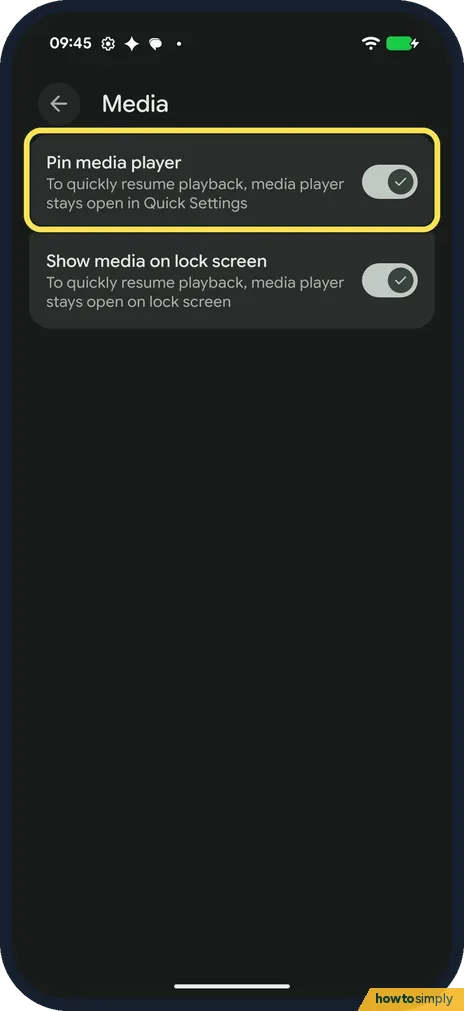
Pin media player
Pin media player: To quickly resume playback, media player stays open in Quick Settings. It was on on ours.
- 6
Show media on lock screen
The second switch, Show media on lock screen, keeps the player open on the lock screen too. It was on on ours. Turn it off if you don't want what you play to show there.
If you do not see this option
- No Adaptive Sound row? Google says Adaptive Sound is on Pixel 4a (5G) through Pixel 10, including Fold. Source: Change volume, sound & vibrate settings on your Pixel phone or Pixel Tablet
- Looking for a Show player switch? On ours, Show player was only the text under Media. The Media page had two switches: Pin media player and Show media on lock screen.
- Using headphones? Google says Adaptive Sound doesn't work if you play sound through external speakers or headphones. Source: Change volume, sound & vibrate settings on your Pixel phone or Pixel Tablet
- Adaptive Sound switch missing after an update? Google says Adaptive Sound needs the latest Android software and the latest Android System Intelligence app from the Play Store. Update both, then look again. Source: Change volume, sound & vibrate settings on your Pixel phone or Pixel Tablet
If this does not work
- No difference after turning it on? Google says it adjusts speaker output without changing the volume. The page says it may be less noticeable at higher volumes.
- Player gone from Quick Settings? Turn on Pin media player. Google says you find what is playing by swiping down from the top of the screen.
- Others can see your music on the lock screen? Turn off Show media on lock screen on the Media page.
- Sound plays on the wrong device? Google says to tap the name of your audio accessory at the top right of the media panel and pick where the sound should play. With several Bluetooth devices paired, you can also choose under Media volume.
Good to know
For calls and ringing, see Pixel not ringing. For vibration strength, see how to change vibration and haptics.
Adaptive Sound uses the microphone to judge the room, but the page in step 3 says that audio is processed on the phone and never leaves it. Turning it off returns the speaker to its standard tuning. The media switches only change where the player appears; they do not stop playback. For other lock screen privacy choices, see how to hide sensitive content on the lock screen.
About this guide
- Device
- Android
- Shown on
- Google Pixel 10a, Android 17 (build CP3A.261005.005)
- App
- Settings
- Real screenshots
- 5 of 6 steps
- What we did
- Observed: looked at each screen, changed nothing
- Checked
- October 2026
- Sources
- 2 official, linked below
Sources
Links checked October 2026. Menus and features can change with updates.Spotted a mistake? Menus change with updates, and we want every step to match your screen. Email us about this page or use the contact form. We read every report, and fixes are listed on What changed.
Liked this guide?
Follow us for new guides and short how-to videos.
Did this guide work for you?
Sorry about that. What happened?