
howtosimply.com/guides/how-to-use-split-view-on-an-oppo-phone/ · Checked October 2026 · CPH2689, EEA), ColorOS 16.0.5, Android 16 (build CPH2689_16.0.5.1001(EX01) · OPPO Reno13 5G
In this guide
ColorOS 16 calls split screen Split View. With gesture navigation, open an app, swipe up from the bottom of the screen and move towards the top left to show it in Split View. The gesture is explained in Settings, Accessibility & convenience, Split View. The recent apps menu on our Reno13 has no Split screen option.
3 of 3 steps with real screenshots · 2 official sources below
- Device
- Android
- Shown on
- OPPO Reno13 5G (CPH2689, EEA), ColorOS 16.0.5, Android 16 (build CPH2689_16.0.5.1001(EX01))
- App
- Settings
- Real screenshots
- 3 of 3 steps
- Checked
- October 2026
- Sources
- 2 official, linked below
Step by step
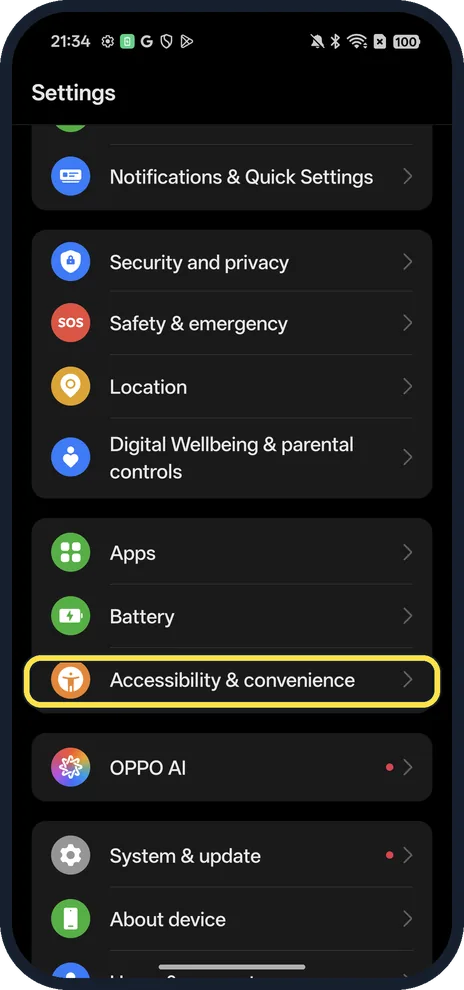
Open Accessibility & convenience
Open Settings and scroll down.
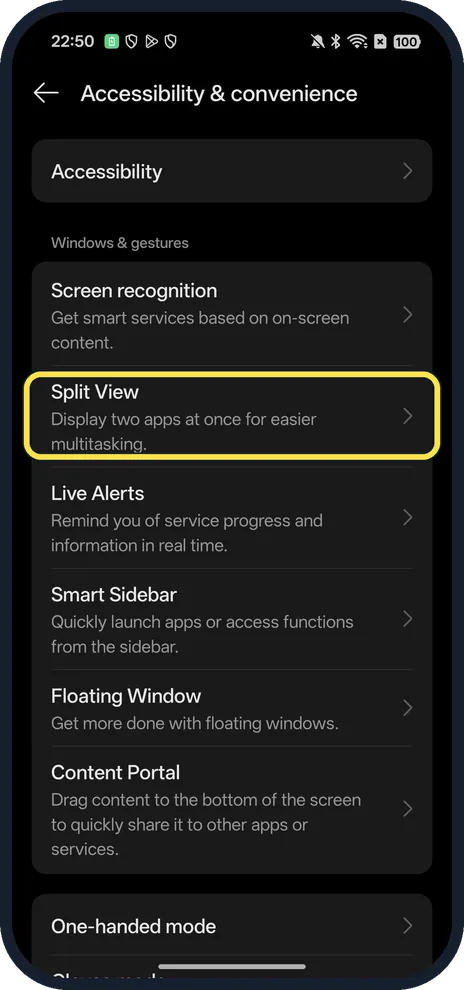
Tap Split View
Under Windows & gestures: Display two apps at once for easier multitasking.
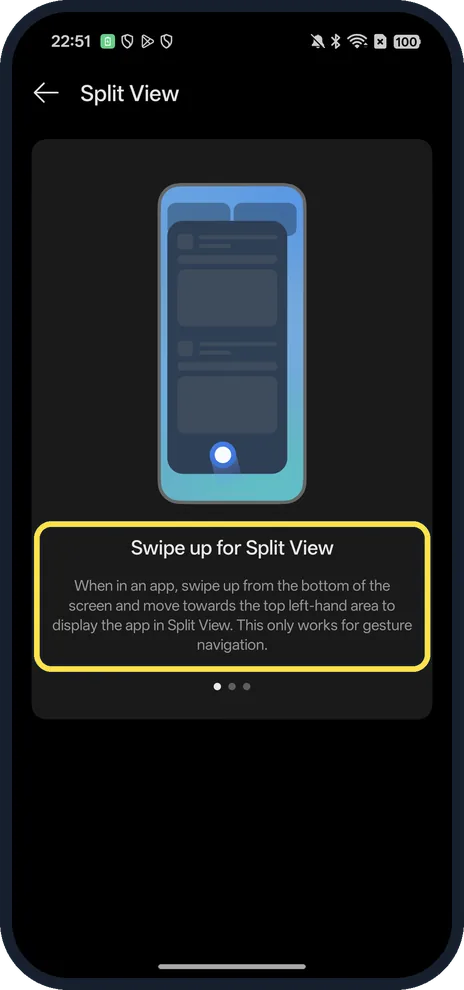
Learn the gesture
Swipe up for Split View: when in an app, swipe up from the bottom of the screen and move towards the top left-hand area. It only works with gesture navigation.
If you do not see this option
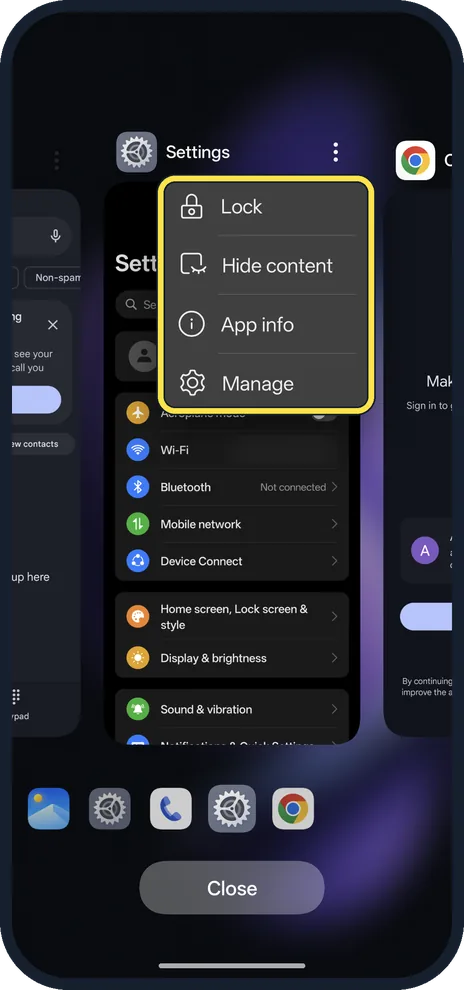
- No Split screen in the recent apps menu? On our Reno13 the menu on an app card had only Lock, Hide content, App info and Manage.
- Using the three navigation buttons? The Split View page says the gesture only works for gesture navigation. Switch to gestures first.
- Prefer a side panel? Smart Sidebar can open apps in floating windows or Split View. Source: What Is Smart Sidebar and How to Use It on OPPO Phones
If this does not work
- "This function is not available in the current mode"? OPPO says to set the home screen back to System Launcher in Settings, App Management, Default App, Home app, then try again. If that fails, reset system settings only. Source: Unable to Enable the Split Screen Function on OPPO Phone
- Swipe just goes home? Keep your finger down and move it towards the top left of the screen before you let go, as the Split View page describes.
About this guide
The screenshots are from our OPPO Reno13 5G, the European model CPH2689, with ColorOS 16.0.5 and Android 16 (build CPH2689_16.0.5.1001(EX01)), in Dark mode. We could not perform the gesture for the screenshots, so there is no screenshot of two apps side by side here.
Good to know
To open apps from the edge, use Smart Sidebar on an OPPO phone.
To change navigation, switch between gestures and buttons.
In short: In an app, swipe up from the bottom towards the top left (gesture navigation only).
- OPPO Support: Unable to Enable the Split Screen Function on OPPO Phone
- OPPO Support: What Is Smart Sidebar and How to Use It on OPPO Phones
Links checked in October 2026. Menus and features can change after software updates. These steps match the version named at the top.
Did this guide work for you?
Sorry about that. What happened?