
howtosimply.com/guides/how-to-use-ai-eraser-on-an-oppo-phone/ · Checked October 2026 · CPH2689, EEA), ColorOS 16.0.5, Android 16 (build CPH2689_16.0.5.1001(EX01) · OPPO Reno13 5G
In this guide
Open the photo in Photos and tap Edit, AI Editor, AI Eraser. Read the information processing notice (Disagree means no AI Eraser), pick Smart lasso, Paint over or Remove people, and mark what to remove. Check the result with Compare, then tap Done to keep it.
7 of 7 steps with real screenshots · 1 official source below
- Device
- Android
- Shown on
- OPPO Reno13 5G (CPH2689, EEA), ColorOS 16.0.5, Android 16 (build CPH2689_16.0.5.1001(EX01))
- App
- Photos
- Path
- Photos › Edit › AI Editor › AI Eraser: read the notice
- Real screenshots
- 7 of 7 steps
- Checked
- October 2026
- Sources
- 1 official, linked below
Step by step
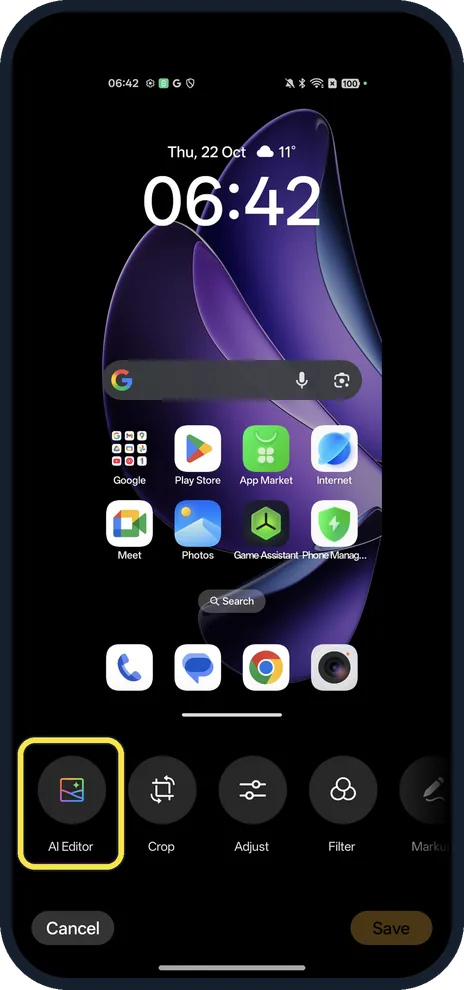
Tap AI Editor
Open the photo in Photos and tap Edit. AI Editor is the first tool, before Crop, Adjust and Filter.
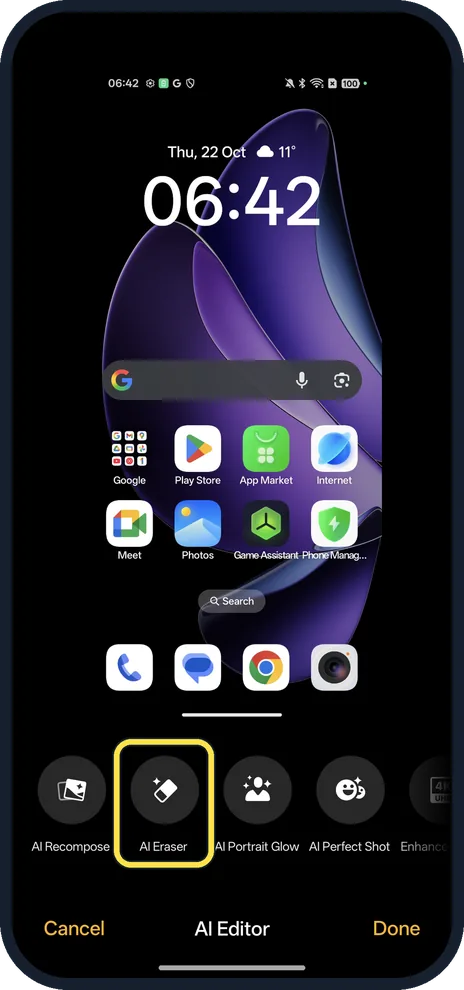
Tap AI Eraser
It sits between AI Recompose and AI Portrait Glow.
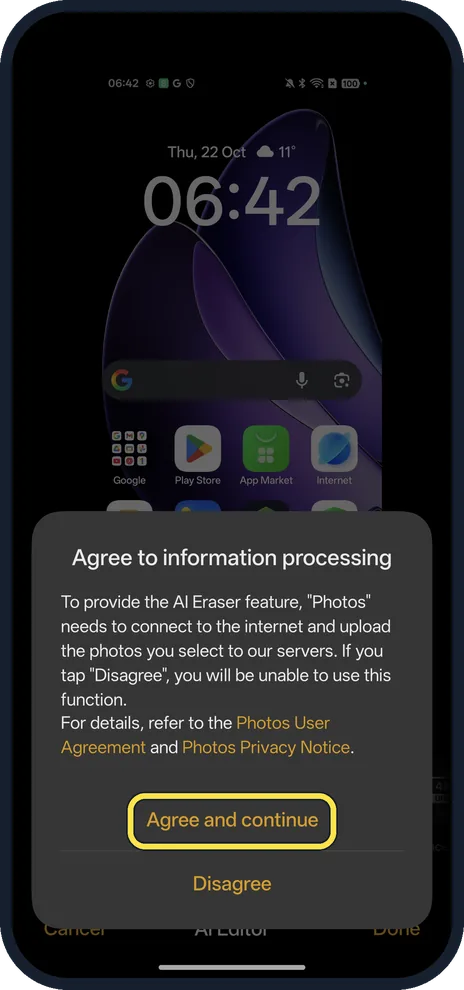
Decide on the information processing notice
The notice says Photos needs to connect to the internet and upload the photos you select to OPPO's servers, and that with Disagree you can't use AI Eraser. Agree and continue is the button below it; the choice is yours.
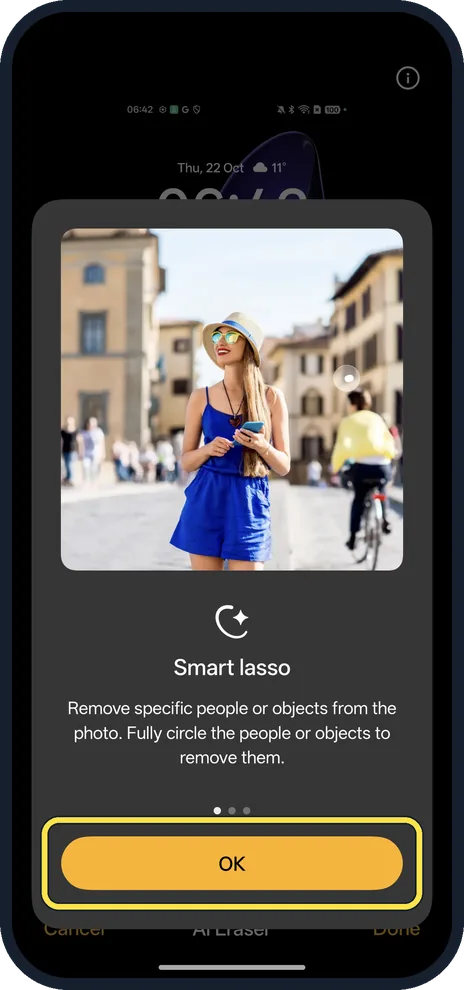
Read the intro
Smart lasso: fully circle the people or objects to remove them. Tap OK.
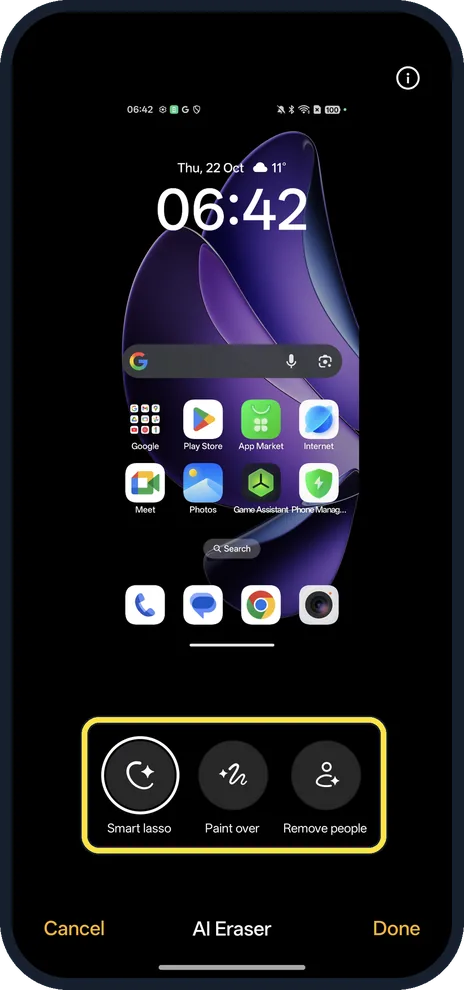
Pick a tool
Smart lasso, Paint over or Remove people. We used Paint over on an app icon.
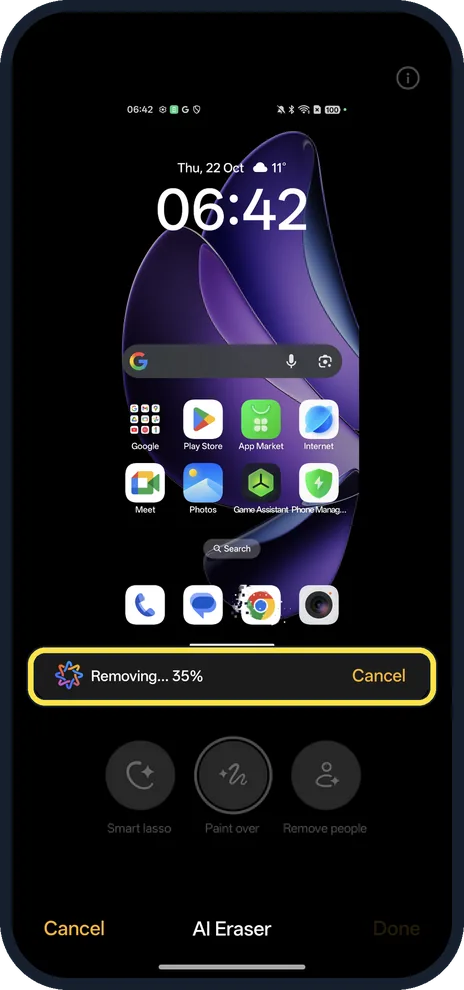
Wait while it removes
A bar shows Removing... with a percentage, and a Cancel button.
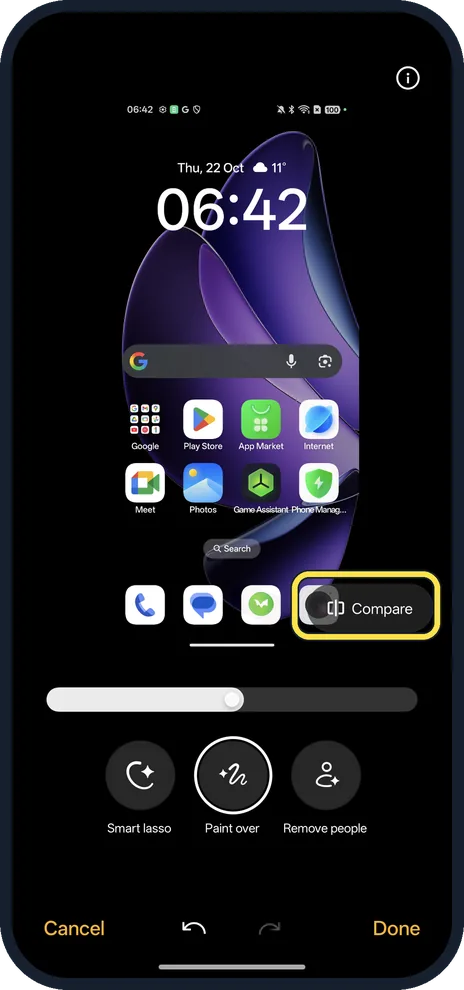
Compare, then tap Done
The Chrome icon we painted over was replaced with generated fill. Compare shows the original, the slider above the tools adjusts the result, and Done at the bottom right saves it. We tapped Cancel.
If you do not see this option
- No AI Eraser on your OPPO? OPPO says it needs a network connection and that availability varies by country and device. OPPO rolled it out to the Reno11 series (ColorOS 14) by update from April 2024. Source: OPPO Announces AI Eraser Roll Out to Reno11 Series
- Circle instead of paint? Use Smart lasso: OPPO describes simply drawing a circle around the object, and the intro on ours says to fully circle it. Source: OPPO Announces AI Eraser Roll Out to Reno11 Series
If this does not work
- Doesn't work offline? That is expected: the notice says Photos uploads the selected photo to OPPO's servers, and OPPO says the function needs a network connection. Source: OPPO Announces AI Eraser Roll Out to Reno11 Series
- Result looks wrong? Tap the undo arrow at the bottom, or Cancel to leave the photo as it was, and try Smart lasso around the object instead.
About this guide
AI Eraser removes people or objects from a photo and fills in the gap. On our Reno13 it sits in Photos, under Edit, AI Editor.
The screenshots are from our OPPO Reno13 5G, the European model CPH2689, with ColorOS 16.0.5 and Android 16 (build CPH2689_16.0.5.1001(EX01)), in Dark mode. We erased an app icon from a Home screen screenshot, then tapped Cancel without saving.
Good to know
To capture what is on screen first, see take a screenshot on an OPPO phone.
For video, see screen record on an OPPO phone.
In short: Photos, Edit, AI Editor, AI Eraser: read the notice, pick a tool, mark it, Done.
Links checked in October 2026. Back up anything you want to keep before you reset or delete. Menus can change after software updates.
Did this guide work for you?
Sorry about that. What happened?