XIAOMI REDMI
How to use Auto night mode on a Xiaomi camera (HyperOS 3)
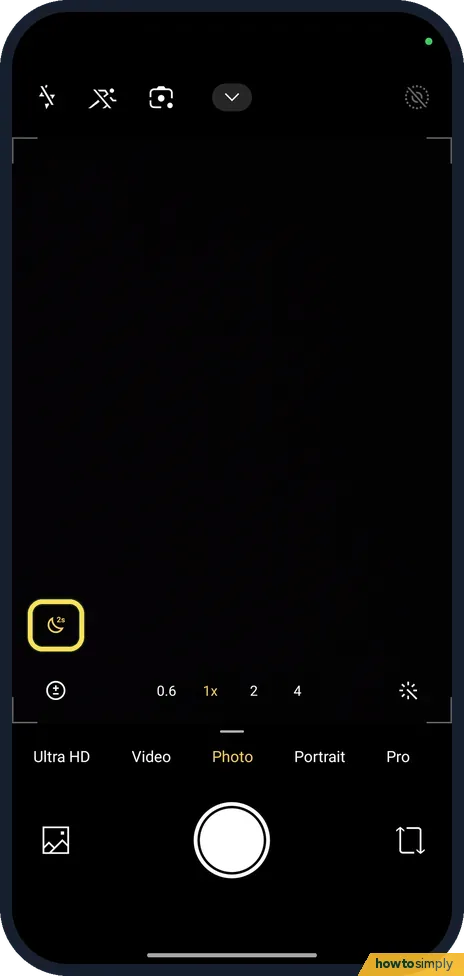
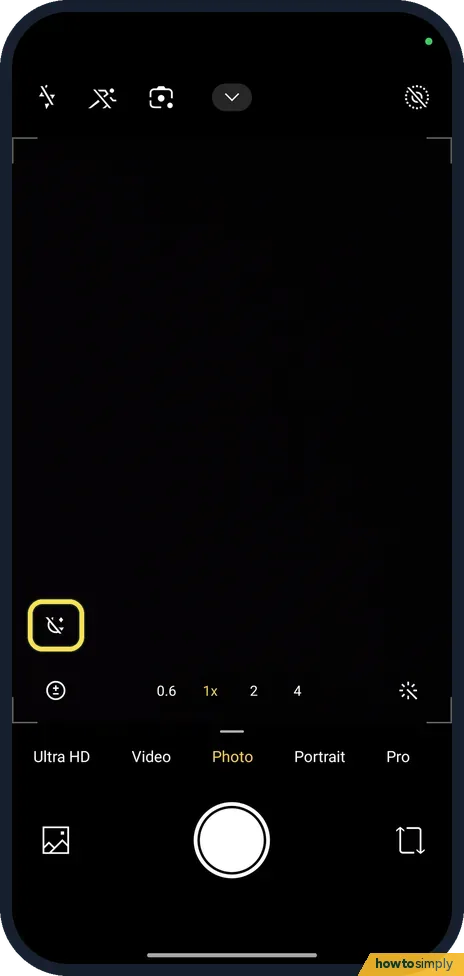
Open Camera in Photo mode. A moon icon at the left means Auto night mode is on; tap it to turn it off or on. The same switch is in Camera Settings, Photo, AI recommendations. Our Redmi has no separate Night mode.

6 of 6 steps show a real screenshot from our Redmi Note 15 Pro 5G. Each step was checked against the maker's own instructions, linked at the end.
Steps
- 1
Open Photo mode
Open Camera. In Photo mode, a moon icon at the left of the viewfinder shows Auto night mode is on.
- 2
Tap the moon to turn it off or on
Tapping the moon turned Auto night mode off on ours; the icon is crossed out. Tap it again to turn it back on.
- 3
Or use the switch in Settings
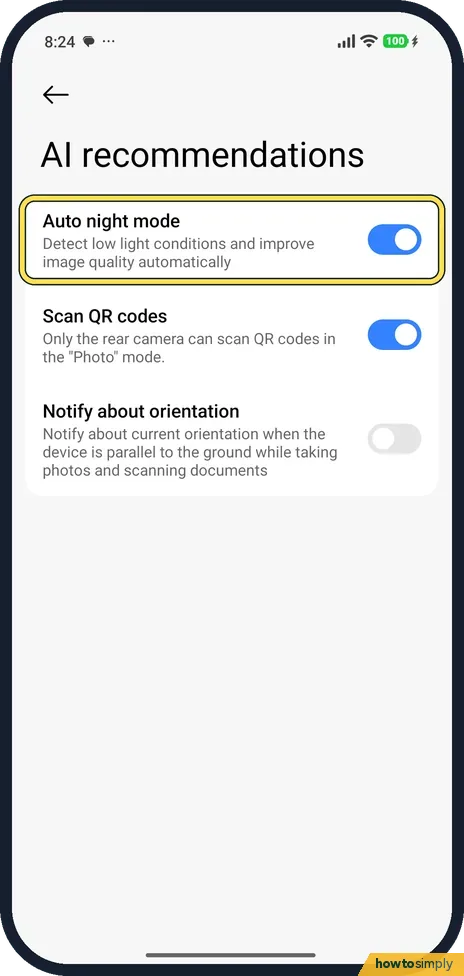
Tap the arrow at the top, then Settings, Photo, AI recommendations. Auto night mode: Detect low light conditions and improve image quality automatically. It was on.
- 4
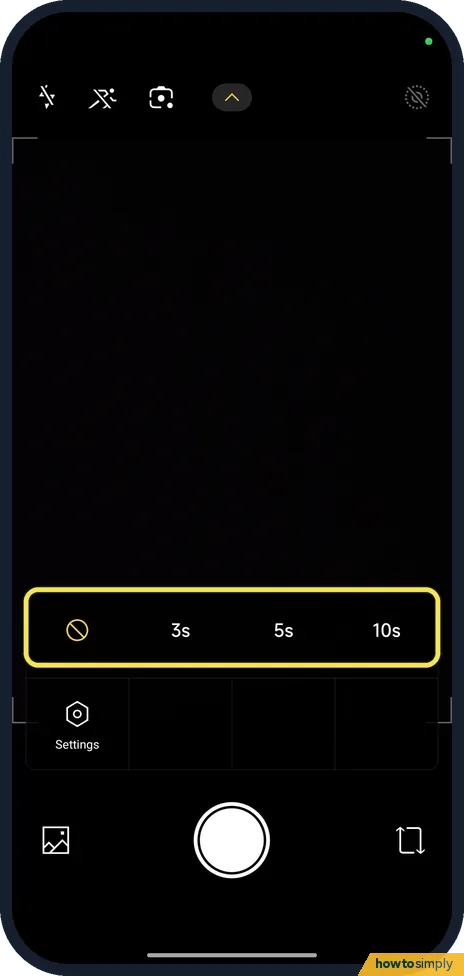
Open the Timer
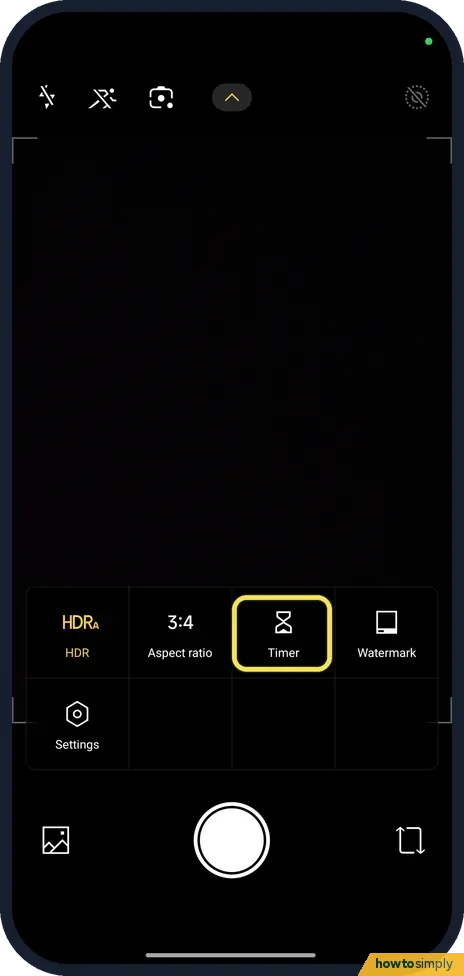
For a steady night shot, tap the arrow at the top of the viewfinder. The menu has HDR, Aspect ratio, Timer, Watermark and Settings. Tap Timer.
- 5
Pick a delay
The choices are off, 3s, 5s and 10s. The photo is taken after the delay, so the phone is still.
- 6
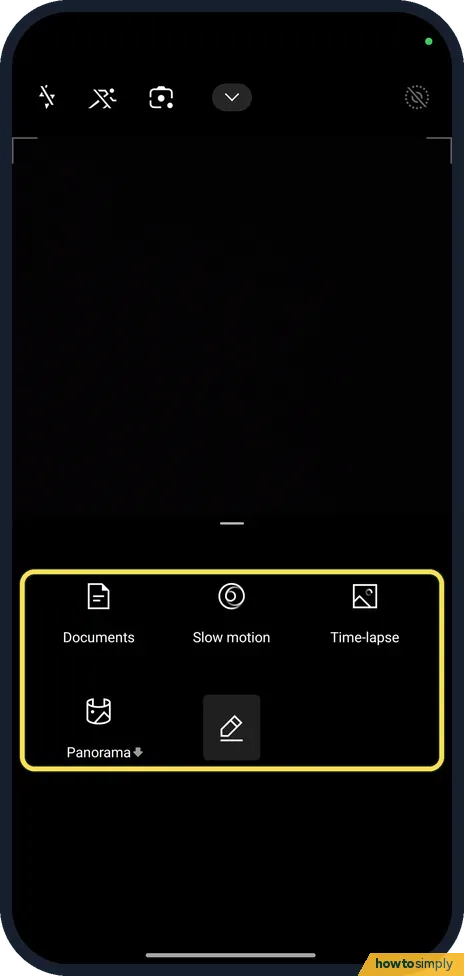
No Night in More modes
On ours, swiping up on the mode bar showed Documents, Slow motion, Time-lapse and Panorama. There was no Night mode.
If you do not see this option
- Looking for a Night mode? Xiaomi's guide says to select Night, and that night video works only on some models. Our Redmi Note 15 Pro 5G has none, only Auto night mode. Source: Generic User Guide for HyperOS 3.0
- No moon icon? Check Auto night mode in Settings, Photo, AI recommendations. Xiaomi says it works in Photo and Portrait modes. Source: Generic User Guide for HyperOS 3.0
If this does not work
- Moon crossed out? Auto night mode is off. Tap the moon once to turn it back on.
- Night photos blurry? Use the Timer so your tap doesn't shake the phone, and rest the phone on something.
- Night photo looks smeared? Low light needs a longer capture, so anything that moves, including the phone, blurs. Hold still until the photo finishes saving, and ask people to keep still too.
- Lens looks hazy at night? Smudges on the lens spread bright lights into glare. Wipe the lens with a soft, clean cloth before night shots.
Good to know
More camera settings: how to turn off the camera watermark and shutter sound.
You can leave Auto night mode on for everyday shots. If you prefer a darker, more natural look, turn it off with the moon icon for that shot and turn it on again later.
For light trails from cars or moving water, Xiaomi's guide describes Long exposure mode in More modes on phones that have it, which keeps the shutter open for a period of time. It was not in More modes on our Redmi. A steady surface and the Timer help with any slow shot. See use palm shutter, voice shutter and the timer.
About this guide
- Device
- Android
- Shown on
- Xiaomi Redmi Note 15 Pro 5G (25080RABDG), HyperOS 3.0.308.0, Android 16
- App
- Camera
- Path
- Camera › Settings › Photo › AI recommendations
- Real screenshots
- 6 of 6 steps
- Checked
- October 2026
- Sources
- 1 official, linked below
Sources
Links checked October 2026. Menus and features can change with updates.Spotted a mistake? Menus change with updates, and we want every step to match your screen. Email us about this page or use the contact form. We read every report, and fixes are listed on What changed.
Liked this guide?
Follow us for new guides and short how-to videos.
Did this guide work for you?
Sorry about that. What happened?