
howtosimply.com/guides/how-to-use-a-xiaomi-phone-as-a-tv-remote-with-mi-remote/ · Checked October 2026 · Xiaomi Redmi Note 15 Pro 5G (25080RABDG), HyperOS 3.0.308.0, Android 16
In this guide
Open the Mi Remote app, tap Add remote, choose TV and your TV's brand, say whether the TV is on, then point the phone at the TV and tap Power. If the TV responds, carry on; if not, tap the arrow to try the next configuration. It works through the phone's infrared (IR) blaster.
6 of 6 steps with real screenshots · 1 official source below
- Device
- Android
- Shown on
- Xiaomi Redmi Note 15 Pro 5G (25080RABDG), HyperOS 3.0.308.0, Android 16
- Real screenshots
- 6 of 6 steps
- Checked
- October 2026
- Sources
- 1 official, linked below
Step by step
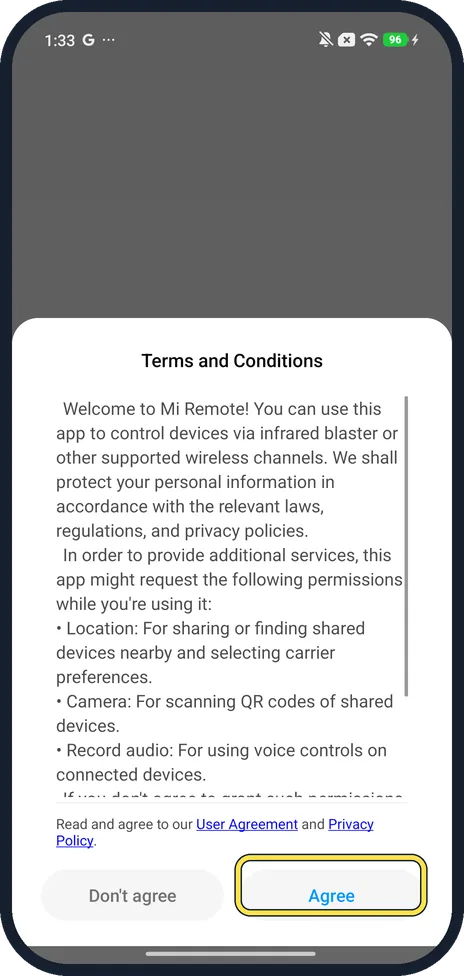
Agree to the terms
Open Mi Remote. The first time, it shows Terms and Conditions; read them and tap Agree.
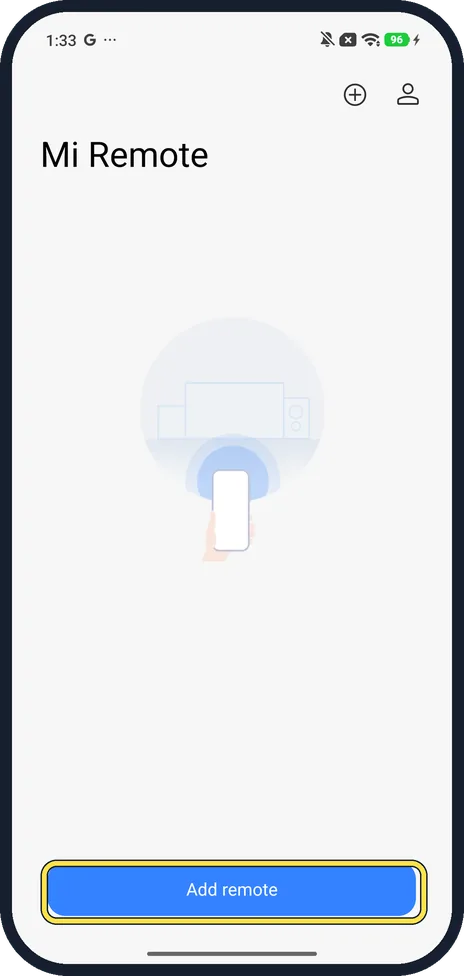
Tap Add remote
On the empty Mi Remote page, tap Add remote.
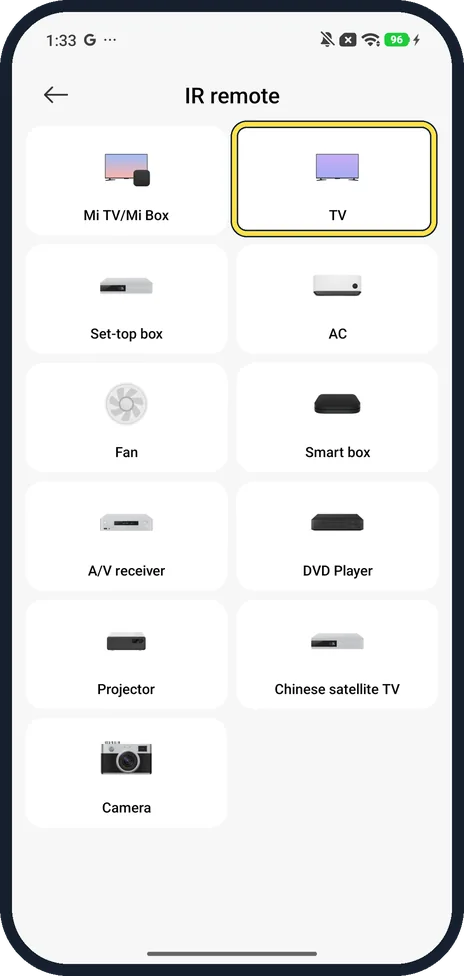
Choose TV
The IR remote page lists device types: Mi TV/Mi Box, TV, Set-top box, AC, Fan, Smart box, A/V receiver, DVD Player, Projector and more. Tap TV.
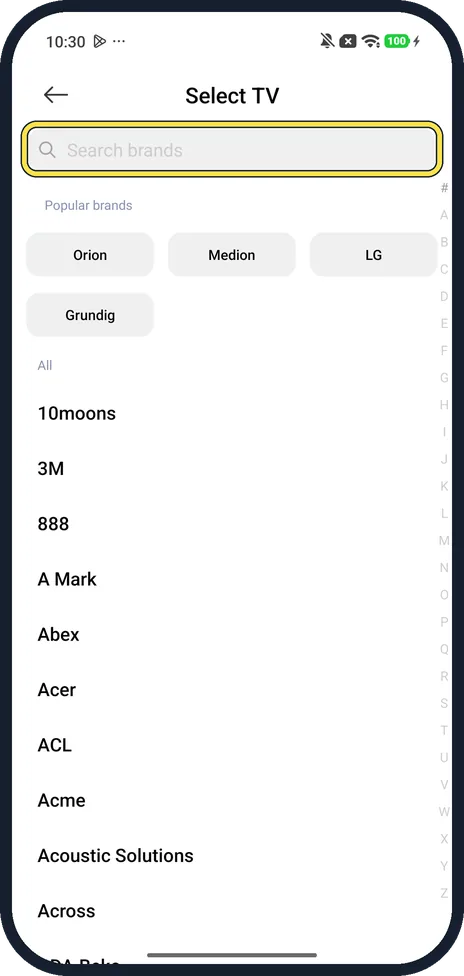
Find your TV's brand
Select TV shows popular brands (Orion, Medion, LG and Grundig on ours) and an A to Z list. Tap your brand, or type it in Search brands.
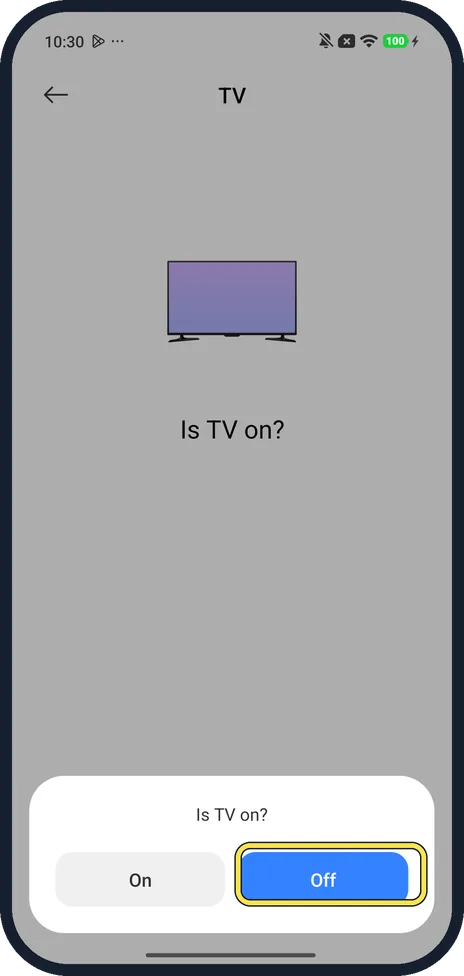
Say whether the TV is on
Mi Remote asks Is TV on? Tap On or Off to match your TV. Ours was set up with Off.
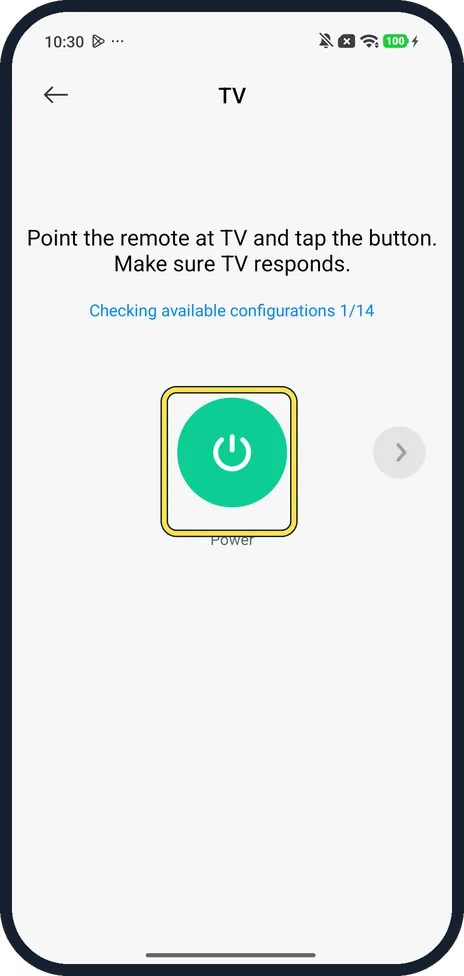
Point and tap Power
Point the phone at the TV and tap Power. The page says Checking available configurations 1/14: if the TV responds, carry on; if not, tap the arrow to try the next one.
If you do not see this option
- No Mi Remote app? Search for Mi Remote in your app list. Xiaomi says it works with the phone's IR blaster, so a phone without one can't use it for TVs. Source: Generic User Guide for HyperOS 3.0
- Your TV's brand isn't listed? Xiaomi says Mi Remote does not support some devices. Scroll the A to Z list under All in case the brand is spelt differently, or add a remote for your set-top box instead. Source: Generic User Guide for HyperOS 3.0
If this does not work
- TV doesn't react to any configuration? Infrared needs a clear line of sight, as with a normal remote: point the phone straight at the TV with nothing in the way, and keep trying the next configuration.
- Went through all the configurations? Xiaomi says Mi Remote does not support some devices. If your TV is on a set-top box, add a remote for the box instead: Xiaomi's own example sets up a Set-top box by choosing the service provider, then tapping Power and following the on-screen instructions. Source: Generic User Guide for HyperOS 3.0
About this guide
Many Xiaomi and Redmi phones have an infrared (IR) blaster, the same kind of light a normal TV remote uses. Mi Remote turns the phone into a remote for TVs, set-top boxes, air conditioners and more. Your TV doesn't need Wi-Fi.
The screenshots are from our Redmi Note 15 Pro 5G with Xiaomi HyperOS 3 and Android 16, in Light mode. We went as far as the Power test screen but did not press Power or save a remote, so we have not confirmed that it switches a TV on.
Good to know
Send photos or the screen to the TV instead: Xiaomi Share and Cast on a Xiaomi phone.
In short: Mi Remote, Agree, Add remote, TV, your brand, Is TV on?, point the phone and tap Power; carry on if it works, the arrow if not.
Links checked in October 2026. Menus and features can change after software updates. These steps match the version named at the top.
Did this guide work for you?
Sorry about that. What happened?