GOOGLE PIXEL
How to take a screenshot or a scrolling screenshot on a Google Pixel (Android 17)
Press the Power and Volume down buttons at the same time. To capture a whole long page, tap Capture more under the preview, drag the bottom of the frame down and tap Save. Without buttons, swipe up and hold, then tap Screenshot under the app.

6 of 6 steps show a real screenshot from our Pixel 10a. Each step was checked against the maker's own instructions, linked at the end.
Steps
- 1
Press Power and Volume down together
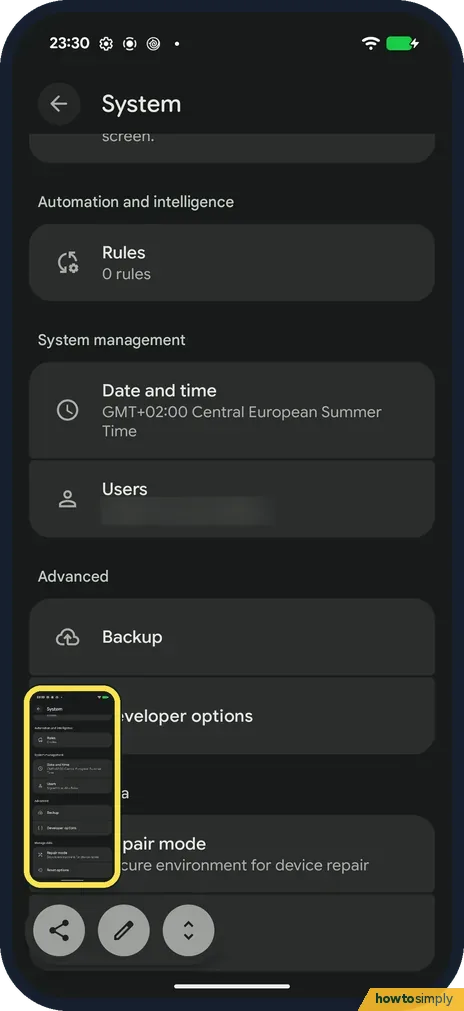
Open the screen you want and press the Power and Volume down buttons at the same time. A preview of the screenshot appears at the bottom left.
- 2
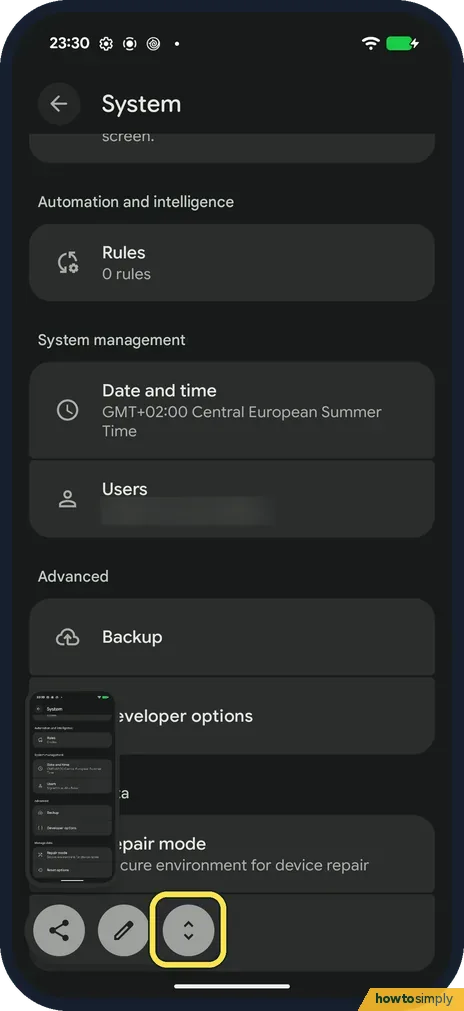
Tap Capture more for a long page
Under the preview there are three buttons: Share, Edit (the pencil) and Capture more. Tap Capture more, the one with the up and down arrows.
- 3
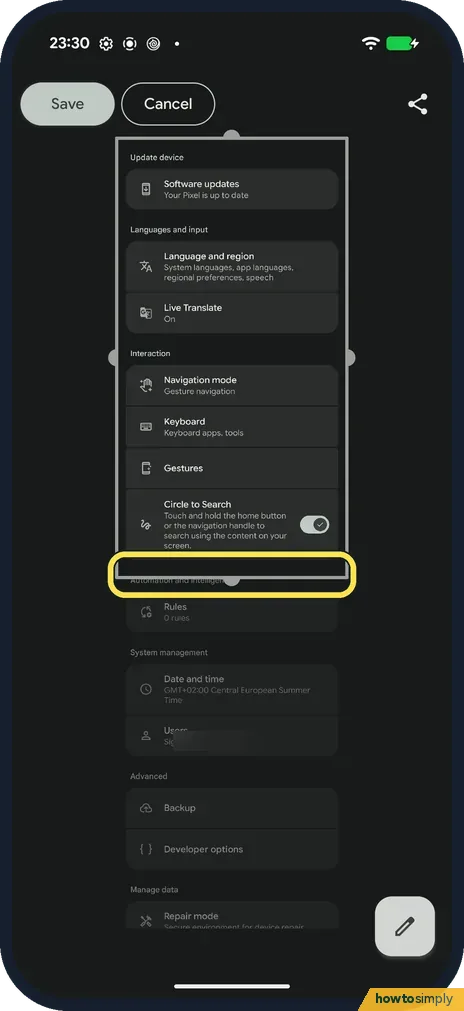
Drag the frame to choose what to keep
The whole page appears. Drag the bottom edge of the frame down to include more, or the top edge to cut.
- 4
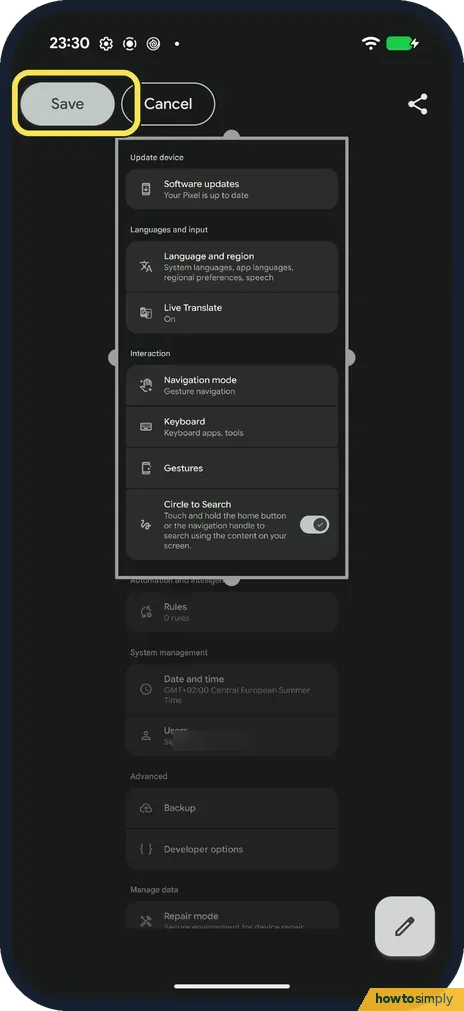
Tap Save
Tap Save at the top left. Cancel throws the long screenshot away. The same screen has a share icon at the top right and a pencil at the bottom right to edit before saving.
- 5
Or take one without buttons
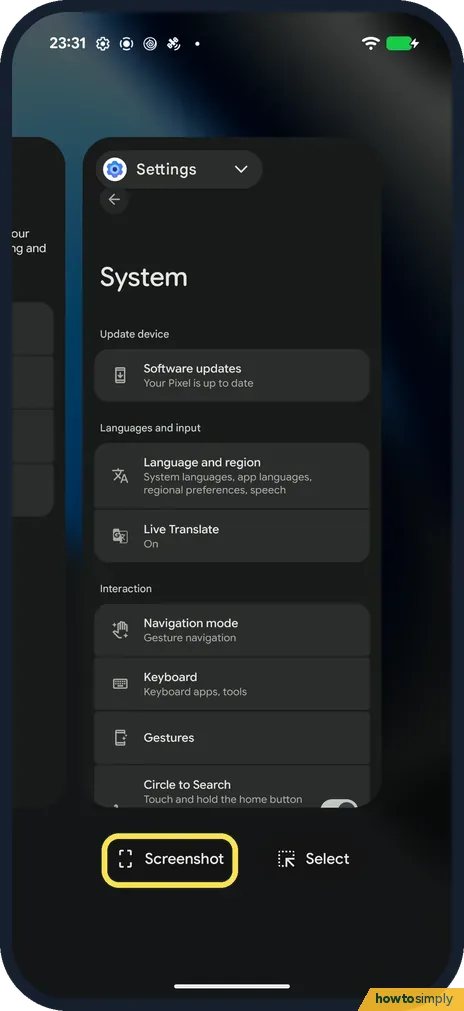
Swipe up from the bottom of the screen and hold to see your open apps. Tap Screenshot under the app you want. Select, next to it, lets you pick text or images from the app instead.
- 6
Find your screenshots
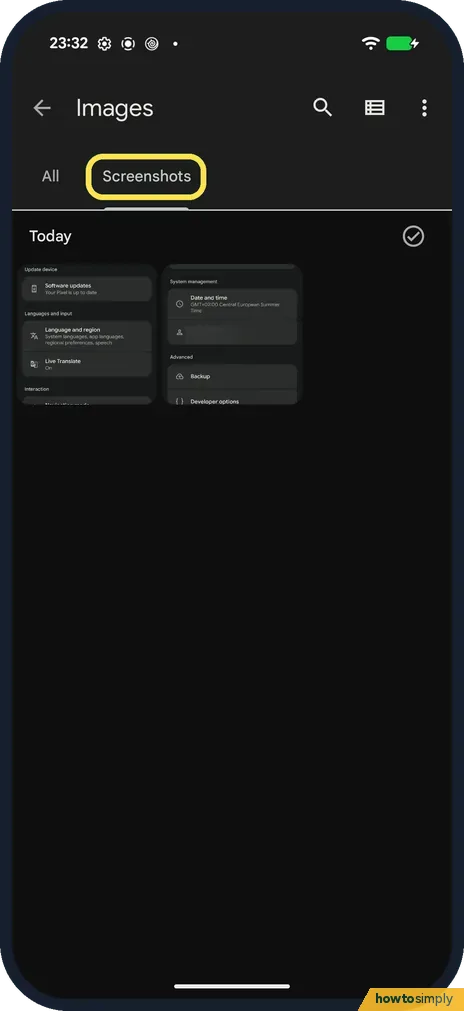
In Files by Google, tap Images, then the Screenshots tab: ours were listed under Today, in the Pictures, Screenshots folder. In Google Photos they are under Collections, On this device, Screenshots.
If you do not see this option
- No Capture more button? Google says it works on Android 12 and later, and only on screens you can scroll. Source: Take a screenshot on your Pixel phone or tablet
- No Screenshot button in your open apps? That button belongs to gesture navigation. With 3-button navigation, tap the square Overview button first, then Screenshot. Source: Take a screenshot on your Pixel phone or tablet
If this does not work
- Buttons open the power menu or change the volume? Press Power and Volume down at the same time, as Google describes; Power with Volume up opens the power menu instead.
- Buttons awkward to press together? Use the Screenshot button in your open apps (step 5), or say Hey Google, take a screenshot, as Google suggests.
- Capture more stops partway down? Google says scrolling screenshots work on most screens that allow you to scroll, not all of them. Take several normal screenshots instead.
- Black screenshot or a can't-take message? Banking, paid video and some work apps block screen capture on purpose. Nothing is wrong with the phone, and no setting on your side changes that.
Good to know
To record a video of the screen instead: how to screen record on a Google Pixel.
Switching between gestures and buttons: how to switch to 3-button navigation on Android.
Screenshots stay on the phone until you delete them, in the Screenshots folder named in step 6, and they appear in Google Photos like any other picture. Google says you can view, edit and share a screenshot after you take it; the preview at the bottom left is the quickest place to do that before it disappears. If you take many screenshots, a back gesture is quicker than buttons: Quick Tap can be set to take a screenshot when you tap the back of the phone twice.
About this guide
- Device
- Android
- Shown on
- Google Pixel 10a, Android 17 (build CP3A.260905.009)
- Starts in
- The phone's buttons
- Real screenshots
- 6 of 6 steps
- Checked
- October 2026
- Sources
- 2 official, linked below
Sources
Links checked October 2026. Menus and features can change with updates.Spotted a mistake? Menus change with updates, and we want every step to match your screen. Email us about this page or use the contact form. We read every report, and fixes are listed on What changed.
Liked this guide?
Follow us for new guides and short how-to videos.
Did this guide work for you?
Sorry about that. What happened?