GOOGLE PIXEL
How to change brightness and adaptive brightness on a Google Pixel (Android 17)

In short
Open Settings, Display and touch and tap Brightness level, the first row. A slider opens over the top of the page; drag it. Adaptive brightness, the next row, changes the brightness to the light around you. Its page has the Use adaptive brightness switch, on on ours.
6 of 6 steps show a real screenshot from our Pixel 10a. Each step was checked against the maker's own instructions, linked at the end.
Steps
- 1
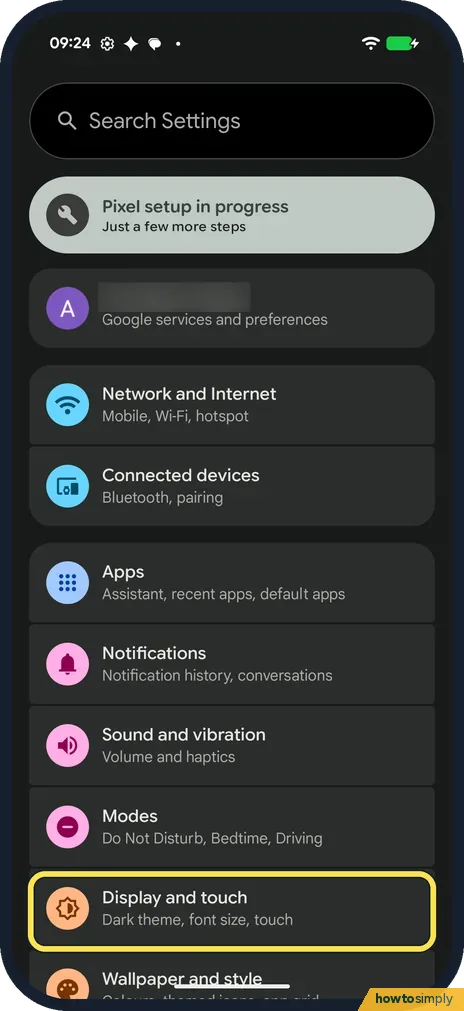
Open Display and touch
Open Settings and tap Display and touch (Dark theme, font size, touch).
- 2
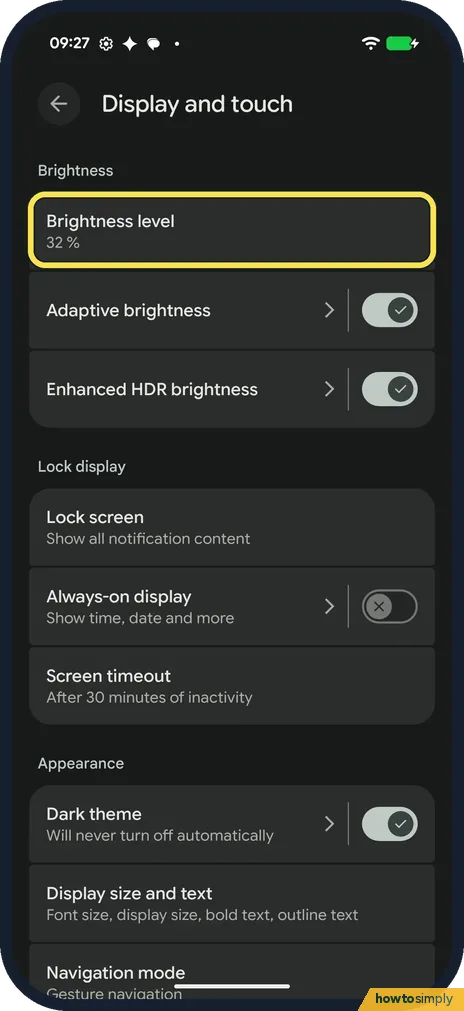
Tap Brightness level
The page opens with Brightness at the top. Brightness level is the first row; ours said 32 %. Tap it.
- 3
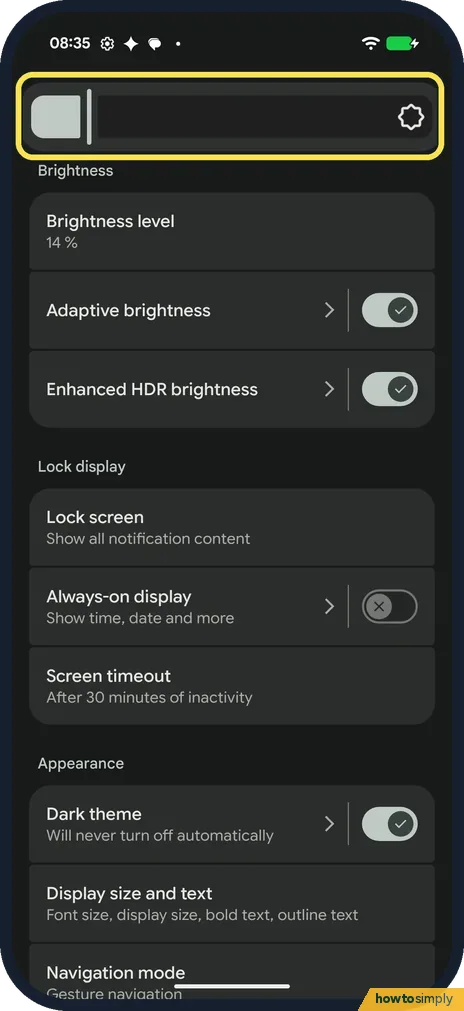
Drag the slider
A slider opens across the top of the page, over the title. Drag it right for a brighter screen, left for a dimmer one.
- 4
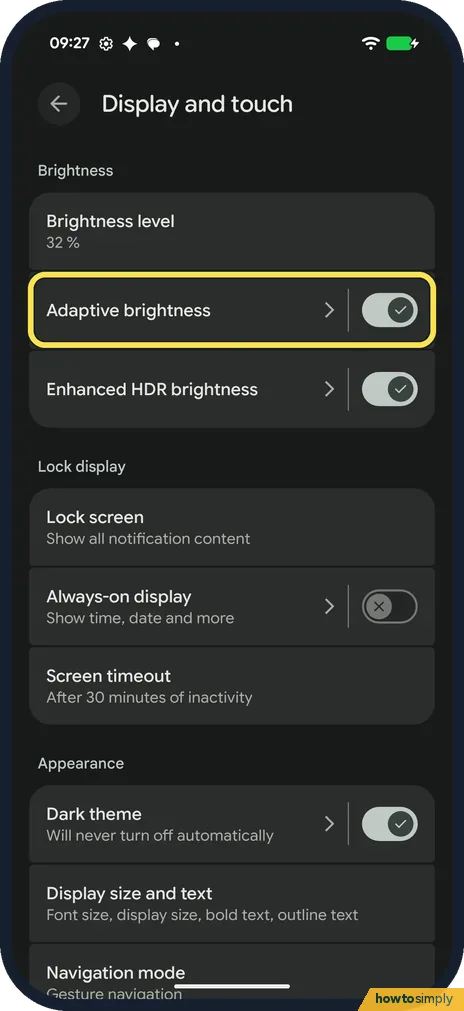
Open Adaptive brightness
Adaptive brightness is the next row. The switch on the row turns it on or off; tap the words to open its page. Ours was on.
- 5
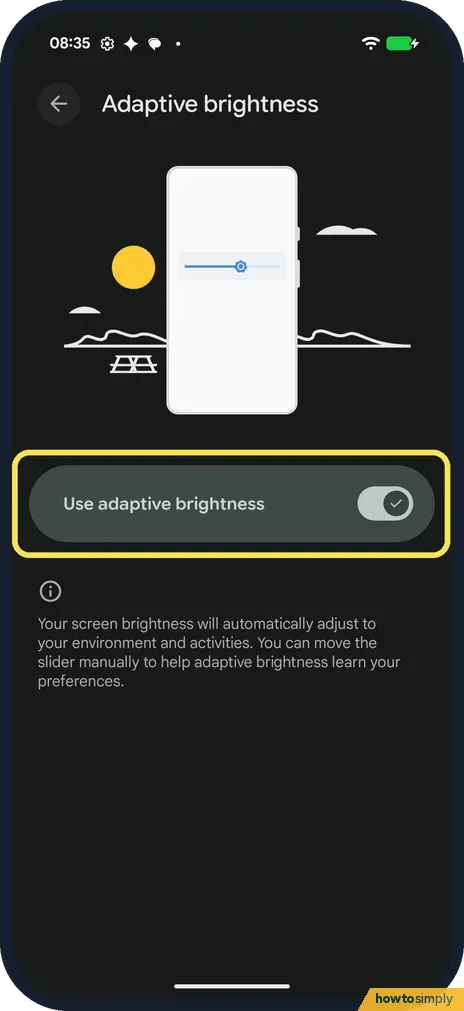
Use adaptive brightness
Turn Use adaptive brightness on or off. It stayed on on ours. The note says your screen brightness will adjust to your environment and activities, and you can move the slider manually to help adaptive brightness learn your preferences.
- 6
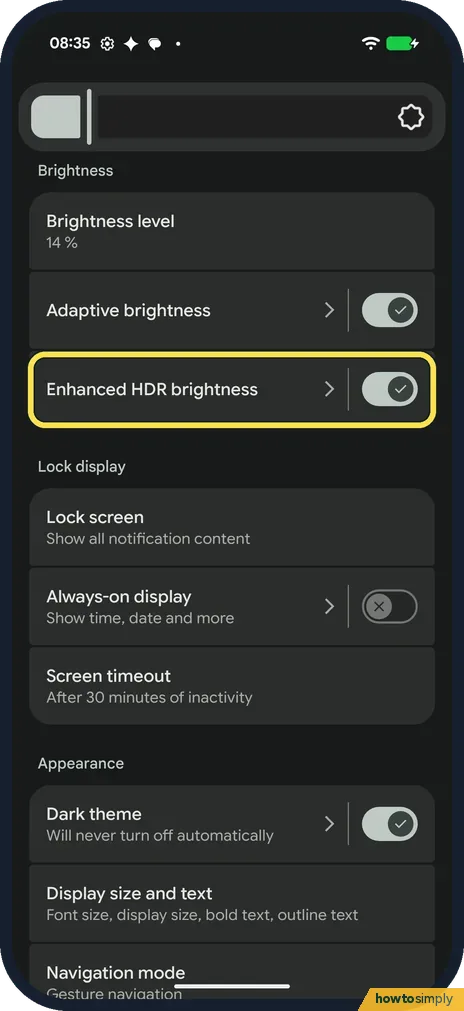
Enhanced HDR brightness
Back on Display and touch, Enhanced HDR brightness, below Adaptive brightness, was also on, with its own switch. We didn't open it.
If you do not see this option
- Want it darker than the lowest setting? Google says Extra dim dims the screen beyond the minimum. On Pixel 10 and later it is part of the brightness slider in Quick Settings; on Pixel 9 and earlier it is a switch under Settings, Accessibility. Source: Change text and display settings
- Brighter than the slider allows in sunlight? Google says that on Pixel 4 and later, adaptive brightness can briefly go above the normal maximum in very bright light, such as direct sunlight. Source: Manage screen & display settings on a Pixel phone
- Quicker way? Google says Quick Settings, from the top of any screen, has your most-used settings, and that on Pixel 10 and later the brightness slider is in the Quick Settings menu. Sources: Manage screen & display settings on a Pixel phone, Change text and display settings
- Screen goes dark too soon? That is the screen timeout, not brightness. Google describes it as how long the screen takes to go black when you are not using it. See how to change the screen timeout on a Google Pixel. Source: Manage screen & display settings on a Pixel phone
If this does not work
- Brightness keeps changing by itself? That is adaptive brightness. Google says it is on by default and learns your preferences over time. On ours Brightness level read 14 % in one shot and 32 % in a later one. Move the slider to teach it, or turn Use adaptive brightness off.
- Screen too dark to read outdoors? Turn adaptive brightness on so it can raise the screen in bright light, or drag the slider right.
- Battery running down fast? A bright screen uses more power. See Pixel battery draining fast? What to check.
Good to know
A warmer screen at night: how to use Night Light on a Google Pixel.
A darker look everywhere: how to use dark theme on a Google Pixel.
A brightness change applies straight away and stays until you, or adaptive brightness, change it again. Nothing else on the phone changes with it. If the screen feels harsh at night, a lower brightness works well alongside a warmer colour or a dark theme. If you use Smooth Display, Google says it increases battery use and is turned off while Battery Saver is on; see turn on 120 Hz Smooth Display.
About this guide
- Device
- Android
- Shown on
- Google Pixel 10a, Android 17 (build CP3A.261005.005)
- App
- Settings
- Real screenshots
- 6 of 6 steps
- What we did
- Observed: looked at each screen, changed nothing
- Checked
- October 2026
- Sources
- 2 official, linked below
Sources
Links checked October 2026. Menus and features can change with updates.Spotted a mistake? Menus change with updates, and we want every step to match your screen. Email us about this page or use the contact form. We read every report, and fixes are listed on What changed.
Liked this guide?
Follow us for new guides and short how-to videos.
Did this guide work for you?
Sorry about that. What happened?