XIAOMI REDMI
How to use Do not disturb on a Xiaomi phone (HyperOS 3)
Open Settings, tap Sound & vibration, then Do not disturb, and turn it on. Under Notify about calls choose who can still ring you, and use Schedule turn on time to switch it on by itself.

6 of 6 steps show a real screenshot from our Redmi Note 15 Pro 5G. Each step was checked against the maker's own instructions, linked at the end.
Steps
- 1
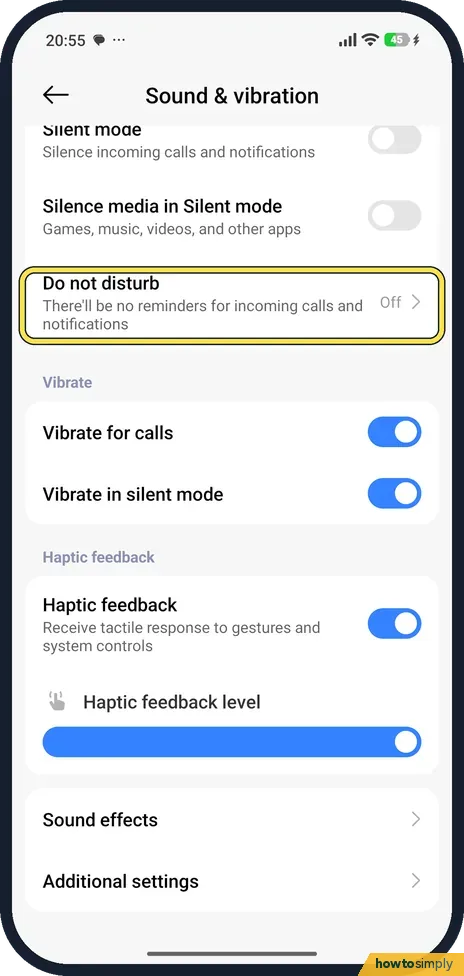
Open Sound & vibration, then Do not disturb
In Settings, tap Sound & vibration and scroll down past Silent mode. Tap Do not disturb.
- 2
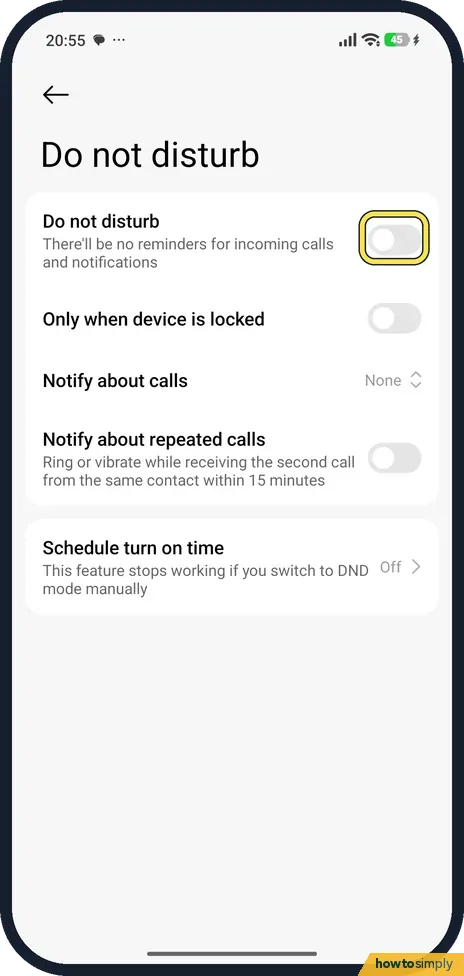
Turn on Do not disturb
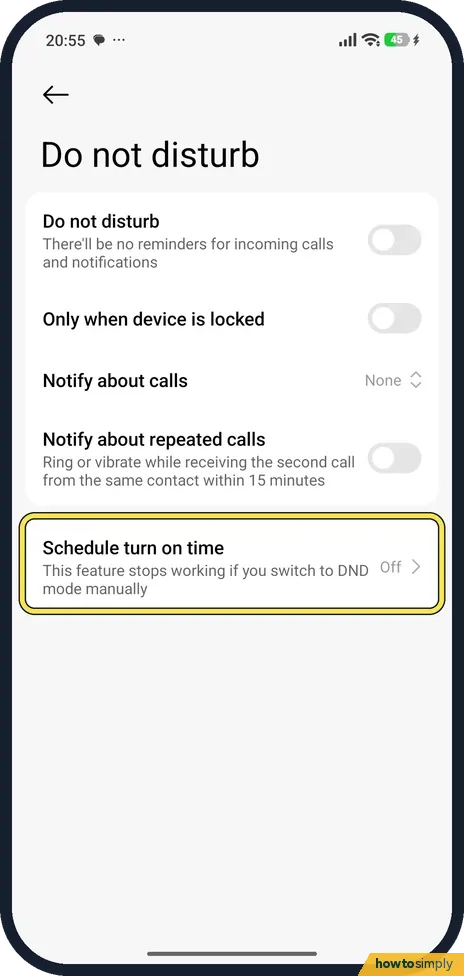
Tap the switch at the top. The page says there'll be no reminders for incoming calls and notifications. Turn on Only when device is locked if you want it to work only while the screen is locked.
- 3
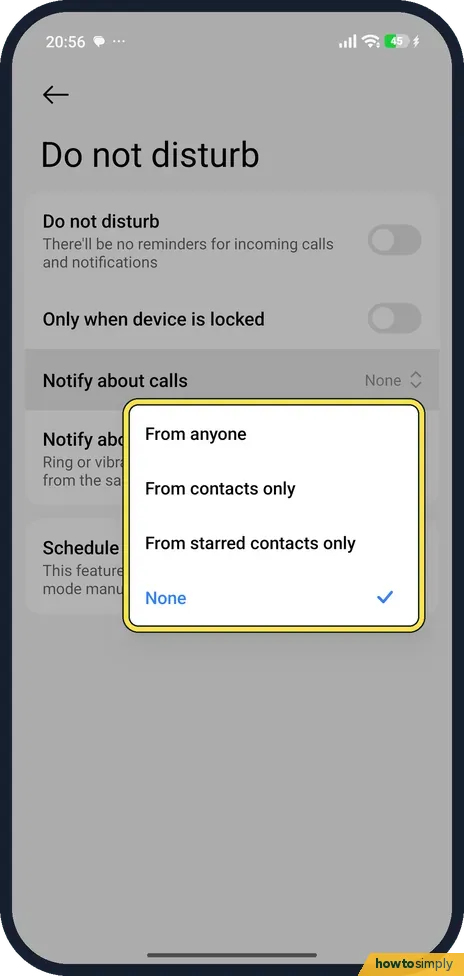
Choose who can still call
Tap Notify about calls. Choose From anyone, From contacts only, From starred contacts only, or None. Ours was None.
- 4
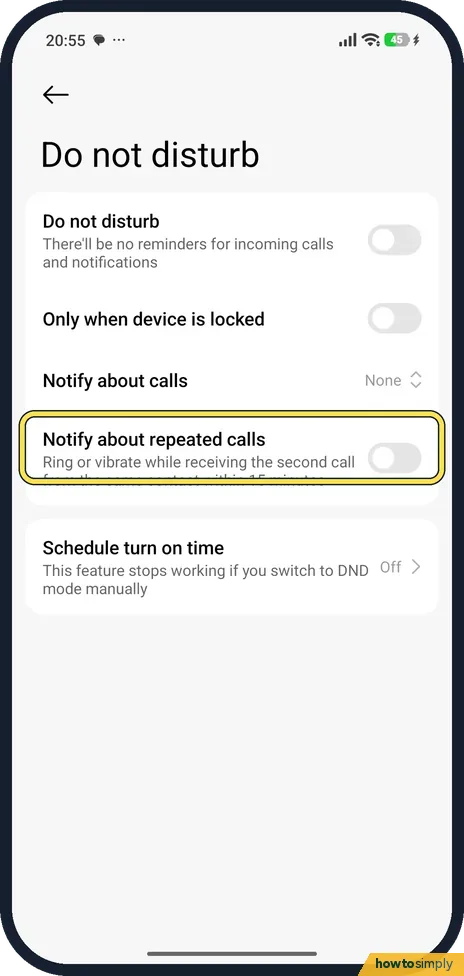
Let repeated calls ring
Turn on Notify about repeated calls to ring or vibrate when the same contact calls a second time within 15 minutes.
- 5
Set a schedule
Tap Schedule turn on time. The page warns that this feature stops working if you switch to DND mode manually.
- 6
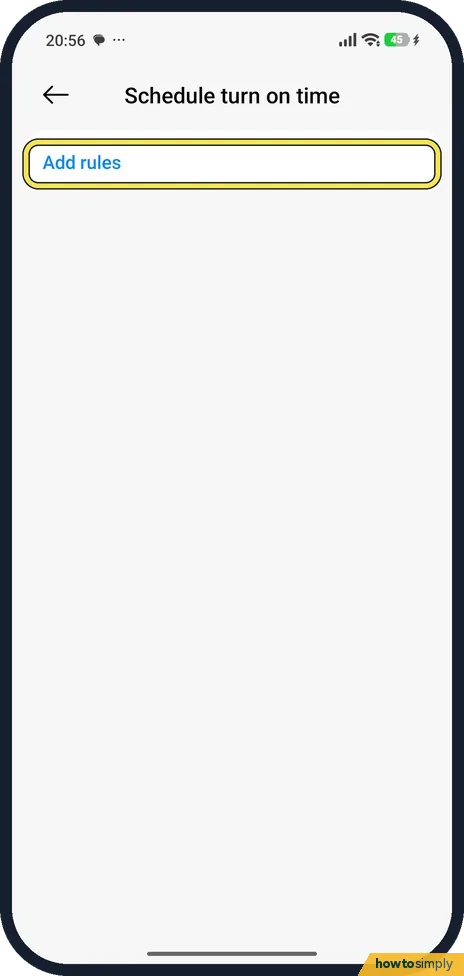
Tap Add rules
Tap Add rules to choose the days and times.
If you do not see this option
- No DND tile in Control Centre? It was not among our tiles; it sits in the Edit list under System toggles until you add it. Good to know, below, links the steps.
- Other ways to switch it on Xiaomi's help page for the Xiaomi 14T lists three: Settings, Control centre and the volume buttons. Source: How to enable/disable Do not disturb
If this does not work
- Schedule stopped working? The schedule stops if you switch to DND mode manually. Turn Do not disturb off by hand and let the schedule switch it on.
- Calls still ringing? Check Notify about calls and Notify about repeated calls. A second call from the same contact within 15 minutes rings when repeated calls is on.
- Worried the alarm will not ring? Test it before relying on it overnight. Set an alarm for two minutes ahead with Do not disturb on and check it sounds. Alarms have their own volume slider in Sound & vibration.
- One app should always get through? Google's Android help says you can choose which apps can still send notifications during Do Not Disturb. Xiaomi's guide does not describe such a list, so if your Do not disturb page has none, mute the noisy apps one by one instead.
Good to know
To switch it from Control Centre, add the DND tile first: how to edit the Control Centre on a Xiaomi phone.
Notifications missing on the lock screen for another reason? Xiaomi lock screen notifications not showing?.
While Do not disturb is on, calls and notifications arrive silently and wait in the notification shade and call log. Nothing is lost, and messages are still delivered. Turning it off brings back sounds for anything new; it does not replay what arrived earlier. Battery use does not change in any meaningful way.
Silent mode is a different setting on the same Sound & vibration page. Xiaomi says it silences calls and notifications; the choices for who can get through belong to Do not disturb. If your phone does not ring for some reason other than DND, see Xiaomi phone not ringing or vibrating.
Our Do not disturb page had no Alarms row: it listed Do not disturb, Only when device is locked, Notify about calls, repeated calls and the schedule. Behind the page, the phone's Do not disturb rule still allowed alarms and media when we checked on 1 November 2026, with HyperOS 3.0.309.0. Test an alarm once before relying on it overnight.
About this guide
- Device
- Android
- Shown on
- Xiaomi Redmi Note 15 Pro 5G (25080RABDG), HyperOS 3.0.308.0, Android 16
- App
- Settings
- Path
- Settings › Sound & vibration › Do not disturb
- Real screenshots
- 6 of 6 steps
- Checked
- October 2026
- Sources
- 4 official, linked below
Sources
Links checked October 2026. Menus and features can change with updates.Spotted a mistake? Menus change with updates, and we want every step to match your screen. Email us about this page or use the contact form. We read every report, and fixes are listed on What changed.
Liked this guide?
Follow us for new guides and short how-to videos.
Did this guide work for you?
Sorry about that. What happened?