XIAOMI REDMI
How to turn on Developer options on a Xiaomi phone (HyperOS 3)
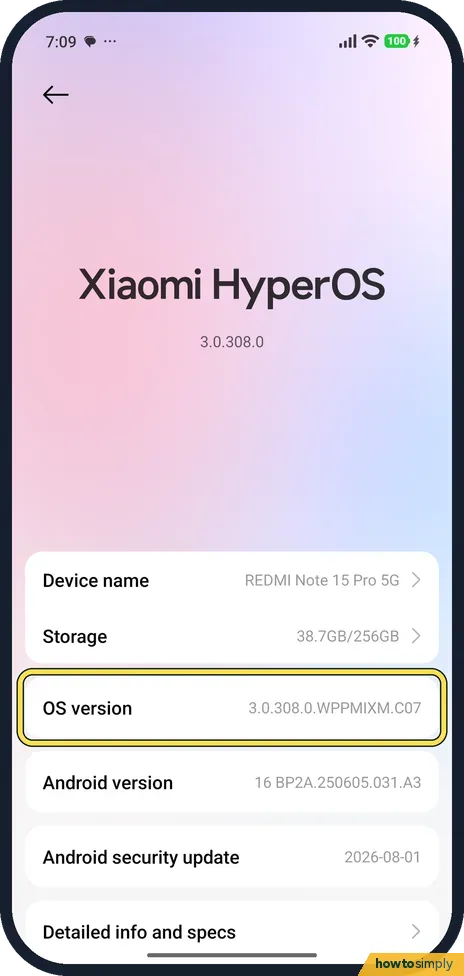
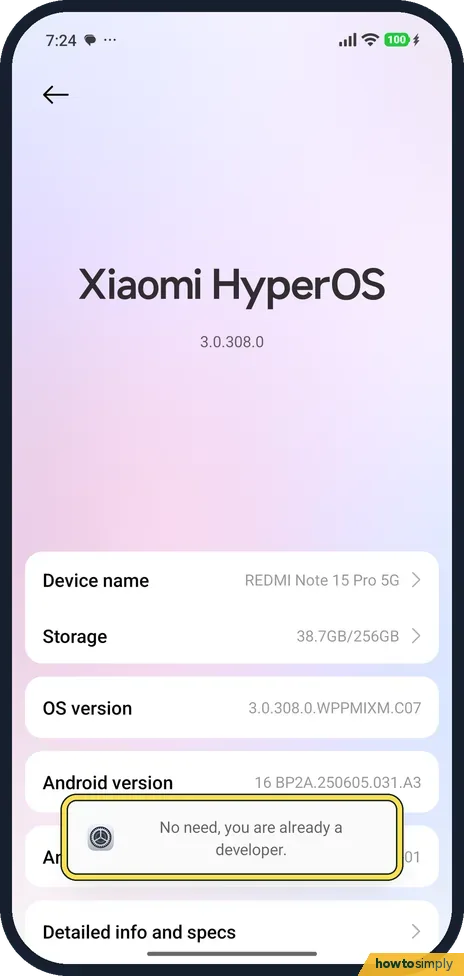
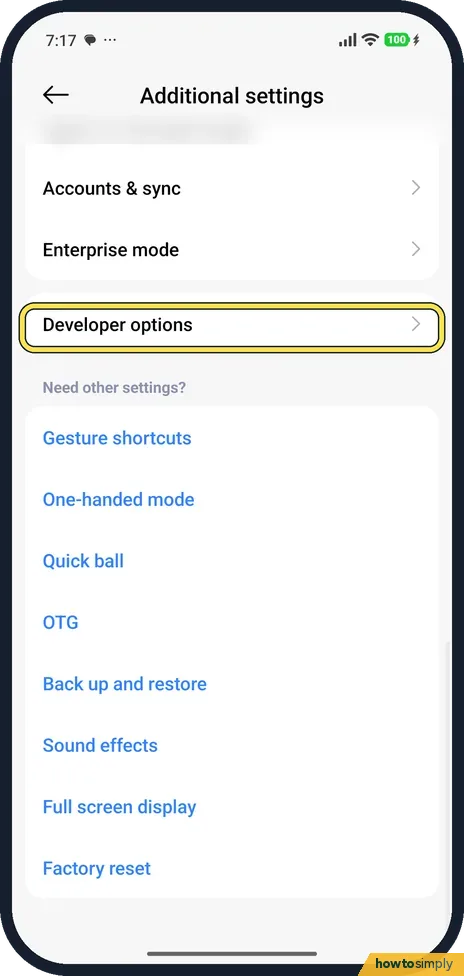
Go to Settings, About phone and tap OS version again and again until a message says you are a developer. Developer options then appears in Settings, Additional settings. If it is already on, the message says No need, you are already a developer.

4 of 4 steps show a real screenshot from our Redmi Note 15 Pro 5G. Each step was checked against the maker's own instructions, linked at the end.
Steps
- 1
Tap OS version repeatedly
Go to Settings, About phone. Tap OS version quickly, several times in a row, until a message says you are a developer.
- 2
Already on?
Our phone already had Developer options on, so tapping OS version showed No need, you are already a developer.
- 3
Open Developer options
Go to Settings, Additional settings. Developer options is listed there, below Accounts & sync and Enterprise mode.
- 4
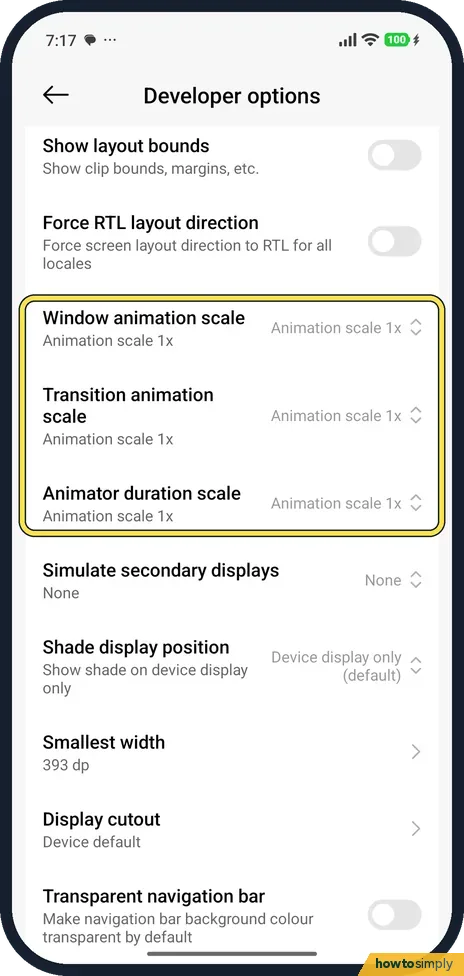
Change only what you need
The list is long. Animation scales, for example, are near the top of the drawing section. Ours were all at 1x.
If you do not see this option
- No Build number to tap? Android's own instructions say to tap Build number. On our Xiaomi, OS version in About phone does the job instead. We have not checked older MIUI phones. Source: Configure on-device developer options
- Developer options not in Settings? It is in Additional settings, not in the main Settings list.
- Need USB debugging over Wi-Fi? Android's developer documentation describes Wi-Fi debugging as a separate option: turn it on in Developer options, then pair the phone with your computer before it will connect. Source: Configure on-device developer options
If this does not work
- Want to hide it again? Developer options has a switch at the top to turn it off. We did not turn ours off, so we have no picture of it.
- Phone slower after changing something? Set the three animation scales back to 1x: Xiaomi phone slow or lagging.
- Taps on OS version do nothing? Tap quickly several times in a row without stopping. If the phone is managed by a work or school organisation, it may block developer settings, and only its administrator can allow them.
- A banking app stopped opening? Some banking and payment apps refuse to run while USB debugging or developer settings are on. Turn off USB debugging first, and if the app still complains, turn Developer options off with the switch at the top.
Good to know
Hardware test from About phone: how to open the CIT hardware test.
Turning on Developer options does not change how the phone behaves by itself; only the individual settings inside it do. Google notes that a lower animation scale means faster animations, which is the change most people make here. If the phone acts strangely after you have experimented, set back only what you changed, or turn Developer options off with the switch at the top. You do not need Developer options to copy files to a computer: see how to turn on USB file transfer on a Xiaomi phone.
About this guide
- Device
- Android
- Shown on
- Xiaomi Redmi Note 15 Pro 5G (25080RABDG), HyperOS 3.0.308.0, Android 16
- App
- Settings
- Path
- Settings › About phone › OS version
- Real screenshots
- 4 of 4 steps
- Checked
- October 2026
- Sources
- 1 official, linked below
Sources
Links checked October 2026. Menus and features can change with updates.Spotted a mistake? Menus change with updates, and we want every step to match your screen. Email us about this page or use the contact form. We read every report, and fixes are listed on What changed.
Liked this guide?
Follow us for new guides and short how-to videos.
Did this guide work for you?
Sorry about that. What happened?