
howtosimply.com/guides/how-to-turn-on-developer-options-on-a-samsung-galaxy/ · Checked October 2026 · Samsung Galaxy A57 5G (SM-A576B), One UI 8.5, Android 16
In this guide
Open Settings, About phone, Software information and tap Build number seven times. Enter your PIN or pattern if asked. Developer options then appears at the very bottom of Settings. Turn it off again with the switch at the top of that page.
If you do not see this option
- Developer options is not in Settings yet Samsung says it stays hidden until you tap Build number seven times quickly, in a row. A message appears when you are close. Source: Turn on the Developer options menu on your Galaxy phone
- The phone asks for your PIN or pattern Samsung says that with a screen lock set, you are asked for it before Developer options turns on. Enter it to finish. Source: Turn on the Developer options menu on your Galaxy phone
5 of 5 steps with real screenshots · 1 official source below
- Device
- Android
- Shown on
- Samsung Galaxy A57 5G (SM-A576B), One UI 8.5, Android 16
- App
- Settings
- Path
- Settings › About phone › Software information
- Real screenshots
- 5 of 5 steps
- Our phone
- Shown on Galaxy A57, One UI 8.5
- Checked
- October 2026
- Sources
- 1 official, linked below
Step by step
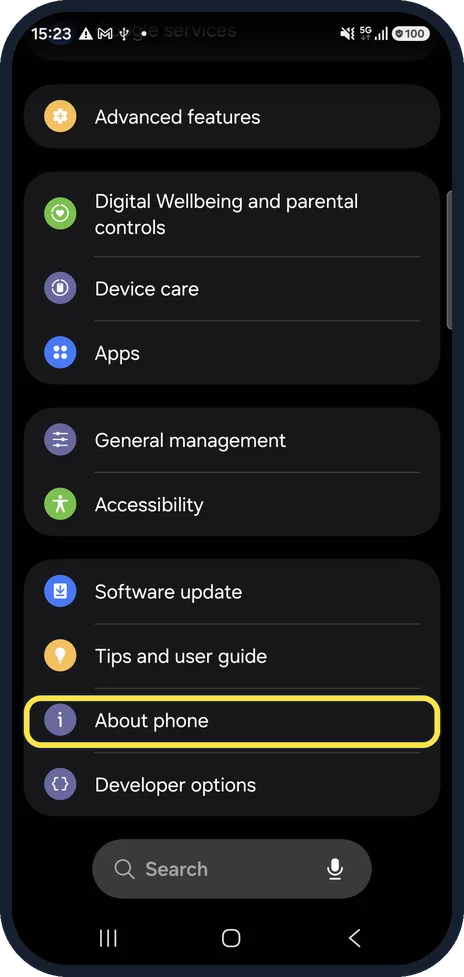
Open About phone
Open Settings and scroll to the bottom. Tap About phone.
Watch these steps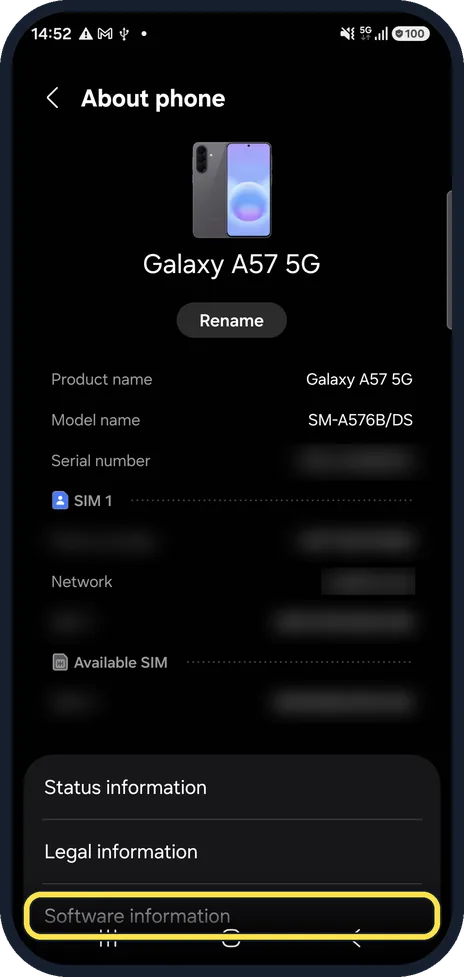
Tap Software information
It is at the bottom of About phone.
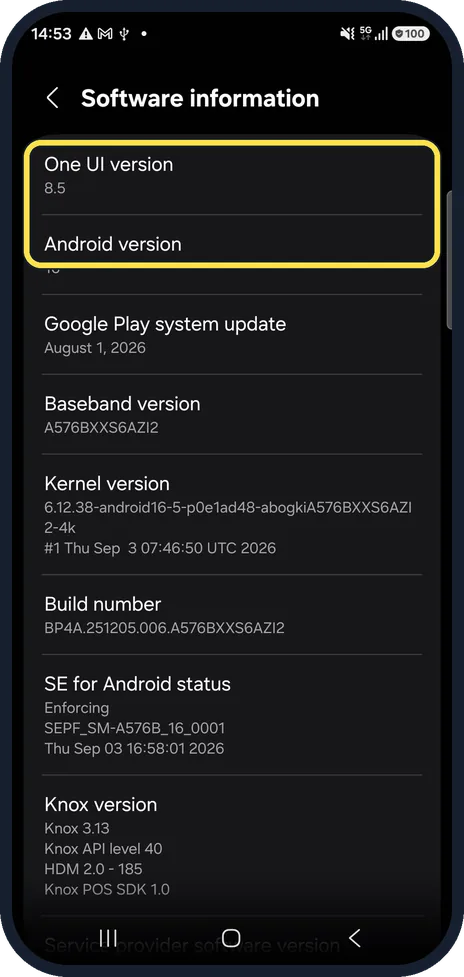
Check your version while you are here
The page shows the One UI and Android version. Ours: One UI 8.5, Android 16.
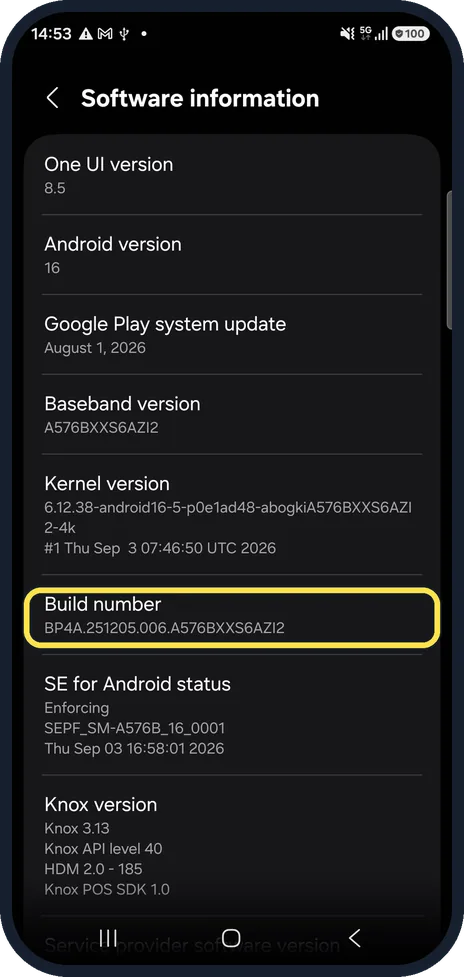
Tap Build number seven times
After a few taps a counter appears. Enter your PIN or pattern if the phone asks.
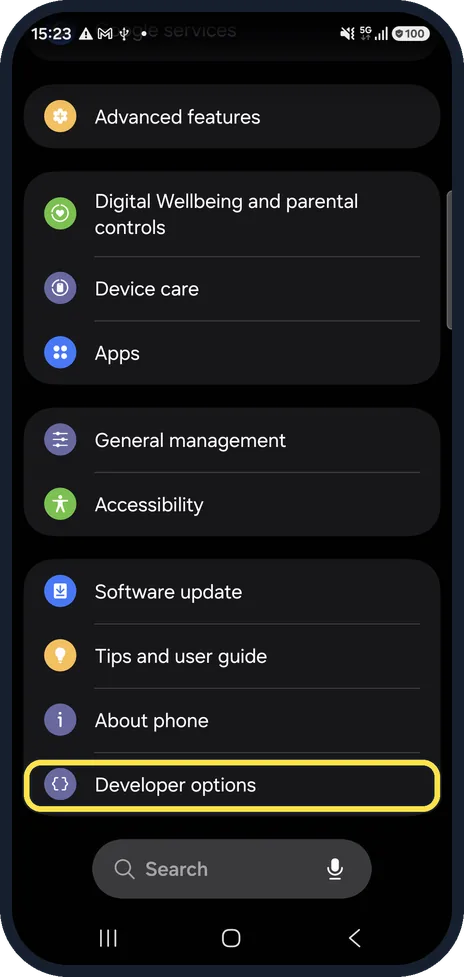
Find Developer options
Go back to the main Settings list. Developer options is the last entry, below About phone.
Watch these steps
If this does not work
- You want to hide the menu again Samsung says to open Settings, Developer options and turn off the switch at the top. Source: Turn on the Developer options menu on your Galaxy phone
- The phone behaves oddly after a change Samsung says using Developer options is not supported by Samsung and may affect performance. Undo the change, or turn the menu off. Source: Turn on the Developer options menu on your Galaxy phone
About this guide
Developer options holds settings meant for app testing, such as USB debugging and animation speeds. Most people only need it for one change. Do not change settings you do not recognise.
Is it safe to turn on Developer options? Showing the menu changes nothing by itself; each setting inside only changes when you change it. Samsung says the menu is for people familiar with Android app development, does not support its use and warns it may affect performance. Change only the one setting you came for, and hide the menu again with the switch at the top of Developer options.
We opened Software information but did not tap Build number. Developer options was already on on our phone, which is why it shows at the bottom of Settings in our pictures.
Good to know
To hide the menu again, open Developer options and switch off the switch at the top.
Our version check guide: how to check the One UI and Android version on a Samsung Galaxy phone.
In short: Settings, About phone, Software information, tap Build number 7 times. Developer options is at the bottom of Settings.
Links checked in October 2026. Menus and features can change after software updates. These steps match the version named at the top.
📷 See real photos from the Galaxy A57 in our Camera Lab, next to 10 other phones.
Did this guide work for you?
Sorry about that. What happened?