
howtosimply.com/guides/how-to-turn-on-do-not-disturb-on-a-nothing-phone/ · Checked October 2026 · 4a) Pro (A069P, EEA), Nothing OS 4.1, Android 16 (build FroggerPro-B4.1-260424-1447-EEA · Nothing Phone
In this guide
Open Settings, Modes, Do Not Disturb and tap Turn on now. A Do Not Disturb icon appears in the status bar; tap Turn off to end it. Notification filters on the same page choose who can still reach you.
4 of 4 steps with real screenshots · 1 official source below
- Device
- Android
- Shown on
- Nothing Phone (4a) Pro (A069P, EEA), Nothing OS 4.1, Android 16 (build FroggerPro-B4.1-260424-1447-EEA), Nothing Phone (4a) Pro (A069P, EEA), Nothing OS 4.1, Android 16 (build FroggerPro-B4.1-260907-1153-EEA)
- App
- Settings
- Path
- Settings › Modes › Do Not Disturb
- Real screenshots
- 4 of 4 steps
- Checked
- October 2026
- Sources
- 1 official, linked below
Step by step
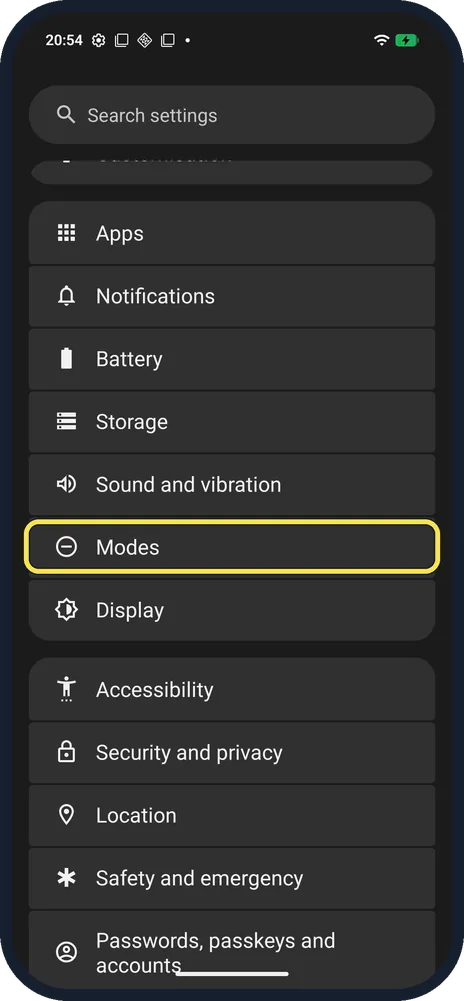
Open Modes
Open Settings and tap Modes; it is below Sound and vibration.
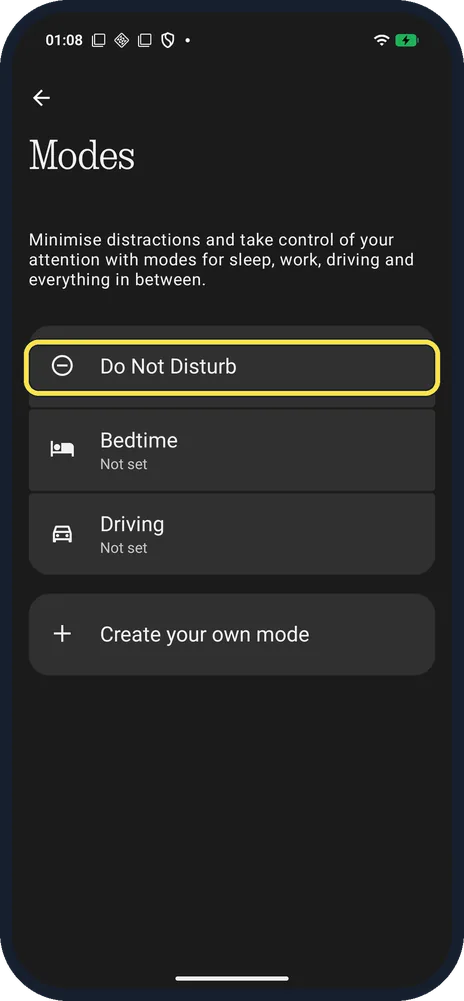
Tap Do Not Disturb
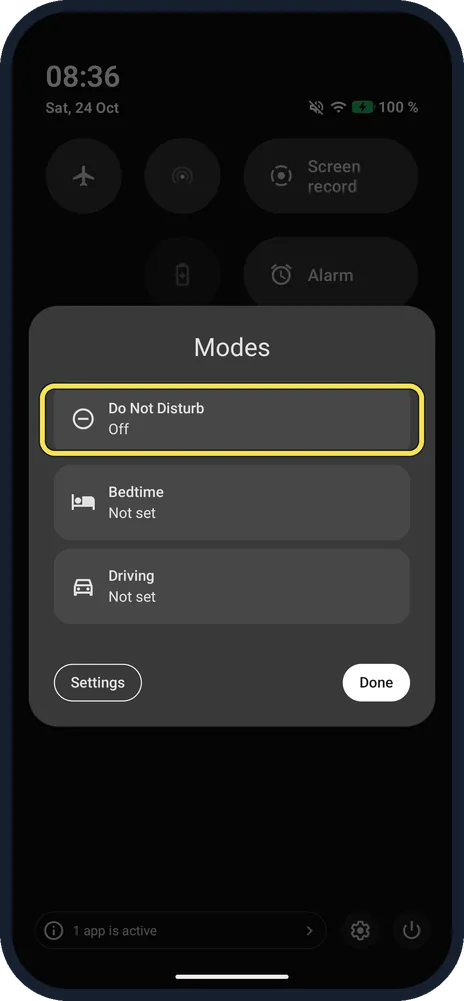
First of the modes; Bedtime and Driving were Not set on ours.
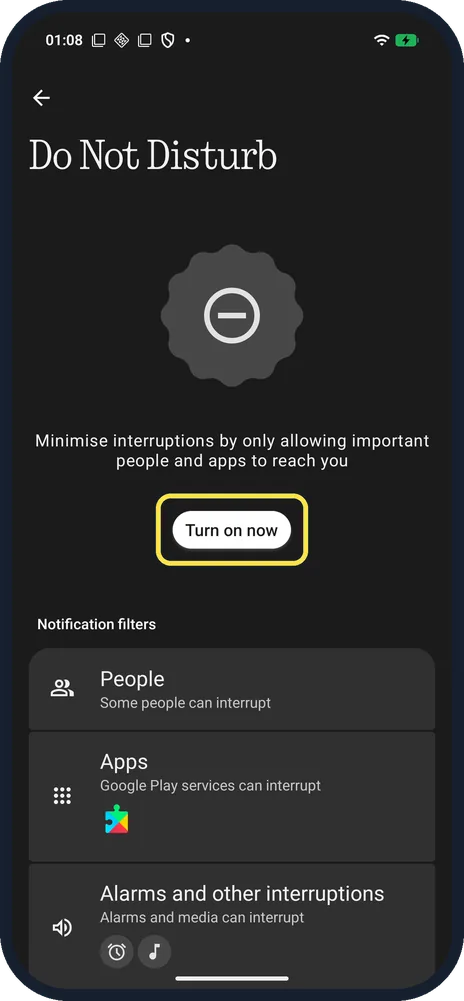
Tap Turn on now
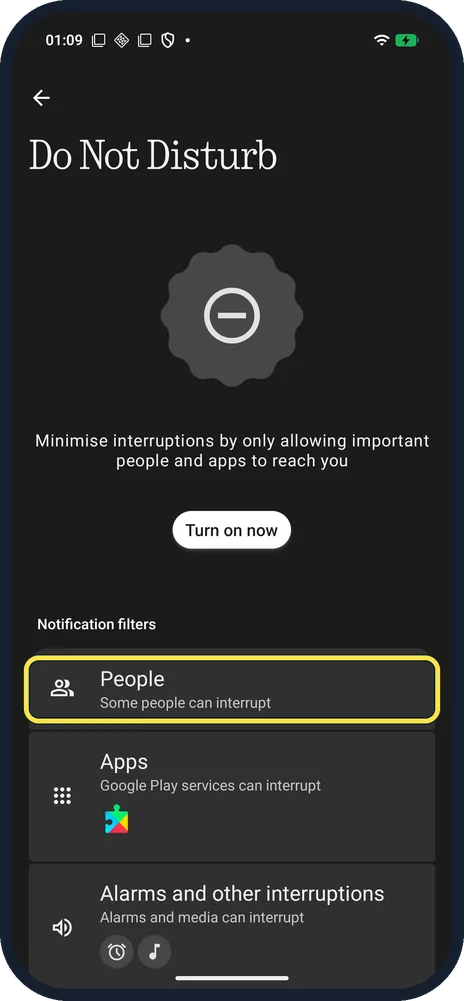
It minimises interruptions by only allowing important people and apps to reach you.
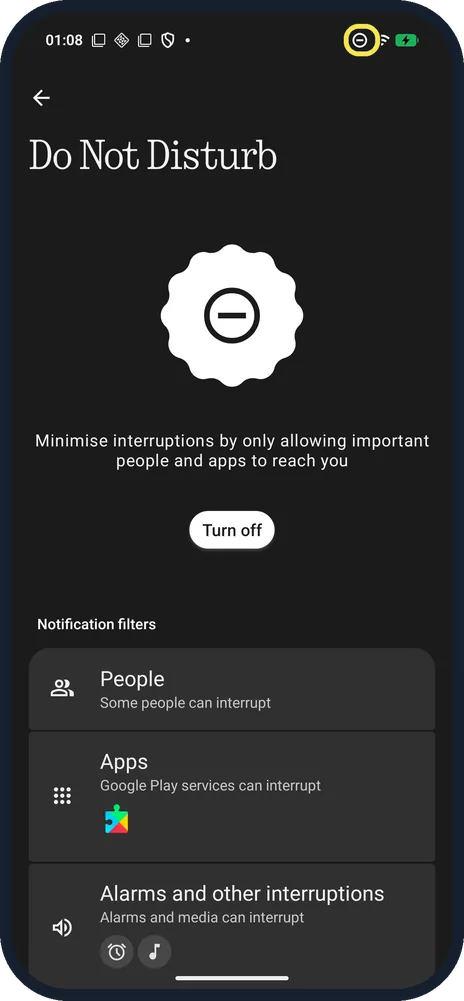
Check the status bar
The do-not-disturb icon shows at the top right. The button now says Turn off.
If you do not see this option
- No Do Not Disturb tile? Ours had a Modes tile in Quick Settings instead; tapping it opens Do Not Disturb, Bedtime and Driving.
- No Modes in Settings? Google says older Android versions put it under Settings, Sound, Do Not Disturb, and that if you see 'Do Not Disturb preferences' you're on an even older version. Nothing OS 4.1 on Android 16 uses Modes. Source: Limit interruptions with Do Not Disturb on Android
- Want a quicker switch? Google says to swipe down from the top of the screen and tap Do Not Disturb in Quick Settings. Source: Limit interruptions with Do Not Disturb on Android
- Want calls from certain people? Tap People under Notification filters. Source: Limit interruptions with Do Not Disturb on Android
If this does not work
- Alarms don't ring? Check Alarms and other interruptions on the Do Not Disturb page; on ours alarms and media could interrupt. Source: Limit interruptions with Do Not Disturb on Android
- Do Not Disturb turns on by itself? Check Bedtime and any mode you created under Modes.
About this guide
On Android 16, Do Not Disturb lives under Modes, next to Bedtime and Driving.
The screenshots are from our Nothing Phone (4a) Pro, the European model A069P, with Nothing OS 4.1 and Android 16 (build FroggerPro-B4.1-260907-1153-EEA, security update 1 September 2026), in Dark theme. We turned it on for the screenshots and off again.
The step 1 screenshot was taken earlier, on build FroggerPro-B4.1-260424-1447-EEA.
Good to know
To change your ringtone, change Glyph ringtones.
For a Glyph-only alert setup, set up Essential Notifications.
In short: Settings, Modes, Do Not Disturb, Turn on now.
Links checked in October 2026. Menus and features can change after software updates. These steps match the version named at the top.
Did this guide work for you?
Sorry about that. What happened?