GOOGLE PIXEL
How to use Data Saver on a Google Pixel (Android 17)

In short
Open Settings, Network and Internet, Data Saver, and turn on Use Data Saver. It stops some apps from using data in the background, and an icon shows in the status bar. To let an app keep using mobile data, tap Unrestricted mobile data and turn on its switch.
6 of 6 steps show a real screenshot from our Pixel 10a. Each step was checked against the maker's own instructions, linked at the end.
Steps
- 1
Open Data Saver
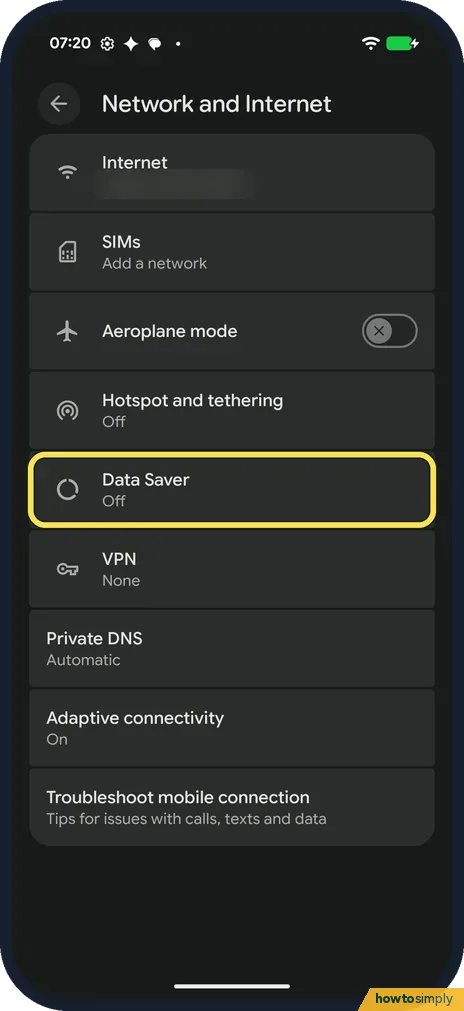
Open Settings and tap Network and Internet. Data Saver is in the list; ours said Off.
- 2
Turn on Use Data Saver
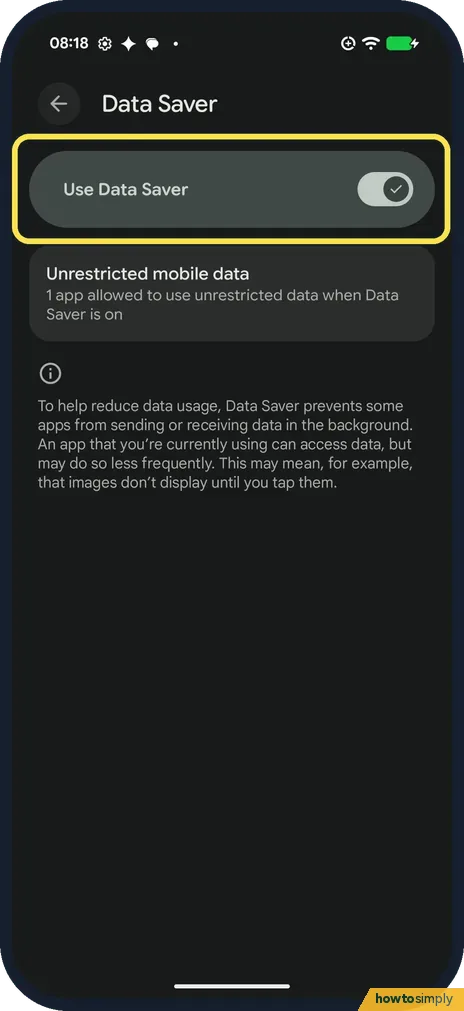
Turn on Use Data Saver at the top.
- 3
Look for the icon
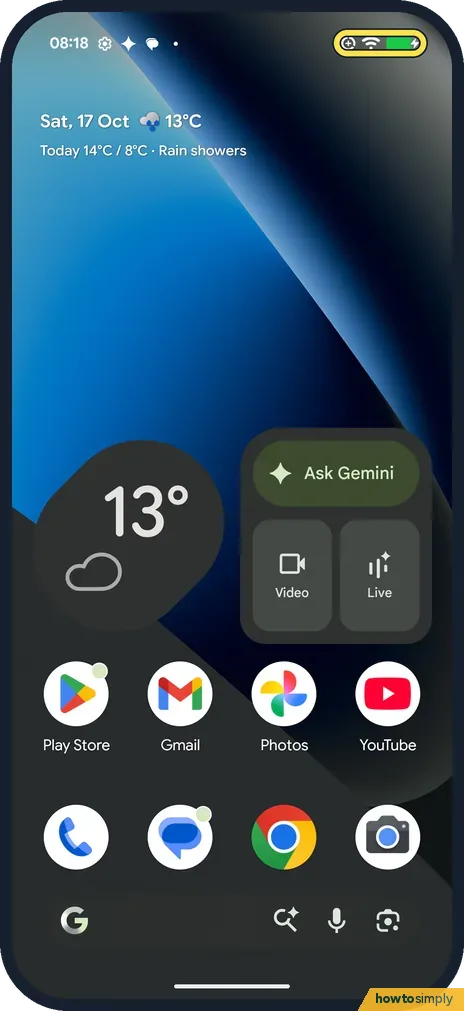
With it on, ours showed the Data Saver icon, a circle with a plus, next to Wi-Fi at the top of the home screen.
- 4
Know what it does
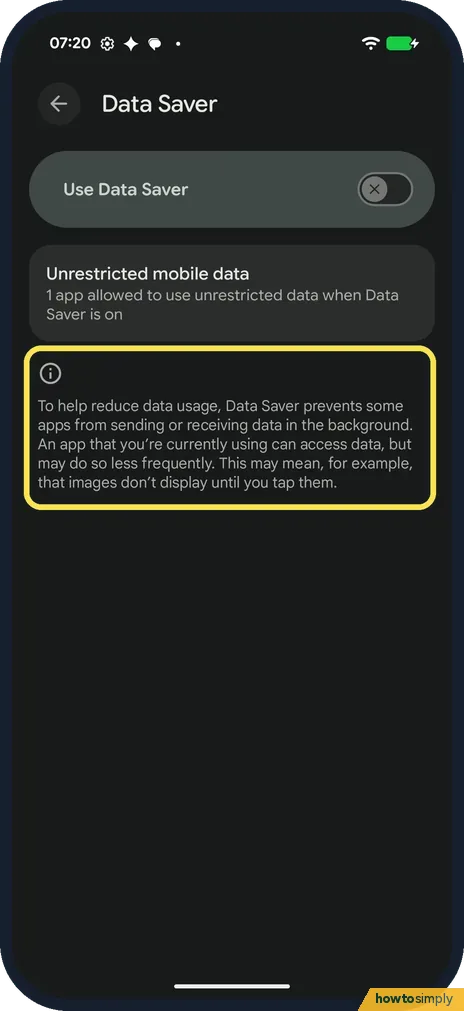
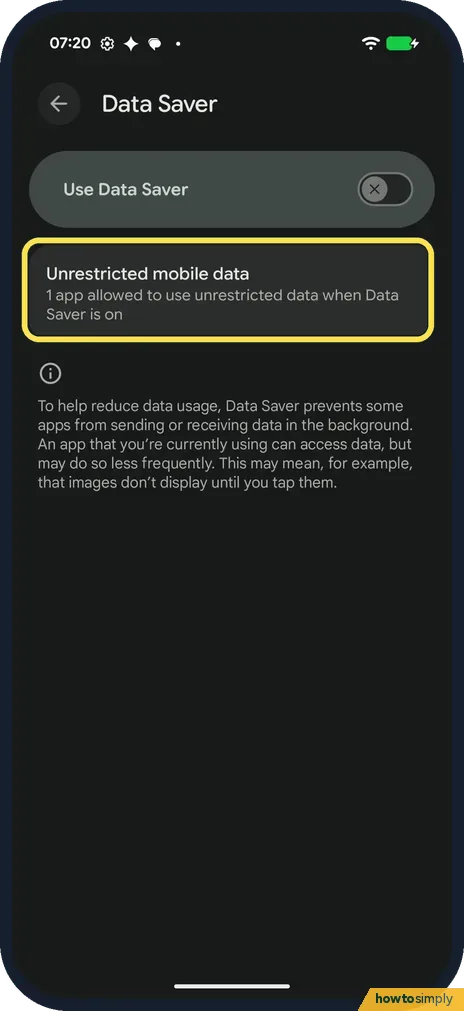
The page says Data Saver prevents some apps from sending or receiving data in the background. An app you are using can still get data, but less often, so images may not show until you tap them.
- 5
Open Unrestricted mobile data
Tap Unrestricted mobile data. Ours said 1 app allowed to use unrestricted data when Data Saver is on.
- 6
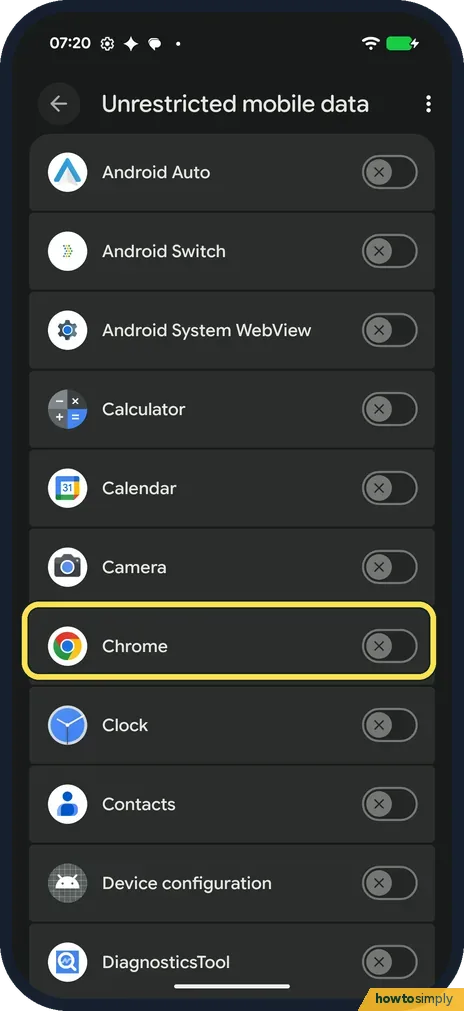
Allow an app
Each app has a switch: Android Auto, Calculator, Calendar, Camera, Chrome and more. Turn it on for an app that must keep using mobile data in the background. The ones on our first screen were all off.
If you do not see this option
- No Data Saver row? Google says some of these steps only work on Android 8.0 and up. Other brands differ: on our Redmi Note 15 Pro with HyperOS 3, Settings had no Data saver row at all. Source: Use less mobile data with Data Saver
- Looking for Unrestricted data? That is Google's name for it. On our Pixel the row was called Unrestricted mobile data, on the Data Saver page. Source: Use less mobile data with Data Saver
If this does not work
- An app stopped updating in the background? Data Saver may be holding it back. Turn on its switch under Unrestricted mobile data.
- Images don't load in an app? The Data Saver page says an app you are using may get data less often, so images may not show until you tap them. Tap the image, or allow that app under Unrestricted mobile data.
- Apps still sync on Wi-Fi? That is how it works. Google says that with Data Saver on, most apps and services get background data only over Wi-Fi. It saves mobile data, not Wi-Fi.
- Messages arrive only when you open the app? With Data Saver on and no Wi-Fi, a chat app may not fetch messages in the background. Turn on its switch under Unrestricted mobile data so alerts arrive on time. See also Pixel not getting notifications.
Good to know
Google says a notice also appears at the top of the Settings app while Data Saver is on, and that you can add Data Saver to Quick Settings.
Want a hard cap instead? See how to set a data warning and limit on a Google Pixel. No mobile data at all? See Pixel mobile data not working.
Sharing your data with a laptop uses a lot of it: how to turn on the Wi-Fi hotspot.
Data Saver only limits mobile data, so nothing changes while you are on Wi-Fi. To undo it, turn off Use Data Saver.
About this guide
- Device
- Android
- Shown on
- Google Pixel 10a, Android 17 (build CP3A.261005.005)
- App
- Settings
- Path
- Settings › Network and Internet › Data Saver: Use Data Saver
- Real screenshots
- 6 of 6 steps
- Checked
- October 2026
- Sources
- 1 official, linked below
Sources
Links checked October 2026. Menus and features can change with updates.Spotted a mistake? Menus change with updates, and we want every step to match your screen. Email us about this page or use the contact form. We read every report, and fixes are listed on What changed.
Liked this guide?
Follow us for new guides and short how-to videos.
Did this guide work for you?
Sorry about that. What happened?