GOOGLE PIXEL
How to use Battery Saver and Extreme Battery Saver on a Google Pixel (Android 17)

In short
Open Settings, Battery, Battery Saver and turn on Use Battery Saver. Pick Standard, or Extreme to also pause non-essential apps; the gear sets the Essential apps. Schedule and reminders turns it on at a battery level (20% on ours) and off at 90%.
9 of 9 steps show a real screenshot from our Pixel 10a. Each step was checked against the maker's own instructions, linked at the end.
Steps
- 1
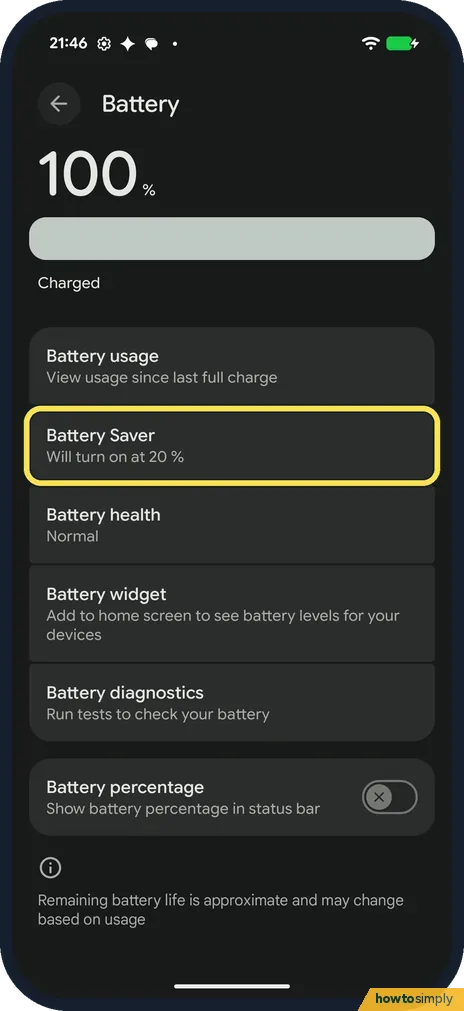
Open Battery Saver
Open Settings and tap Battery, then Battery Saver. Ours said Will turn on at 20 %.
- 2
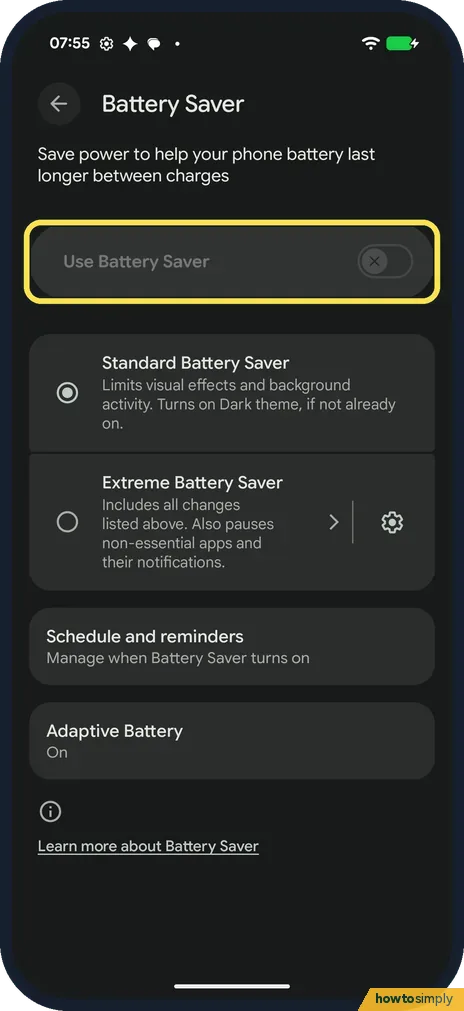
Turn on Use Battery Saver
The switch at the top turns it on now. Ours was off and greyed out while the phone sat on the charger at 100%. Google says you can also tap the Battery Saver tile in Quick Settings.
- 3
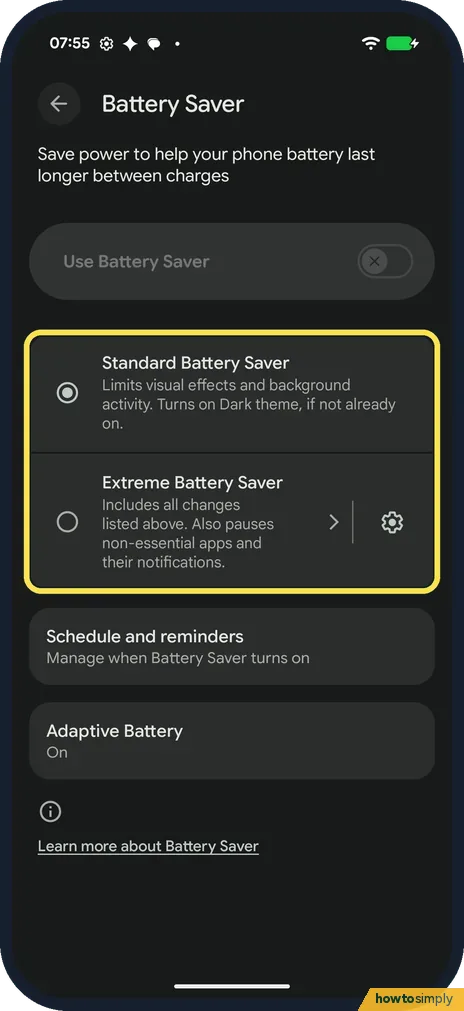
Pick Standard or Extreme
Standard Battery Saver limits visual effects and background activity, and turns on Dark theme if not already on. Extreme includes all of that and also pauses non-essential apps and their notifications. Ours was Standard.
- 4
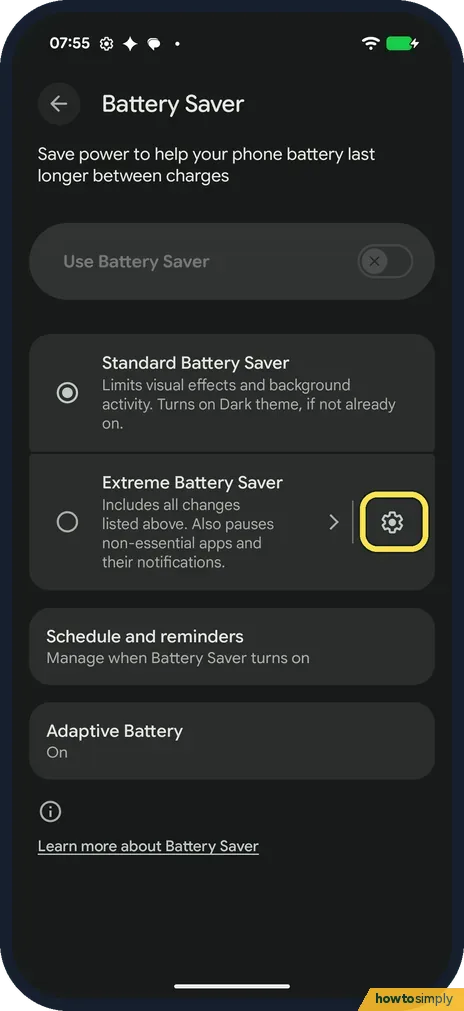
Open Extreme's settings
Tap the gear on the Extreme Battery Saver row.
- 5
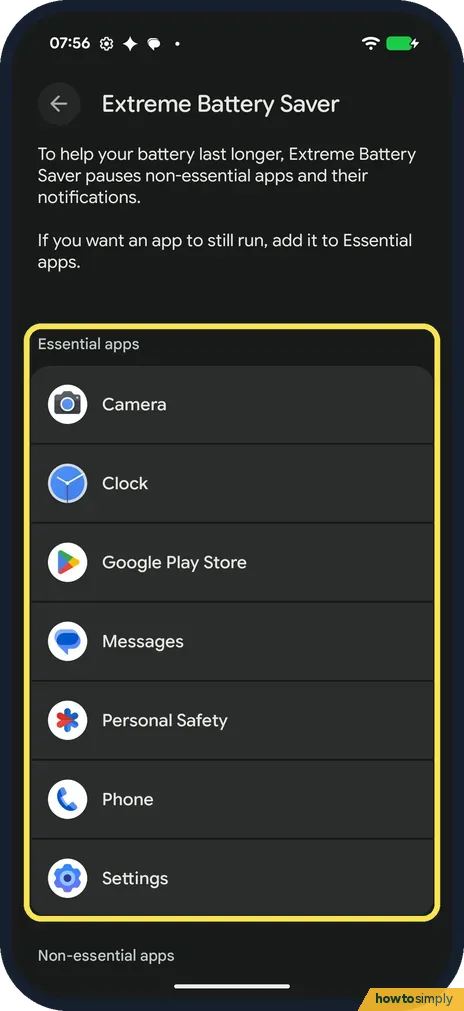
Check the Essential apps
Extreme Battery Saver pauses non-essential apps and their notifications. Ours had Camera, Clock, Google Play Store, Messages, Personal Safety, Phone and Settings as Essential apps. The page says to add an app here if you want it to still run.
- 6
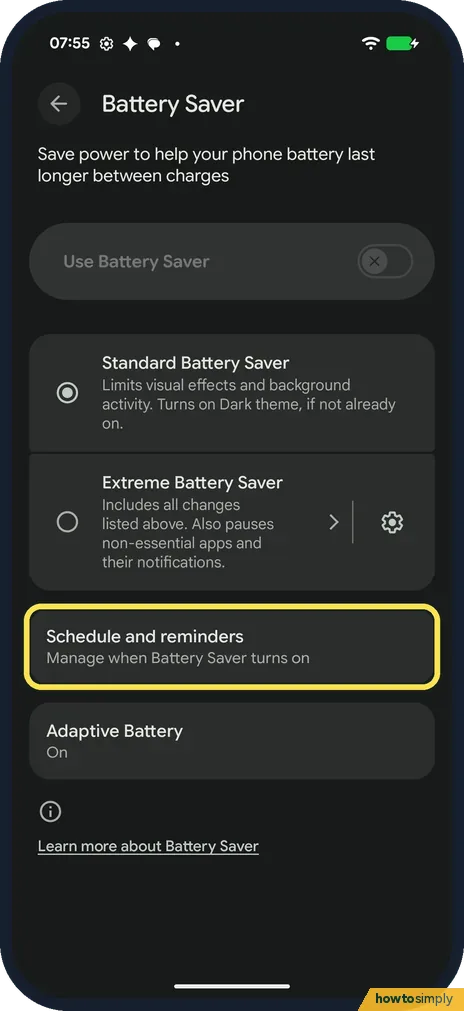
Open Schedule and reminders
Back on Battery Saver, tap Schedule and reminders: Manage when Battery Saver turns on.
- 7
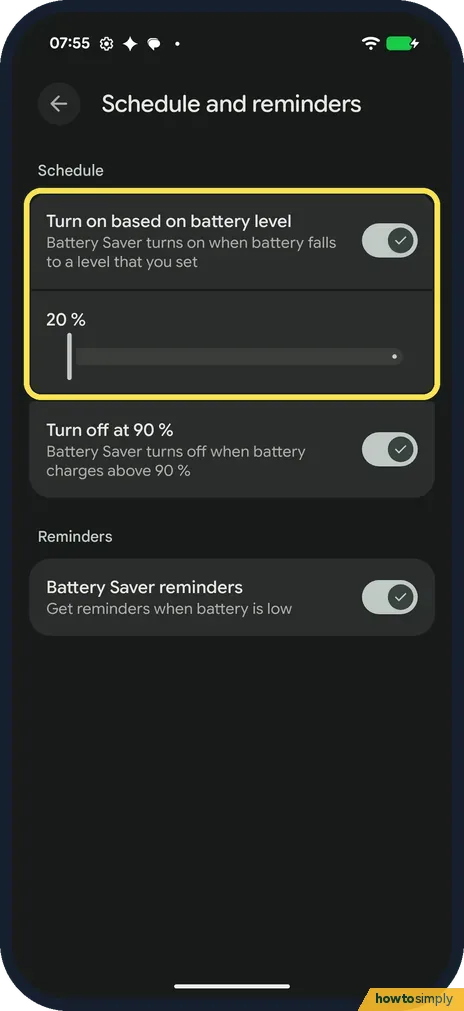
Turn on at a battery level
Turn on based on battery level was on, and the slider below set the level. Ours was 20 %.
- 8
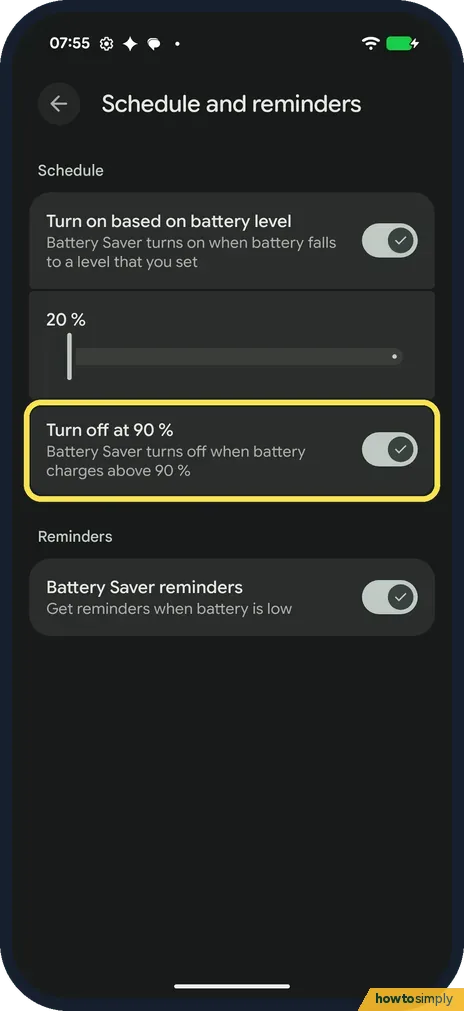
Turn off when charged
Turn off at 90 % switches Battery Saver off when the battery charges above 90 %. It was on on ours.
- 9
Battery Saver reminders
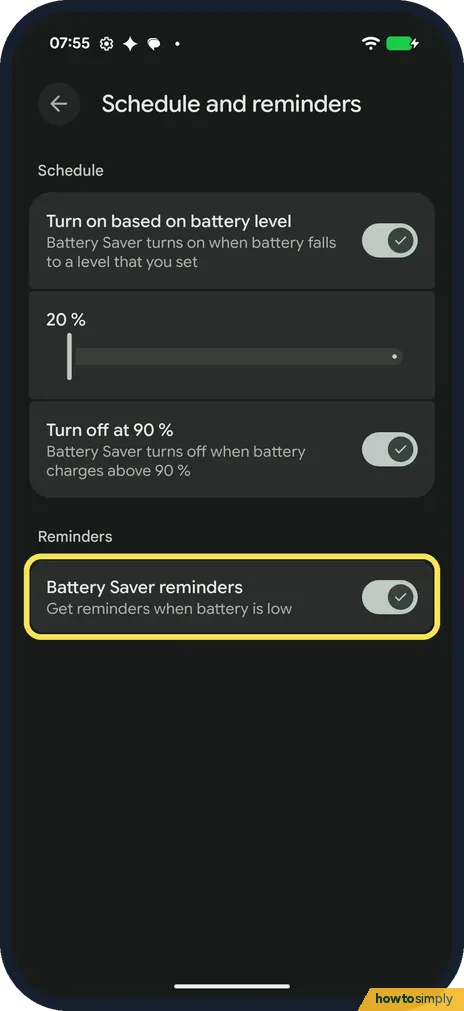
Battery Saver reminders gets reminders when battery is low. It was on. Google says the alerts come at 20% and again at 10%.
If you do not see this option
- No Extreme Battery Saver? Google says Extreme Battery Saver is on the Pixel 3 and later, including Fold. Older Pixels have only the standard Battery Saver. Source: Use Battery Saver on a Pixel phone
- Older Android version? Google says some of the Battery Saver steps need Android 11 or later. Source: Use Battery Saver on a Pixel phone
- Mobile data slower with it on? Google says that on 5G Pixel phones, Battery Saver may switch you to 4G, depending on your carrier. Ours has no SIM, so we couldn't see this. Source: Use Battery Saver on a Pixel phone
If this does not work
- Need an app that Extreme paused? Google says to tap the paused app and choose Unpause temporarily. It pauses again the next time Extreme Battery Saver turns on. Add it to Essential apps to keep it running.
- Battery Saver turned itself off? Google says Battery Saver turns off while the phone charges. Turn off at 90 % also switches it off once the battery is above 90 %.
- Notifications or alarms late? Google says Battery Saver may delay low-priority notifications, and the Clock help says it may stop an alarm. See Pixel not getting notifications and how to set an alarm.
- Screen locks after 30 seconds? Google says Extreme Battery Saver sets the screen timeout to 30 seconds and turns off hotspot and the work profile.
Good to know
If the battery runs down fast even so, see Pixel battery draining fast? What to check.
Adaptive Battery, on the same page, was On on ours. To keep the battery healthy, see how to limit charging to 80% on a Google Pixel.
About this guide
- Device
- Android
- Shown on
- Google Pixel 10a, Android 17 (build CP3A.261005.005)
- App
- Settings
- Path
- Settings › Battery › Battery Saver: Use Battery Saver
- Real screenshots
- 9 of 9 steps
- Checked
- October 2026
- Sources
- 2 official, linked below
Sources
Links checked October 2026. Menus and features can change with updates.Spotted a mistake? Menus change with updates, and we want every step to match your screen. Email us about this page or use the contact form. We read every report, and fixes are listed on What changed.
Liked this guide?
Follow us for new guides and short how-to videos.
Did this guide work for you?
Sorry about that. What happened?