XIAOMI REDMI
How to use colour correction and colour inversion on a Xiaomi phone (HyperOS 3)

In short
Go to Settings, Accessibility, the Vision tab. In Colour correction, pick a mode such as Red-green or Greyscale and turn on Use colour correction. In Colour inversion, turn on Use colour inversion to swap light and dark. Both were off on ours.
11 of 11 steps show a real screenshot from our Redmi Note 15 Pro 5G. Each step was checked against the maker's own instructions, linked at the end.
Steps
- 1
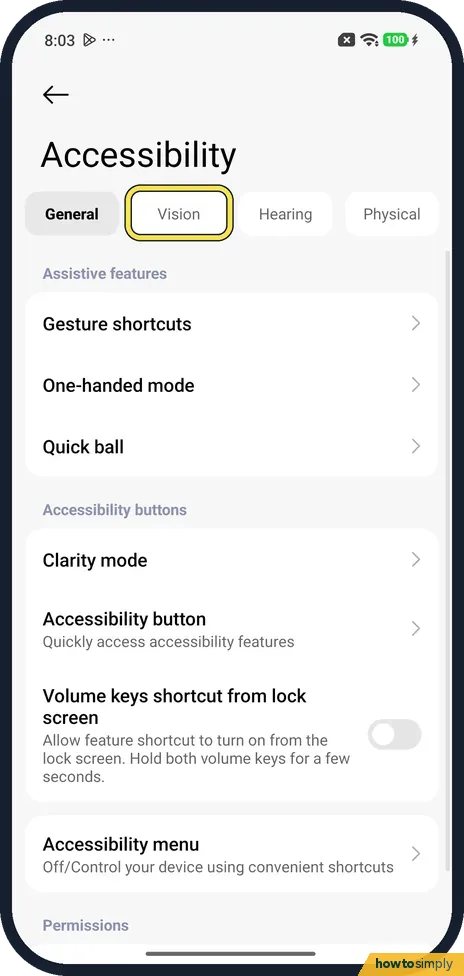
Open the Vision tab
Open Settings and tap Accessibility. Tap Vision, the second tab at the top.
- 2
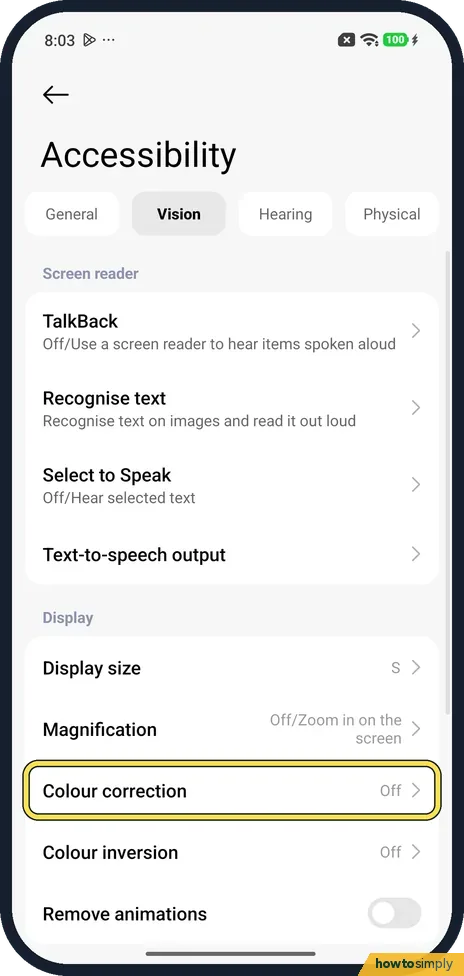
Tap Colour correction
Under Display, Colour correction said Off on ours. Tap it.
- 3
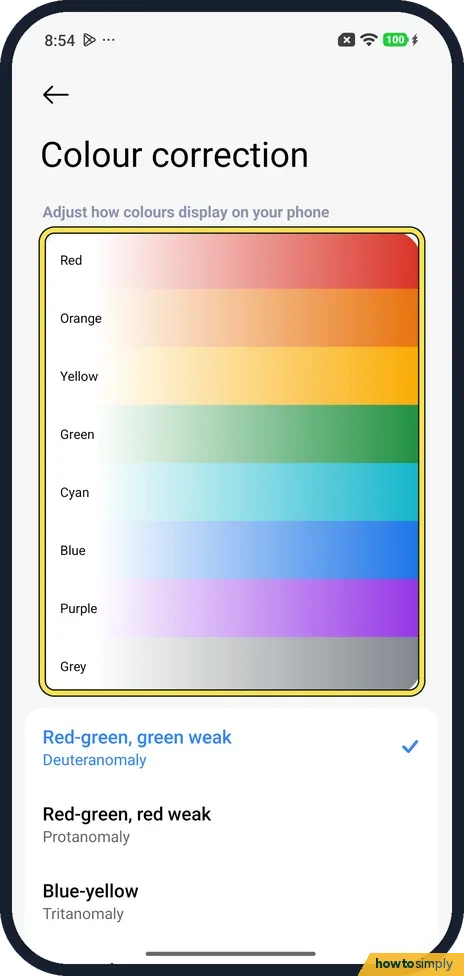
Use the colour strip
The page opens with a strip of Red, Orange, Yellow, Green, Cyan, Blue, Purple and Grey. Watch it to see what each mode does.
- 4
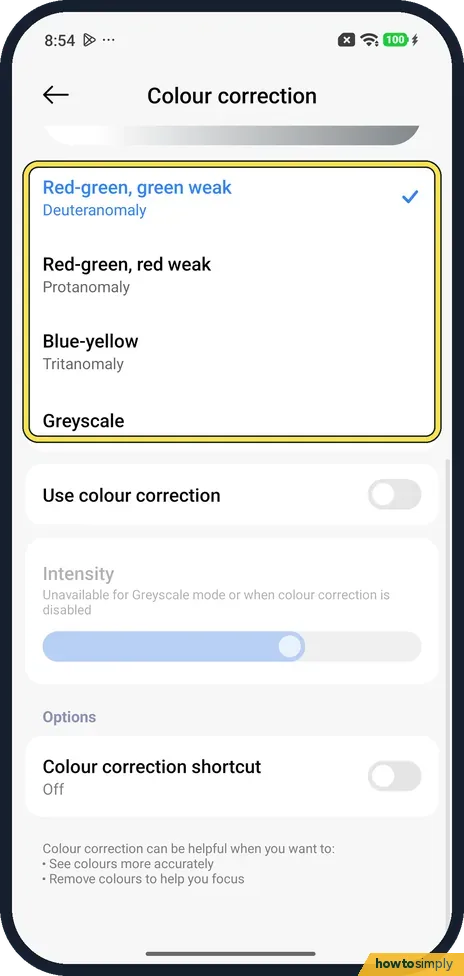
Pick a mode
The choices are Red-green, green weak (Deuteranomaly), Red-green, red weak (Protanomaly), Blue-yellow (Tritanomaly) and Greyscale. Deuteranomaly was ticked on ours.
- 5
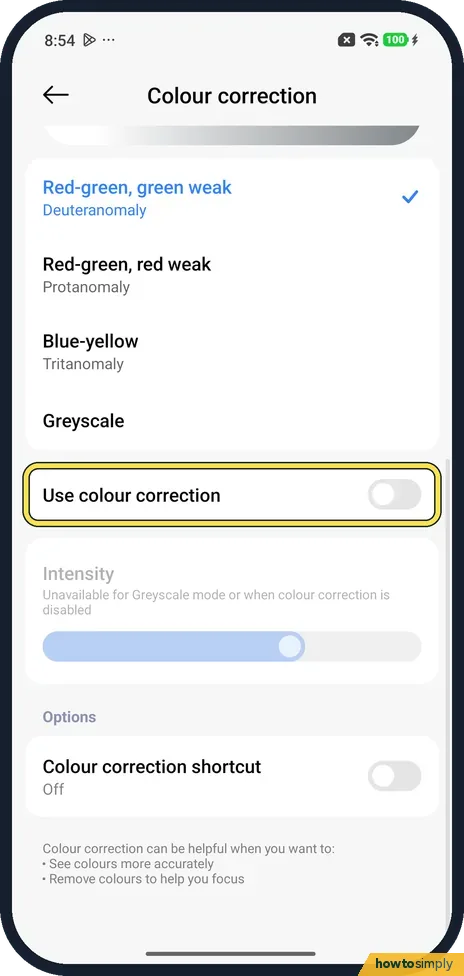
Turn on Use colour correction
The mode only works with this switch on. It was off on ours.
- 6
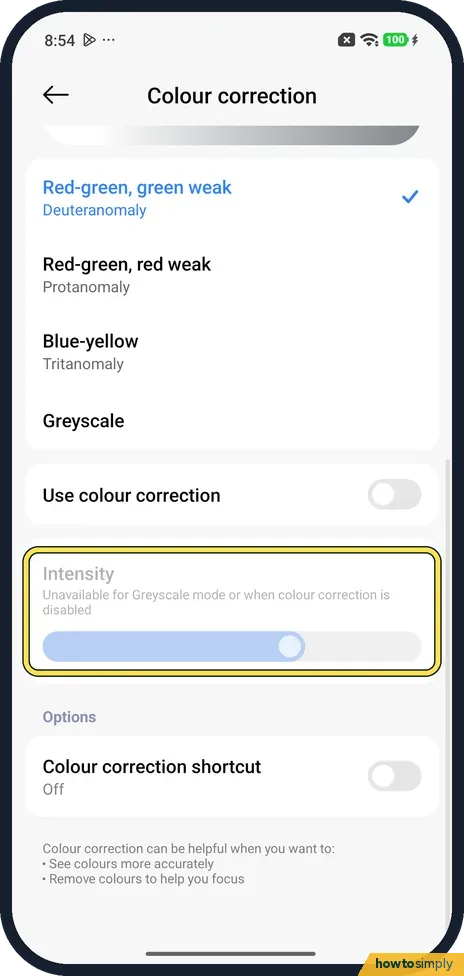
Set the intensity
Intensity sets the strength. Ours was greyed out: Unavailable for Greyscale mode or when colour correction is disabled.
- 7
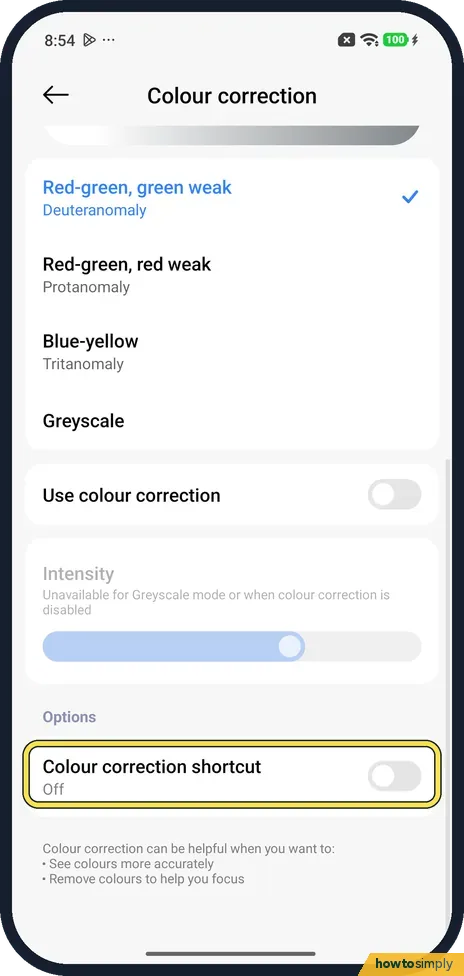
Add a shortcut
Colour correction shortcut, under Options, turns it on and off quickly. It was Off on ours.
- 8
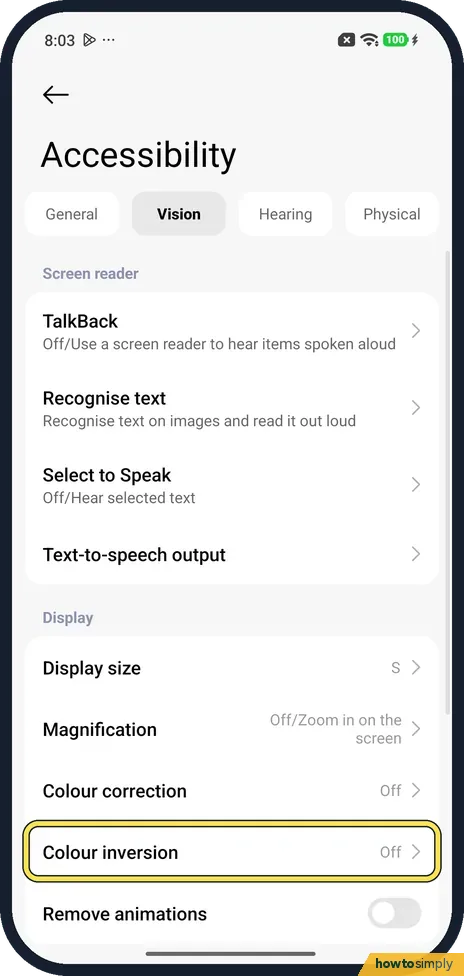
Tap Colour inversion
Back on the Vision tab, Colour inversion is the next row. Ours said Off.
- 9
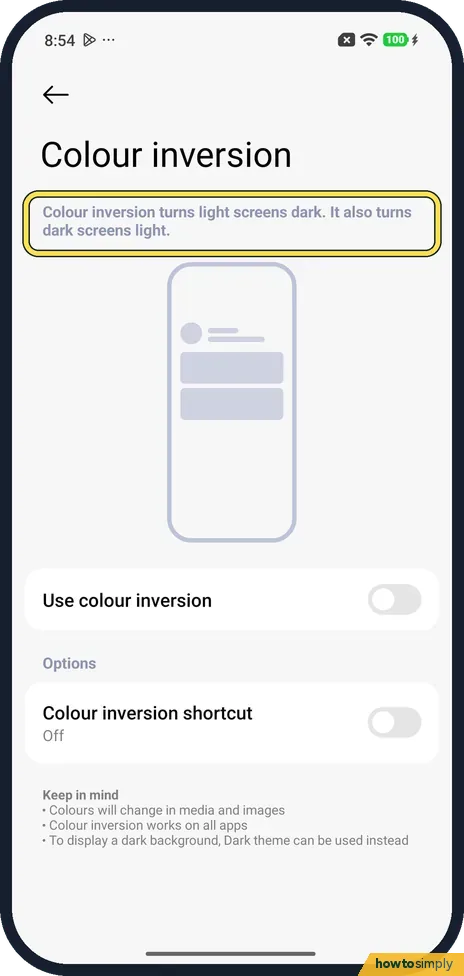
Read what it does
The page says: Colour inversion turns light screens dark. It also turns dark screens light.
- 10
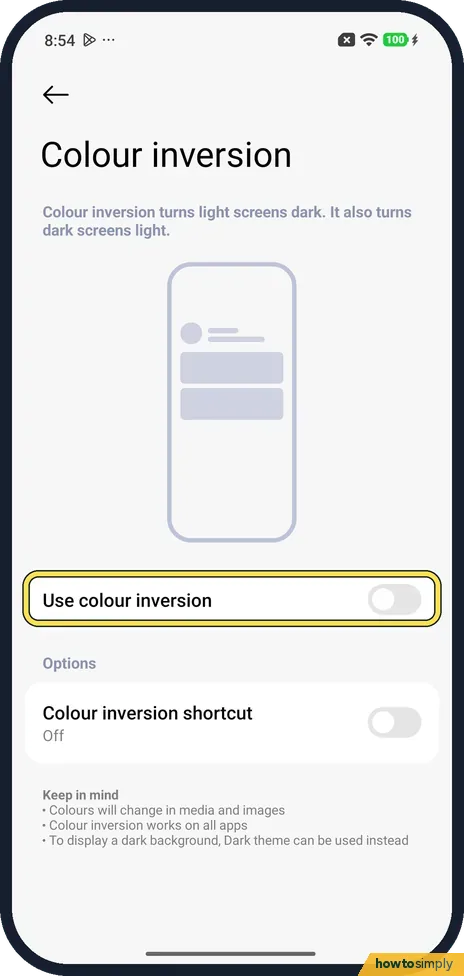
Turn on Use colour inversion
Turn on Use colour inversion. It was off on ours. Colour inversion shortcut, below it, was Off too.
- 11
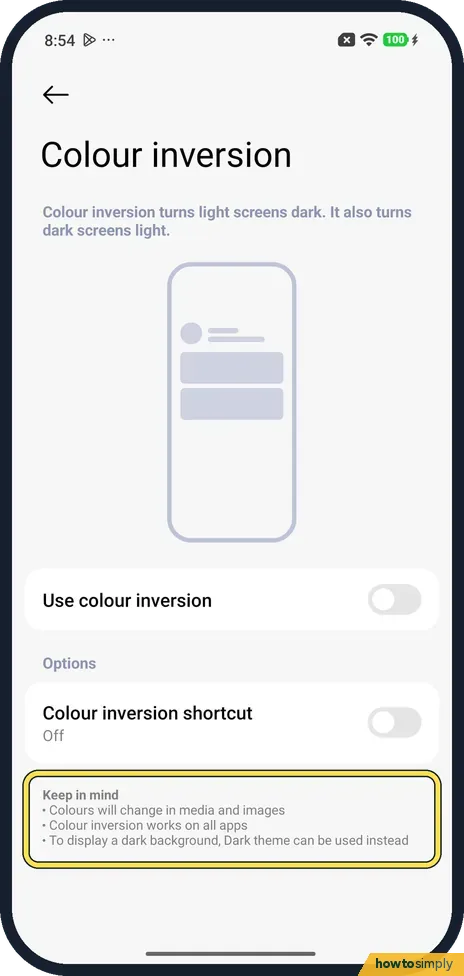
Keep in mind
The note says colours will change in media and images, inversion works on all apps, and Dark theme can be used instead for a dark background.
If you do not see this option
- Accessibility under Additional settings? Xiaomi's HyperOS 3 guide and its support pages give Settings, Additional settings, Accessibility, Vision. On ours Accessibility was in the main Settings list. Sources: Generic User Guide for HyperOS 3.0, What to do if the screen color of the Xiaomi smartphone is white and black?
- No Colour correction on your phone? Google says colour correction isn't available on all Android devices, and that some steps work only on Android 13 and up. Source: Change text and display settings
- Only want a dark look? The inversion page itself suggests Dark theme for a dark background. See our guide on how to turn on dark mode on a Xiaomi phone.
If this does not work
- Screen turned black and white? Xiaomi says to open Colour correction, check if Greyscale is selected, and turn off Use colour correction.
- Colours on the whole screen look wrong? Xiaomi says colour inversion can cause this. Turn off Colour inversion in Accessibility.
- Can't move Intensity? The page says it is unavailable for Greyscale or while colour correction is off. Turn the switch on and pick one of the other three modes.
Good to know
To zoom into the screen, see how to use magnification on a Xiaomi phone.
For bigger text, see how to change the text size and font.
Both settings change only what you see on this phone; photos you take and share keep their real colours. If you hand the phone to someone else, tell them a filter is on, or turn it off with the shortcut first.
About this guide
- Device
- Android
- Shown on
- Xiaomi Redmi Note 15 Pro 5G (25080RABDG), HyperOS 3.0.308.0, Android 16
- App
- Settings
- Path
- Settings › Accessibility › Vision: Colour correction (mode › Use colour correction
- Real screenshots
- 11 of 11 steps
- Checked
- October 2026
- Sources
- 4 official, linked below
Sources
Links checked October 2026. Menus and features can change with updates.Spotted a mistake? Menus change with updates, and we want every step to match your screen. Email us about this page or use the contact form. We read every report, and fixes are listed on What changed.
Liked this guide?
Follow us for new guides and short how-to videos.
Did this guide work for you?
Sorry about that. What happened?