XIAOMI REDMI
How to change the colour scheme on a Xiaomi phone (HyperOS 3)

In short
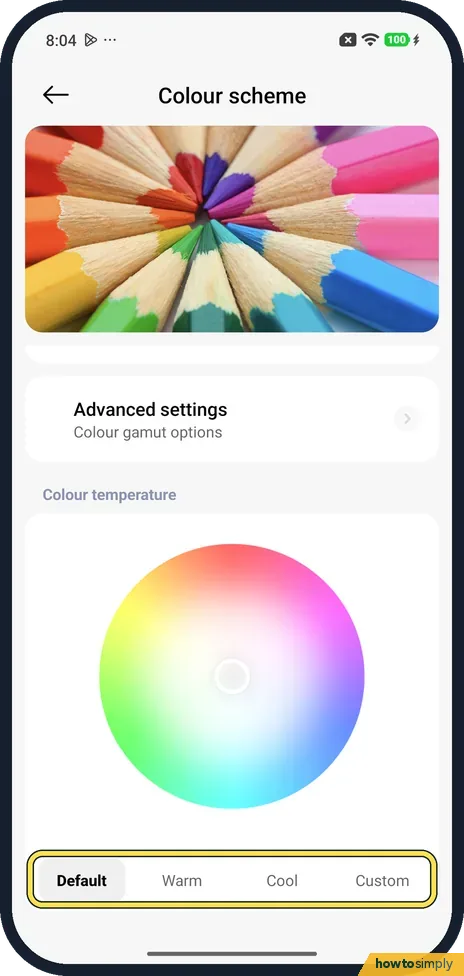
Go to Settings, Display & brightness, Colour scheme. Pick Vivid, Saturated or Standard, or open Advanced settings. Further down, Colour temperature has a colour wheel and Default, Warm, Cool and Custom. Ours was on Vivid and Default.
5 of 5 steps show a real screenshot from our Redmi Note 15 Pro 5G. Each step was checked against the maker's own instructions, linked at the end.
Steps
- 1
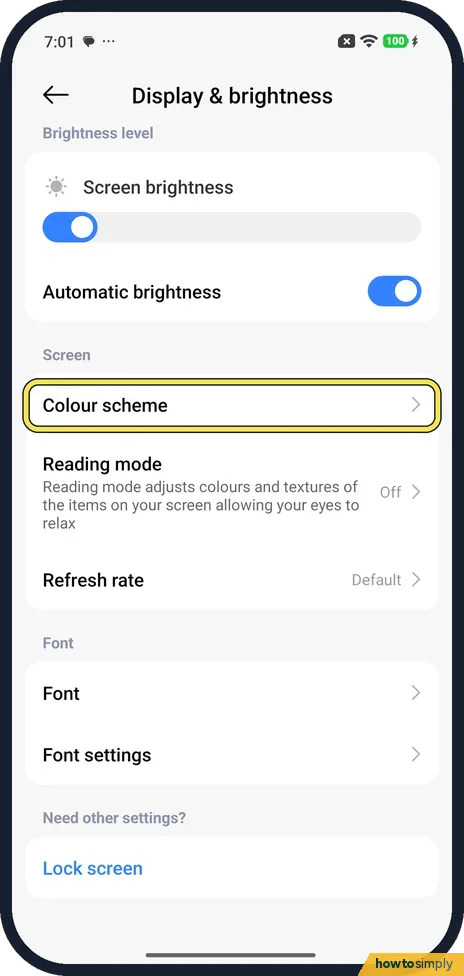
Open Colour scheme
Open Settings, tap Display & brightness and scroll to Screen. Tap Colour scheme.
- 2
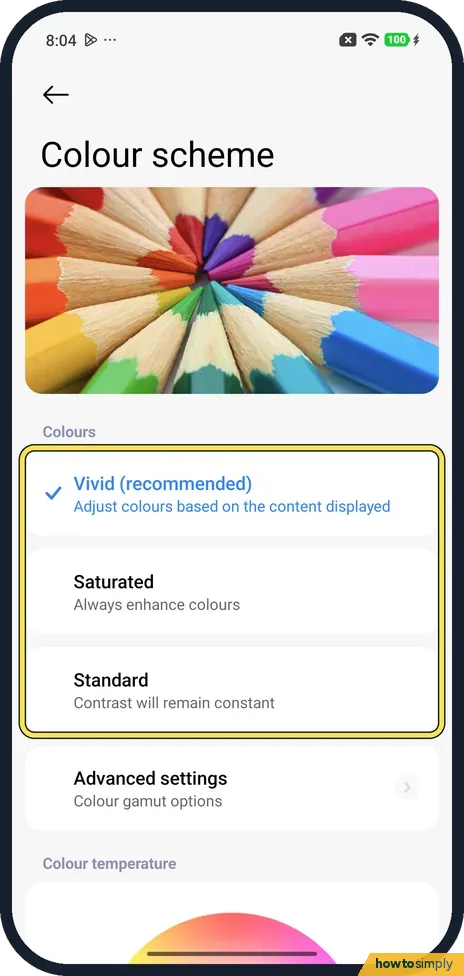
Pick the colours
Under Colours: Vivid (recommended) adjusts colours based on the content displayed, Saturated always enhances colours, and Standard keeps contrast constant. Vivid was ticked on ours. Tap the one you want.
- 3
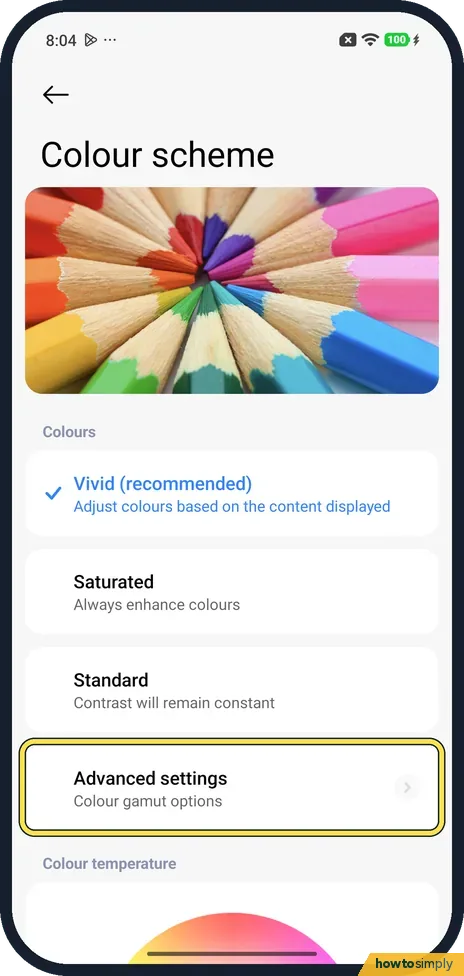
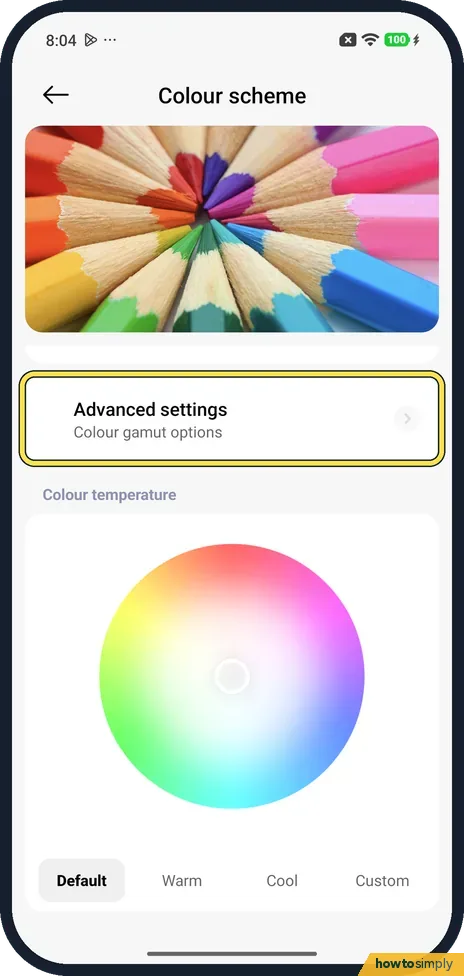
Advanced settings
Advanced settings, below them, is for colour gamut options. We did not open it.
- 4
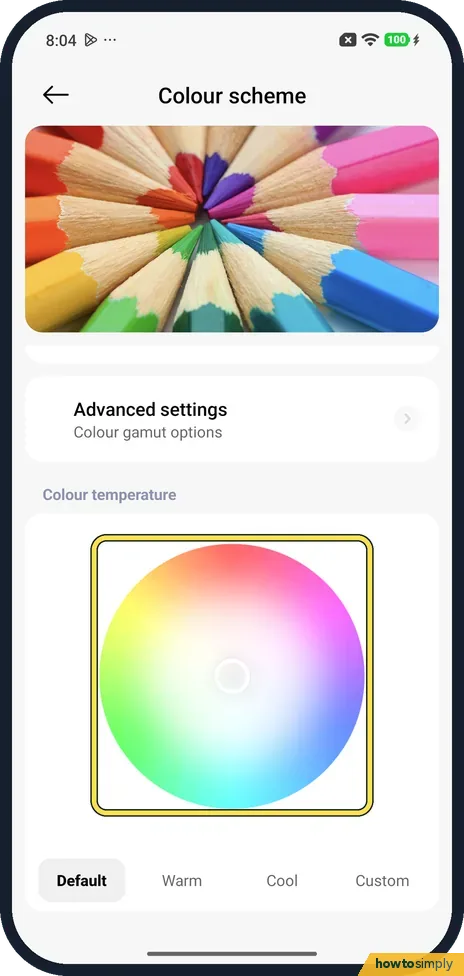
Use the colour wheel
Scroll down to Colour temperature. The dot sat in the middle of the wheel on ours. Xiaomi says you can move the dot on the dial to change the colours.
- 5
Or pick Warm or Cool
Below the wheel are Default, Warm, Cool and Custom. Default was selected on ours. We did not change it.
If you do not see this option
- Different modes in the list? They vary by model and version. Xiaomi's HyperOS 3 guide lists Vivid or Original color PRO. Its older display page lists Vivid, Saturated, Original color and Advanced settings. Ours showed Vivid, Saturated, Standard and Advanced settings. Sources: Generic User Guide for HyperOS 3.0, How to adjust Display of phone?
- Looking for Adaptive colors? Xiaomi says the Xiaomi 15T Pro has Adaptive colors, which adjust colours to the light around you. Our Colour scheme page had no Adaptive colors switch. Source: Why does the Xiaomi 15T Pro screen show a color cast when Adaptive colors is on?
If this does not work
- Screen looks reddish, yellowish or greenish? Xiaomi's tip for the Xiaomi 14: choose Vivid and move the dot on the Colour temperature dial. It says slight colour differences are normal on OLED screens.
- Colours look different from another phone? For the REDMI Pad 2 Pro, Xiaomi suggests comparing the modes in natural light, updating the system, and taking off a screen protector or blue light filter to check.
- Screen turned yellow on its own? That is usually not the colour scheme. Reading mode or a Dark mode schedule can change the look at certain times. Check those first, as described in how to use Reading mode.
- Colours shift with the room light? On models that have it, Xiaomi's HyperOS 3 guide says Adaptive colors adjusts colours to ambient light, on the same Colour scheme page. Turn it off if you prefer a fixed look; our Redmi did not have the switch.
Good to know
Smoother scrolling: how to change the refresh rate.
Easier-to-read text: how to change the text size and font.
The change applies to the whole screen straight away and stays after a restart. It only changes how your screen shows colours, so other people will not see your photos differently when you send them. For colour blindness and other vision needs, the accessibility options are a better fit: see colour correction and colour inversion.
About this guide
- Device
- Android
- Shown on
- Xiaomi Redmi Note 15 Pro 5G (25080RABDG), HyperOS 3.0.308.0, Android 16
- App
- Settings
- Path
- Settings › Display & brightness › Colour scheme
- Real screenshots
- 5 of 5 steps
- Checked
- October 2026
- Sources
- 5 official, linked below
Sources
- Xiaomi: Generic User Guide for HyperOS 3.0
- Xiaomi Support: How to adjust Display of phone?
- Xiaomi Support: Why does the Xiaomi 15T Pro screen show a color cast when Adaptive colors is on?
- Xiaomi Support: Why does the screen of the Xiaomi 14 show colors that are reddish, yellowish, or greenish?
- Xiaomi Support: Why is there a difference in screen color on the REDMI Pad 2 Pro?
Spotted a mistake? Menus change with updates, and we want every step to match your screen. Email us about this page or use the contact form. We read every report, and fixes are listed on What changed.
Liked this guide?
Follow us for new guides and short how-to videos.
Did this guide work for you?
Sorry about that. What happened?