
howtosimply.com/guides/how-to-use-cloned-apps-on-a-nothing-phone/ · Checked October 2026 · 4a) Pro (A069P, EEA), Nothing OS 4.1, Android 16 (build FroggerPro-B4.1-260907-1153-EEA · Nothing Phone
In this guide
Open Settings, Apps, Cloned apps and turn on the switch next to an app. A second copy, named like Instagram (2) with a small badge, appears in the app drawer so you can sign in with a different account. Nothing calls it Cloned apps, not Dual apps.
3 of 3 steps with real screenshots · 1 official source below
- Device
- Android
- Shown on
- Nothing Phone (4a) Pro (A069P, EEA), Nothing OS 4.1, Android 16 (build FroggerPro-B4.1-260907-1153-EEA)
- App
- Settings
- Path
- Settings › Apps › Cloned apps
- Real screenshots
- 3 of 3 steps
- Checked
- October 2026
- Sources
- 1 official, linked below
Step by step
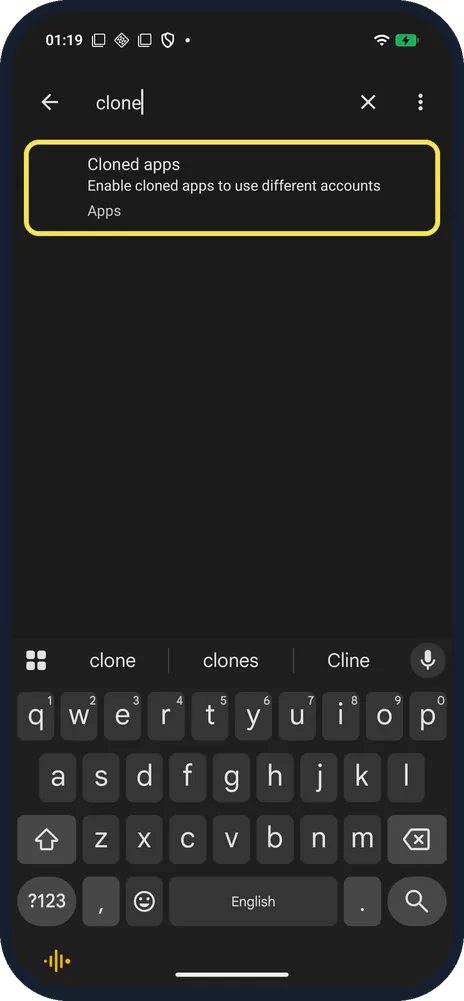
Open Cloned apps
Open Settings and search for clone. The result is Cloned apps: enable cloned apps to use different accounts (in Apps).
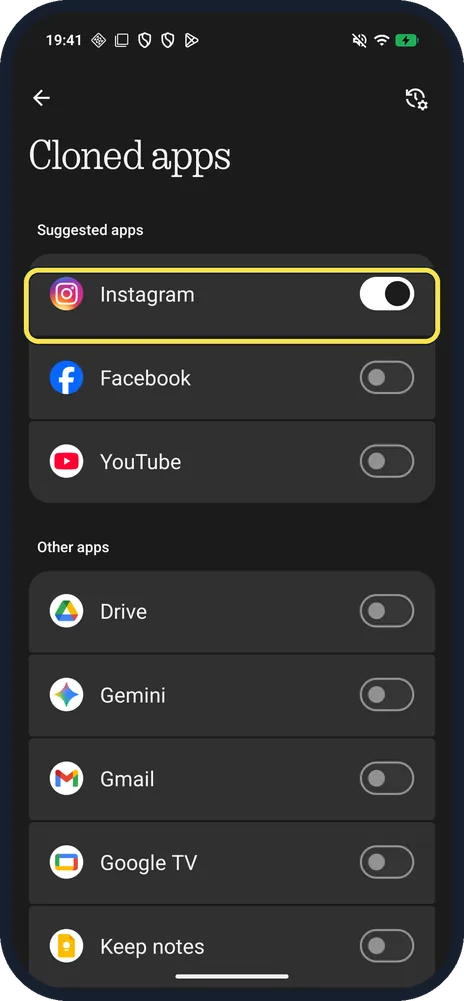
Turn on the switch next to an app
Suggested apps on ours: Facebook, Instagram, YouTube. Instagram turned on with no prompt and moved to the top of the list.
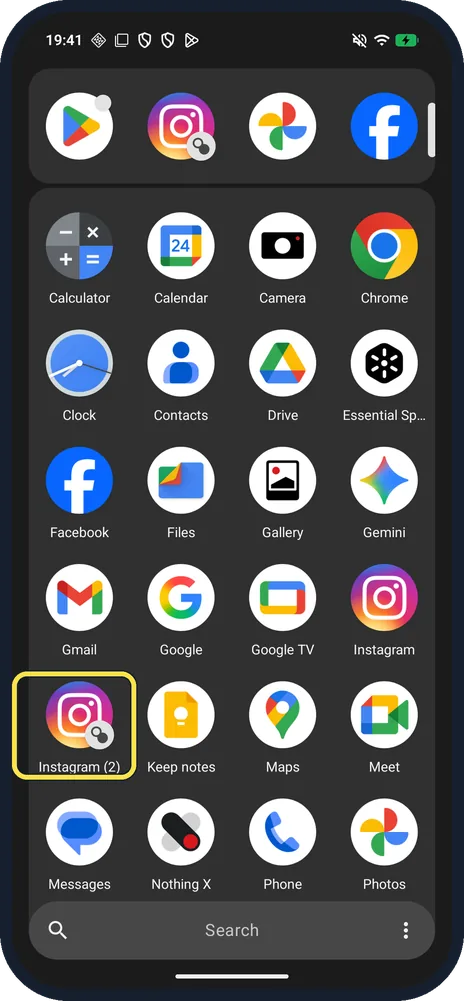
Open the copy from the app drawer
Ours appeared as Instagram (2), with a small clone badge on the icon. Open it and sign in with the second account.
If you do not see this option
- App not in Suggested apps? Tap See other apps. Ours added Drive, Gemini, Gmail, Google TV, Keep notes, Maps, Meet and YT Music.
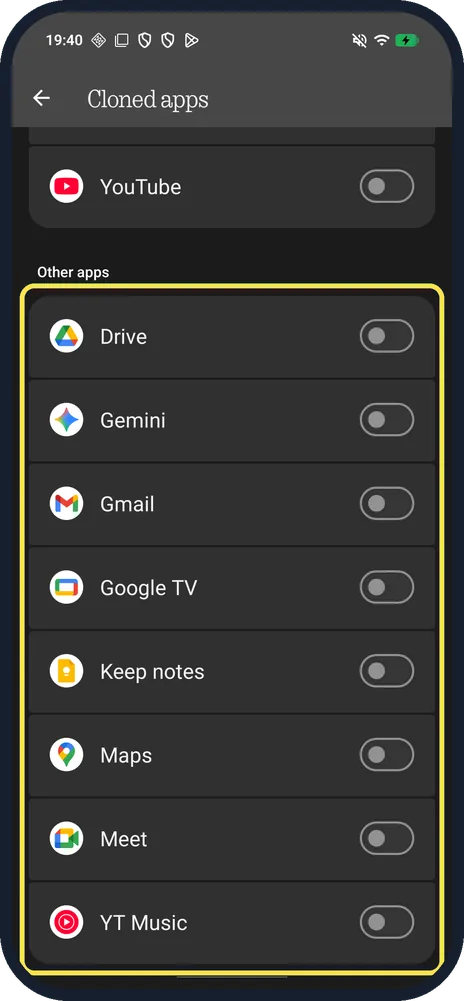
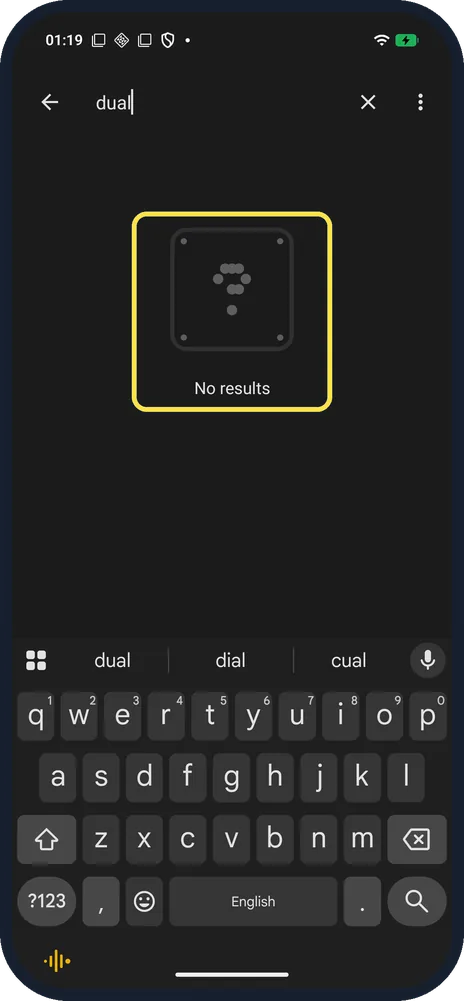
- Searched for Dual apps? It found no results on ours; search for clone.
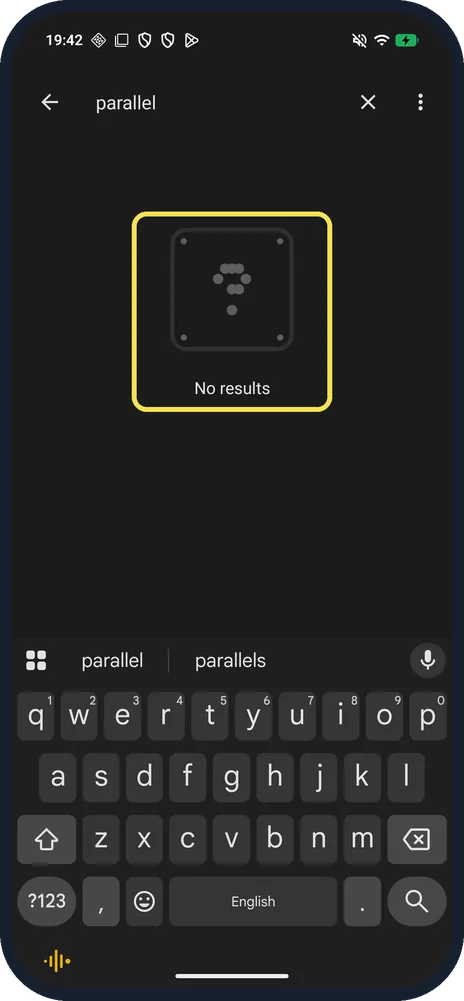
- Searched for Parallel apps? Parallel found no results on ours either.
- Older Nothing OS? Nothing says Cloned apps has been in Settings, Apps, Cloned apps since Nothing OS 2.0.0, for compatible third-party apps. Source: Does Nothing Phone support app clone?
If this does not work
- WhatsApp not listed? It was in neither list on ours, because it wasn't installed. Install it first, then check See other apps; Nothing says only compatible third-party apps can be cloned. Source: Does Nothing Phone support app clone?
- Want to remove the copy? Turn its switch off. Ours asked: Uninstall Instagram (2)? All data related to your copy of Instagram will be deleted. You'll still be able to use the main app Instagram.
- Copy not on the Home screen? Ours appeared in the app drawer as Instagram (2), not on the Home screen. Search the drawer for the app name.
About this guide
The screenshots are from our Nothing Phone (4a) Pro, the European model A069P, with Nothing OS 4.1 and Android 16 (build FroggerPro-B4.1-260907-1153-EEA, security update 1 September 2026), in Dark theme. We cloned Instagram to check, without opening the copy or signing in, then removed it.
Good to know
To hide an app, hide apps.
To move from an iPhone, copy data from an iPhone.
In short: Settings, Apps, Cloned apps, switch on; the copy is in the app drawer as App (2).
Links checked in October 2026. Menus and features can change after software updates. These steps match the version named at the top.
📷 See real photos from the Nothing Phone (4a) Pro in our Camera Lab, next to 10 other phones.
Did this guide work for you?
Sorry about that. What happened?