
howtosimply.com/guides/how-to-make-text-bigger-on-a-samsung-galaxy-phone/ · Checked October 2026 · Samsung Galaxy A57 (One UI 9, Android 17 (build A576BXXU6BZIE)) and Samsung Galaxy A57 5G (One UI 8.5, Android 16)
In this guide
Open Settings, Display, Font size and style and drag the slider at the bottom to the right. Switch on Bold font for thicker letters, and tap Font style to choose another font. The preview at the top shows the result straight away.
5 of 5 steps with real screenshots · 1 official source below
- Device
- Android
- Shown on
- Samsung Galaxy A57 (SM-A576B), One UI 9, Android 17 (build A576BXXU6BZIE), Samsung Galaxy A57 5G (SM-A576B), One UI 8.5, Android 16
- App
- Settings
- Path
- Settings › Display
- Real screenshots
- 5 of 5 steps
- Our phone
- Shown on Galaxy A57, One UI 8.5
- Checked
- October 2026
- Sources
- 1 official, linked below
Step by step
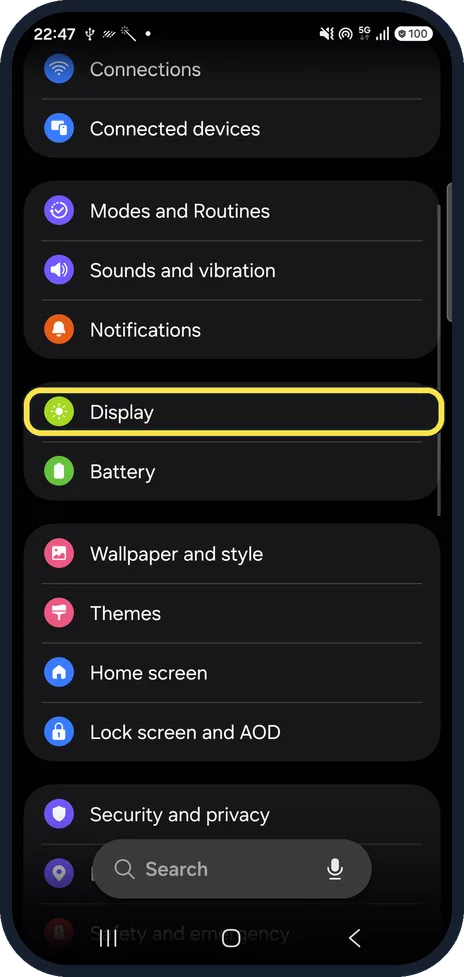
Open Display
Open Settings and tap Display.
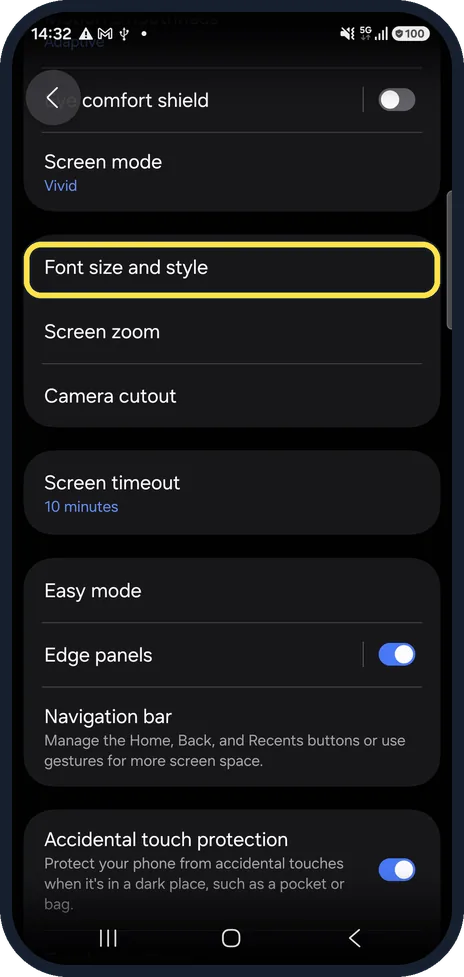
Open Font size and style
Scroll down the Display page and tap Font size and style.
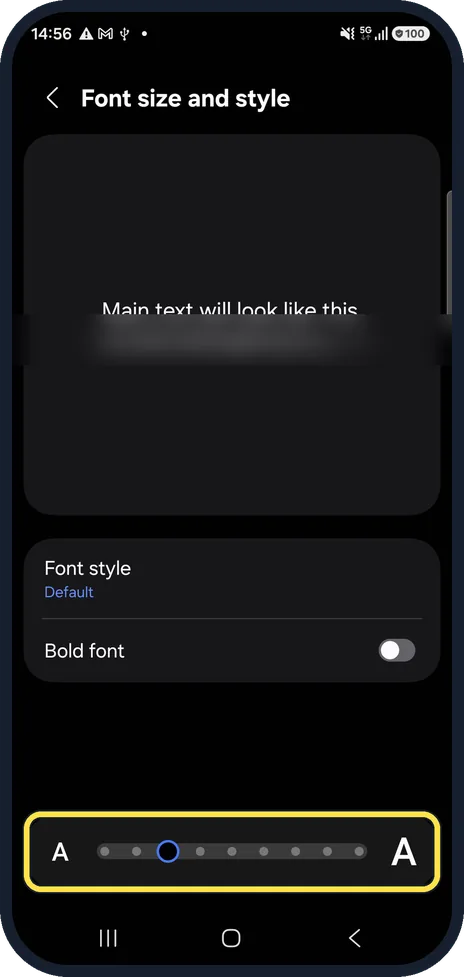
Drag the slider
At the bottom, drag the slider from the small A towards the large A. The sample text at the top changes as you move it.
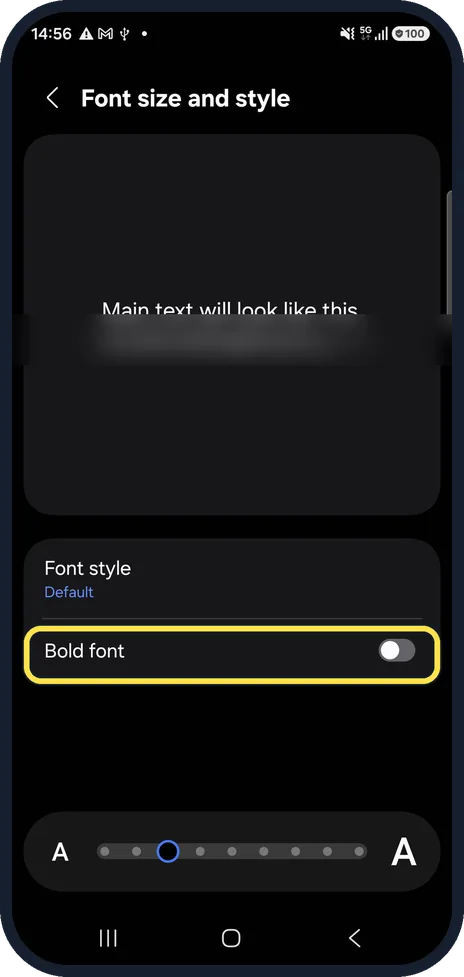
Switch on Bold font
Tap the Bold font switch to make the letters thicker and easier to see.
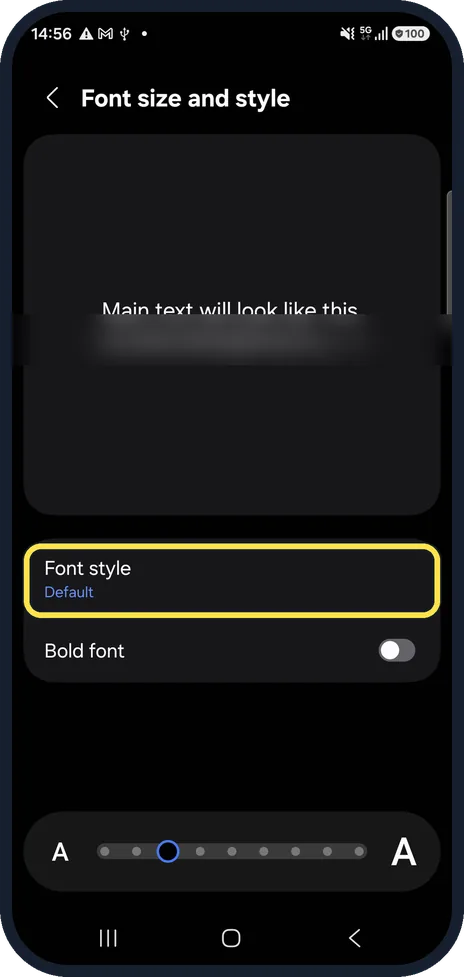
Change the font
Tap Font style to pick a different font or download a new one. Samsung recommends Wi-Fi for downloads.
If you do not see this option
- Font size and style looks different Samsung says the layout and options can vary slightly by model and software version. Update first under Settings, Software update. Source: How to change font size and style on a Galaxy phone
- You want the letters to stand out, not grow Samsung suggests Settings, Accessibility, Vision, High contrast text, which draws an outline around all text. Source: How to change font size and style on a Galaxy phone
If this does not work
- The new size does not show everywhere Samsung says to restart the phone if a change does not apply straight away. Source: How to change font size and style on a Galaxy phone
- A new font will not download Samsung says to make sure there is enough free storage, and suggests Wi-Fi, because downloads over mobile data may cost money. Source: How to change font size and style on a Galaxy phone
About this guide
Bigger text is the quickest way to make a phone easier to read without glasses. One UI changes the size everywhere: Settings, messages, and most apps.
Good to know
Still hard to read? Settings, Accessibility, Vision, High contrast text adds an outline to all text.
In short: Settings, Display, Font size and style: slider to the right, Bold font on.
Links checked in October 2026. Menus and features can change after software updates. These steps match the version named at the top.
📷 See real photos from the Galaxy A57 in our Camera Lab, next to 10 other phones.
Did this guide work for you?
Sorry about that. What happened?