GOOGLE PIXEL
How to use app pinning on a Google Pixel (Android 17)

In short
Open Settings, Security and privacy, More security and privacy, App pinning and turn on Use app pinning, then tap OK. In Overview, tap the app icon, tap Pin, then Got it. To unpin, swipe up from the bottom and hold: ours showed App unpinned.
10 of 10 steps show a real screenshot from our Pixel 10a. Each step was checked against the maker's own instructions, linked at the end.
Steps
- 1
Open App pinning
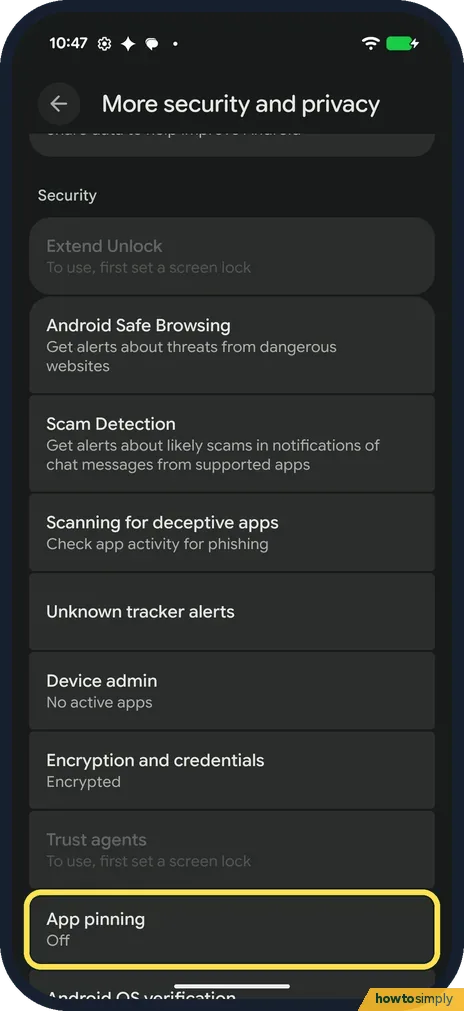
Open Settings, tap Security and privacy, then More security and privacy. App pinning is under Security, below Trust agents. Ours said Off. Tap it.
- 2
Turn on Use app pinning
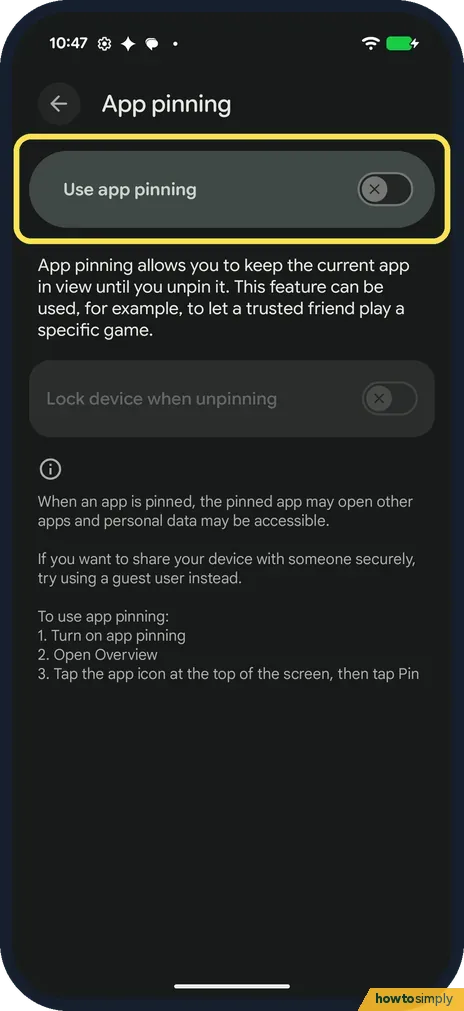
Tap the Use app pinning switch at the top. It was off on ours, and Lock device when unpinning below it was greyed out.
- 3
Read the box and tap OK
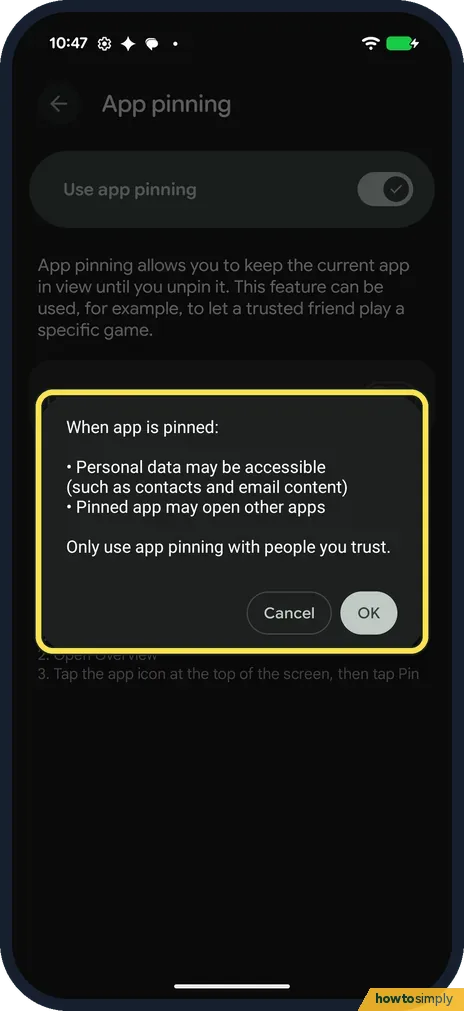
A box opens: When app is pinned: Personal data may be accessible (such as contacts and email content). Pinned app may open other apps. Only use app pinning with people you trust. Tap OK, or Cancel to leave it off.
- 4
Lock device when unpinning
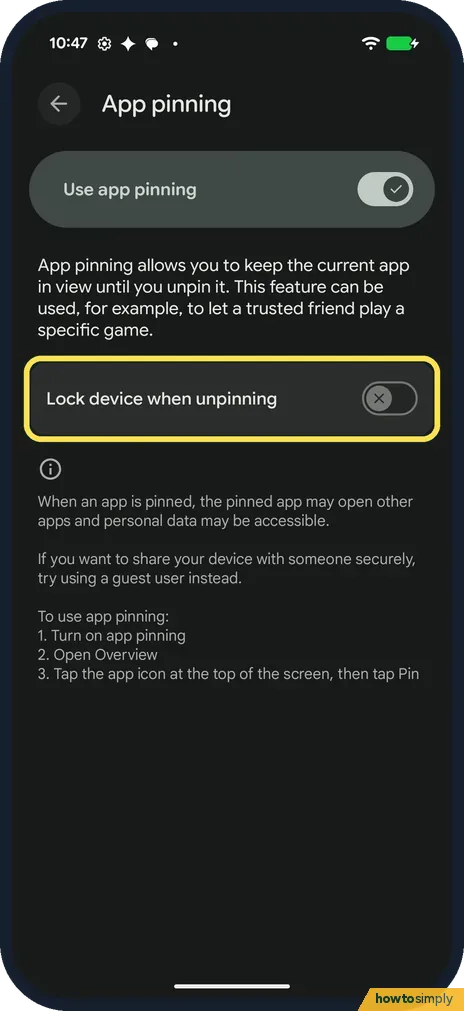
Use app pinning is now on, and the Lock device when unpinning switch below it can be used. It was off on ours, and we left it off. Turn it on if the phone should lock when the app is unpinned.
- 5
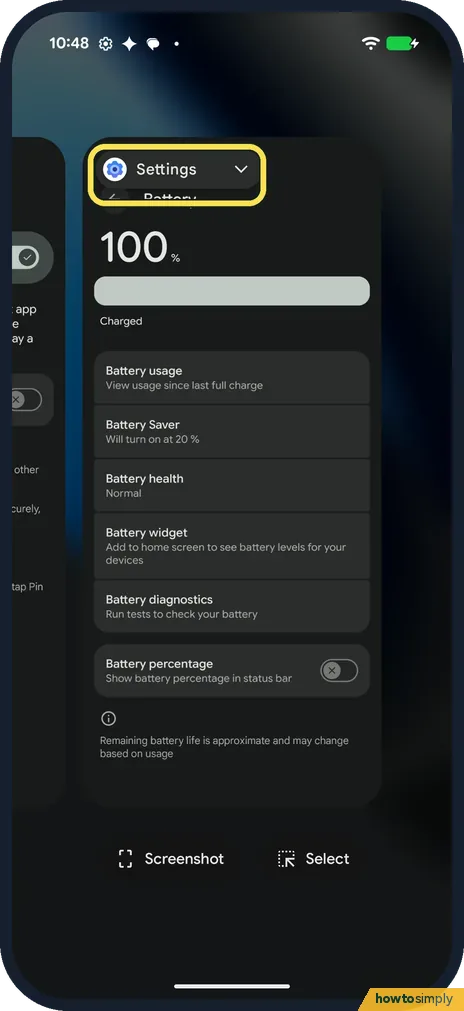
Open Overview and tap the app icon
Open the app you want to pin, then open Overview: Google says to swipe up to the middle of the screen and hold. Tap the app icon at the top of the app, here Settings.
- 6
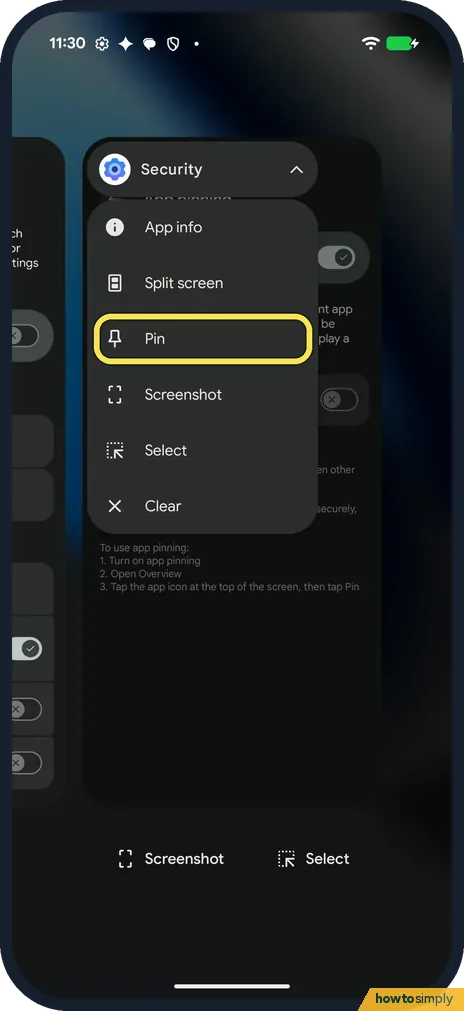
Tap Pin
A menu opens: App info, Split screen, Pin, Screenshot, Select and Clear. Tap Pin. On ours the menu was headed with the page the app was showing, here Security, not the app name.
- 7
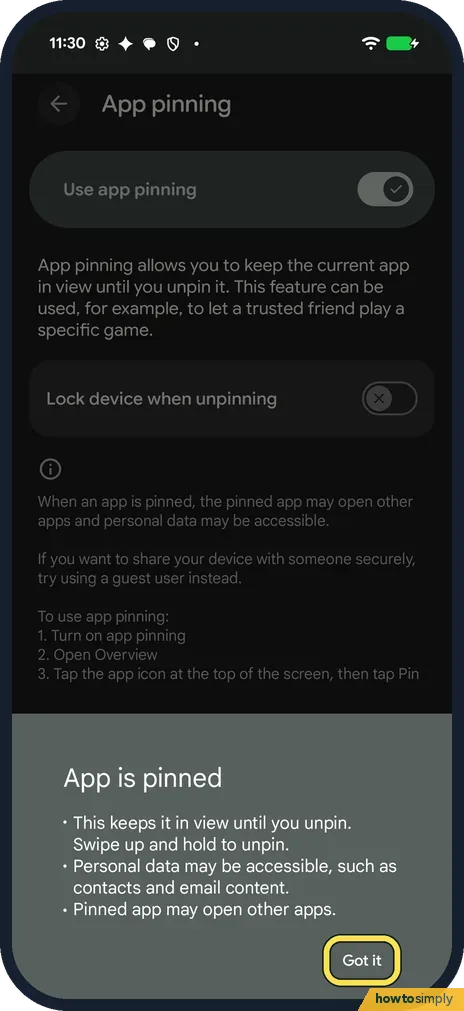
Tap Got it
A sheet opens: App is pinned. This keeps it in view until you unpin. Swipe up and hold to unpin. Personal data may be accessible, such as contacts and email content. Pinned app may open other apps. Tap Got it: on ours the app was pinned only after that.
- 8
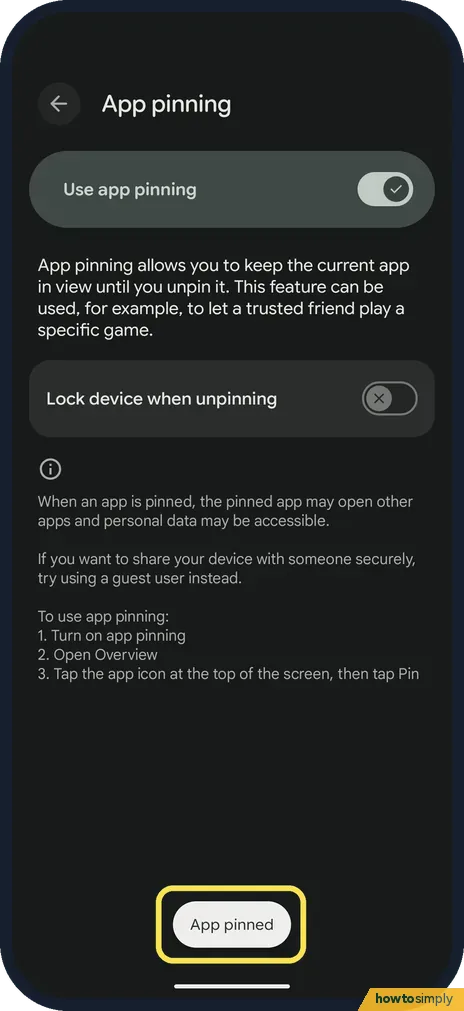
The app is pinned
A message, "App pinned", shows at the bottom. On ours the status bar icons at the top were gone while the app was pinned.
- 9
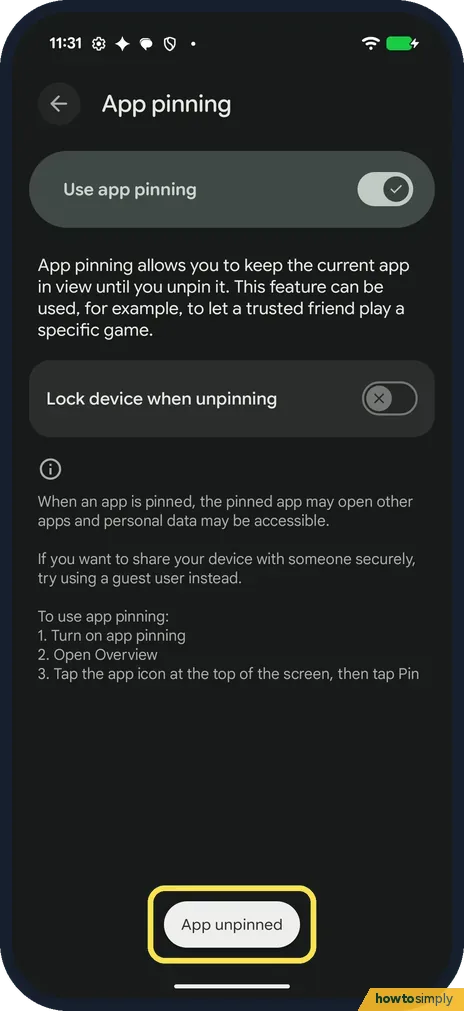
Swipe up and hold to unpin
To unpin, swipe up from the bottom of the screen and hold. On ours it took about 2 seconds, then "App unpinned" showed and the status bar came back. No PIN was asked: our phone had no screen lock and Lock device when unpinning was off.
- 10
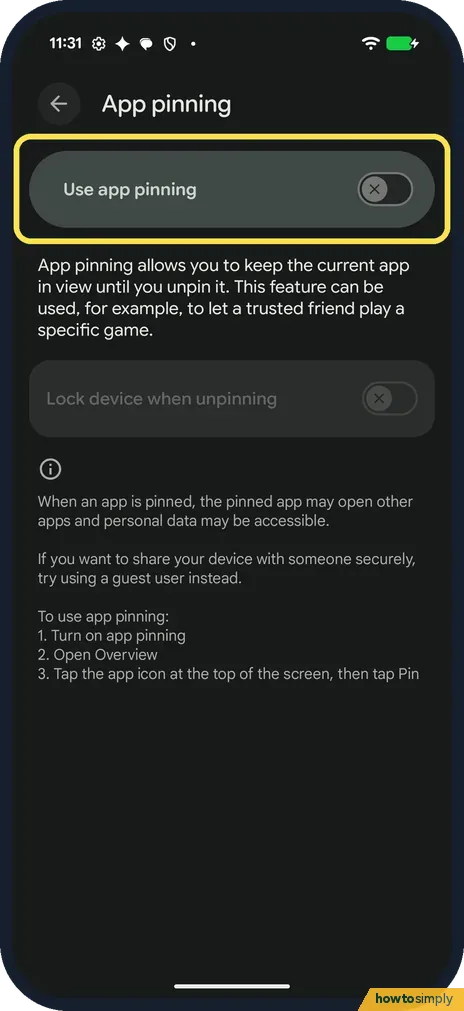
Turn it off again
To stop anyone pinning an app, turn off Use app pinning on the same page. Lock device when unpinning is greyed out again.
If you do not see this option
- No Security and privacy row? Google's help says to tap Security or Security & location, then Advanced, App pinning, and to ask your device maker if you can't find it. On our Pixel 10a with Android 17 it was under More security and privacy. Source: Pin and unpin screens
- No Pin in the menu? Turn on Use app pinning first. The page on ours lists three steps: turn on app pinning, open Overview, tap the app icon at the top of the screen, then tap Pin. Source: Pin and unpin screens
- Older Android? Google says some of these steps work only on Android 11 and up on a Pixel. On Android 8.1 and below, the Pin is at the bottom right of the screen in Overview. Source: Pin and unpin screens
If this does not work
- Tapped Pin but the app isn't pinned? On ours the pin took effect only after Got it on the App is pinned sheet. We pressed Home once while the sheet was up: nothing was pinned, and the sheet stayed until we tapped Got it.
- Using 3-button navigation? Google says to touch and hold Back and Overview to unpin, or Back and Home with 2 buttons. To switch: how to switch navigation.
- Unpinned without a PIN? Ours unpinned with no PIN: it had no screen lock, and Lock device when unpinning was off. Google says you may be asked for your PIN, pattern or password. Set one up: how to set a screen lock.
Good to know
The page on ours says that to share your device securely, try a guest user instead: how to add a second user or a guest.
The same menu in Overview also has Split screen and Screenshot: how to use split screen, how to take a screenshot.
About this guide
- Device
- Android
- Shown on
- Google Pixel 10a, Android 17 (build CP3A.261005.005)
- App
- Settings
- Path
- Settings › Security and privacy › More security and privacy › App pinning: Use app pinning › OK
- Real screenshots
- 10 of 10 steps
- Checked
- October 2026
- Sources
- 2 official, linked below
Sources
Links checked October 2026. Menus and features can change with updates.Spotted a mistake? Menus change with updates, and we want every step to match your screen. Email us about this page or use the contact form. We read every report, and fixes are listed on What changed.
Liked this guide?
Follow us for new guides and short how-to videos.
Did this guide work for you?
Sorry about that. What happened?