
howtosimply.com/guides/how-to-take-a-screenshot-on-an-oppo-phone/ · Checked October 2026 · CPH2689, EEA), ColorOS 16.0.5, Android 16 (build CPH2689_16.0.5.1001(EX01) · OPPO Reno13 5G
In this guide
Swipe down on the screen with three fingers, or press Power and Volume Down together. Touch and hold with three fingers for a partial or scrolling screenshot. All three gestures are switched on in Settings, Screenshot.
4 of 4 steps with real screenshots · 2 official sources below
- Device
- Android
- Shown on
- OPPO Reno13 5G (CPH2689, EEA), ColorOS 16.0.5, Android 16 (build CPH2689_16.0.5.1001(EX01))
- App
- Settings
- Real screenshots
- 4 of 4 steps
- Checked
- October 2026
- Sources
- 2 official, linked below
Step by step
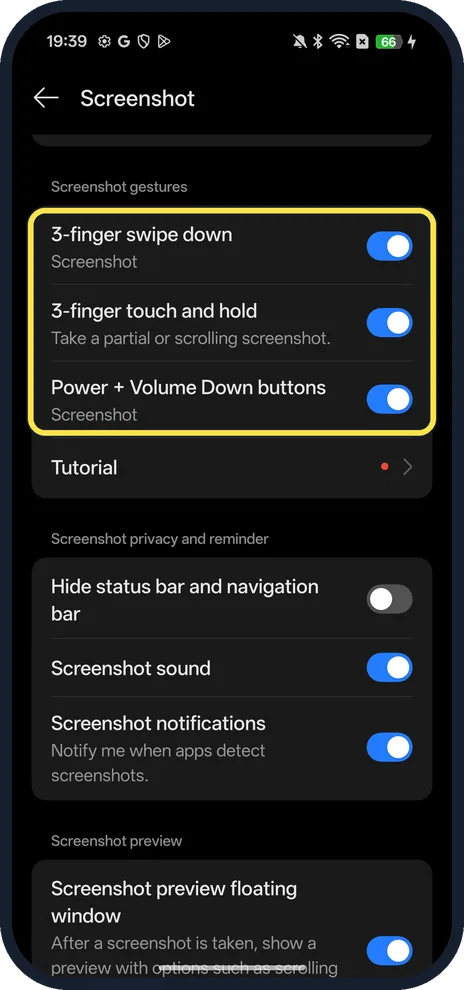
Check the screenshot gestures
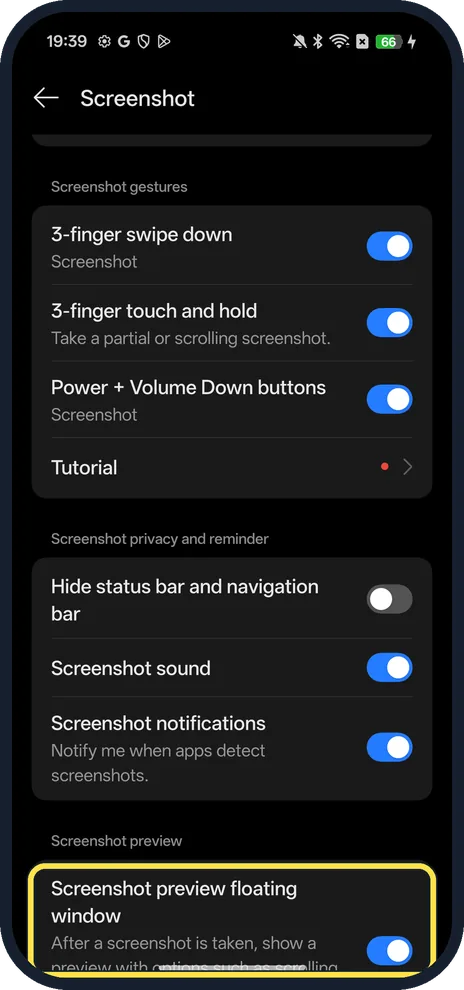
Open Settings and search for Screenshot. Under Screenshot gestures our phone had 3-finger swipe down, 3-finger touch and hold, and Power + Volume Down buttons.
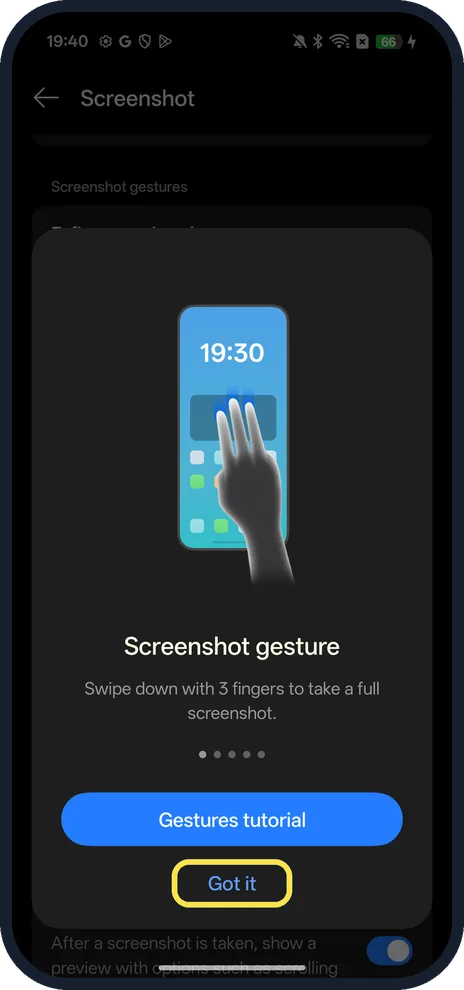
Swipe down with three fingers
Swipe down with three fingers anywhere. The first time, ColorOS shows a Screenshot gesture tip; tap Got it.
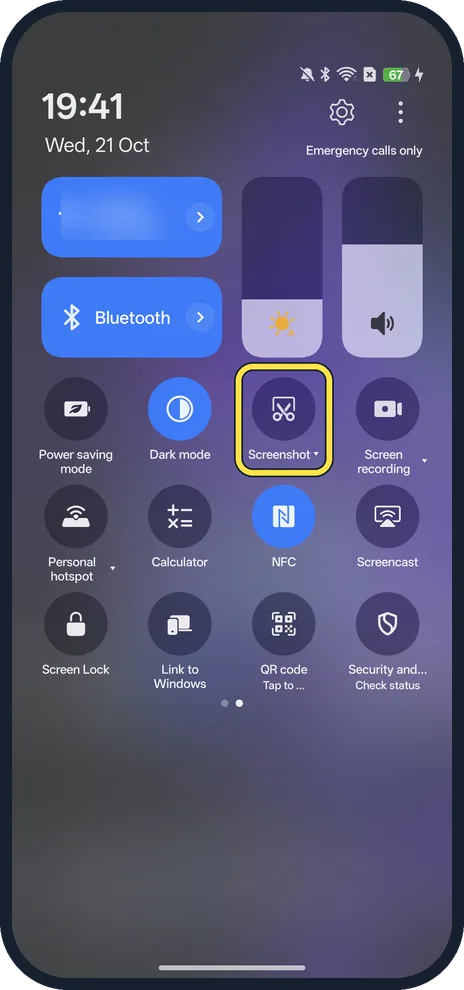
Or use the Screenshot tile
Swipe down twice from the top and swipe left. Our Screenshot tile was on Quick Settings page 2, with a small arrow next to its name.
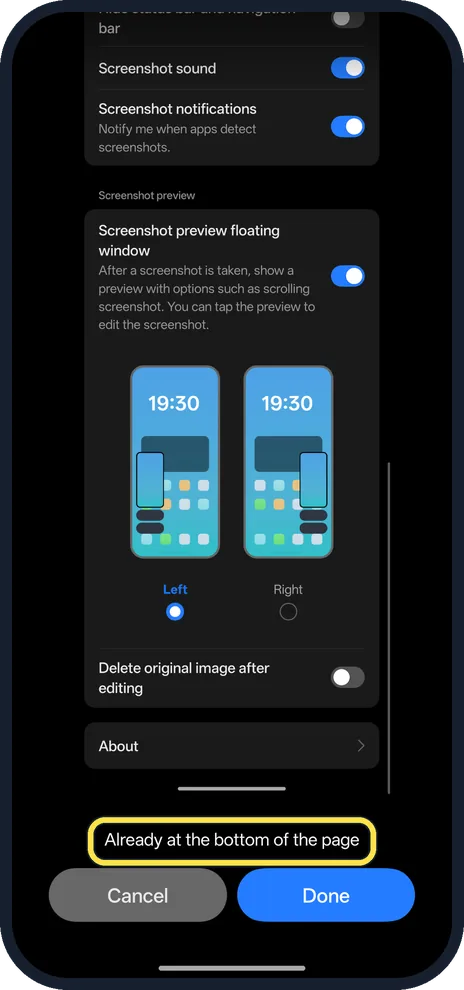
Take a scrolling screenshot
Touch and hold with three fingers. ColorOS keeps adding the page below until you tap Done; ours is the Screenshot settings page captured this way, and it says Already at the bottom of the page when there is no more.
If you do not see this option
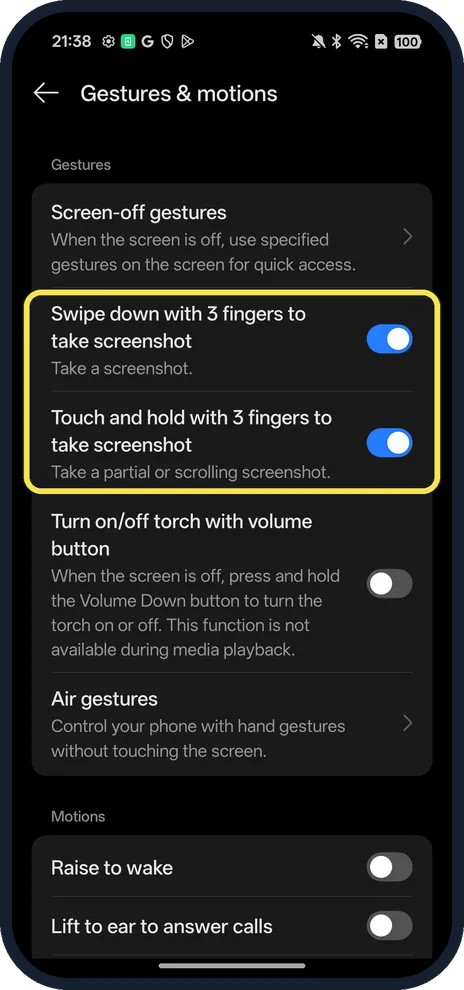
- No Screenshot page in Settings search? On our ColorOS 16.0.5 the same three-finger switches are also in Settings, Accessibility & convenience, Gestures & motions.
- No preview after a screenshot? In Settings, Screenshot, turn on Screenshot preview floating window. The page says it shows a preview with options such as scrolling screenshot after each screenshot, and you can tap the preview to edit it.
- No gestures on your model? OPPO's Smart Sidebar (ColorOS 5.2 and later) has a Screenshot quick tool, and Power + Volume Down works on every Android phone, Google says. Source: What Is Smart Sidebar and How to Use It on OPPO Phones · Source: Take a screenshot or record your screen on your Android device
If this does not work
- Three-finger swipe does nothing? Its switch may be off: Settings, Screenshot, 3-finger swipe down. All three gesture switches were on on ours.
- Buttons don't take a screenshot? Google says to press Power and Volume Down at the same time; if that doesn't work, press and hold Power for a few seconds and tap Screenshot. Source: Take a screenshot or record your screen on your Android device
- Status bar showing in your screenshots? Under Screenshot privacy and reminder, Hide status bar and navigation bar leaves them out. It was off on ours.
About this guide
ColorOS gives three ways to take a screenshot, plus a Screenshot tile in Quick Settings.
The screenshots are from our OPPO Reno13 5G, the European model CPH2689, with ColorOS 16.0.5 and Android 16 (build CPH2689_16.0.5.1001(EX01)), in Dark mode.
Good to know
Find out when apps notice: Screenshot notifications, Notify me when apps detect screenshots, sits in the same Screenshot settings list.
Need a video instead? Screen record on an OPPO phone.
On a OnePlus: screenshot or record the screen on a OnePlus.
In short: Three-finger swipe down, or Power + Volume Down; three-finger touch and hold for scrolling.
- Google Android Help: Take a screenshot or record your screen on your Android device
- OPPO Support: What Is Smart Sidebar and How to Use It on OPPO Phones
Links checked in October 2026. Menus and features can change after software updates. These steps match the version named at the top.
Did this guide work for you?
Sorry about that. What happened?