GOOGLE PIXEL
How to turn on notification cooldown on a Google Pixel (Android 17)

In short
Open Settings, Notifications and, under General, tap Notification cooldown. Turn on Use notification cooldown. The page says the phone then lowers its volume and minimises alerts for up to 1 minute when many notifications arrive at once. It was already on on ours.
3 of 3 steps show a real screenshot from our Pixel 10a. Each step was checked against the maker's own instructions, linked at the end.
Steps
- 1
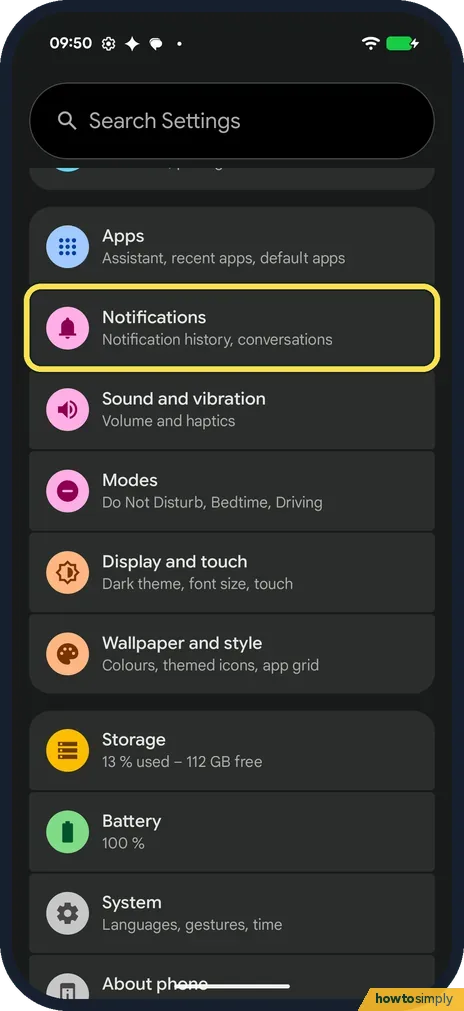
Open Notifications
Open Settings and tap Notifications: Notification history, conversations.
- 2
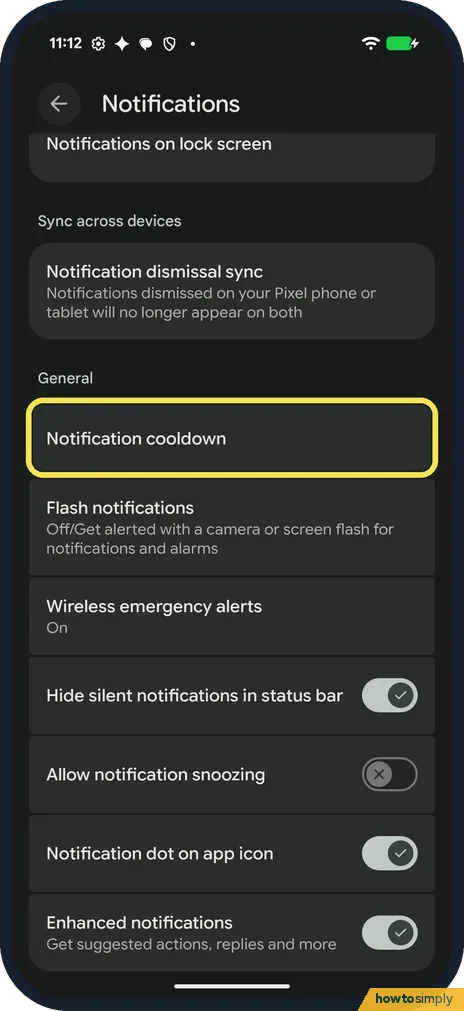
Tap Notification cooldown
Scroll down to General. Notification cooldown is its first row, above Flash notifications. On ours the row showed no On or Off under it. Tap it.
- 3
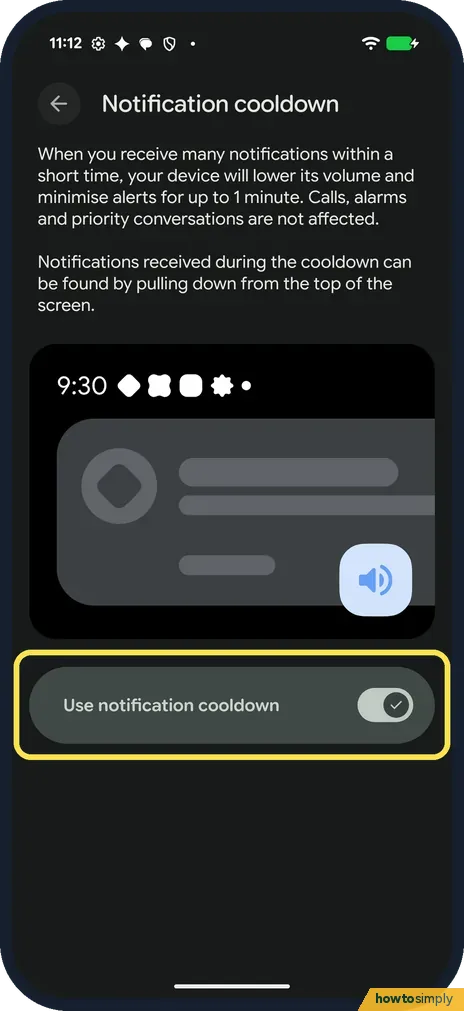
Turn on Use notification cooldown
The page says: when you receive many notifications within a short time, your device will lower its volume and minimise alerts for up to 1 minute. Calls, alarms and priority conversations are not affected. Tap the Use notification cooldown switch. It was on on ours, with a tick.
If you do not see this option
- No Notification cooldown? Google's Pixel help says the feature is only available on Android 14 and later. On our Pixel 10a with Android 17 it was the first row under General. Source: Use advanced notification features
- Not where Google says? Google's Pixel help gives Settings, Notifications, Notification cooldown. Its Android help adds that it is under General, as on ours. Sources: Use advanced notification features, Control notifications on Android
If this does not work
- Missed alerts during a cooldown? The page on ours says notifications received during the cooldown can be found by pulling down from the top of the screen. Older ones you swiped away: notification history.
- Worried about missing calls? The page says calls, alarms and priority conversations are not affected. Google's Android help adds emergency alerts to the exceptions.
- Alerts silent all the time? Cooldown lasts up to 1 minute, the page says. For longer silence check Do Not Disturb and modes, then Pixel not getting notifications.
- Cooldown kicks in after flight mode? That is when it is meant to help. Google gives leaving Airplane mode as an example of many notifications arriving at once. The phone tones them down so you don't get a burst of sounds.
- A chat you care about goes quiet? Mark it as a priority conversation. Google's Pixel help says you can do that under Settings, Notifications, Conversations, and the cooldown page says priority conversations are not affected.
- One app still floods you with alerts? Cooldown only softens bursts for up to a minute. For an app that is noisy all day, Google says you can turn off just some of its notification categories in the app's notification settings.
Good to know
To stop it, turn Use notification cooldown off on the same page.
Other rows under General on ours: Flash notifications, Allow notification snoozing and Notification dot on app icon (snoozing and dots). One noisy app? Turn off its notifications.
With cooldown on, nothing is blocked or deleted. Notifications still arrive and appear in the shade; Google's Android help says the phone only minimises sound interruptions and pop-ups on the screen when many arrive quickly. Once the burst is over, normal alerts return. Calls, alarms, priority conversations and emergency alerts always come through as usual, so it is safe to leave on. If you prefer every alert at full volume, turn the switch off; the change applies straight away.
About this guide
- Device
- Android
- Shown on
- Google Pixel 10a, Android 17 (build CP3A.261005.005)
- App
- Settings
- Path
- Settings › Notifications › Notification cooldown
- Real screenshots
- 3 of 3 steps
- What we did
- Observed: looked at each screen, changed nothing
- Checked
- October 2026
- Sources
- 2 official, linked below
Sources
Links checked October 2026. Menus and features can change with updates.Spotted a mistake? Menus change with updates, and we want every step to match your screen. Email us about this page or use the contact form. We read every report, and fixes are listed on What changed.
Liked this guide?
Follow us for new guides and short how-to videos.
Did this guide work for you?
Sorry about that. What happened?