
howtosimply.com/guides/how-to-turn-on-three-finger-drag-on-a-mac/ · Checked October 2026 · MacBook Neo · macOS 27.0.1
In this guide
Open System Settings, Accessibility, Pointer Control and click Trackpad Options. Turn on Use trackpad for dragging, set Dragging style to Three Finger Drag and click OK. On ours, Cancel put the style back but left the dragging switch on.
- Device
- Mac
- Shown on
- macOS 27.0.1 (MacBook Neo)
- App
- System Settings
- Path
- System Settings › Accessibility › Pointer Control › Trackpad Options
- Real screenshots
- 6 of 6 steps
- Checked
- October 2026
- Sources
- 1 official, linked below
Step by step
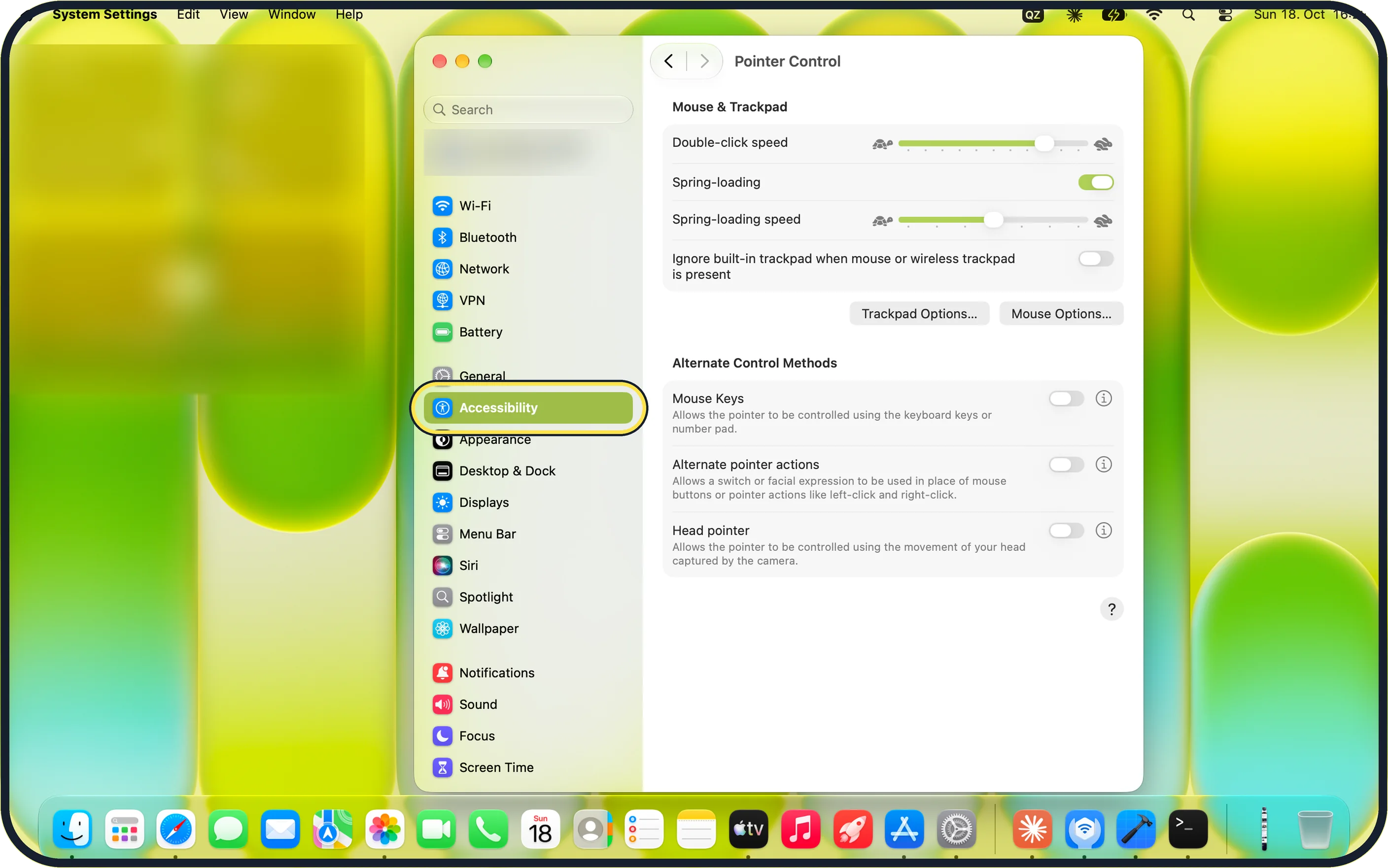
Tap the picture to see it full size Open Accessibility
Choose Apple menu, System Settings, then Accessibility in the sidebar. It is not in Trackpad settings.
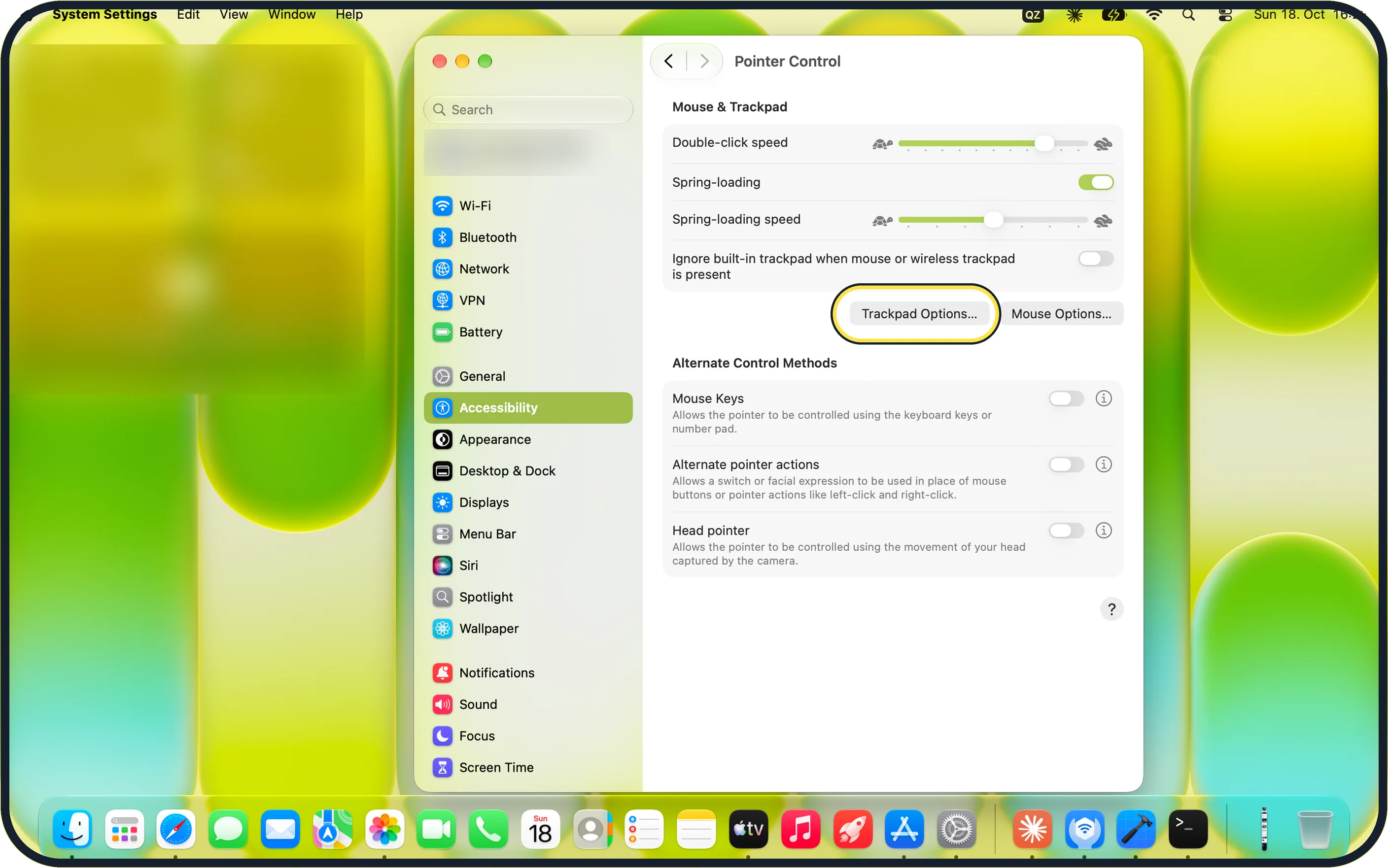
Tap the picture to see it full size Click Trackpad Options
Open Pointer Control. Trackpad Options is under Mouse & Trackpad, next to Mouse Options.
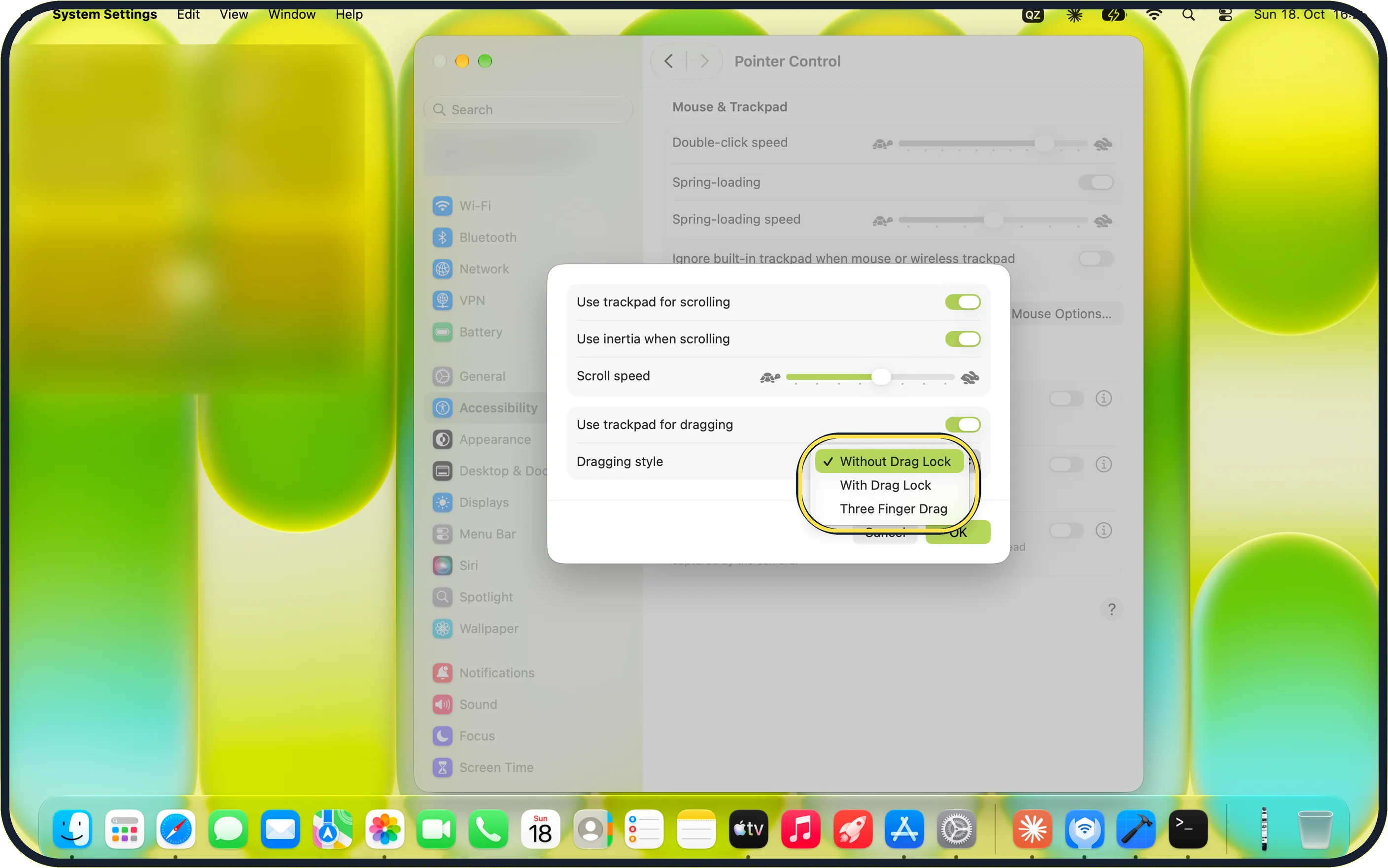
Tap the picture to see it full size Open Dragging style
Turn on Use trackpad for dragging, then open Dragging style: Without Drag Lock, With Drag Lock, Three Finger Drag.
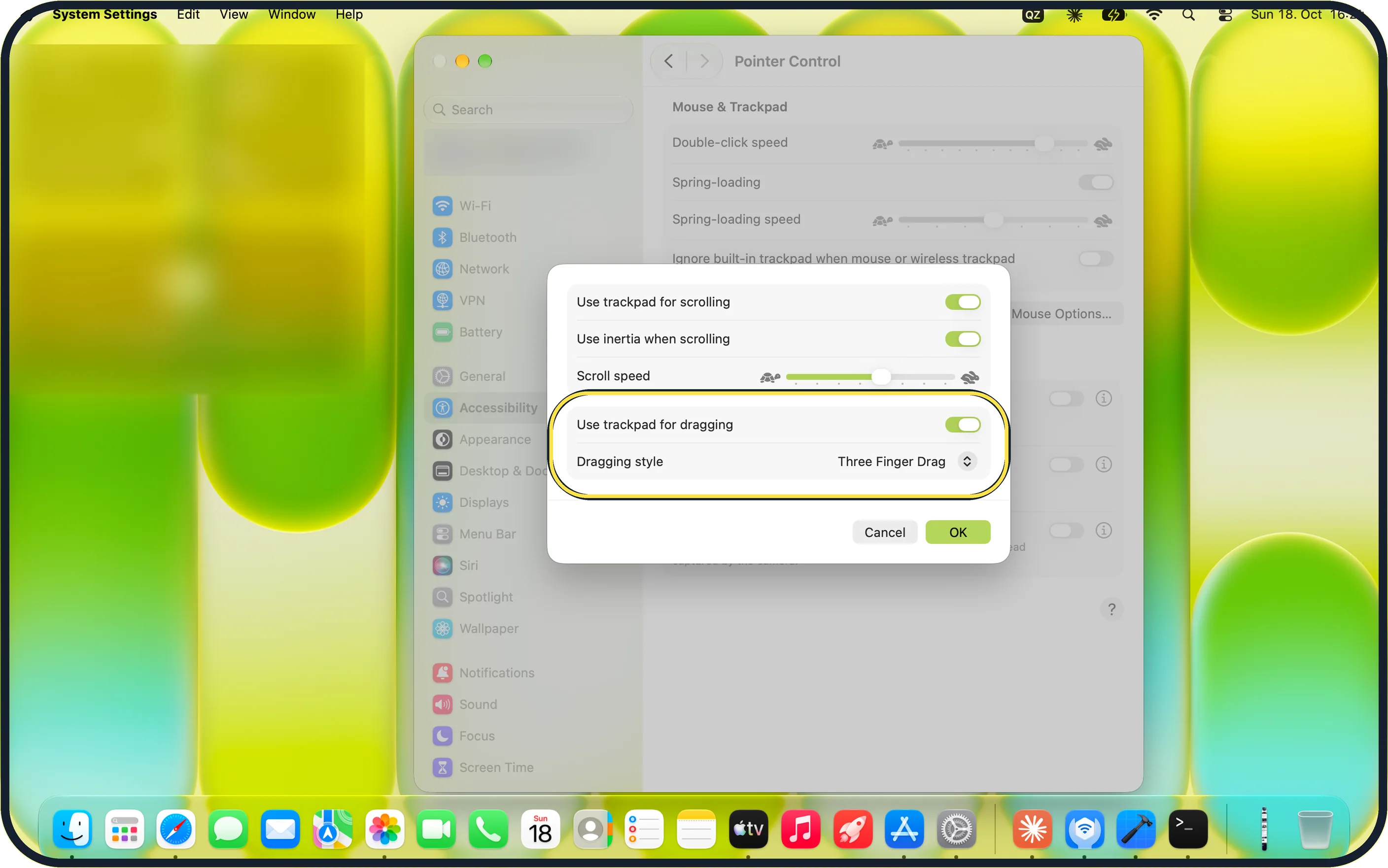
Tap the picture to see it full size Choose Three Finger Drag and click OK
The row reads Three Finger Drag. Click OK, then drag a window with three fingers to test.
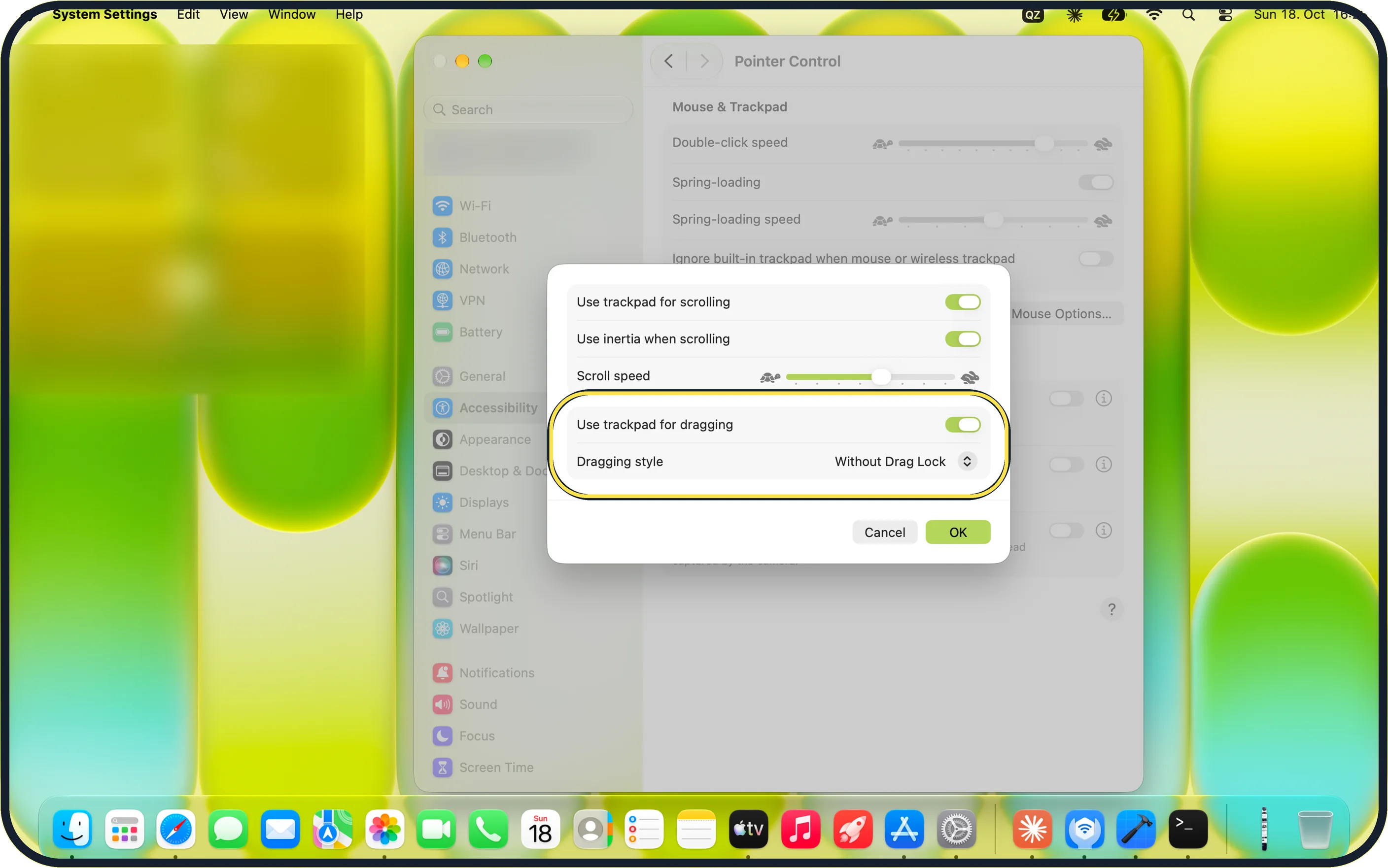
Tap the picture to see it full size Cancel only half undoes it
We clicked Cancel instead and reopened Trackpad Options: the style was back to Without Drag Lock, but Use trackpad for dragging was still on. Check the switch after a Cancel.
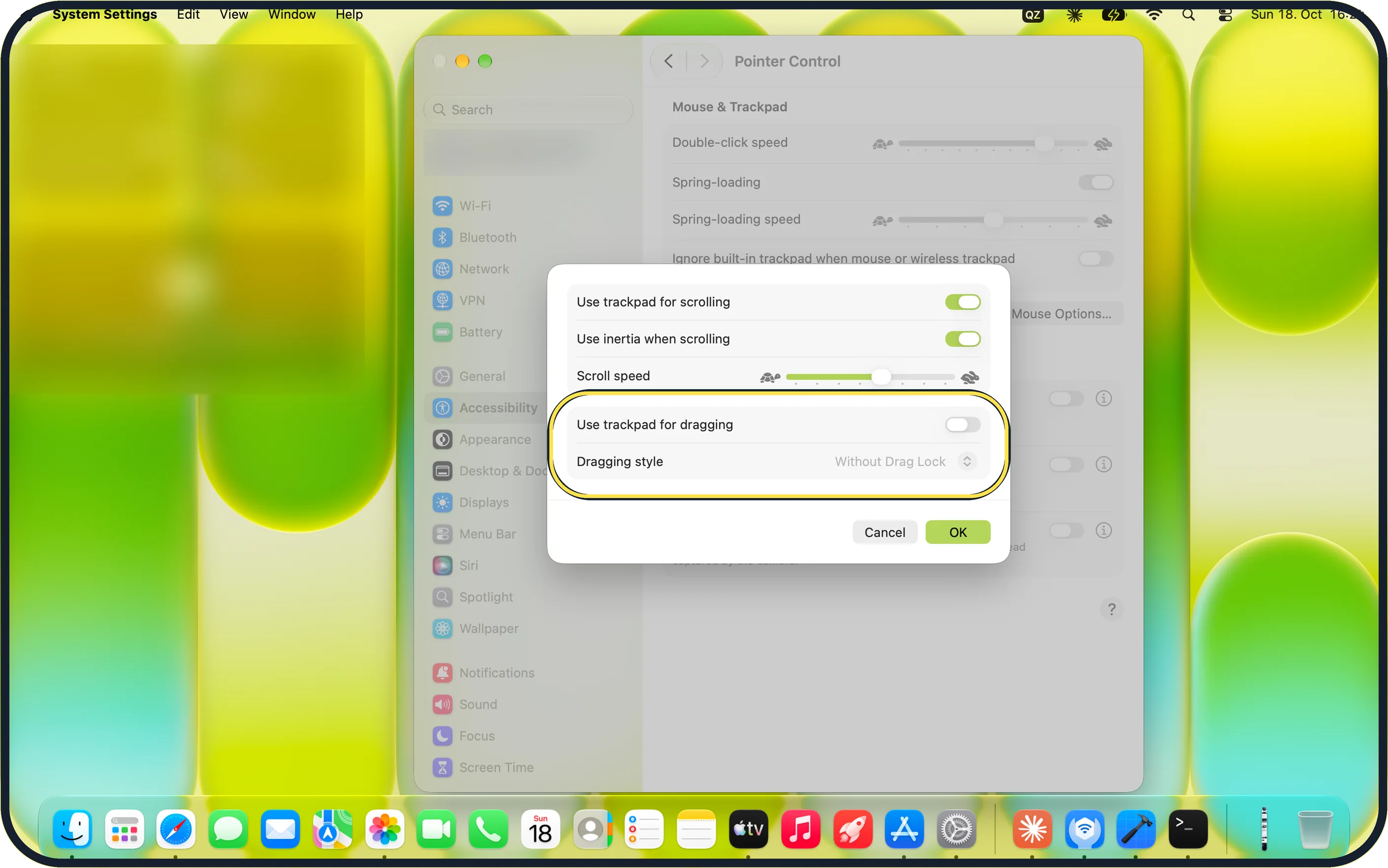
Tap the picture to see it full size Turn it off again
Switch off Use trackpad for dragging and click OK. Ours went back to how it started: dragging off, Without Drag Lock.
If you do not see this option
- Not under Trackpad settings? It is in Accessibility, Pointer Control. Apple notes it needs a trackpad that supports Force Touch. Source: Turn on three finger drag for your Mac trackpad
- Older macOS? Apple's older steps say System Preferences and Mouse & Trackpad instead of System Settings and Pointer Control. Source: Turn on three finger drag for your Mac trackpad
If this does not work
- Three-finger swipes stopped working? With three-finger drag on, swipes that used three fingers may need four. Check System Settings, Trackpad, More Gestures.
- Dragging still on after you cancelled? Reopen Trackpad Options and switch off Use trackpad for dragging, as in step 6.
About this guide
Three-finger drag moves windows and selects text with three fingers, without holding the click down.
The screenshots are from our MacBook Neo with macOS 27.0.1, taken on 18 October 2026. Ours started with dragging off; we set it back afterwards.
Good to know
If a window snaps into a tile while you drag it, see how to turn off window tiling when dragging.
In short: Accessibility, Pointer Control, Trackpad Options, dragging on, Three Finger Drag, OK.
Links checked in October 2026. Menus and features can change after software updates. These steps match the version named at the top.
Did this guide work for you?
Sorry about that. What happened?