
howtosimply.com/guides/how-to-turn-off-force-click-on-a-mac-trackpad/ · Checked October 2026 · MacBook Pro · macOS Tahoe 26
In this guide
Open System Settings, click Trackpad, and switch off Force Click and haptic feedback. A firm press on the trackpad then no longer triggers Quick Look, Look up and the other Force Click actions.
4 of 4 steps with real screenshots · 3 official sources below
- Device
- Mac
- Shown on
- macOS Tahoe 26 (MacBook Pro)
- App
- System Settings
- Path
- System Settings › Trackpad
- Real screenshots
- 4 of 4 steps
- Checked
- October 2026
- Sources
- 3 official, linked below
Step by step
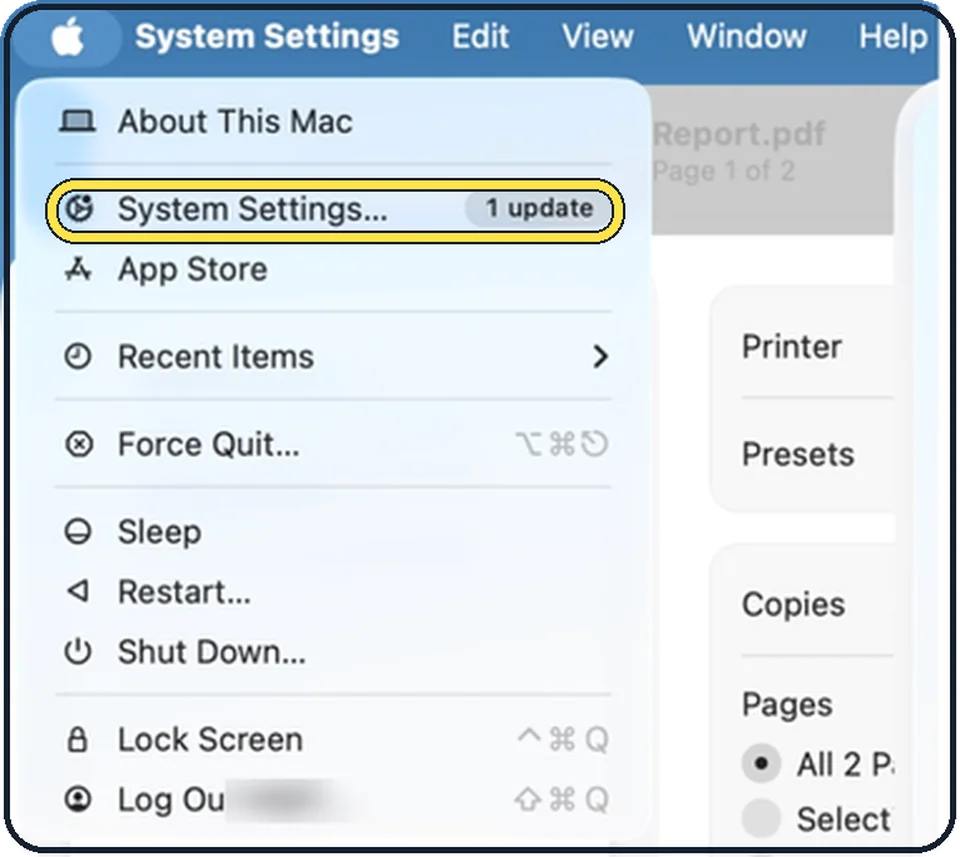
Tap the picture to see it full size Open System Settings
Click the Apple menu in the top left corner of the screen and choose System Settings.
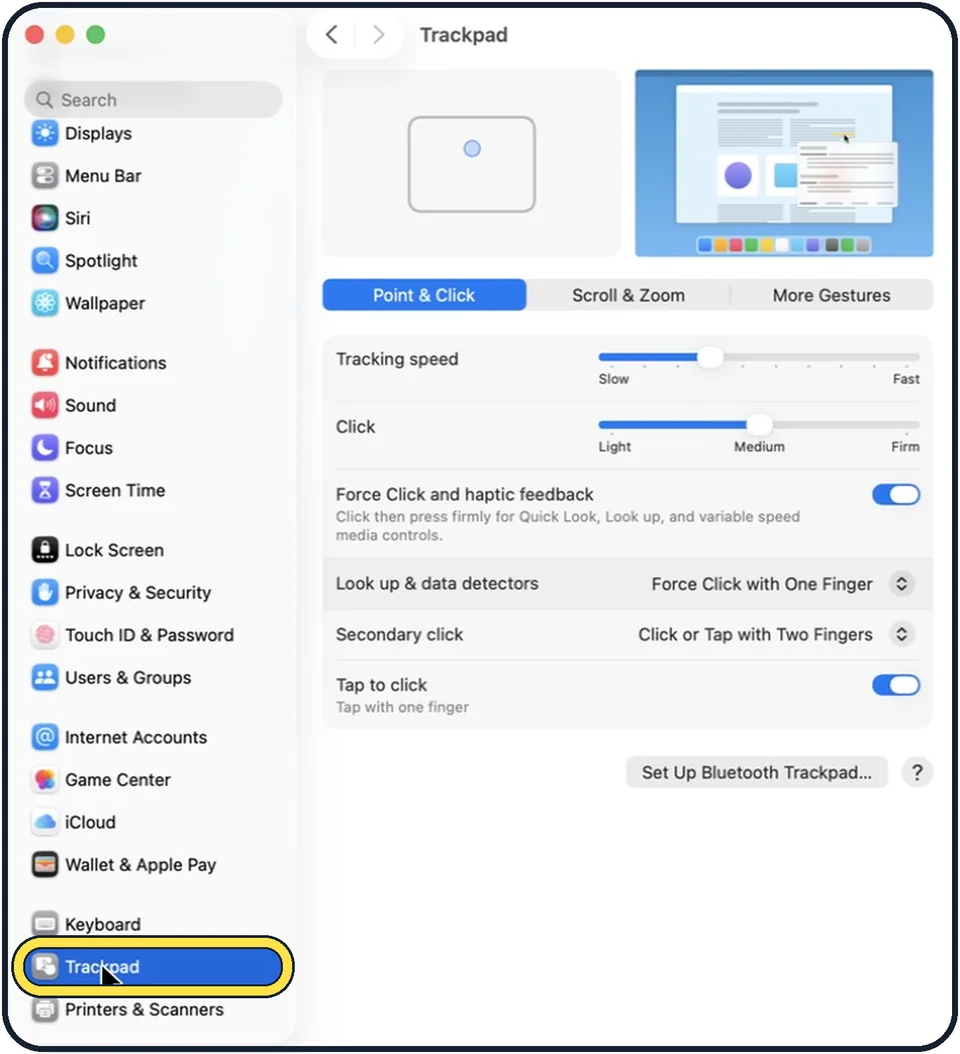
Zoomed in on the setting. Tap to see the whole screenTap the picture to see it full size Click Trackpad in the sidebar
Trackpad is near the bottom of the sidebar, below Keyboard. Scroll down to find it.
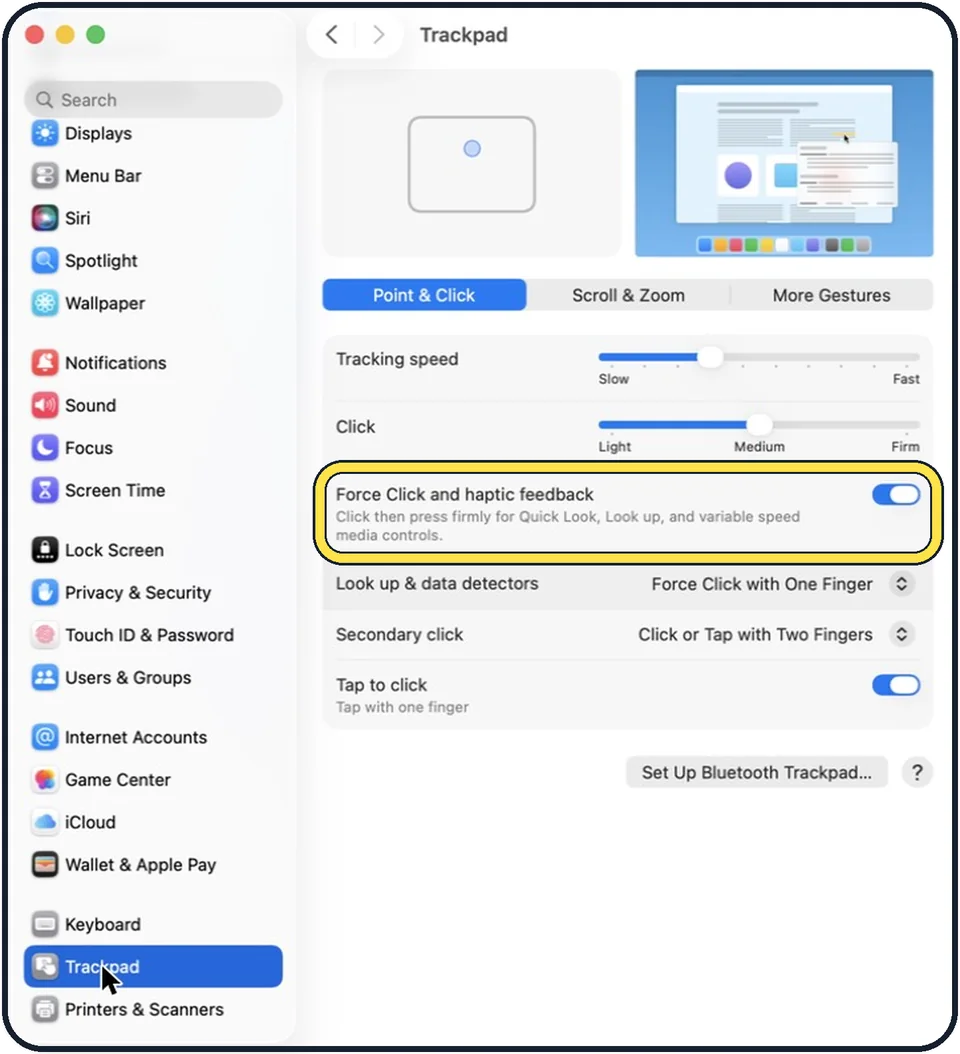
Tap the picture to see it full size Switch off Force Click and haptic feedback
In the picture it is on, and the Click slider above it is at Medium. The note under it reads: click then press firmly for Quick Look, Look up, and variable speed media controls.
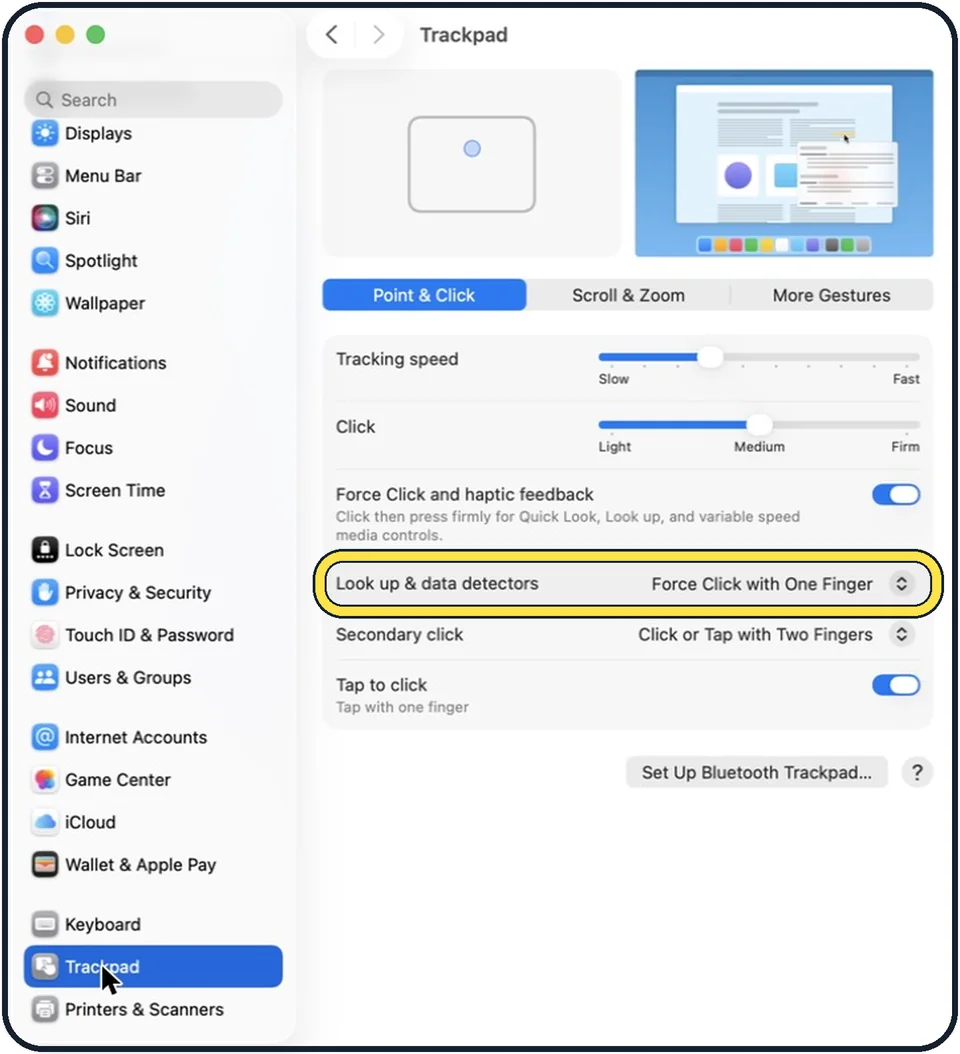
Tap the picture to see it full size Or only change the look-up gesture
Look up & data detectors chooses the gesture for looking up a word. In the picture it is Force Click with One Finger.
If you do not see this option
- There is no Force Click and haptic feedback switch. Apple says you need a Mac with a built-in trackpad or a wireless trackpad connected, and that you see only some options depending on the Mac or trackpad. The Trackpad page also has a Set Up Bluetooth Trackpad… button, as in the picture. Source: Change Trackpad settings on Mac
- Your Mac has System Preferences, not System Settings. Apple says that on macOS Monterey you choose System Preferences, Trackpad, and the Force Click and haptic feedback tick box is on the Point & Click tab. Source: Change Trackpad preferences on Mac
If this does not work
- A dictionary window still opens. Apple says Look Up also opens with a three-finger tap if that gesture is chosen in Trackpad settings. Check the Look up & data detectors row. Source: Look up words on Mac
- Normal clicks still feel too hard or too soft. Apple says the Click slider sets how firmly you must press the trackpad. In the picture it goes from Light to Firm. Source: Change Trackpad settings on Mac
About this guide
Force Click is a second, firmer press after the normal click. The settings page lists what it is used for: Quick Look, Look up and variable speed media controls. If a dictionary window keeps popping up when you press a little too hard, this is the cause.
The screenshots show System Settings on macOS Tahoe 26.
Good to know
Apple says the switch also covers tactile feedback, such as when aligning objects in some apps.
In short: System Settings, Trackpad, Force Click and haptic feedback off.
- Mac User Guide: Change Trackpad settings on Mac
- Apple Support: Change Trackpad preferences on Mac
- Apple Support: Look up words on Mac
Links checked in October 2026. Menus and features can change after software updates. These steps match the version named at the top.
Did this guide work for you?
Sorry about that. What happened?