
howtosimply.com/guides/how-to-set-a-screen-saver-on-a-mac/ · Checked October 2026 · MacBook Neo · macOS 27.0.1
In this guide
Open System Settings, Wallpaper and click Screen Saver. Pick one, set Start Screen Saver to a time and click Done. In macOS 27 that timer is in the Screen Saver sheet, not on the Lock Screen page, and the display may switch off first.
4 of 4 steps with real screenshots · 2 official sources below
- Device
- Mac
- Shown on
- macOS 27.0.1 (MacBook Neo)
- App
- System Settings
- Path
- System Settings › Wallpaper › Screen Saver
- Real screenshots
- 4 of 4 steps
- Checked
- October 2026
- Sources
- 2 official, linked below
Step by step
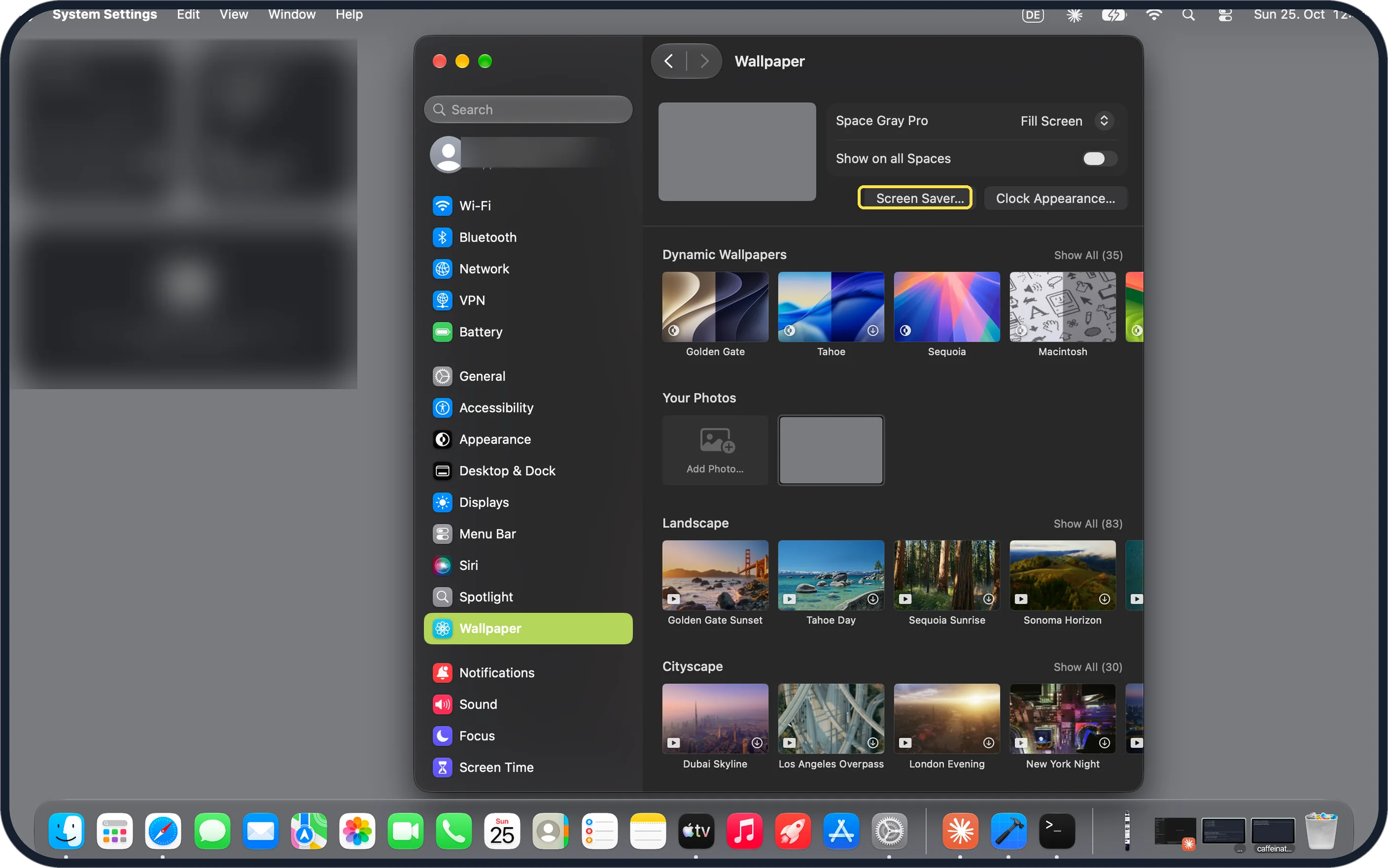
Tap the picture to see it full size Click Screen Saver
Open System Settings and click Wallpaper. Screen Saver is a button next to Clock Appearance at the top.
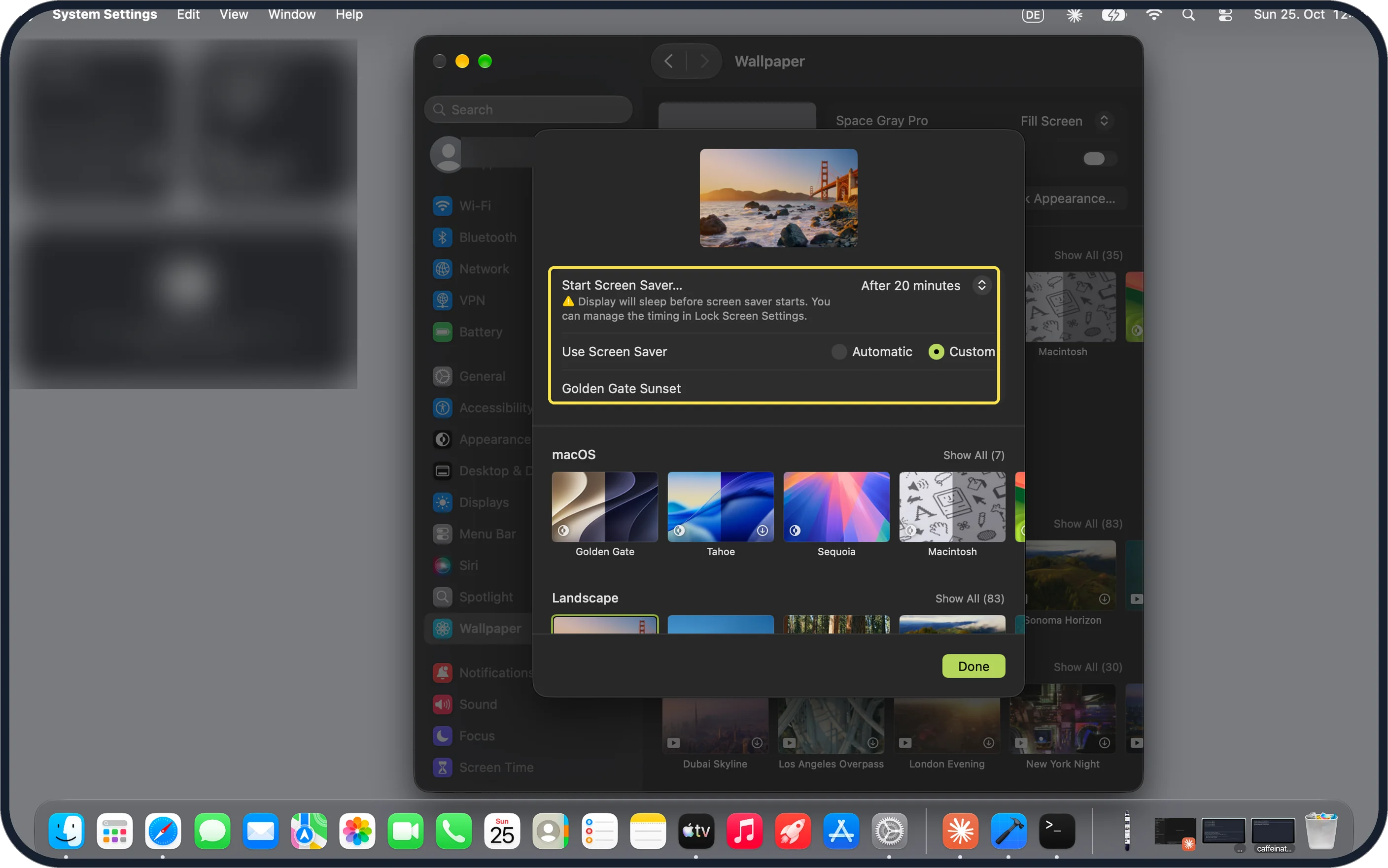
Tap the picture to see it full size Set when it starts
The sheet shows Start Screen Saver (After 20 minutes on ours) and Use Screen Saver: Automatic or Custom. A warning said the display will sleep before the screen saver starts.
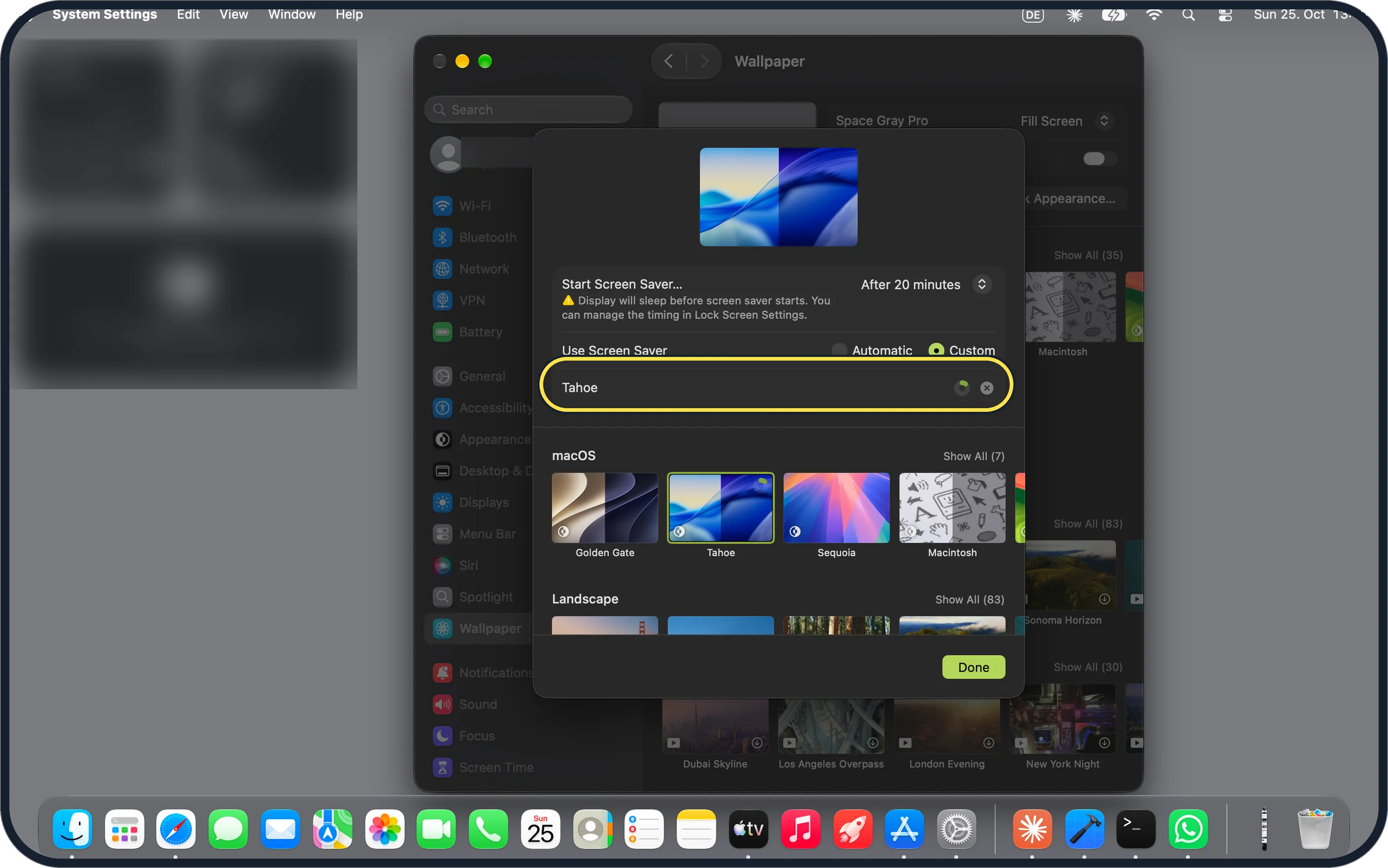
Zoomed in on the setting. Tap to see the whole screenTap the picture to see it full size Pick a screen saver
Click a thumbnail under macOS or Landscape. We picked Tahoe: the preview changed and a spinner next to the name showed it downloading. Click Done.
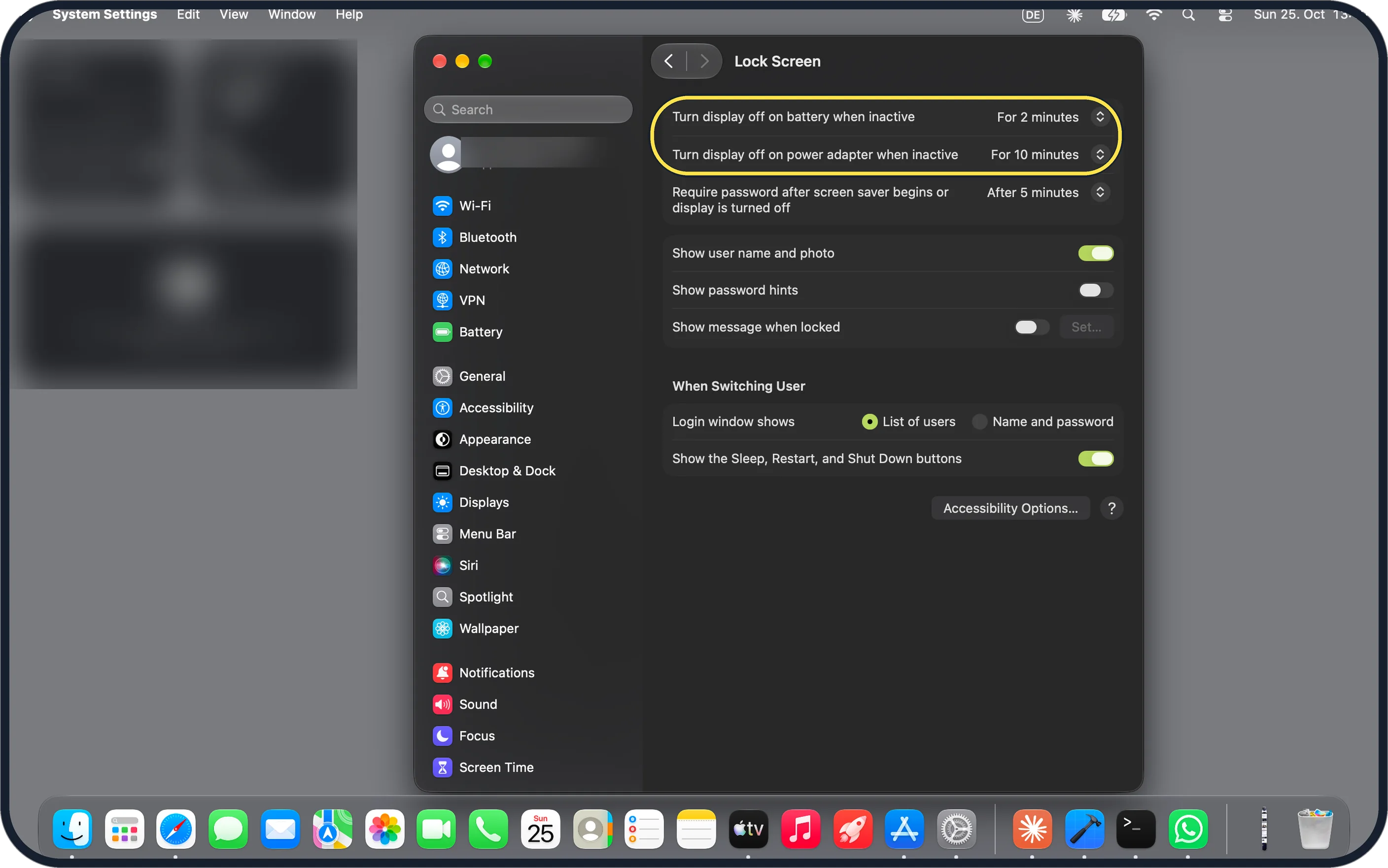
Zoomed in on the setting. Tap to see the whole screenTap the picture to see it full size Make the display stay on longer
Open Lock Screen. Ours turned the display off after 2 minutes on battery and 10 on the adapter, sooner than the 20-minute screen saver, so it never showed. There was no screen saver row on this page.
If you do not see this option
- No Screen Saver button? Apple says to scroll down in the Wallpaper settings if you do not see it. Source: Change Screen Saver settings on Mac
- Looking for Start Screen Saver under Lock Screen? On our macOS 27.0.1 it was not there: the Lock Screen page only had the display-off times and the password delay. The timer is in the Screen Saver sheet (step 2). Source: Change Lock Screen settings on Mac
If this does not work
- The screen just goes black? The display switches off before the screen saver starts. Set Turn display off on Lock Screen to longer than Start Screen Saver, as in step 4. Source: Change Lock Screen settings on Mac
- Want to start it on demand? Apple says you can start or stop the screen saver by moving the pointer to a screen corner, using Hot Corners in Desktop & Dock settings. Source: Change Screen Saver settings on Mac
About this guide
The screen saver lives under Wallpaper, not in a section of its own.
The screenshots are from our MacBook Neo with macOS 27.0.1 in dark mode, taken on 25 October 2026. We tried Tahoe and put ours back to Golden Gate Sunset afterwards.
Good to know
Change the picture behind your windows on the same Wallpaper page.
In short: System Settings, Wallpaper, Screen Saver: pick one and a start time, Done. Lock Screen: display off later than the screen saver.
- Mac User Guide: Change Screen Saver settings on Mac
- Mac User Guide: Change Lock Screen settings on Mac
Links checked in October 2026. Menus and features can change after software updates. These steps match the version named at the top.
📷 Camera Lab: the same 6 scenes photographed with 11 phones, side by side.
Did this guide work for you?
Sorry about that. What happened?