
macOS 27 compared with macOS 26: We rewrote steps 2, 3, 4 and 5 to match the macOS 27 screens. The macOS 26 page keeps the steps and screenshots as they were.
howtosimply.com/guides/how-to-turn-off-window-tiling-when-dragging-on-a-mac/ · Checked October 2026 · MacBook Neo · macOS 27.0.1
In this guide
Open System Settings, click Desktop & Dock, scroll to Windows and switch off Drag windows to left or right edge of screen to tile. Also switch off Drag windows to menu bar to fill screen if windows fill the screen when you drag them to the top.
5 of 5 steps with real screenshots · 1 official source below
- Device
- Mac
- Shown on
- macOS 27.0.1 (MacBook Neo)
- App
- System Settings
- Real screenshots
- 5 of 5 steps
- Checked
- October 2026
- Sources
- 1 official, linked below
Step by step
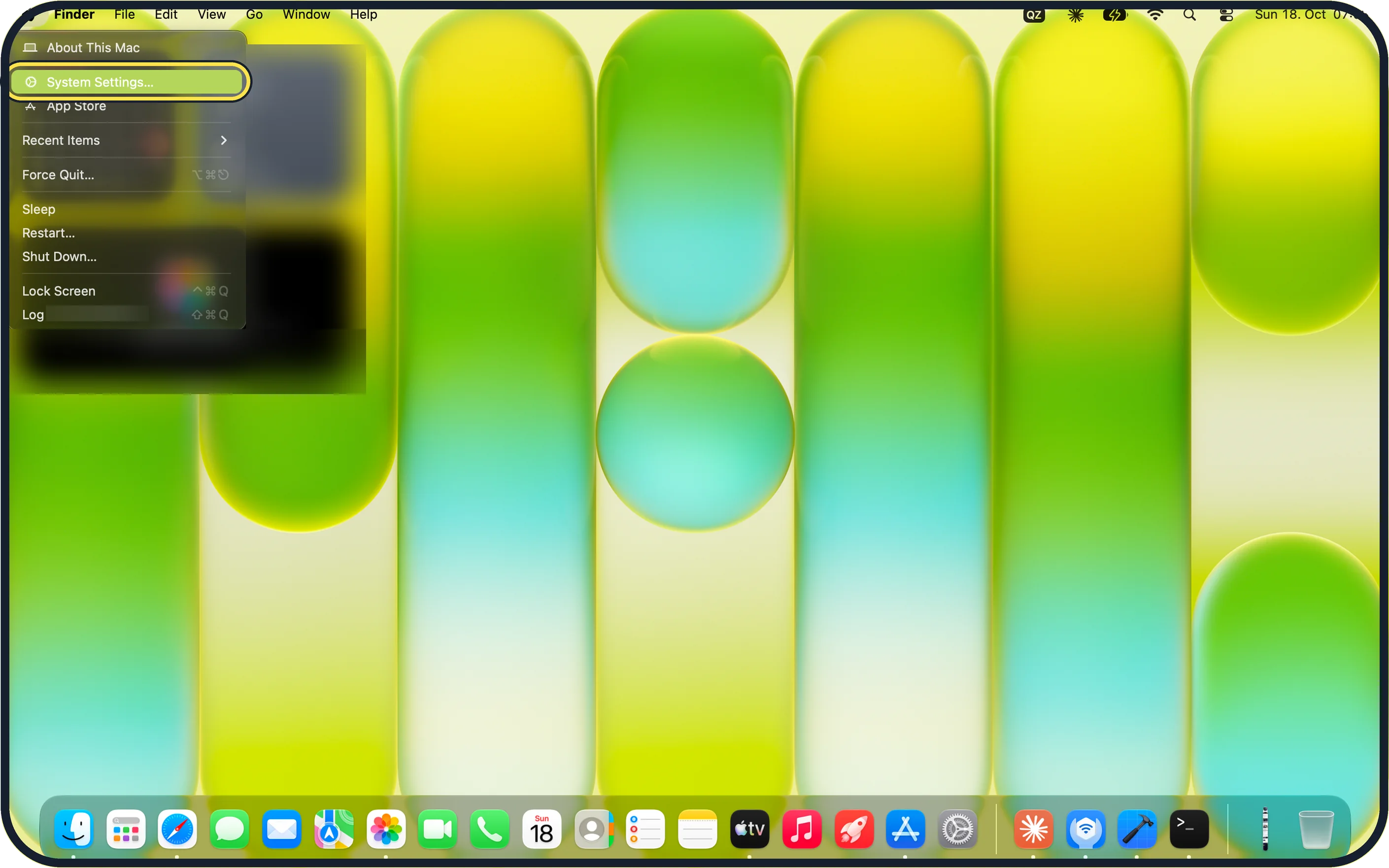
Zoomed in on the setting. Tap to see the whole screenTap the picture to see it full size Open System Settings
Click the Apple menu in the top left corner of the screen and choose System Settings.
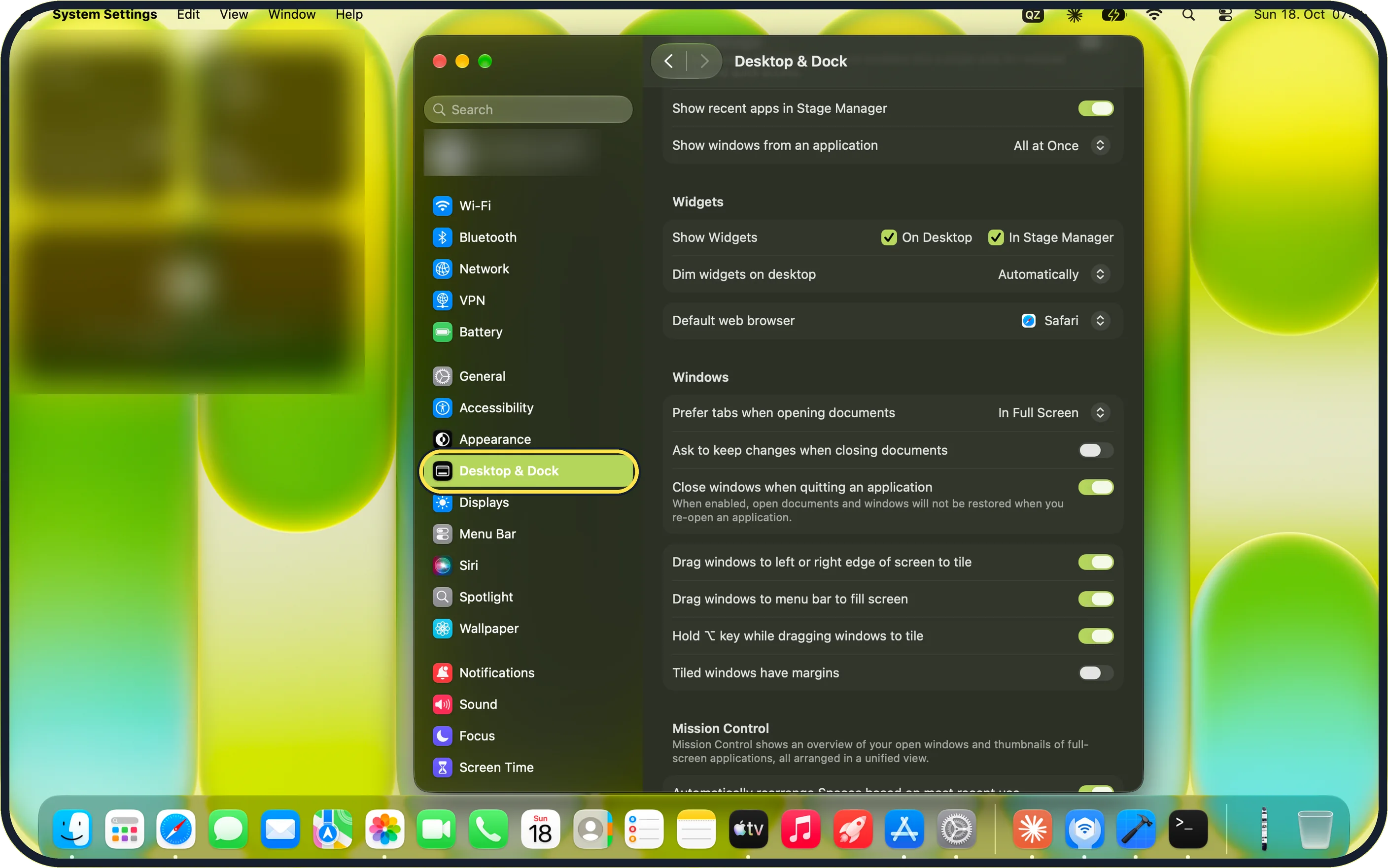
Zoomed in on the setting. Tap to see the whole screenTap the picture to see it full size Click Desktop & Dock in the sidebar
On our MacBook Neo, Desktop & Dock sits just below Appearance in the sidebar.
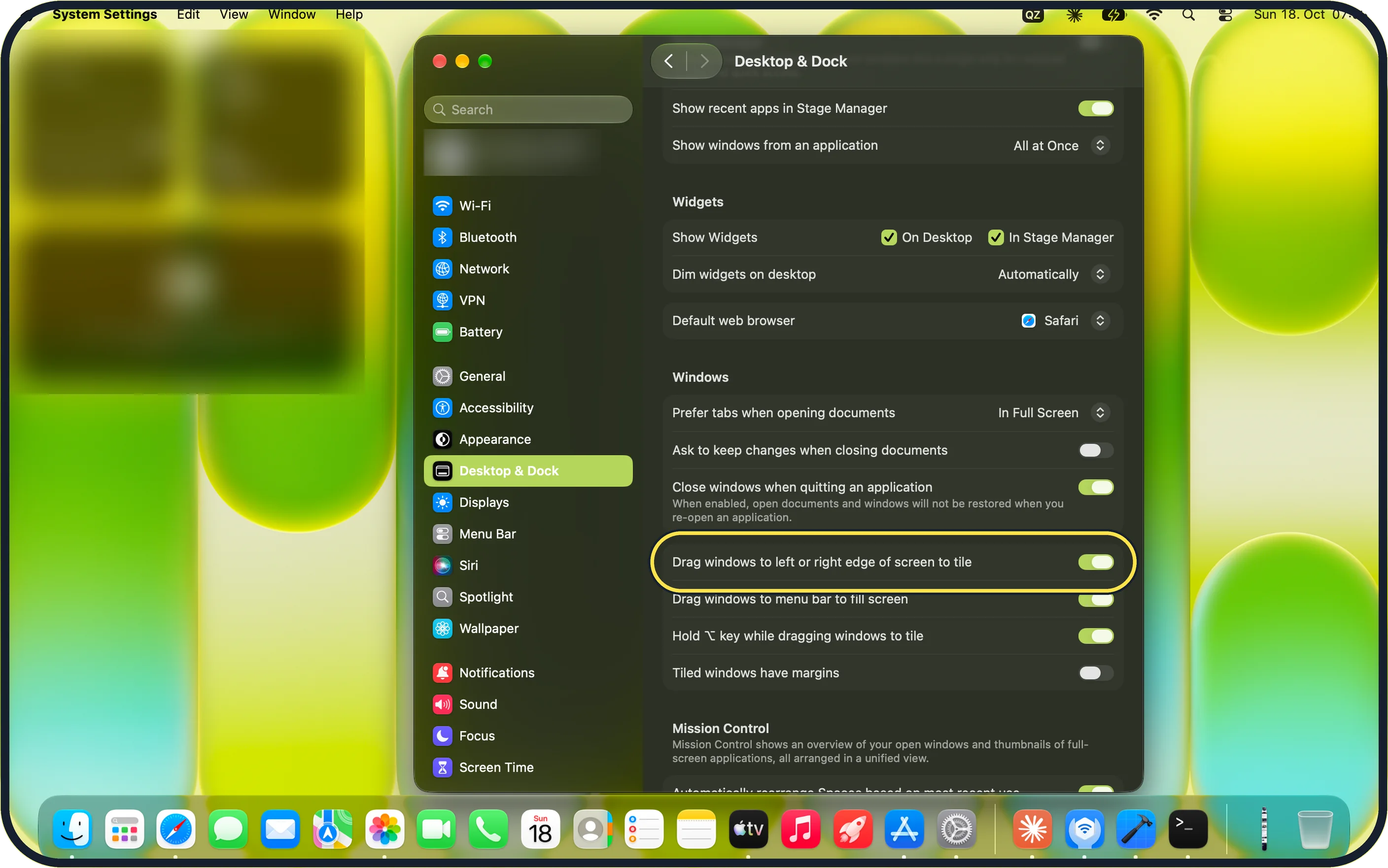
Zoomed in on the setting. Tap to see the whole screenTap the picture to see it full size Switch off Drag windows to left or right edge of screen to tile
Scroll down to the Windows section, below Default web browser. On our MacBook Neo this switch was on.
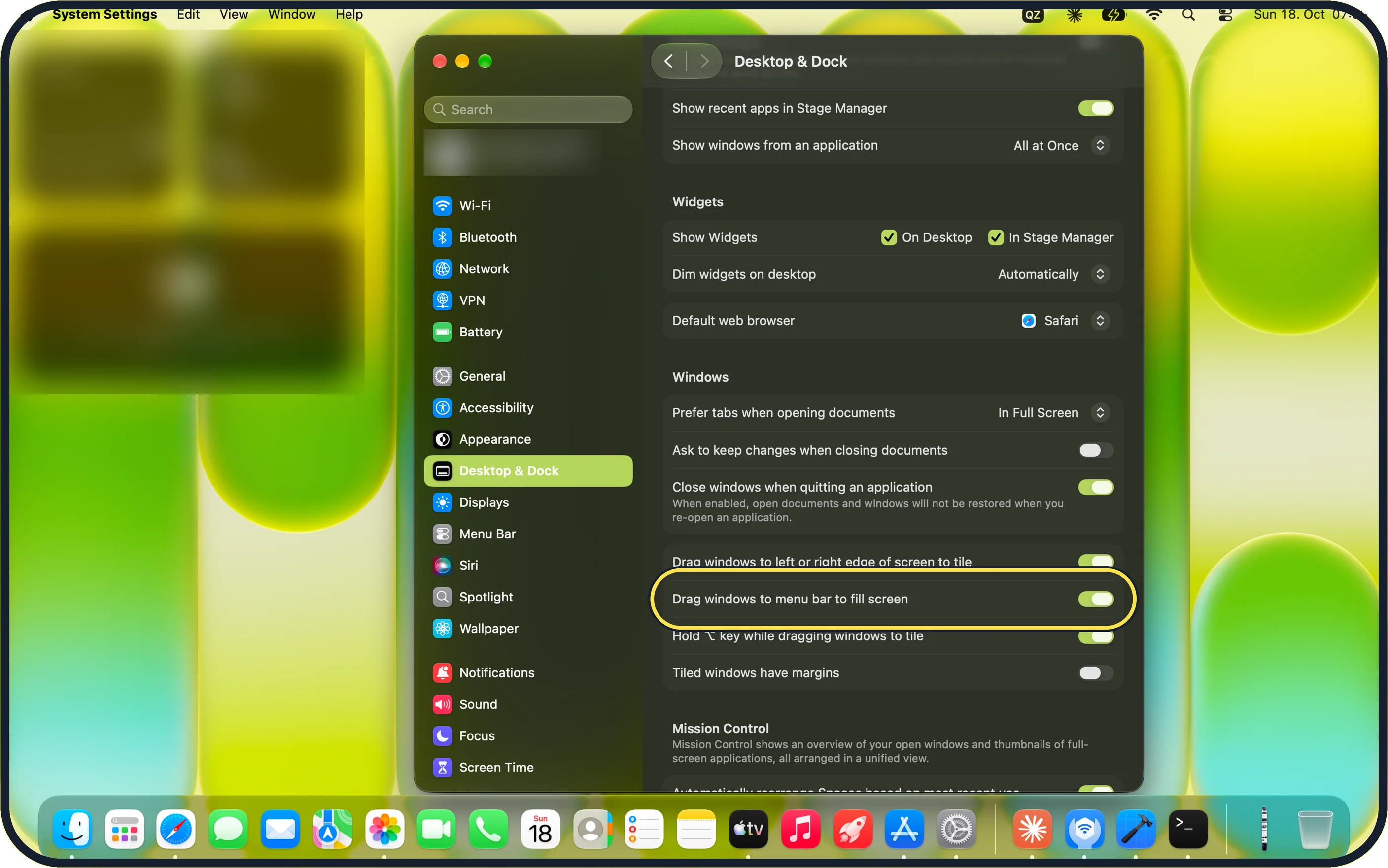
Zoomed in on the setting. Tap to see the whole screenTap the picture to see it full size Switch off Drag windows to menu bar to fill screen
It is the next row. Switch it off if windows grow to fill the screen when you move them to the top.
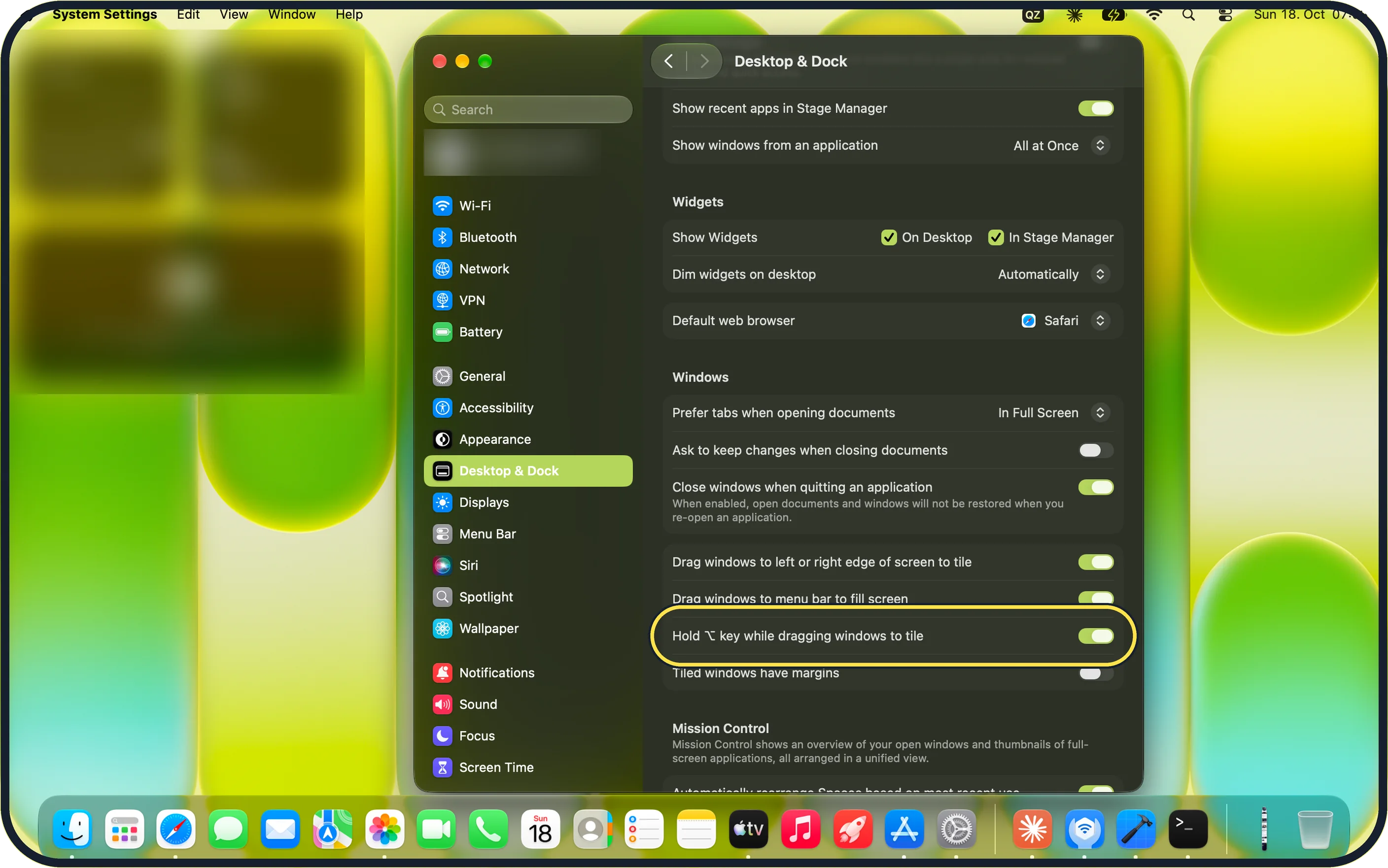
Zoomed in on the setting. Tap to see the whole screenTap the picture to see it full size Decide about Hold ⌥ key while dragging windows to tile
On our MacBook Neo the label uses the ⌥ symbol rather than the word Option, and the switch was on. Apple says this lets you press the Option key to speed up tiling when you drag a window to the edge of the screen.
If you do not see this option
- Desktop & Dock is not in the sidebar Type Desktop & Dock in the Search field at the top of the System Settings sidebar.
- You cannot see the Windows section Scroll down the Desktop & Dock page. On our MacBook Neo, Windows comes after Widgets and Default web browser and before Mission Control.
If this does not work
- Windows still fill the screen when dragged to the top Edge tiling and filling the screen are separate switches. Switch off Drag windows to menu bar to fill screen as well.
- Tiled windows have gaps between them Switch off Tiled windows have margins in the same Windows section; Apple says it leaves some space around each tiled window. Source: Change Desktop & Dock settings on Mac
About this guide
macOS tiles a window when you drag it to the left or right edge of the screen and fills the screen when you drag it to the menu bar; each behaviour has its own switch.
Screenshots: MacBook Neo, macOS 27.0.1, dark mode.
Good to know
Spaces and Mission Control settings are further down the same page: how to stop Spaces rearranging themselves on a Mac.
On our MacBook Neo, Tiled windows have margins was off. Apple says this setting leaves some space around each tiled window.
In short: System Settings > Desktop & Dock > Windows: switch off Drag windows to left or right edge of screen to tile and Drag windows to menu bar to fill screen.
Links checked in October 2026. Menus and features can change after software updates. These steps match the version named at the top.
Did this guide work for you?
Sorry about that. What happened?