
macOS 27 compared with macOS 26: We rewrote steps 2 and 3 to match the macOS 27 screens. The macOS 26 page keeps the steps and screenshots as they were.
howtosimply.com/guides/how-to-turn-on-tap-to-click-on-a-mac/ · Checked October 2026 · MacBook Neo · macOS 27.0.1
In this guide
Open System Settings, click Trackpad in the sidebar and, on the Point & Click tab, switch on Tap to click. A light tap with one finger then counts as a click, so you no longer have to press the trackpad down.
3 of 3 steps with real screenshots · 1 official source below
- Device
- Mac
- Shown on
- macOS 27.0.1 (MacBook Neo)
- App
- System Settings
- Real screenshots
- 3 of 3 steps
- Checked
- October 2026
- Sources
- 1 official, linked below
Step by step
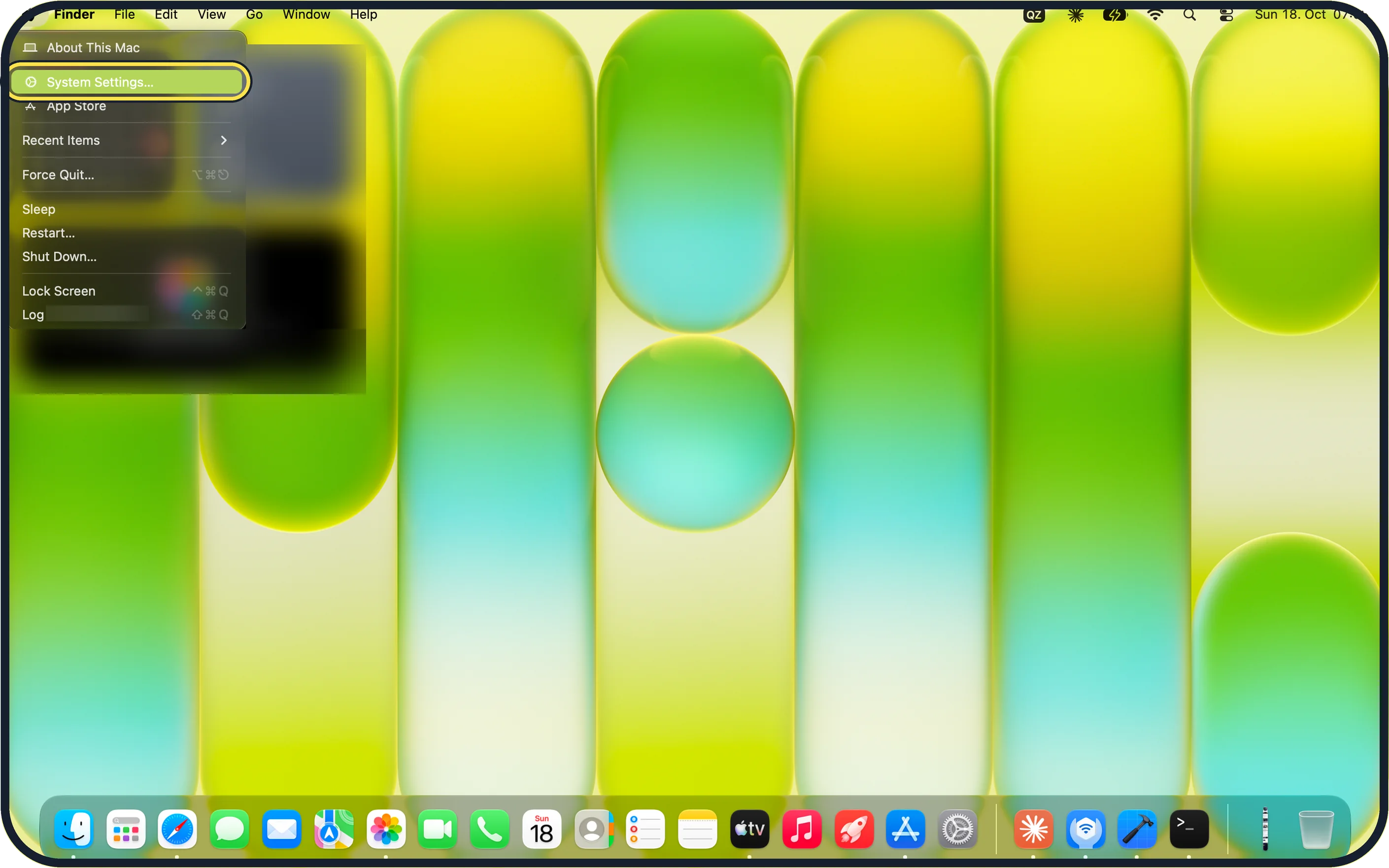
Zoomed in on the setting. Tap to see the whole screenTap the picture to see it full size Open System Settings
Click the Apple menu in the top left corner of the screen and choose System Settings.
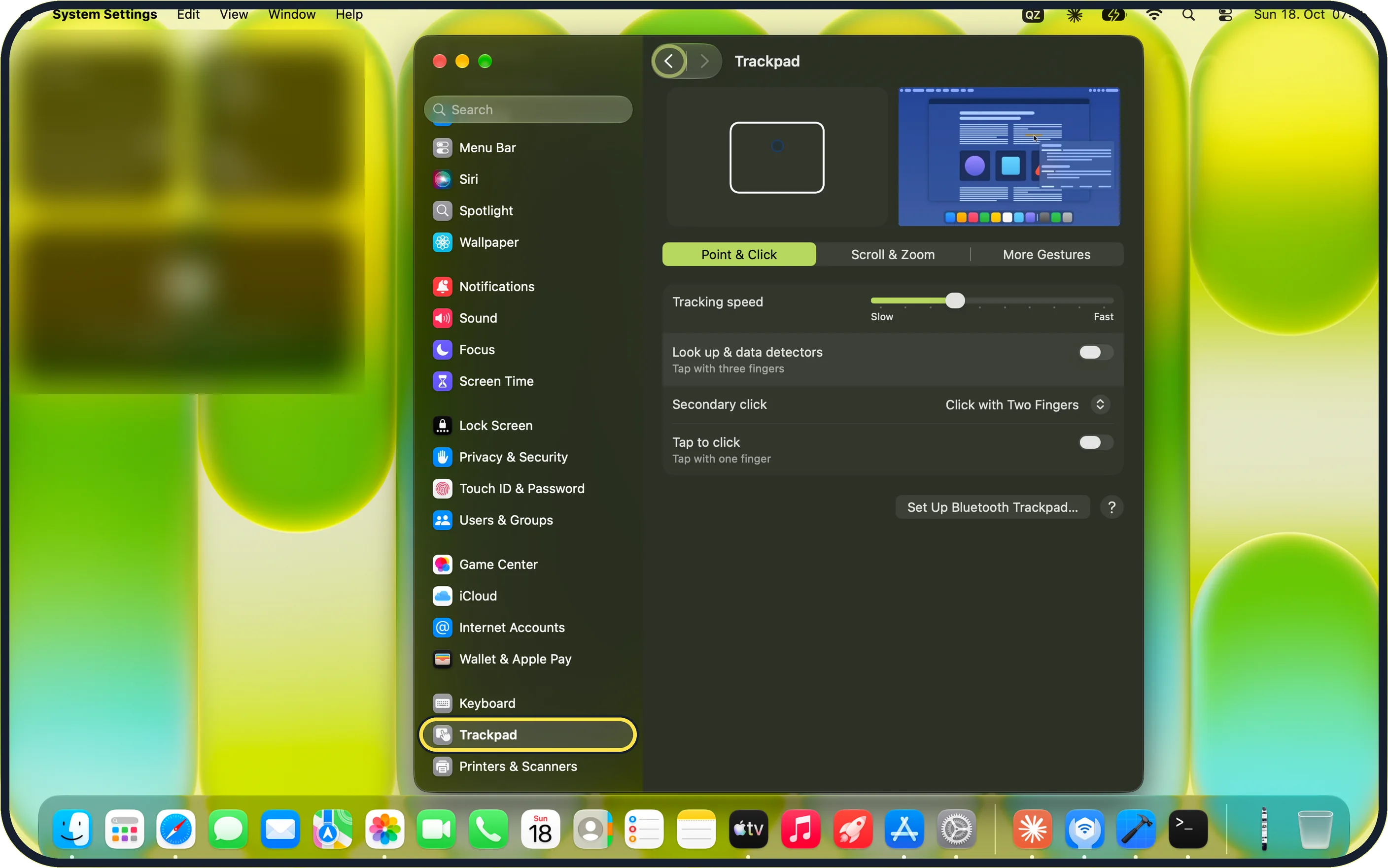
Zoomed in on the setting. Tap to see the whole screenTap the picture to see it full size Click Trackpad in the sidebar
Scroll down the sidebar and click Trackpad. On our MacBook Neo it sits between Keyboard and Printers & Scanners.
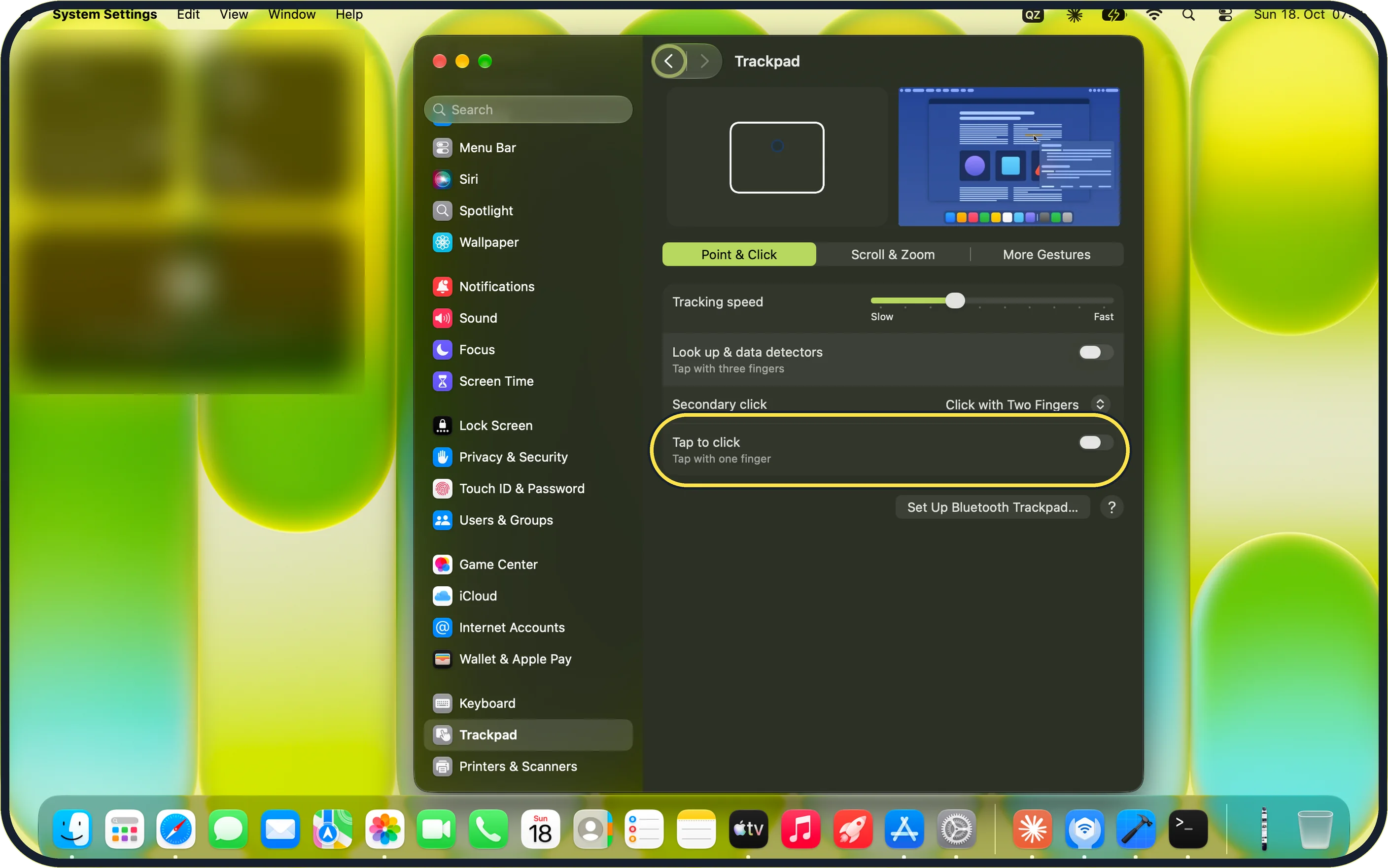
Zoomed in on the setting. Tap to see the whole screenTap the picture to see it full size Switch on Tap to click
Make sure the Point & Click tab is selected. Tap to click is the last row; the line under it says "Tap with one finger".
Click the switch so it turns on. On our MacBook Neo it was off.
If you do not see this option
- Trackpad is not in the sidebar Scroll further down the sidebar; on our MacBook Neo it is below Keyboard. You can also type "Trackpad" in the Search field at the top of the sidebar.
- Tap to click is not on the page Check that the Point & Click tab is selected, not Scroll & Zoom or More Gestures.
- Some options are missing Apple says that, depending on your Mac or trackpad, you see only some of the trackpad options. Source: Change Trackpad settings on Mac
If this does not work
- A tap still does nothing Go back to Trackpad > Point & Click and check that the Tap to click switch is on, not just highlighted.
- A two-finger tap does not right-click That is set in the Secondary click row above Tap to click; on our MacBook Neo it showed "Click with Two Fingers".
- You use a separate trackpad The Trackpad page has a Set Up Bluetooth Trackpad... button for connecting a Bluetooth trackpad.
About this guide
A Mac trackpad expects a press for a click, but many people prefer a light tap, as on most Windows laptops. It is one switch.
Screenshots: MacBook Neo, macOS 27.0.1, dark mode.
Good to know
A tap with two fingers can be the right-click: how to right-click on a Mac.
On our MacBook Neo the Trackpad page has three tabs: Point & Click, Scroll & Zoom and More Gestures.
On our MacBook Neo, Secondary click on the same tab was set to "Click with Two Fingers", and Look up & data detectors ("Tap with three fingers") was off.
Apple notes that, depending on the Mac or trackpad, you see only some of the options.
In short: System Settings > Trackpad > Point & Click > Tap to click on.
Links checked in October 2026. Menus and features can change after software updates. These steps match the version named at the top.
Did this guide work for you?
Sorry about that. What happened?