SAMSUNG GALAXY
How to change the homepage in Chrome on Android
In Chrome, tap the three dots, Settings, Homepage. Keep the switch on, then choose Chrome's homepage or tap Enter custom web address and type the page you want. The house icon next to the address bar then opens it.

4 of 4 steps show a real screenshot from our Galaxy A57. Each step was checked against the maker's own instructions, linked at the end.
- 1
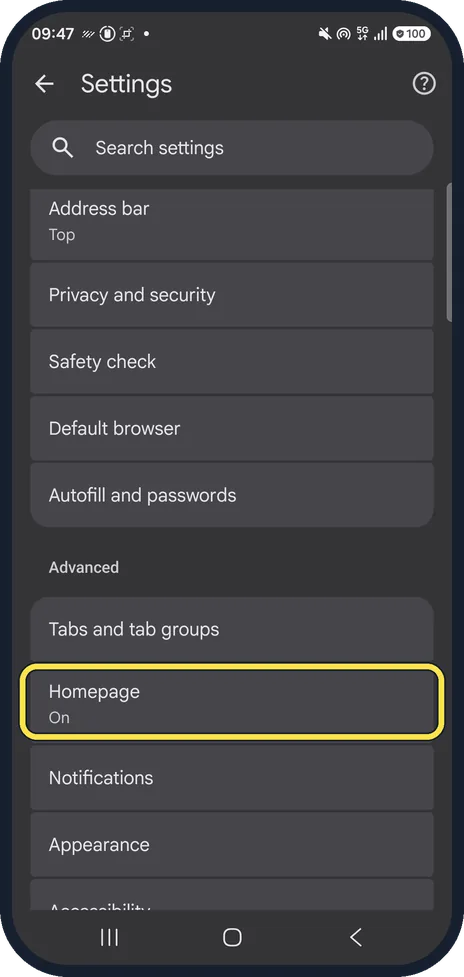
Open Homepage
Tap the three dots, Settings, and Homepage under Advanced.
- 2
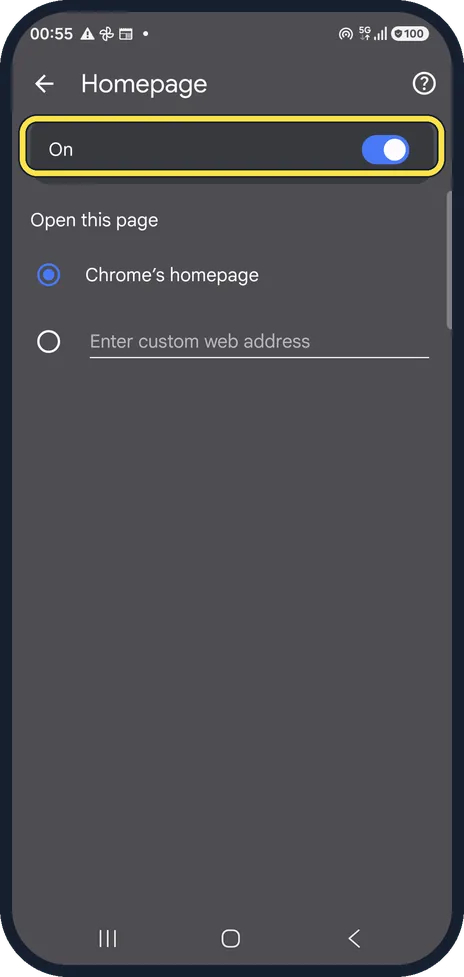
Make sure Homepage is on
The switch at the top shows the house icon next to the address bar. Switch it off to hide the icon.
- 3
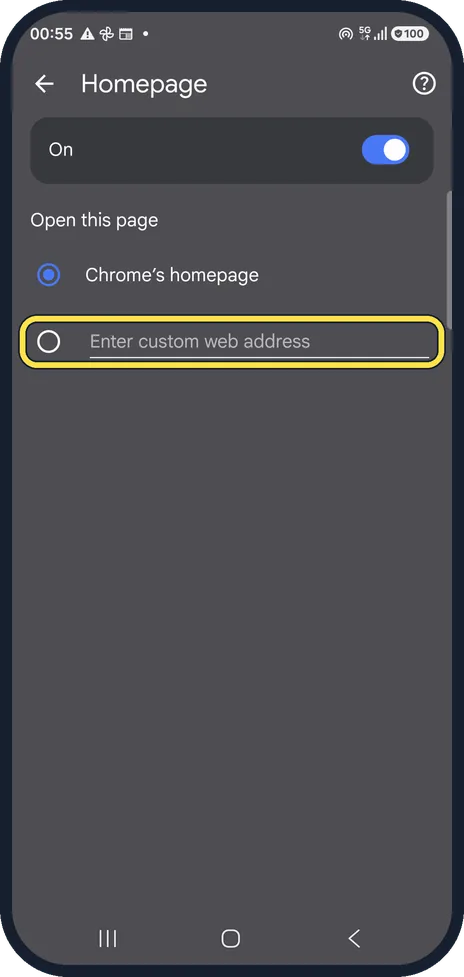
Choose the page
Chrome's homepage opens the new tab page with search. To use your own page, tap the second option and type an address.
- 4
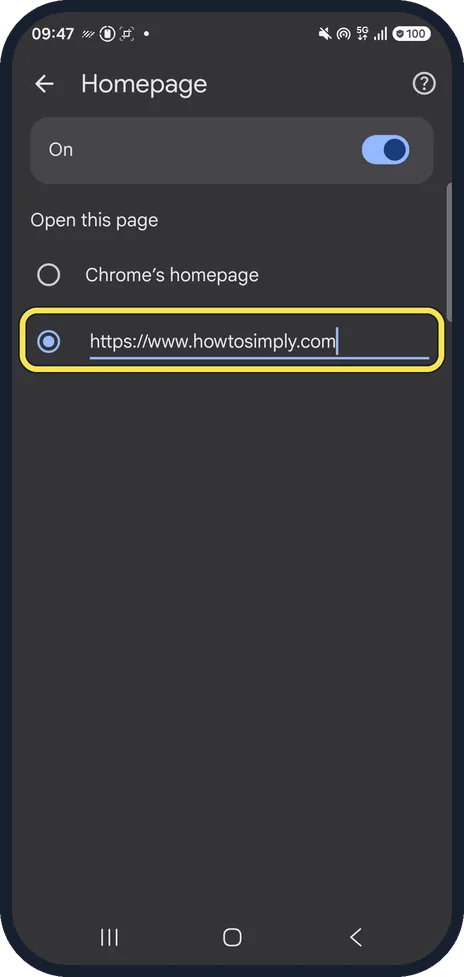
Type your own address
We typed https://www.howtosimply.com; the house icon next to the address bar then opened it. We set it back to Chrome's homepage afterwards.
If you do not see this option
- There is no house icon next to the address bar On our phone the switch at the top of the Homepage page shows or hides the icon. Google calls it Home: the page you go to when you tap Home. Source: Set your homepage and startup page (Android)
- You want a page to open when Chrome starts Google says the startup page and the homepage are not the same. On a phone, Chrome reopens your last tabs, so the homepage only opens when you tap Home. Source: Set your homepage and startup page (Android)
If this does not work
- The homepage changed by itself Google says a homepage or search engine that changes without your permission can be a sign of unwanted software. Its fix is to start the phone in Safe mode and remove recently installed apps one by one.
- It changes back again Google says to make sure Play Protect is on: Play Store, profile picture, Play Protect, Settings, Scan apps with Play Protect.
Good to know
On a phone, Chrome opens your last tabs when you start it; the homepage only opens when you tap the house icon.
Old tabs can tidy themselves away: Settings, Tabs and tab groups, Move to inactive section, which was set to after 21 days inactive on our phone.
About this guide
- Device
- Android
- Shown on
- Samsung Galaxy A57 (SM-A576B), One UI 9, Android 17 (build A576BXXU6BZIE), Samsung Galaxy A57 5G (SM-A576B), One UI 8.5, Android 16
- App
- Chrome
- Path
- Chrome › Settings
- Real screenshots
- 4 of 4 steps
- Checked
- October 2026
- Sources
- 2 official, linked below
Sources
Links checked October 2026. Menus and features can change with updates.Did this guide work for you?
Sorry about that. What happened?