
howtosimply.com/guides/how-to-change-the-language-of-one-app-on-android/ · Checked October 2026 · Google Pixel 10a (Android 17 (build CP3A.260905.009)) and Samsung Galaxy A57 5G (One UI 8.5, Android 16)
In this guide
- Open Settings and tap System
- Tap Language and region
- Tap App languages
- Tap the app
- Choose the language
- Go back to the phone's language
- Samsung Galaxy: open General management
- Samsung Galaxy: tap App languages
- Samsung Galaxy: tap the app
- Samsung Galaxy: choose the language
- If you do not see this option
- If this does not work
- Good to know
- Sources
Open Settings, tap System, then Language and region, then App languages. Tap the app and choose the language. On a Samsung Galaxy it is Settings, General management, App languages. The rest of the phone keeps its language.
If you do not see this option
- Language and region is not in the main Settings list On our Pixel 10a, it is inside System. On our Samsung Galaxy A57, App languages is under General management instead (steps 7 to 10).
- You cannot find System On our Pixel 10a, System is further down the Settings list, just above About phone. You can also type in Search Settings at the top.
- The app is not in the list According to Google, the app's maker has not added support for per-app languages. Check that the app is up to date and look again. Source: Change app language on your Android phone
9 of 10 steps with real screenshots · 1 official source below
- Device
- Android
- Shown on
- Google Pixel 10a, Android 17 (build CP3A.260905.009), Samsung Galaxy A57 5G (SM-A576B), One UI 8.5, Android 16
- App
- Settings
- Path
- Settings › System › Language and region › App languages
- Real screenshots
- 9 of 10 steps
- Checked
- October 2026
- Sources
- 1 official, linked below
Step by step
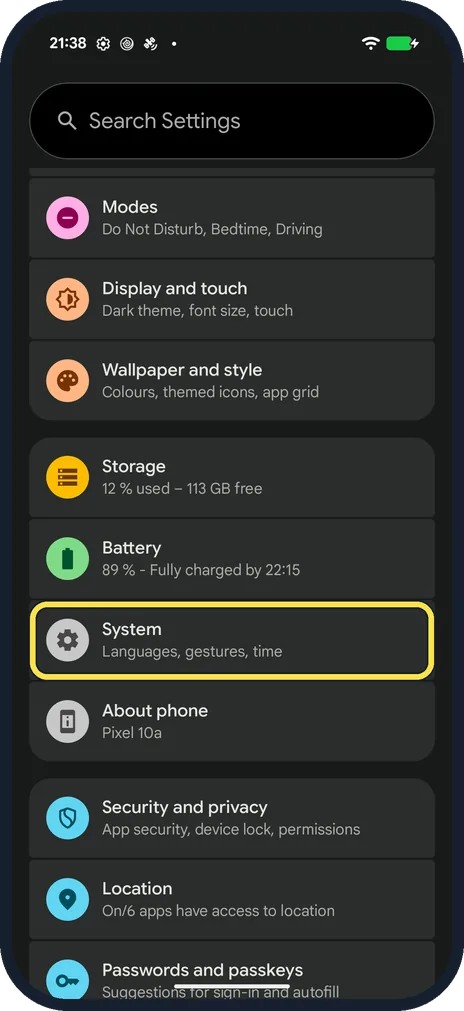
Open Settings and tap System
Scroll down the Settings list and tap System.
On our Pixel 10a, System sits between Battery and About phone, with the line Languages, gestures, time.
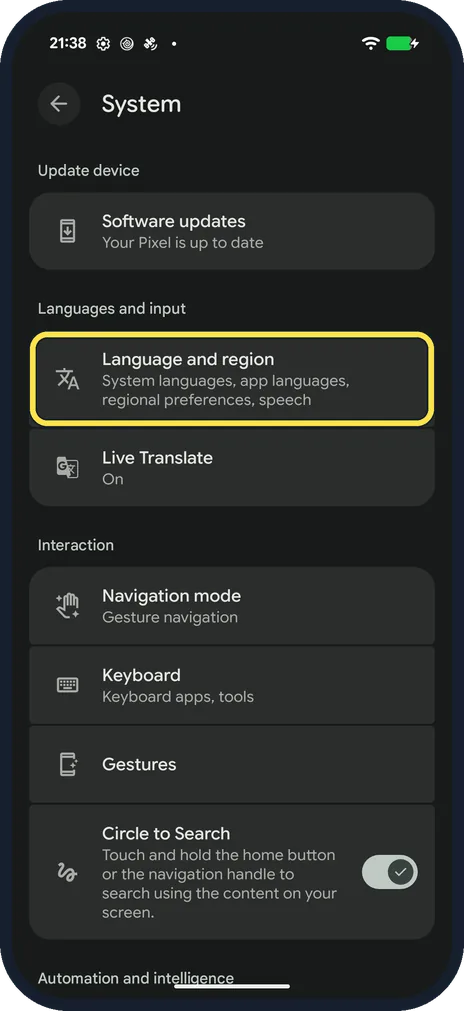
Tap Language and region
It is under Languages and input.
On our Pixel 10a, its line reads System languages, app languages, regional preferences, speech.
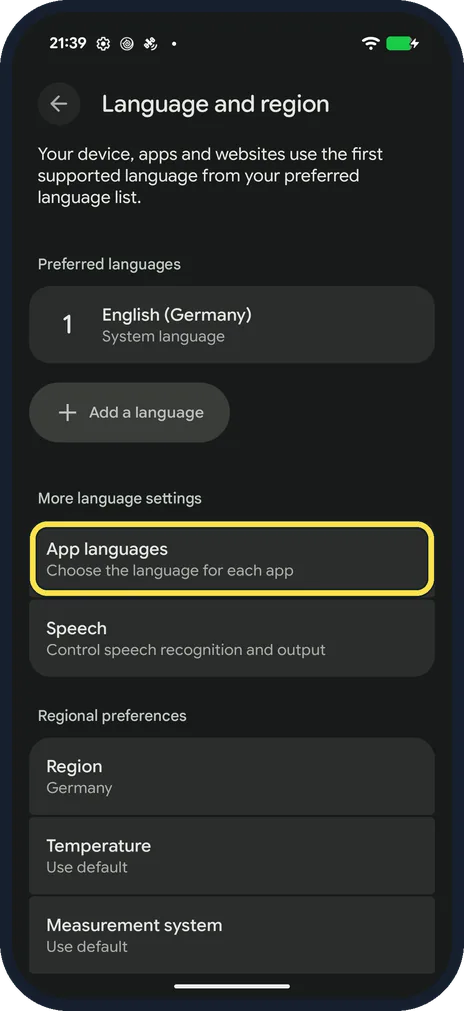
Tap App languages
It sits under More language settings, with the line Choose the language for each app.
On our Pixel 10a, the only preferred language listed above it was English (Germany), marked System language.
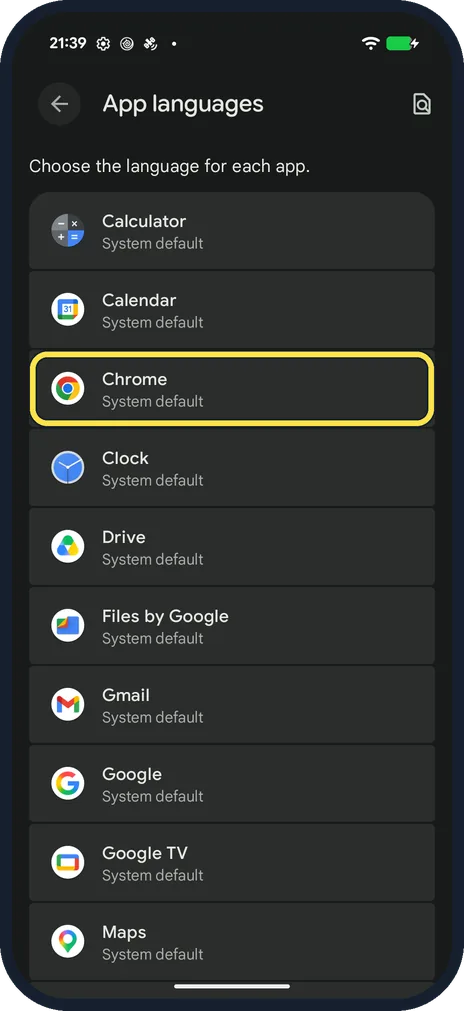
Tap the app
According to Google, only apps that support per-app languages appear in this list.
On our Pixel 10a, every app in the list, such as Calculator, Chrome and Gmail, showed System default.
Choose the language
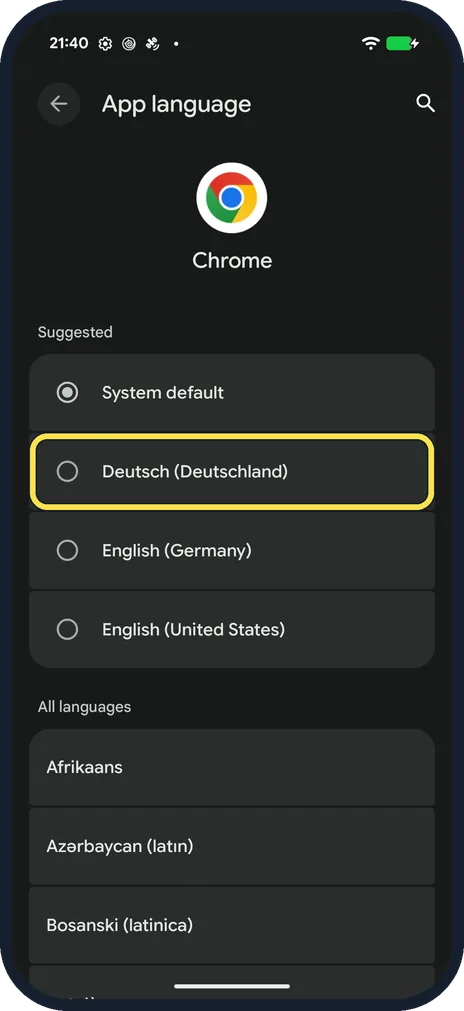
Tap a language, for example Deutsch (Deutschland). Suggested languages are at the top, and the rest are under All languages.
On our Pixel 10a, Chrome suggested System default, Deutsch (Deutschland), English (Germany) and English (United States).
Go back to the phone's language
Open the same list, tap the app and choose System default.
Samsung Galaxy: open General management
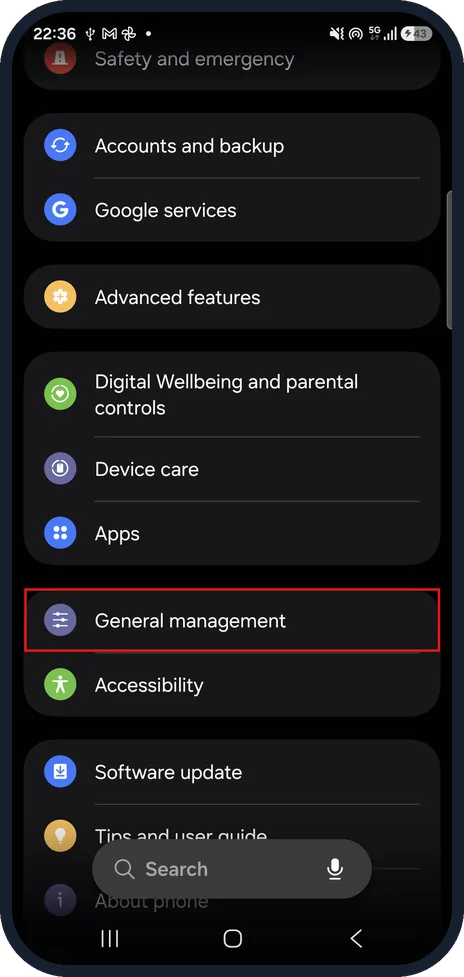
Open Settings and tap General management.
Samsung Galaxy: tap App languages
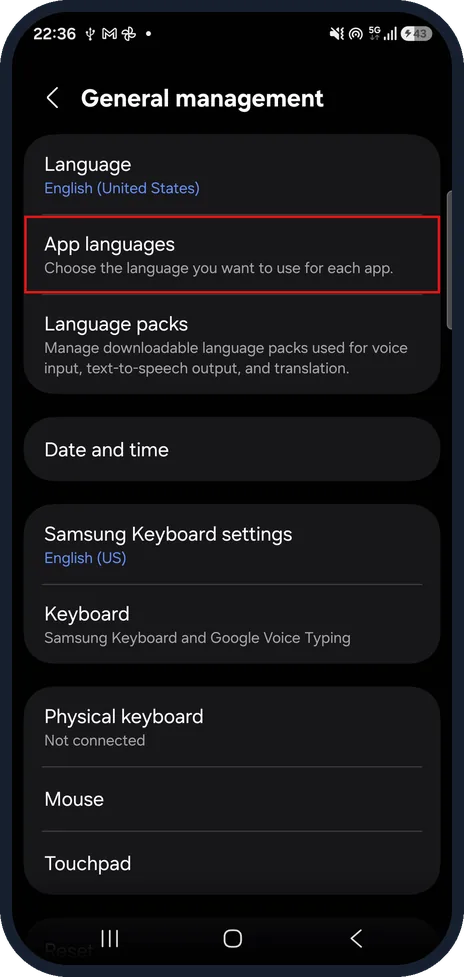
App languages is on the General management page.
Samsung Galaxy: tap the app
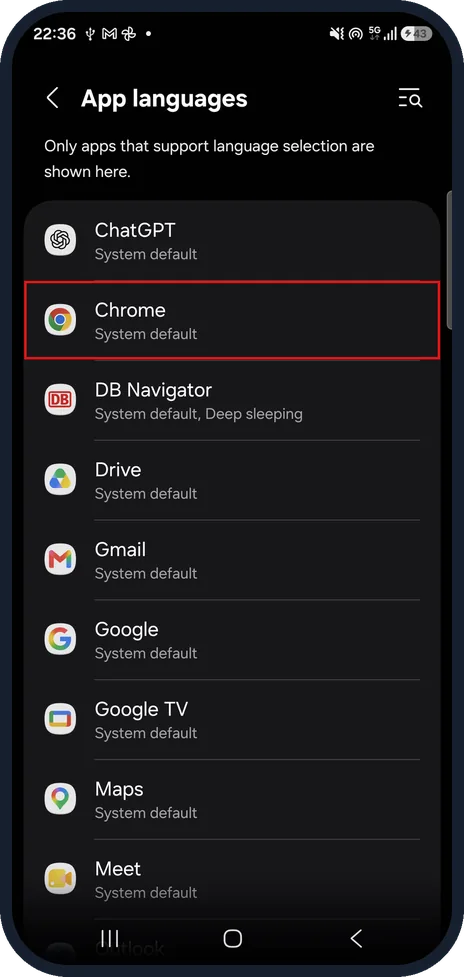
Only apps that support their own language are listed. We used Chrome.
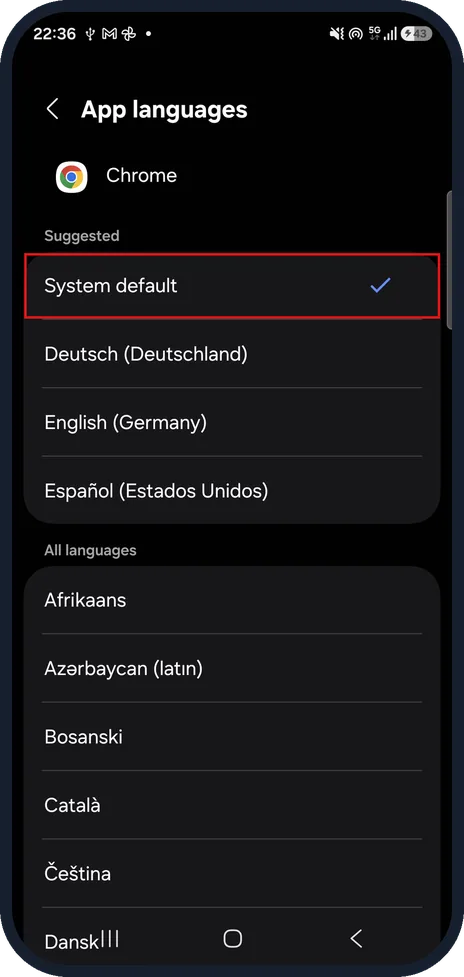
Samsung Galaxy: choose the language
On our Galaxy A57, Chrome suggested System default (ticked), Deutsch (Deutschland), English (Germany) and Español (Estados Unidos), with the rest under All languages. Tap the one you want; we left System default.
If this does not work
- The language you want is not under Suggested Scroll down to All languages, or tap the search icon at the top right of the App language page.
- The app still shows the old language Close the app, open it again and make sure the phone is online, as apps often have to download the language first.
- You want to undo the change Open App languages, tap the app and choose System default.
About this guide
You may want your banking app in English and your messages in Urdu or German. Android can set a language for a single app without changing the language of the whole phone.
On our Pixel 10a, Language and region is on the System page in Settings, under Languages and input, and App languages is a normal entry on the Language and region page.
Steps 7 to 10 show the same task on our Samsung Galaxy A57, where App languages is under General management.
Good to know
If the app does not change, close it and open it again, and make sure the phone is online. Apps often have to download the language first.
It can also help to add the language under Preferred languages with Add a language, wait a few minutes and try again.
To type in another language, you do not need this setting. See how to add a keyboard language on Android.
In short: Settings, System, Language and region, App languages, tap the app, choose the language.
Links checked in October 2026. Menus and features can change after software updates. These steps match the version named at the top.
Did this guide work for you?
Sorry about that. What happened?