
howtosimply.com/guides/how-to-turn-on-do-not-disturb-on-an-iphone/ · Checked October 2026 · iPhone 14 Pro (iOS 27.0.1) and iPhone 17e (iOS 27.0.1)
In this guide
Open Control Centre, tap Focus and tap Do Not Disturb, which then shows On. Notifications are silenced until you turn it off. To set a schedule or allow certain people, open Settings, Focus, Do Not Disturb.
8 of 8 steps with real screenshots · 1 official source below
- Device
- iPhone
- Shown on
- iOS 27.0.1 (iPhone 14 Pro), iOS 27.0.1 (iPhone 17e)
- Starts in
- Control Centre
- Real screenshots
- 8 of 8 steps
- Checked
- October 2026
- Sources
- 1 official, linked below
Step by step
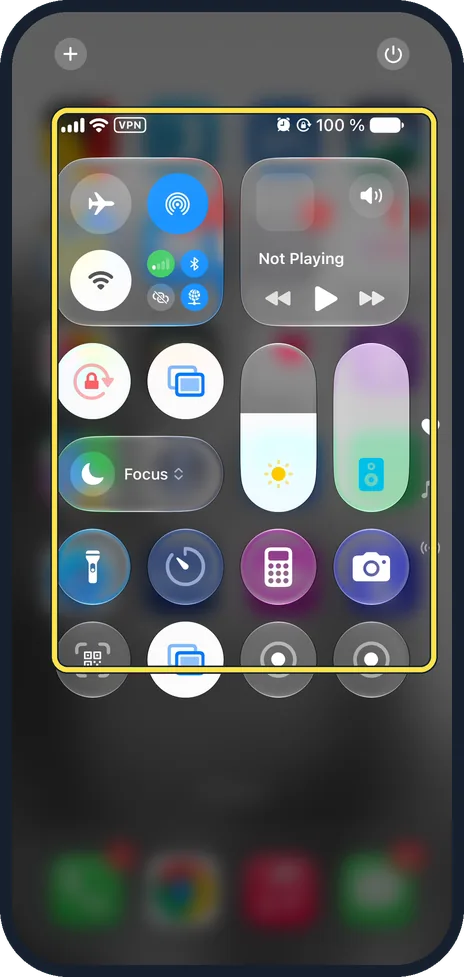
Open Control Centre
Swipe down from the top right corner. On an iPhone with a Home button, swipe up from the bottom.
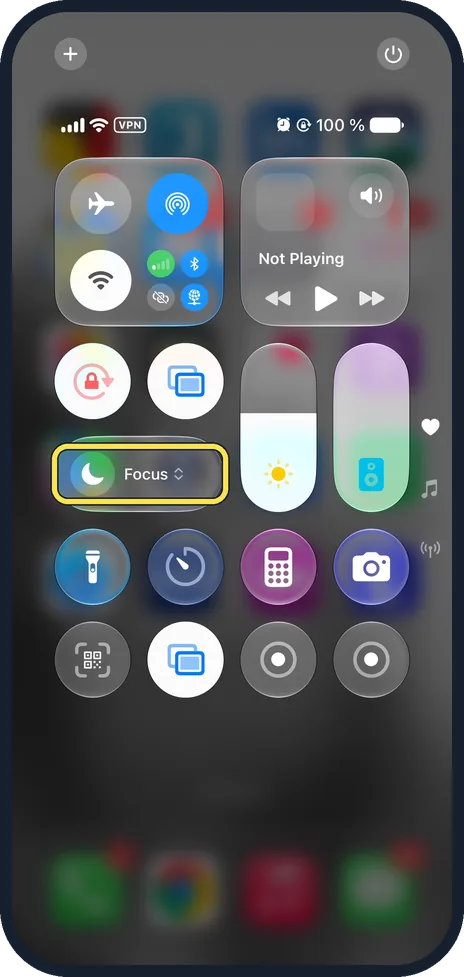
Tap Focus
Focus is the wide button with a moon, at the left of Control Centre.
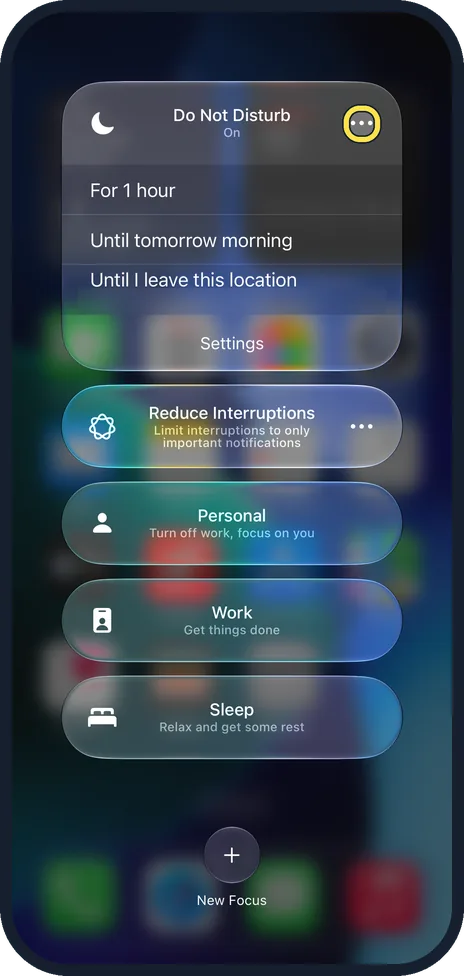
On our iPhone it opens a list of Focus modes: Do Not Disturb, Reduce Interruptions, Personal, Work and Sleep, plus New Focus.
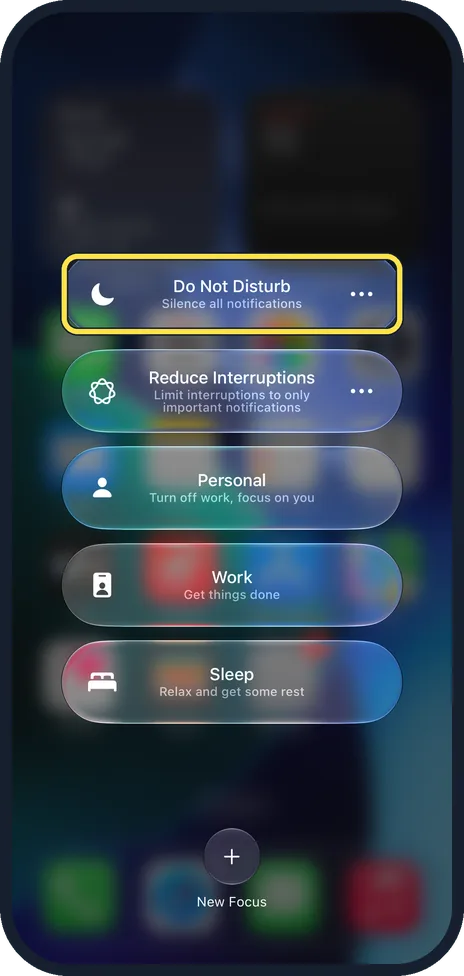
Tap Do Not Disturb
Tap the Do Not Disturb button itself, not the ··· at its right.
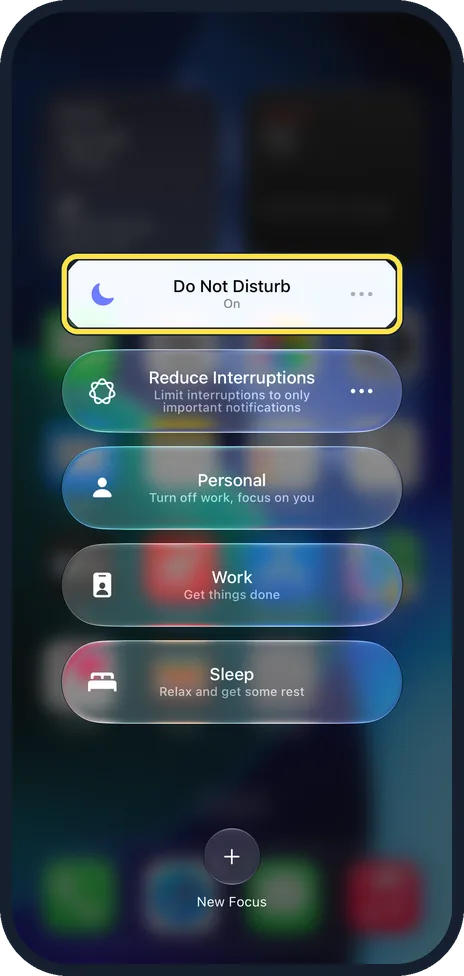
Check it is on
The button turns white and shows On under Do Not Disturb.
On our iPhone a moon then appeared next to the time in the status bar.
Choose how long, if you like
Tap ··· next to Do Not Disturb to pick when it turns off.
On our iPhone, late at night, it offered For 1 hour, Until tomorrow morning and Until I leave this location, plus Settings.
Open the Do Not Disturb settings
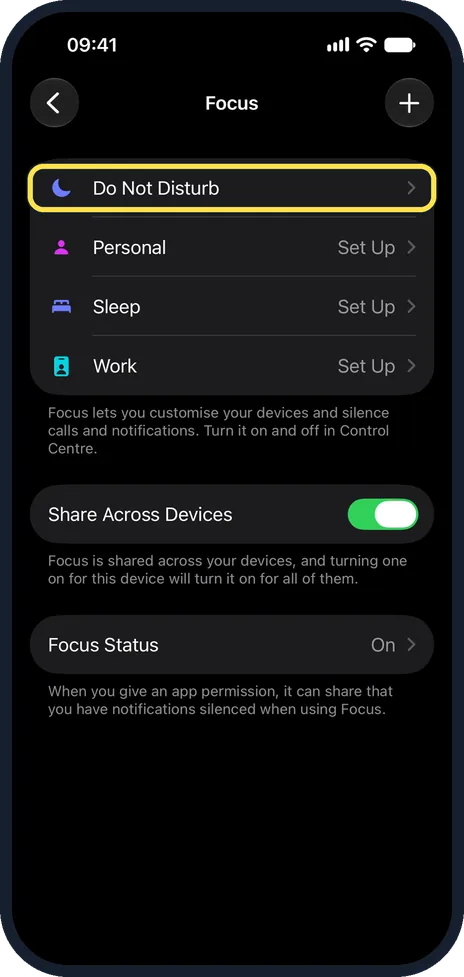
Open Settings, tap Focus and tap Do Not Disturb, at the top of the list.
Allow important people
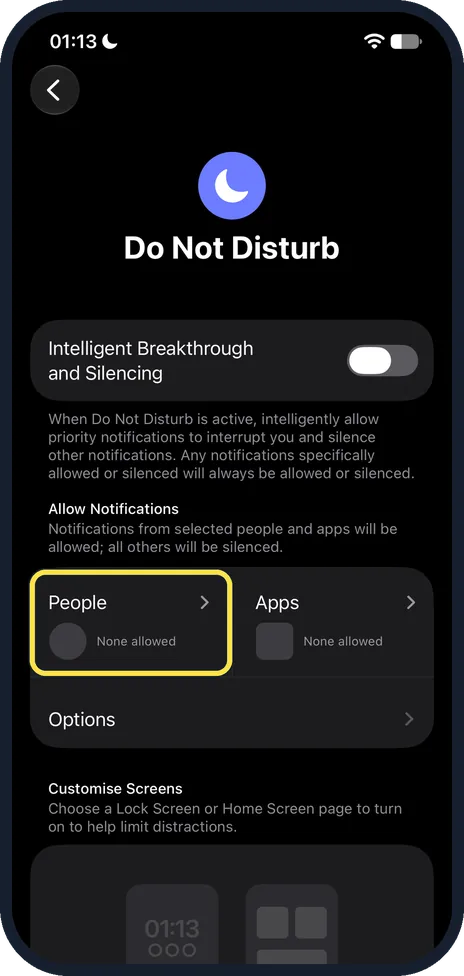
Under Allow Notifications, tap People and add the contacts whose calls and messages should still come through.
On our iPhone People and Apps both showed None allowed.
Set a schedule
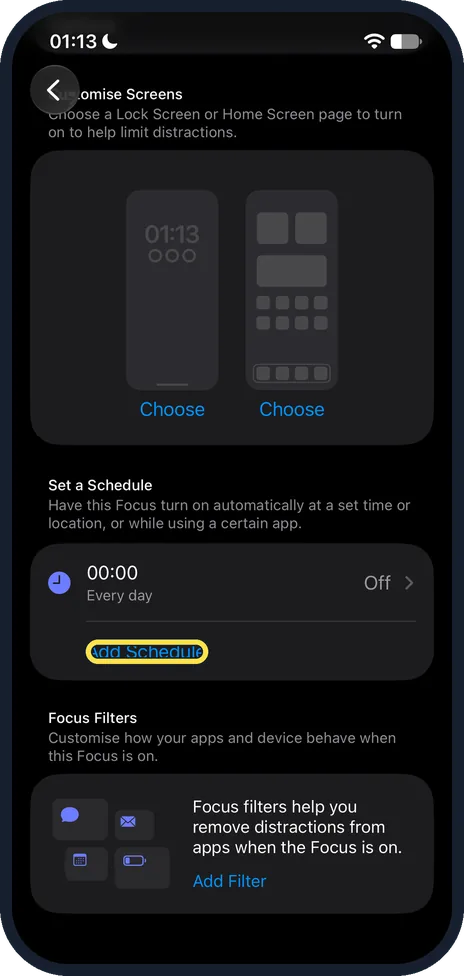
Scroll down the Do Not Disturb page to Set a Schedule and tap Add Schedule to turn it on at a set time, at a location or while using a certain app.
On our iPhone an existing schedule showed 00:00, Every day, Off.
What we saw on our device
- Tap Focus: On our iPhone it opens a list of Focus modes: Do Not Disturb, Reduce Interruptions, Personal, Work and Sleep, plus New Focus.
- Check it is on: On our iPhone a moon then appeared next to the time in the status bar.
- Choose how long, if you like: On our iPhone, late at night, it offered For 1 hour, Until tomorrow morning and Until I leave this location, plus Settings.
- Allow important people: On our iPhone People and Apps both showed None allowed.
- Set a schedule: On our iPhone an existing schedule showed 00:00, Every day, Off.
If you do not see this option
- Focus is not in Control Centre Open Settings, tap Focus and tap Do Not Disturb, at the top of the list.
- No ··· next to Do Not Disturb Tap Focus in Control Centre first. The ··· button sits at the right of the Do Not Disturb button in the list that opens.
- Until this evening is not offered The options change with the time of day. Late at night our iPhone offered Until tomorrow morning instead.
If this does not work
- Some notifications still come through On the Do Not Disturb page, check Intelligent Breakthrough and Silencing. When it is on, priority notifications can interrupt you. Also check who is allowed under People and Apps.
- Do Not Disturb turns on by itself Check Set a Schedule on the Do Not Disturb page. A schedule turns it on automatically; ours showed 00:00, Every day, Off.
- You are not sure whether it is on Open Control Centre and tap Focus. When it is on, the Do Not Disturb button is white and shows On, and a moon shows next to the time. When it is off, the moon goes.
About this guide
Do Not Disturb silences calls, messages and app notifications without switching the phone off.
Good to know
By default a Focus is shared across your Apple devices. Change this under Settings, Focus, Share Across Devices.
People who message you may see that you have notifications silenced. Turn off Focus Status under Settings, Focus if you prefer.
In short: Control Centre, Focus, Do Not Disturb.
Links checked in October 2026. Menus and features can change after software updates. These steps match the version named at the top.
Did this guide work for you?
Sorry about that. What happened?