
What changed: rewritten for One UI 8.5 with our own screenshots. Auto rotate has separate switches for Home, Lock and call screens.
howtosimply.com/guides/samsung-galaxy-screen-won-t-rotate-5-fixes/ · Checked October 2026 · Samsung Galaxy A57 5G (SM-A576B), One UI 8.5, Android 16
In this guide
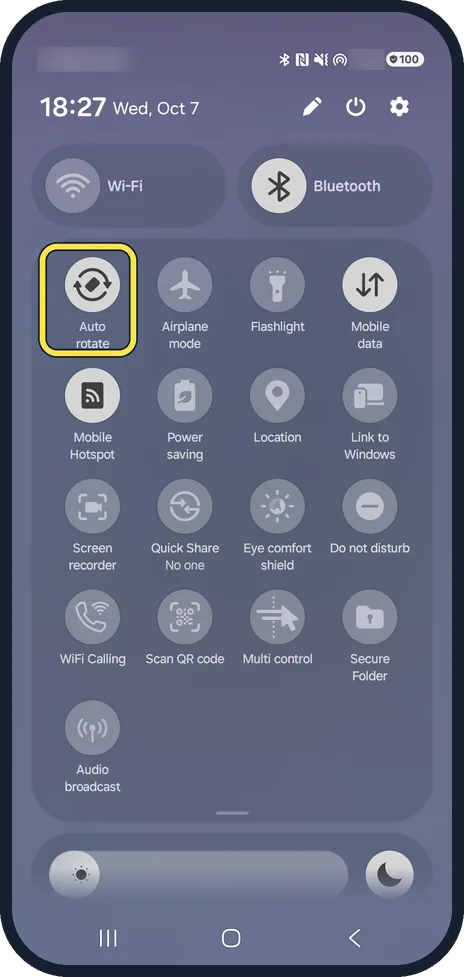
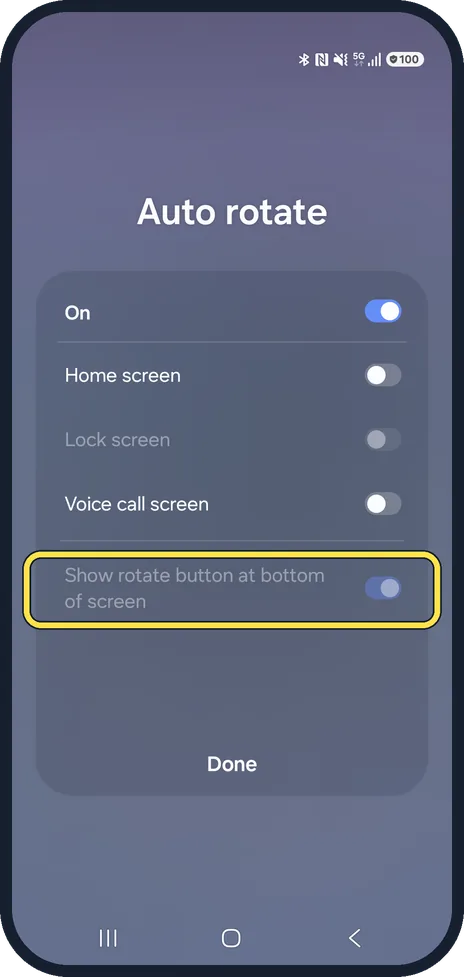
Swipe down twice and tap Auto rotate (it shows Portrait when rotation is locked). Touch and hold the button to choose which screens may rotate: on One UI 8.5 the Home screen, Lock screen and Voice call screen each have their own switch. Some apps only work upright.
6 of 6 steps with real screenshots · 2 official sources below
- Device
- Android
- Shown on
- Samsung Galaxy A57 5G (SM-A576B), One UI 8.5, Android 16
- Starts in
- Quick Settings
- Real screenshots
- 6 of 6 steps
- What we did
- Observed: looked at each screen, changed nothing
- Our phone
- Shown on Galaxy A57, One UI 8.5
- Checked
- October 2026
- Sources
- 2 official, linked below
Step by step
Turn on Auto rotate
Swipe down twice from the top to open the full quick panel and tap Auto rotate. If the button reads Portrait, rotation is locked.
Watch these steps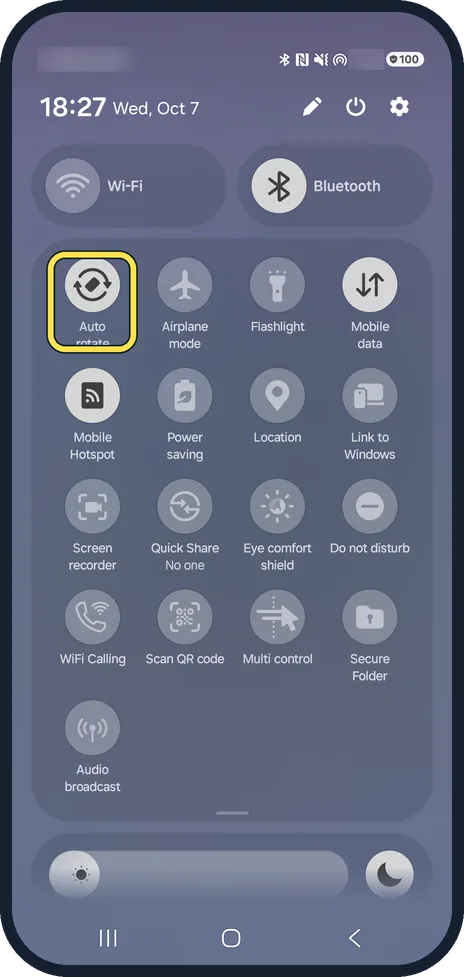
Open the rotation options
Touch and hold the Auto rotate button. The Auto rotate sheet in the next step opens, with a switch for each screen.
Allow the Home screen to rotate
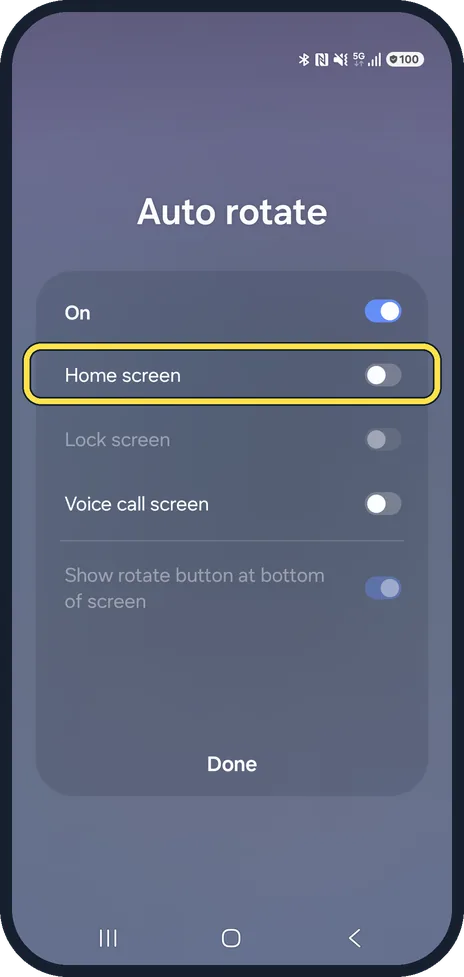
Switch on Home screen. It was off on ours, so the Home screen stayed upright while apps rotated.
Lock screen and Voice call screen
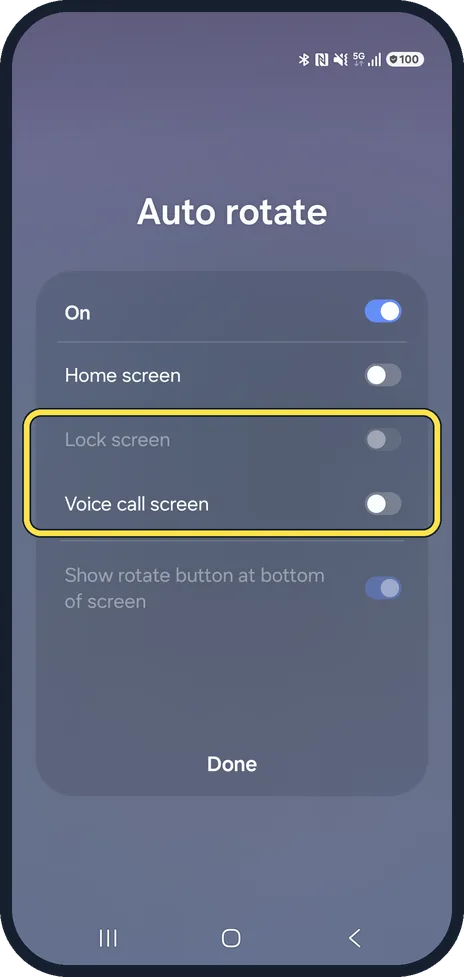
They have their own switches. Lock screen was greyed out on our phone; Voice call screen was off.
Prefer to rotate by hand? Use the rotate button
With Auto rotate off and Show rotate button at bottom of screen on, a small button appears in the navigation bar when you turn the phone. Tap it to rotate once. On our phone this switch was on but greyed out while Auto rotate was on.
Still stuck? Restart and test the sensor
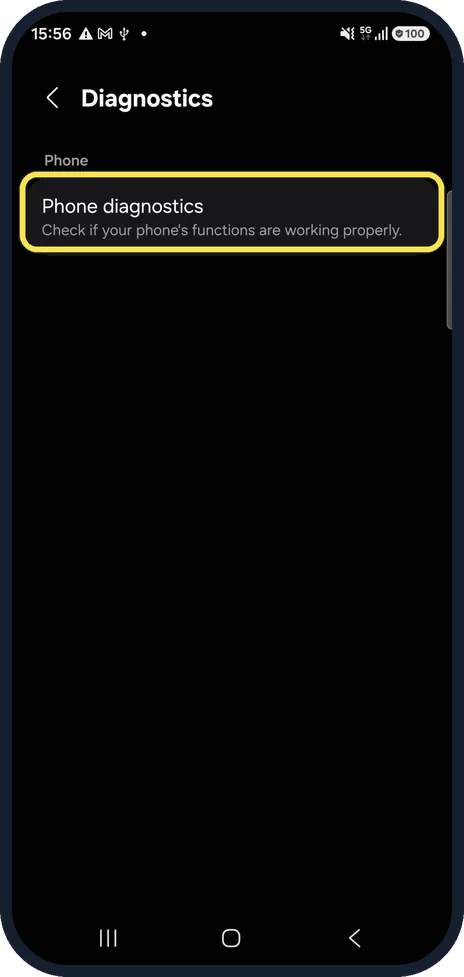
Restart the phone. If nothing rotates even in apps such as the Gallery, the motion sensor may be faulty; Samsung Members > Support > Diagnostics > Phone diagnostics can test it. On our phone the Diagnostics page shows a Phone heading with the Phone diagnostics row.
What changed: rewritten for One UI 8.5 with our own screenshots. Auto rotate has separate switches for Home, Lock and call screens.
Watch these steps
If you do not see this option
- The button says Portrait or Landscape Samsung says the button is only called Auto rotate while Auto rotate is on. Portrait or Landscape with a lock means rotation is locked; tap it to switch Auto rotate on. Sources: Managing screen rotation on your Galaxy phone, Screen does not rotate on Galaxy phone or tablet
- There is no rotation button in the quick panel Samsung says it may have been removed by accident. Tap the pencil in the quick panel, then Edit, and drag Auto rotate back into place. Source: Managing screen rotation on your Galaxy phone
- You have a Galaxy tablet Samsung says the Home screen, Lock screen and Voice call screen switches are not available on Galaxy tablets. Source: Managing screen rotation on your Galaxy phone
If this does not work
- One app will not turn Samsung says some apps only support one orientation and will not rotate when you turn the phone. Source: Screen does not rotate on Galaxy phone or tablet
- It stays put while you hold the screen Samsung says a finger kept on the screen while you turn the phone holds the current orientation. Turn it without touching the screen. Sources: Managing screen rotation on your Galaxy phone, Screen does not rotate on Galaxy phone or tablet
- Still nothing rotates Samsung says to check for a software update and restart, then check the screen for cracks or damage, and if it persists contact Samsung for service. Source: Screen does not rotate on Galaxy phone or tablet
About this guide
The most common surprise: with Auto rotate on, the Home screen still stays upright, because it has its own switch. That switch was off on our phone.
Good to know
Many games, the phone app and some banking apps are designed to stay upright, whatever the setting.
We opened the Diagnostics page in Samsung Members but did not run Phone diagnostics.
In short: Quick panel, Auto rotate on; touch and hold it, switch on Home screen (and Lock or Voice call screen if needed).
- Samsung US: Screen does not rotate on Galaxy phone or tablet
- Samsung CA: Managing screen rotation on your Galaxy phone
Links checked in October 2026. Menus and features can change after software updates. These steps match the version named at the top.
📷 See real photos from the Galaxy A57 in our Camera Lab, next to 10 other phones.
Did this guide work for you?
Sorry about that. What happened?