SAMSUNG GALAXY
What is RAM Plus on a Samsung Galaxy, and should you turn it off?
RAM Plus uses part of the phone's storage as extra, slower memory so that more apps can stay open in the background. Leave it on unless you are short of storage space. To change it, open Settings, Device care, Memory and tap RAM Plus: pick a smaller size or switch it off.

3 of 3 steps show a real screenshot from our Galaxy A57 5G. Each step was checked against the maker's own instructions, linked at the end.
- 1
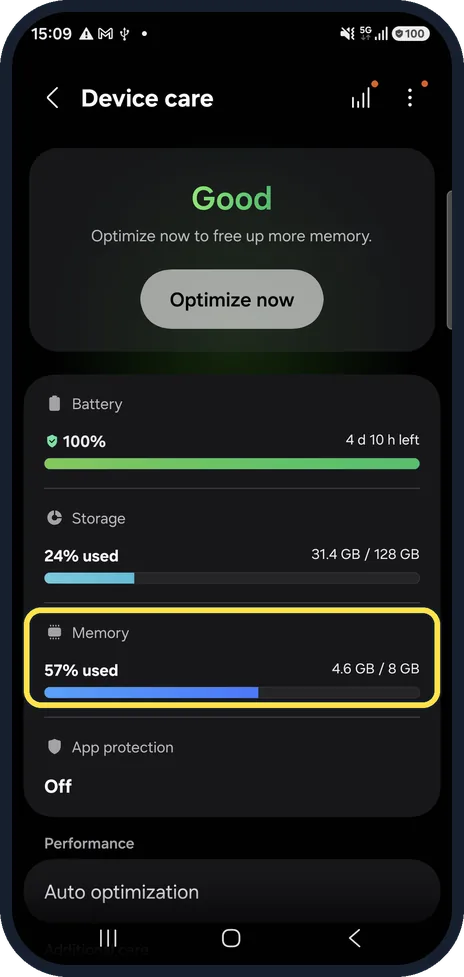
Open Device care
Open Settings and tap Device care. The Memory row shows how much of the phone's real memory is in use; ours showed 4.6 GB of 8 GB.
- 2
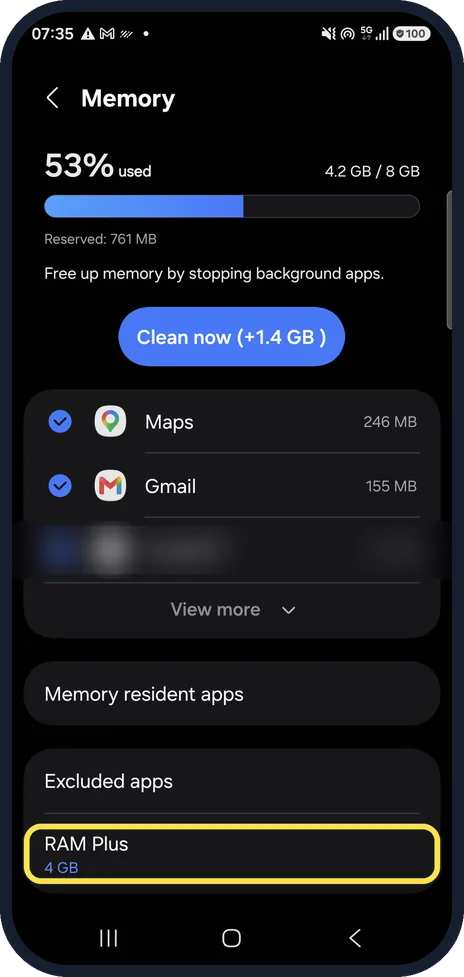
Tap Memory and find RAM Plus
The Memory page lists the apps using the most memory and, at the bottom, RAM Plus with its current size. Ours said 4 GB. Clean now only closes background apps; it does not change RAM Plus.
- 3
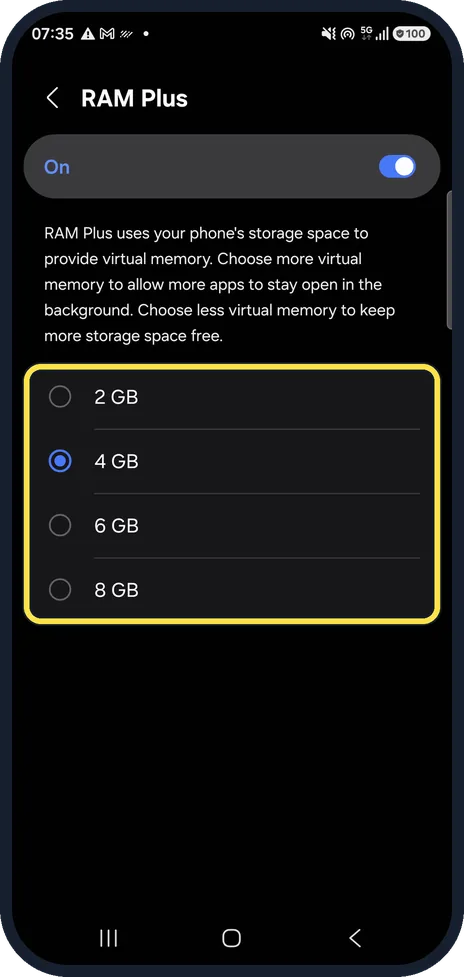
Choose a size or switch it off
Tap RAM Plus. On our phone the page has an On switch and four sizes: 2, 4, 6 and 8 GB. More keeps more apps open in the background; less keeps more storage free. Samsung's instructions then show a Restart now button; the new setting applies after the restart. We did not change ours, so that screen is not shown.
Good to know
If apps reload every time you switch back to them, a bigger RAM Plus size can help. If storage is the problem, check what is using it first: Settings, Device care, Storage.
The sizes on offer depend on the model. Ours, with 8 GB of real memory, offered 2 to 8 GB.
Watch these steps
 Watch on YouTubeThe same steps, recorded on our Galaxy A57 5G · opens YouTube
About this guide
- Device
- Android
- Shown on
- Samsung Galaxy A57 5G (SM-A576B), One UI 8.5, Android 16
- App
- Settings
- Path
- Settings › Device care › Memory
- Real screenshots
- 3 of 3 steps
- Checked
- October 2026
- Sources
- 1 official, linked below
Sources
Links checked October 2026. Menus and features can change with updates.Did this guide work for you?
Sorry about that. What happened?