
howtosimply.com/guides/samsung-galaxy-screen-turned-black-and-white-how-to-fix-it/ · Checked October 2026 · Samsung Galaxy A57 5G (One UI 8.5, Android 16) and Samsung Galaxy A57 (One UI 9, Android 17 (build A576BXXU6BZIE))
In this guide
Open Settings, Accessibility, Vision enhancements, Color correction and switch it off, or pick a mode other than Grayscale. Then check Color filter on the same page, and switch off both shortcuts so a button press cannot turn them back on.
8 of 8 steps with real screenshots · 1 official source below
- Device
- Android
- Shown on
- Samsung Galaxy A57 5G (SM-A576B), One UI 8.5, Android 16, Samsung Galaxy A57 (SM-A576B), One UI 9, Android 17 (build A576BXXU6BZIE)
- App
- Settings
- Real screenshots
- 8 of 8 steps
- What we did
- Observed: looked at each screen, changed nothing
- Our phone
- Shown on Galaxy A57, One UI 8.5
- Checked
- October 2026
- Sources
- 1 official, linked below
Step by step
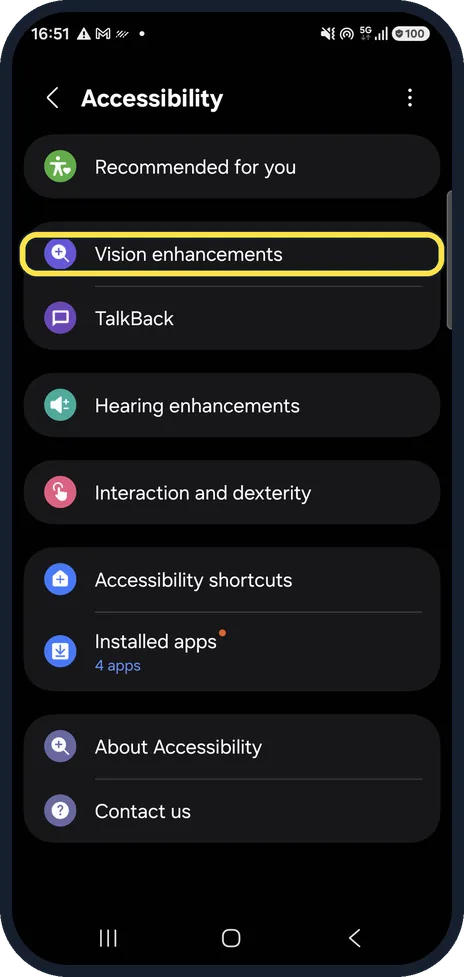
Open Vision enhancements
Settings, Accessibility, Vision enhancements. Color correction and Color filter are further down that page.
Watch these steps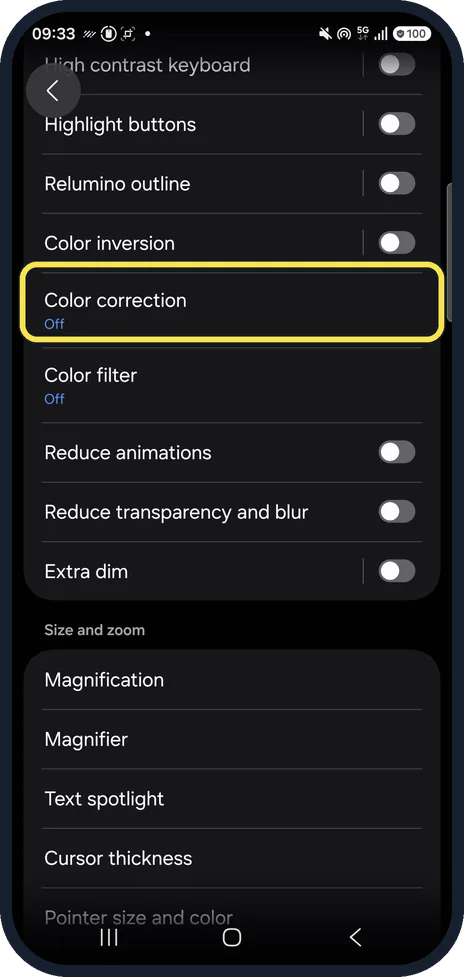
Tap Color correction
It is on the Vision enhancements page, below Color inversion. Under the name ours read Off.
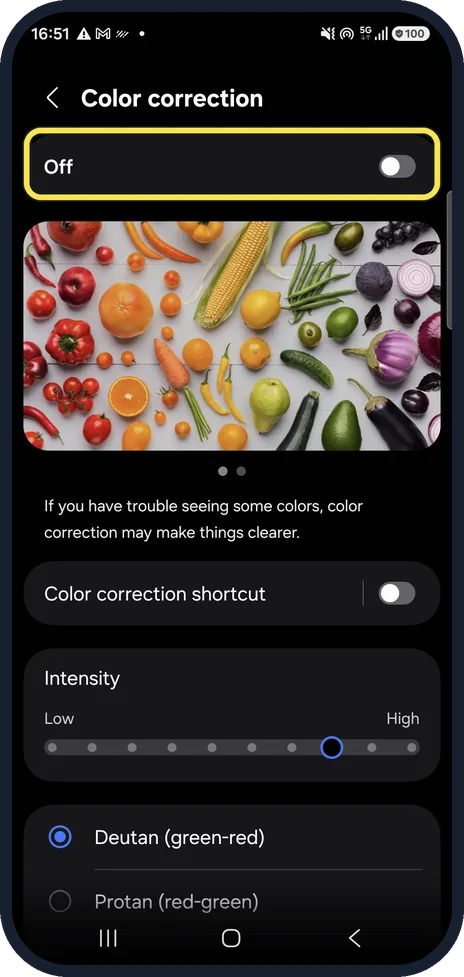
Switch off Color correction
The switch at the top of Color correction turns it on and off. Ours was off.
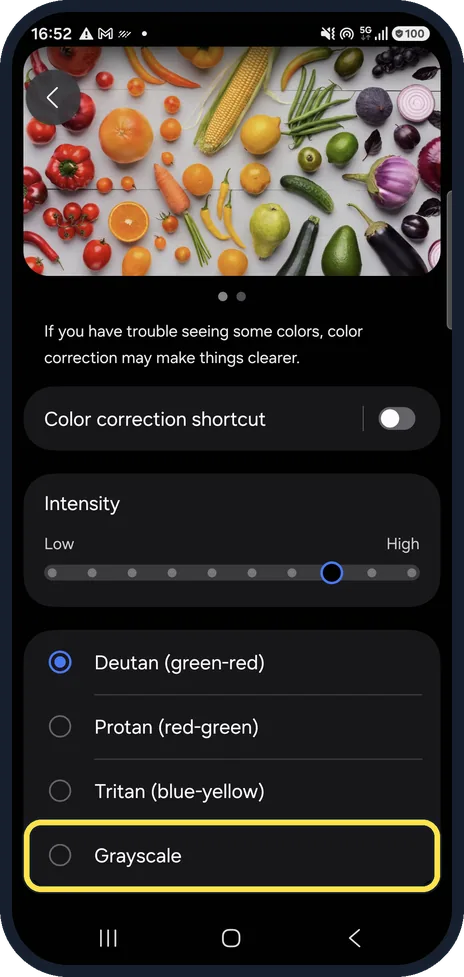
Or pick a mode other than Grayscale
Grayscale is the last of the modes, below Deutan, Protan and Tritan. If you use Color correction on purpose, choose the mode you need instead.
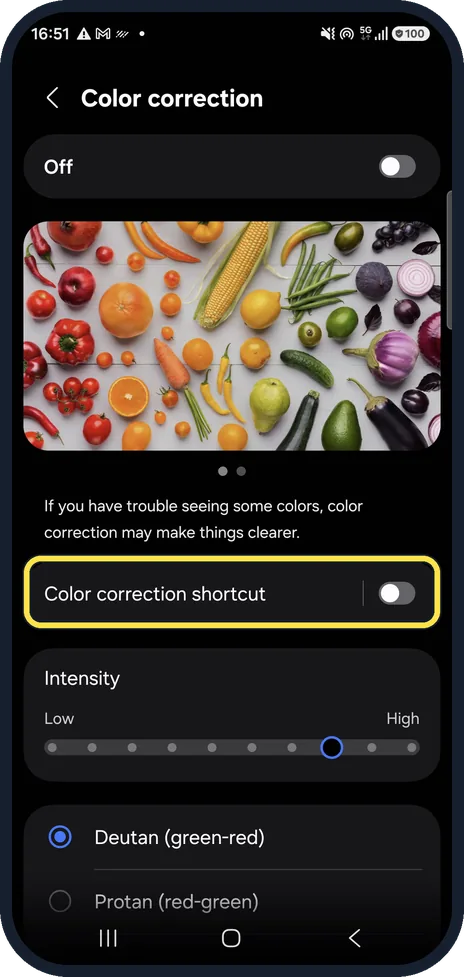
Turn off the Color correction shortcut
A shortcut can turn Color correction on with a button press. Switch it off to stop it happening again. Ours was off.
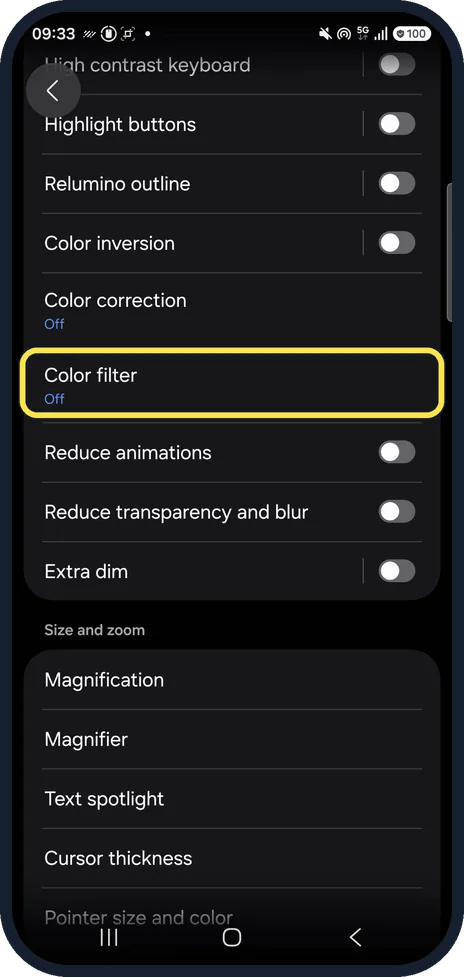
Go back and tap Color filter
Color filter is the row just below Color correction. Ours also read Off.
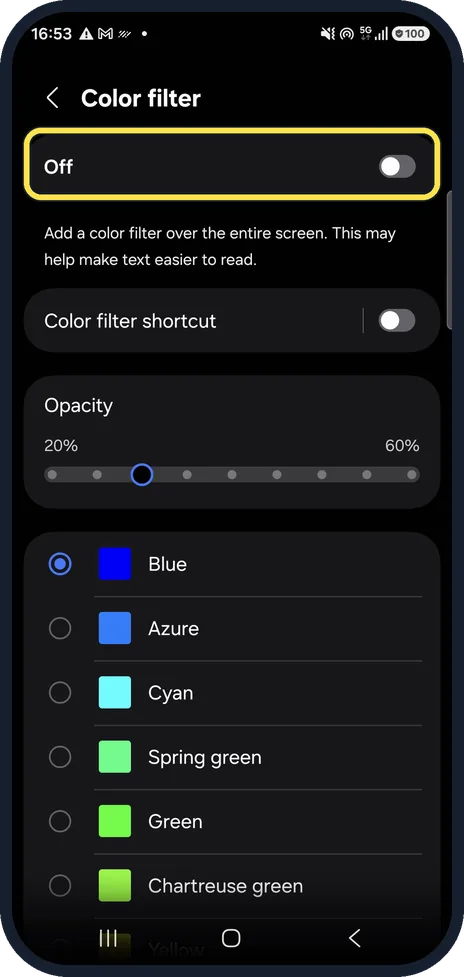
Switch off Color filter
Color filter lays a colour over the whole screen. Switch it off at the top. Ours was off.
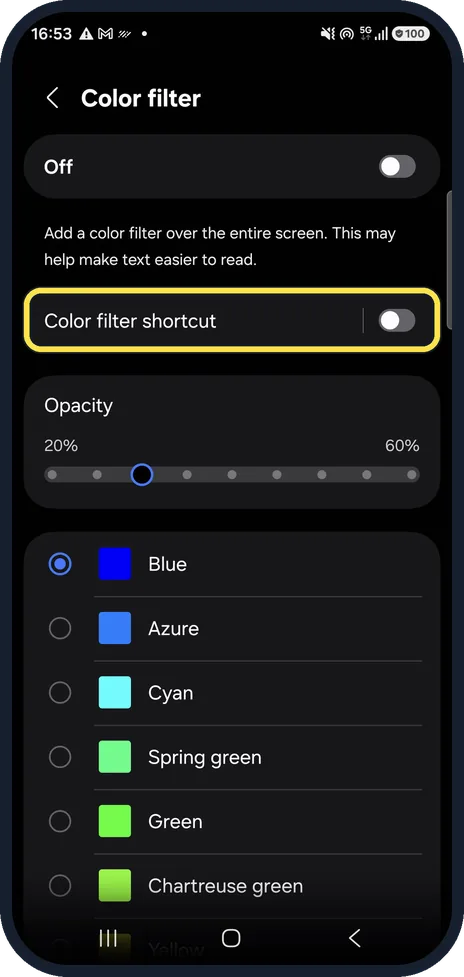
And its shortcut
Color filter shortcut is just below. Switch it off too.
Watch these steps
If you do not see this option
- There is no Vision enhancements Samsung says older software calls it Visibility enhancements: Settings, Accessibility, Visibility enhancements, Color correction. You can also search Settings for Color correction. Source: What to Do When Samsung Phone Display Colour is Grayscale
- There is no Bedtime mode Samsung says Bedtime mode may not be supported on every device, and on some it is called Wind Down. Source: What to Do When Samsung Phone Display Colour is Grayscale
If this does not work
- The screen turns grey at bedtime Samsung says Bedtime mode turns the screen black and white on a schedule. Open Settings, Digital Wellbeing and parental controls, Bedtime mode and tap Turn off. Source: What to Do When Samsung Phone Display Colour is Grayscale
- The screen looks grey and dim Samsung says Power saving can switch the screen to grayscale and lower the brightness. Turn Power saving off under Settings, Battery. Source: What to Do When Samsung Phone Display Colour is Grayscale
About this guide
A Galaxy screen that suddenly shows only grey usually has Grayscale switched on under Color correction, often by an accessibility shortcut pressed by accident. Nothing is broken.
Steps 2 and 6 are from the same phone after its One UI 9 update (Android 17).
Good to know
If the screen goes grey only at night, open your Sleep mode and check what it changes: how to use Sleep mode on a Samsung Galaxy.
Colours too strong or too dull instead? how to change screen mode to Vivid or Natural on a Samsung Galaxy.
In short: Accessibility, Vision enhancements: Color correction off (or not Grayscale), Color filter off, both shortcuts off.
Links checked in October 2026. Menus and features can change after software updates. These steps match the version named at the top.
📷 See real photos from the Galaxy A57 in our Camera Lab, next to 10 other phones.
Did this guide work for you?
Sorry about that. What happened?