
howtosimply.com/guides/how-to-switch-audio-between-speaker-headphones-and-tv-on-a-samsung-galaxy-media-output/ · Checked October 2026 · Samsung Galaxy A57 5G (SM-A576B), One UI 8.5, Android 16
In this guide
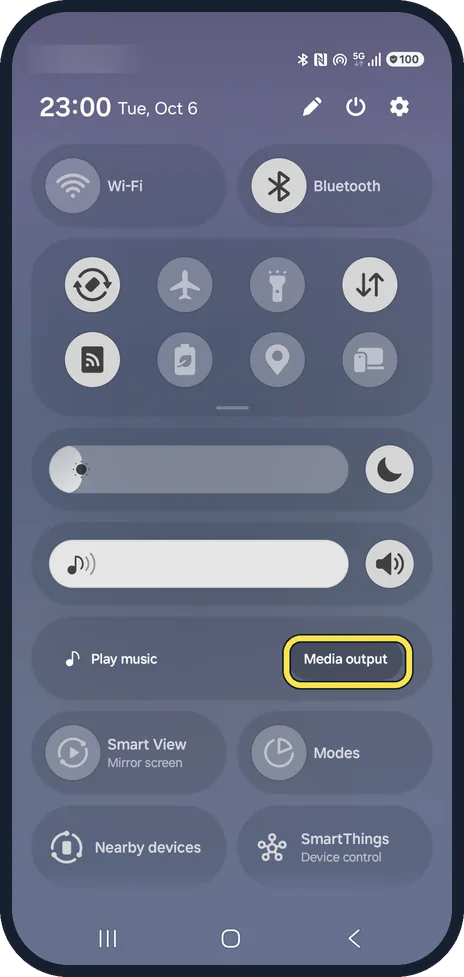
Swipe down to open the quick panel and tap Media output. Choose where the sound should play: the phone speaker, connected Bluetooth headphones or speakers, or another device. You can tick two Bluetooth devices to play on both.
If you do not see this option
- Your headphones are not in the list Samsung says the list under the song shows connected Bluetooth audio devices. Tap Media output, then the device, and follow the pairing instructions, or connect it in Bluetooth settings first. Source: How to control media and devices on your Galaxy smartphone
- There are no circles to tick Samsung says the circles for Dual audio appear only when more than one Bluetooth audio device is connected at the same time. Source: How to control media and devices on your Galaxy smartphone
2 of 3 steps with real screenshots · 2 official sources below
- Device
- Android
- Shown on
- Samsung Galaxy A57 5G (SM-A576B), One UI 8.5, Android 16
- Starts in
- Quick Settings
- Real screenshots
- 2 of 3 steps
- What we did
- Observed: looked at each screen, changed nothing
- Our phone
- Shown on Galaxy A57, One UI 8.5
- Checked
- October 2026
- Sources
- 2 official, linked below
Step by step
Tap Media output
Pull down the quick panel. Media output is under the sliders. We blurred our carrier.
Watch these steps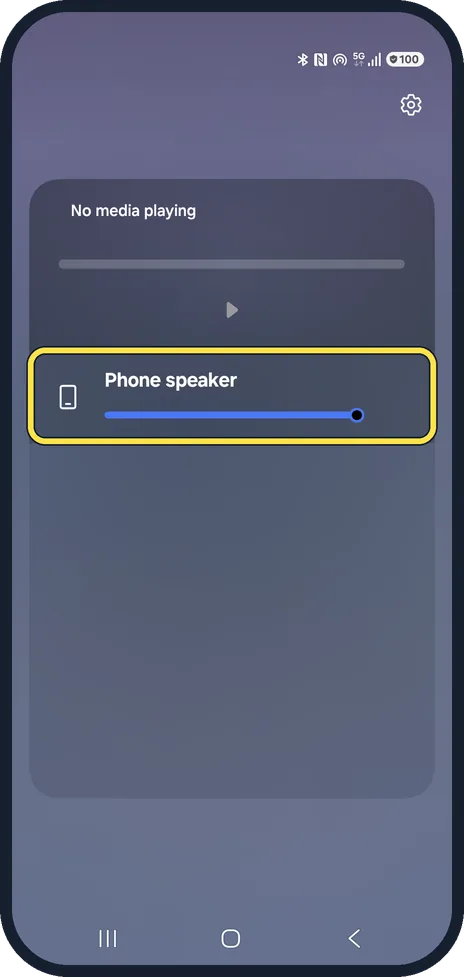
Pick the device
The sheet shows what is playing and every device that can play it. Ours had nothing playing, so it only shows Phone speaker with its volume slider.
Play on two devices
With two Bluetooth devices connected, tick both to play on both at once.
Watch these steps
If this does not work
- Music keeps playing on the phone Samsung says you change the output by tapping the device in the list under the song, for example Galaxy Buds. Do it while the music is playing, so the sheet shows what is playing. Source: How to control media and devices on your Galaxy smartphone
- You want the sound on a TV Samsung says to put the TV and the phone on the same Wi-Fi network, then tap Smart View in the quick panel, pick the TV and tap Start now. Allow the phone on the TV if it asks. Source: How to control media and devices on your Galaxy smartphone
About this guide
Media output switches sound without opening Bluetooth settings. It is the quickest fix when music plays from the wrong device.
Good to know
To send the whole screen to a TV, use Smart View in the quick panel instead.
One app on headphones while the rest plays on the phone: Separate app sound.
In short: Quick panel, Media output, pick the device; tick two Bluetooth devices to play on both.
- Samsung Latin: How to control media and devices on your Galaxy smartphone
- Samsung US: Control Media and Devices on your Galaxy phone or tablets
Links checked in October 2026. Menus and features can change after software updates. These steps match the version named at the top.
📷 See real photos from the Galaxy A57 in our Camera Lab, next to 10 other phones.
Did this guide work for you?
Sorry about that. What happened?