
What changed: the screenshots are now our own iPhone 17e on iOS 27.0.1, dark mode, and the wording is checked against those screens and Apple's iOS 27 guide.
howtosimply.com/guides/how-to-make-an-iphone-speak-what-you-type-with-live-speech/ · Checked October 2026 · iPhone 17e · iOS 27.0.1
In this guide
- Open Settings and tap Accessibility
- Scroll to Speech and tap Live Speech
- Switch on Live Speech
- Open Phrases and choose a category
- Tap + to add a phrase
- Type the phrase and tap Save
- Pick a language for a preferred voice
- Choose a voice
- If you do not see this option
- If this does not work
- Good to know
- Video demo
- Sources
Open Settings, tap Accessibility, tap Live Speech in the Speech group and switch it on. Apple says you then triple-click the side button, type a sentence and tap Speak, and the iPhone says it aloud through its speaker or in a call.
8 of 8 steps with real screenshots · 5 official sources below
- Device
- iPhone
- Shown on
- iOS 27.0.1 (iPhone 17e)
- App
- Settings
- Path
- Settings › Accessibility
- Real screenshots
- 8 of 8 steps
- Checked
- October 2026
- Sources
- 5 official, linked below
Step by step
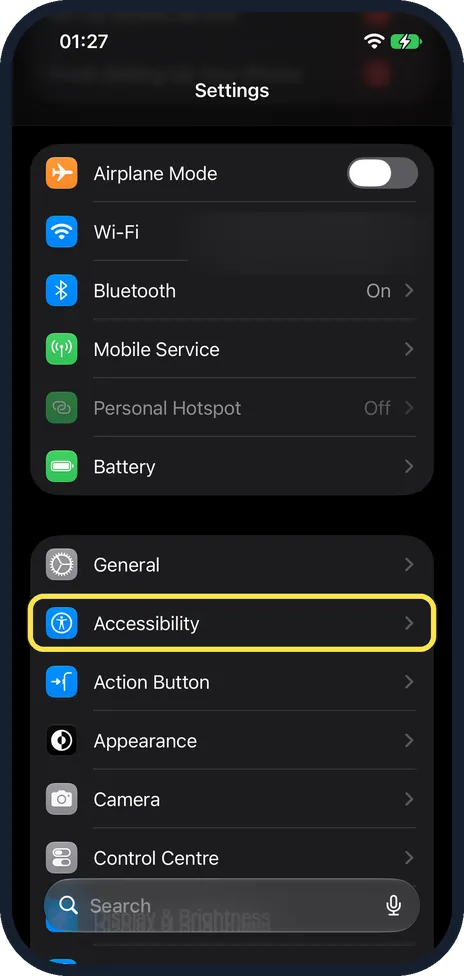
Open Settings and tap Accessibility
Scroll down a little and tap Accessibility, directly below General in the same group.
You can also type Accessibility into the Search field at the bottom of the screen.
Watch these steps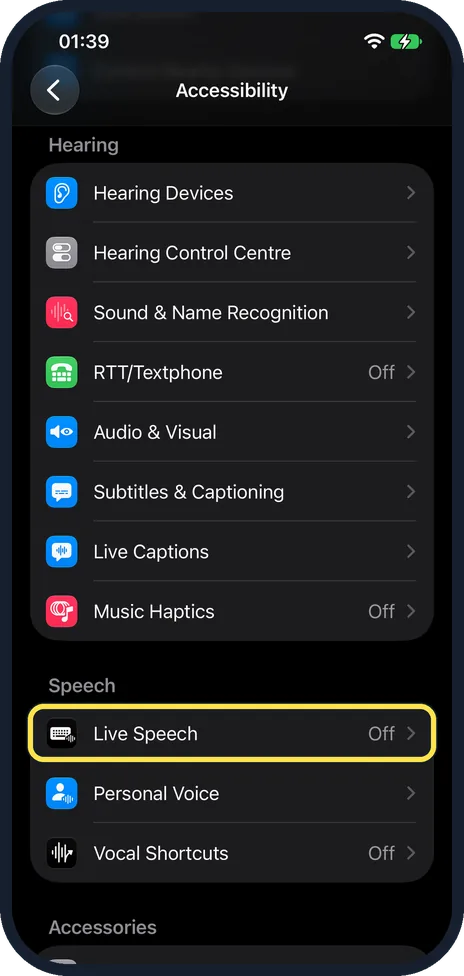
Scroll to Speech and tap Live Speech
On our iPhone 17e the Speech group, below Hearing, has Live Speech, Personal Voice and Vocal Shortcuts.
Live Speech is the first row, and it said Off. The word Off or On at the right shows the current state.
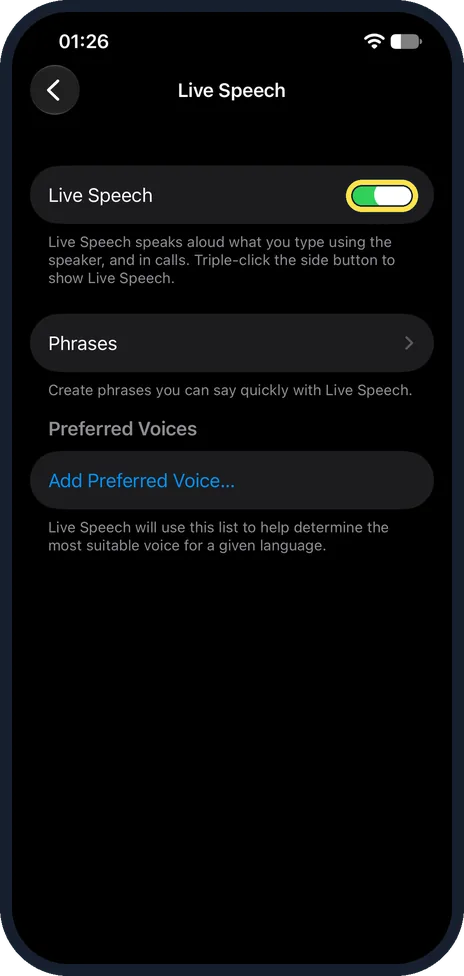
Switch on Live Speech
Tap the Live Speech switch so that it turns green.
The note below it says: Live Speech speaks aloud what you type using the speaker, and in calls. Triple-click the side button to show Live Speech.
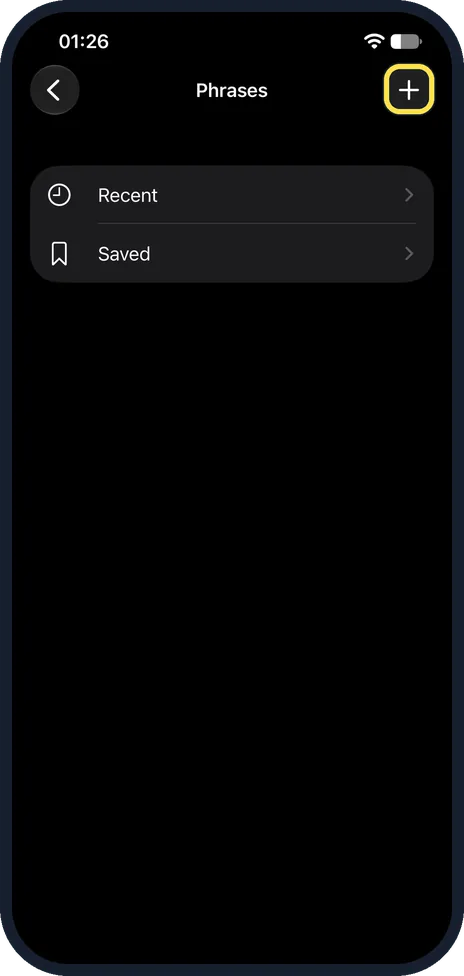
Open Phrases and choose a category
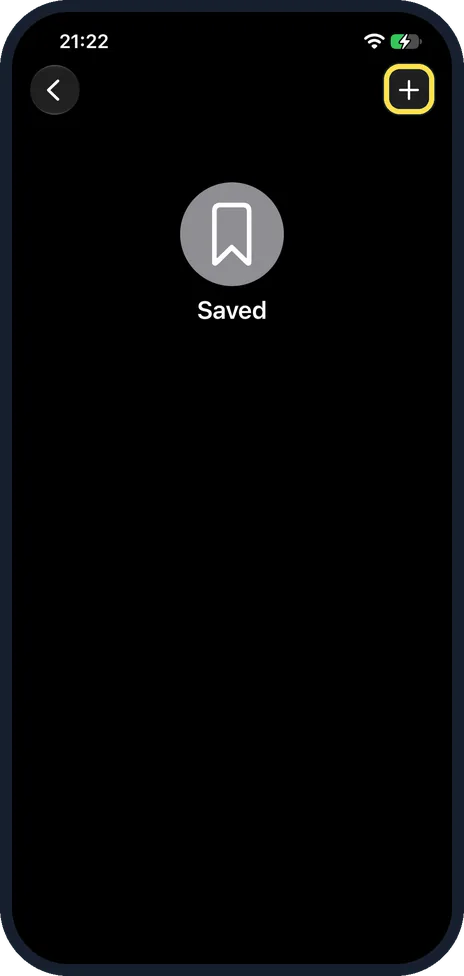
Tap Phrases. On our iPhone 17e the Phrases page has two rows: Recent and Saved.
Tap Saved to add a phrase there, or tap + at the top right to create a new category.
Tap + to add a phrase
On the Saved page, tap + at the top right.
Type the phrase and tap Save
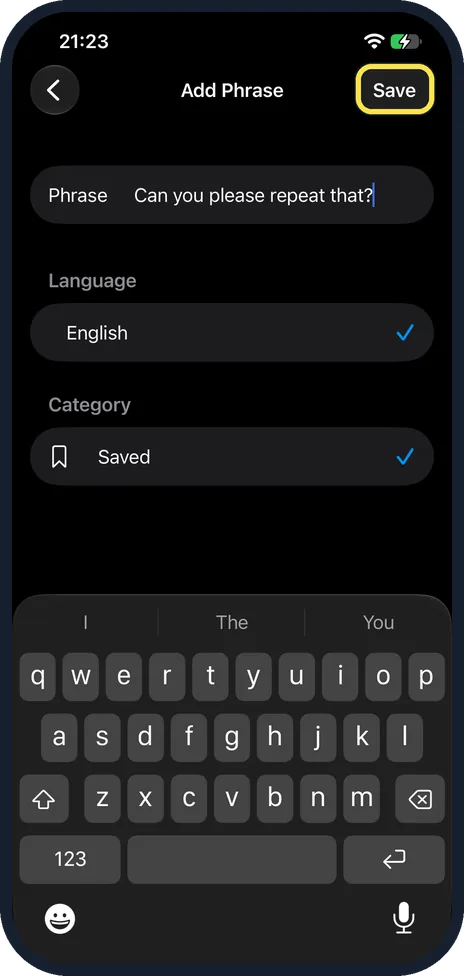
Type what you want to say in the Phrase field, then tap Save at the top right.
On our iPhone 17e Language was set to English and Category to Saved, and the phrase then showed in the Saved list.
Pick a language for a preferred voice
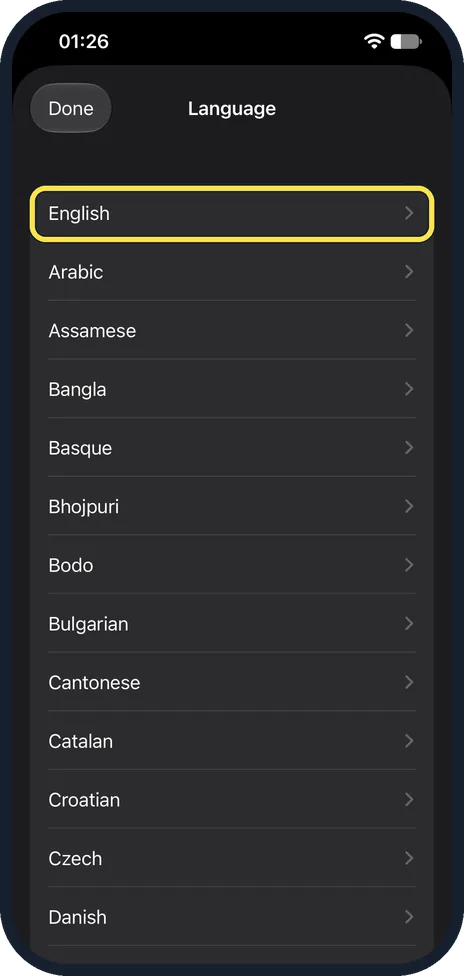
Go back to the Live Speech page and tap Add Preferred Voice… under Preferred Voices, as seen in the picture for step 3.
In the Language list that opens, tap your language. On our iPhone 17e it starts with English, Arabic and Assamese.
Choose a voice
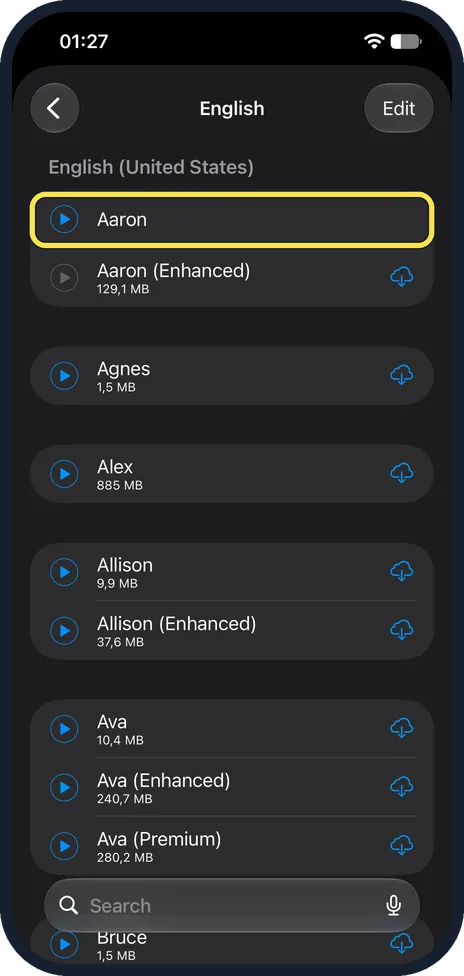
Tap the voice you want. Live Speech uses this list to find the most suitable voice for a language.
On our iPhone 17e the English list starts with English (United States): Aaron, then Aaron (Enhanced) at 129,1 MB. Apple says you can also use a Personal Voice you create.
What changed: the screenshots are now our own iPhone 17e on iOS 27.0.1, dark mode, and the wording is checked against those screens and Apple's iOS 27 guide.
Watch these steps
If you do not see this option
- Live Speech is not offered in your language. Apple says Live Speech is not available in all languages, and points to its iOS and iPadOS Feature Availability website for the list (Apple Support: Type to speak using Live Speech on iPhone). Source: Type to speak using Live Speech on iPhone · Source: Quickly turn accessibility features on or off on iPhone · Source: Record your Personal Voice on iPhone · Source: Accessibility features for speech on iPhone · Source: Type to speak using Live Speech on iPhone (iOS 26)
- Your Personal Voice is not in the voice list. Apple says Personal Voice is only in English (U.S.), Mandarin Chinese (China mainland) and Spanish (Mexico), on iPhone 15 Pro models, iPhone 16 models and later. Personal Voice is listed on our iPhone 17e, in the Speech group below Live Speech. Apple says you also need a passcode before you can create one, under Accessibility, Personal Voice. Source: Type to speak using Live Speech on iPhone · Source: Quickly turn accessibility features on or off on iPhone · Source: Record your Personal Voice on iPhone · Source: Accessibility features for speech on iPhone · Source: Type to speak using Live Speech on iPhone (iOS 26)
- The voice you want is not in the list straight away. Add Preferred Voice… opens a Language list first. Tap your language, such as English, to see its voices.
If this does not work
- A triple-click shows a menu instead of Live Speech. Apple says that happens when the Accessibility Shortcut has more than one feature. Tap Live Speech in the menu. To change the list, go to Settings, Accessibility, Accessibility Shortcut. Source: Type to speak using Live Speech on iPhone · Source: Quickly turn accessibility features on or off on iPhone · Source: Record your Personal Voice on iPhone · Source: Accessibility features for speech on iPhone · Source: Type to speak using Live Speech on iPhone (iOS 26)
- A triple-click does nothing in Assistive Access or Guided Access. Apple says the Accessibility Shortcut cannot turn on other features while Assistive Access is active. In Guided Access, Accessibility Shortcut has to be on in the Guided Access settings. Source: Type to speak using Live Speech on iPhone · Source: Quickly turn accessibility features on or off on iPhone · Source: Record your Personal Voice on iPhone · Source: Accessibility features for speech on iPhone · Source: Type to speak using Live Speech on iPhone (iOS 26)
- A voice has a cloud icon next to it. On our iPhone 17e many voices in the English list, such as Agnes (1,5 MB) and Ava (Premium) (280,2 MB), show a size and a cloud icon. These are downloads, so they need space and a connection before you can use them.
About this guide
Apple made Live Speech for people who are unable to speak or have lost their speech over time. You type, and the iPhone says it. On our iPhone 17e it was off.
Screenshots: iPhone 17e, iOS 27.0.1, dark mode.
Good to know
Apple says to use it like this: triple-click the side button, tap the Live Speech window, type what you want to say, then tap Speak. On a FaceTime call the other person hears it. Otherwise it comes from the speaker of the iPhone.
Apple says saved phrases are spoken from the Phrases window: triple-click the side button, tap the Phrases window, choose a category and tap a phrase.
On iOS 26, Apple's guide gives the same path in Settings. To pick a saved phrase there, tap Keyboard at the top of the Live Speech window, tap a category such as Recent or Saved, then tap a phrase.
Apple notes that Live Speech is not available in all languages.
In short: Settings, Accessibility, Live Speech on, then triple-click the side button and type.
- Apple Support: Type to speak using Live Speech on iPhone
- Apple iPhone User Guide: Quickly turn accessibility features on or off on iPhone
- Apple iPhone User Guide: Record your Personal Voice on iPhone
- Apple iPhone User Guide: Accessibility features for speech on iPhone
- Apple iPhone User Guide: Type to speak using Live Speech on iPhone (iOS 26)
Links checked in October 2026. Menus and features can change after software updates. These steps match the version named at the top.
Did this guide work for you?
Sorry about that. What happened?