
What changed: the screenshots are now our own iPhone 17e on iOS 27.0.1, dark mode, and the wording is checked against those screens and Apple's iOS 27 guide.
howtosimply.com/guides/how-to-hide-photos-on-an-iphone/ · Checked October 2026 · iPhone 17e · iOS 27.0.1
In this guide
Open the photo in Photos, tap the three dots, tap Hide and confirm with Hide Photo. The photo moves to the Hidden album, which is locked with Face ID, Touch ID or your passcode. Find it in Photos under Collections, Utilities, Hidden.
5 of 5 steps with real screenshots · 2 official sources below
- Device
- iPhone
- Shown on
- iOS 27.0.1 (iPhone 17e)
- App
- Photos
- Real screenshots
- 5 of 5 steps
- Checked
- October 2026
- Sources
- 2 official, linked below
Step by step
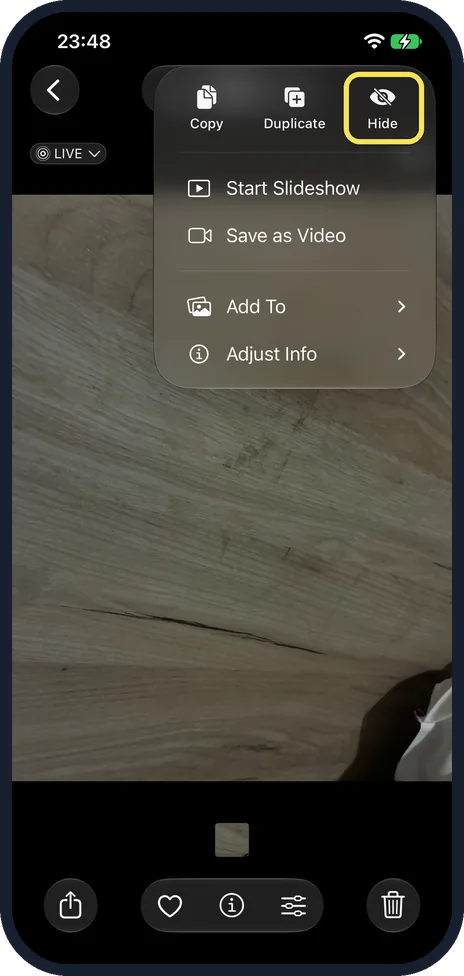
Open the photo, tap the three dots and tap Hide
Tap it in the Library. To hide several, tap Select, tap each one, then tap the three dots and tap Hide. The three dots are in the top right corner of the open photo. In the Library, touching and holding a photo opens the same menu.
Watch these steps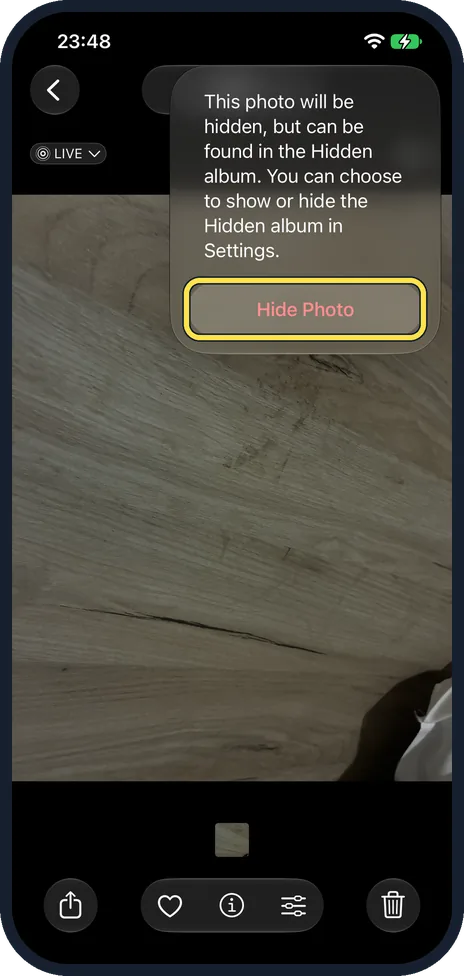
Tap Hide Photo
On our iPhone 17e the message above it said: This photo will be hidden, but can be found in the Hidden album. You can choose to show or hide the Hidden album in Settings.
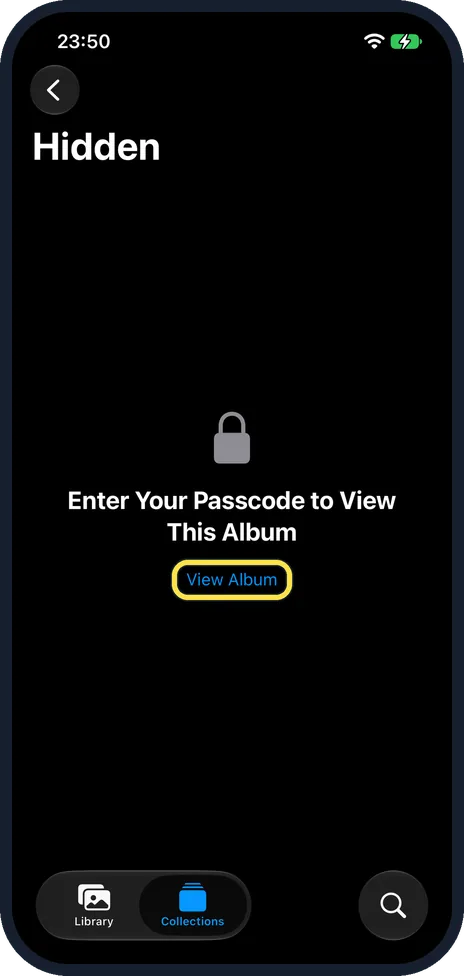
Find hidden photos
In Photos, tap Collections, scroll down to Utilities and tap Hidden. The album shows a lock and Enter Your Passcode to View This Album. Tap View Album and unlock with Face ID, Touch ID or your passcode. Our iPhone 17e has no Face ID set up, so it asked for the passcode.
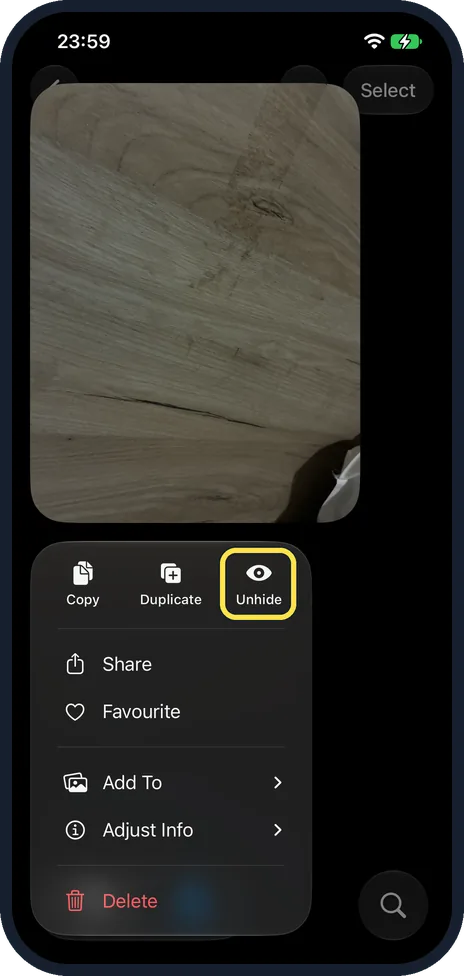
Unhide a photo
In the Hidden album, touch and hold the photo and tap Unhide.
Hide the Hidden album itself
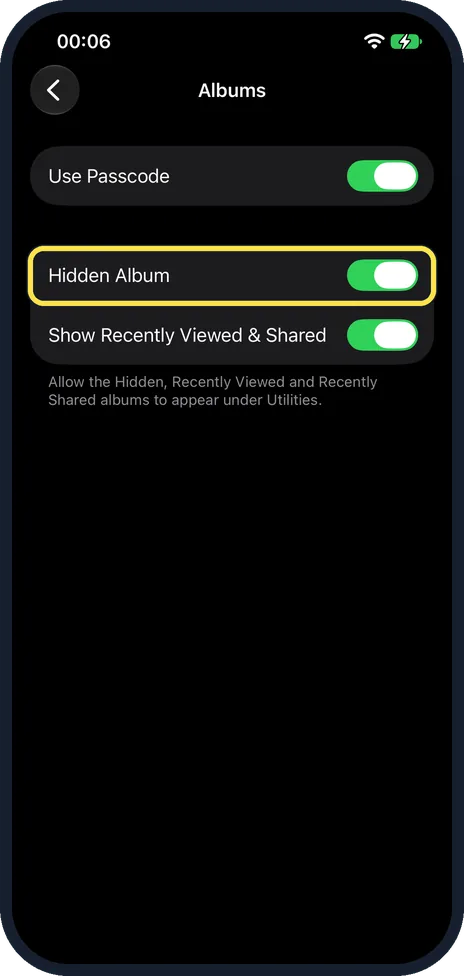
Open Settings, Apps, Photos, tap Albums and switch off Hidden Album. Apple's guide, including the iOS 27 version, still calls it Show Hidden Album under Settings, Apps, Photos. The album no longer appears in Photos until you switch this back on.
What changed: the screenshots are now our own iPhone 17e on iOS 27.0.1, dark mode, and the wording is checked against those screens and Apple's iOS 27 guide.
Watch these steps
If you do not see this option
- You followed Apple's guide and cannot find Show Hidden Album. Apple's guide still uses that name. On our iPhone 17e with iOS 27.0.1, the switch is under Settings, Apps, Photos, Albums and is called Hidden Album. Source: Delete or hide photos and videos on iPhone
- Hidden is not under Utilities. The Hidden Album switch is off. Its note on our iPhone 17e says it lets the Hidden, Recently Viewed and Recently Shared albums appear under Utilities.
If this does not work
- The Hidden album opens without Face ID or a passcode. Apple says the album is locked by default. Switch Use Face ID, Use Touch ID or Use Passcode back on. On our iPhone 17e it is Use Passcode, under Settings, Apps, Photos, Albums. Source: Delete or hide photos and videos on iPhone
- The photo is gone from your library. That is how hiding works. Apple says hidden photos move to the Hidden collection and you cannot view them anywhere else. To get it back, open Hidden and tap Unhide. Source: Delete or hide photos and videos on iPhone
- The photo is hidden on your other devices too. Apple says that with iCloud Photos, a photo you hide is hidden on all your devices. Source: Delete or hide photos and videos on iPhone
About this guide
Hidden photos disappear from your library. Apple says you cannot view them anywhere except the Hidden album. On our iPhone 17e the Library showed No Items after we hid its only photo. They stay on the phone in an album that needs your face, fingerprint or passcode to open.
The screenshots are our own, taken on an iPhone 17e running iOS 27.0.1, in dark mode.
Good to know
Keep the lock switch on under Settings, Apps, Photos, Albums. It is called Use Face ID on a phone with Face ID, and Use Passcode on our iPhone 17e, which has no Face ID set up. Without it, the Hidden album opens for anyone holding the unlocked phone.
With iCloud Photos, a photo hidden on one device is hidden on all of them.
Someone who knows your passcode can open the album.
In short: Three dots, Hide, Hide Photo. View under Collections, Utilities, Hidden.
- Apple iPhone User Guide: Delete or hide photos and videos on iPhone
- Apple Support: Hide photos on your iPhone, iPad or Mac
Links checked in October 2026. Menus and features can change after software updates. These steps match the version named at the top.
Did this guide work for you?
Sorry about that. What happened?