
What changed: the screenshots are now our own iPhone 17e on iOS 27.0.1, dark mode, and the wording is checked against those screens and Apple's iOS 27 guide.
howtosimply.com/guides/how-to-turn-on-dark-mode-on-an-iphone/ · Checked October 2026 · iPhone 17e · iOS 27.0.1
In this guide
On iOS 27, open Settings, tap Appearance and choose Dark. On iOS 26 and earlier, the same choice is under Settings, Display & Brightness. Switch on Automatic to have the phone change to dark at sunset and back to light at sunrise.
3 of 3 steps with real screenshots · 1 official source below
- Device
- iPhone
- Shown on
- iOS 27.0.1 (iPhone 17e)
- App
- Settings
- Path
- Settings › Appearance › Dark
- Real screenshots
- 3 of 3 steps
- Checked
- October 2026
- Sources
- 1 official, linked below
Step by step
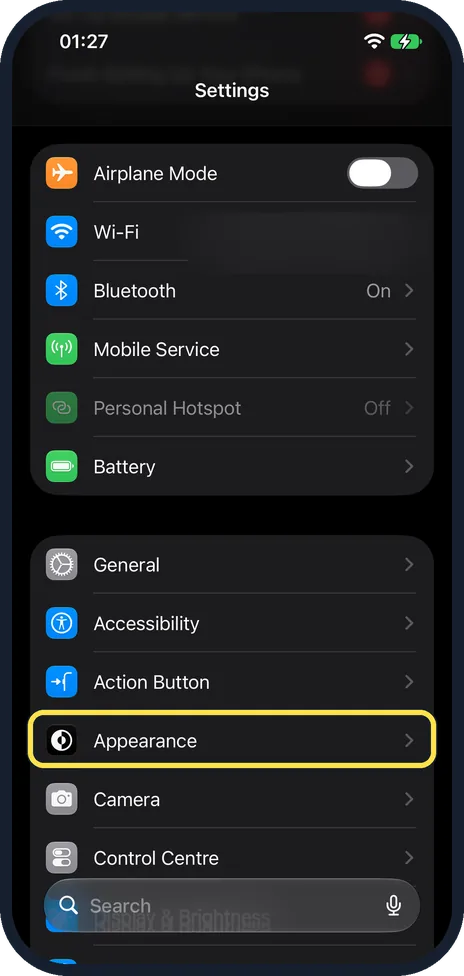
Open Settings and tap Appearance
On our iPhone 17e with iOS 27, Appearance was in the main Settings list, in the group with General, Accessibility and Action Button. Apple's iOS 27 guide still says to tap Display & Brightness, but on our iPhone 17e that page showed only Brightness, True Tone, Night Shift, Auto-Lock and Raise to Wake. On iOS 26 and earlier, tap Display & Brightness instead: the choices at the top of that page are the same.
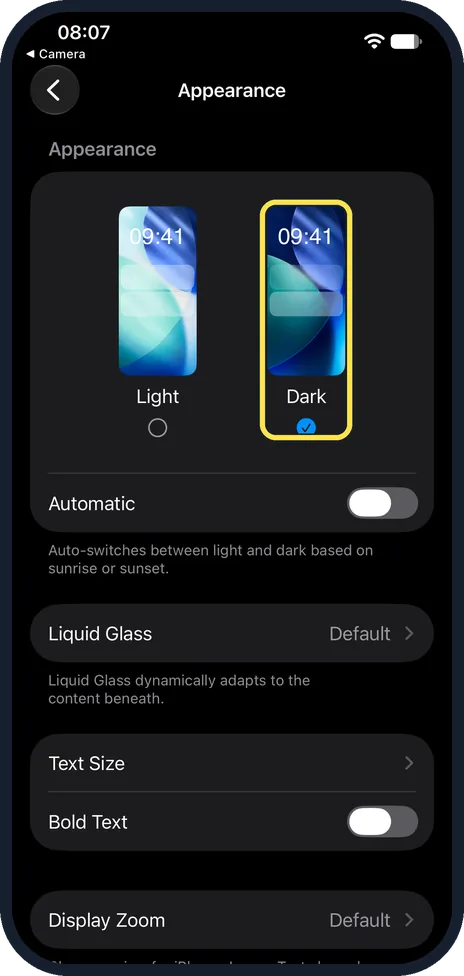
Choose Dark
The two pictures at the top are Light and Dark. Tap the circle under Dark. On our iPhone 17e with iOS 27, Dark was ticked.
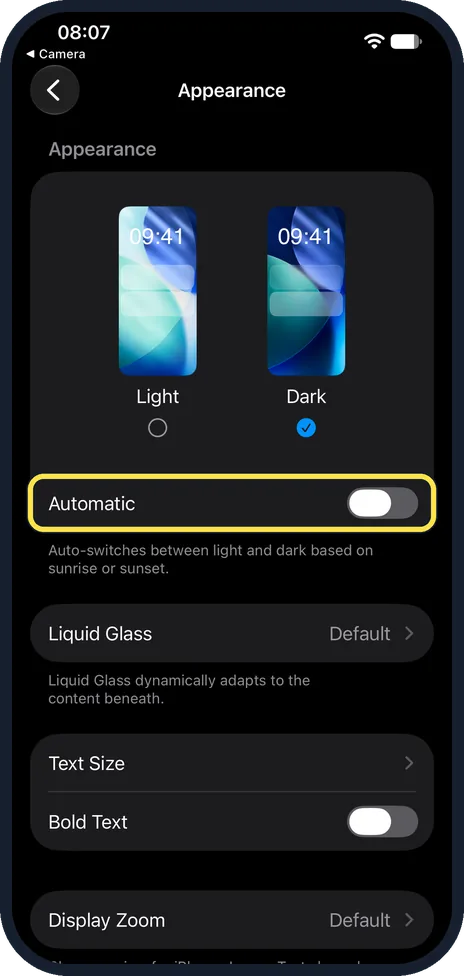
Switch on Automatic
The phone then switches between light and dark by itself. On our iPhone 17e Automatic was off, and the note below it read: Auto-switches between light and dark based on sunrise or sunset. Apple says to turn on Automatic, then tap Options and choose Sunset to Sunrise or Custom Schedule.
What changed: the screenshots are now our own iPhone 17e on iOS 27.0.1, dark mode, and the wording is checked against those screens and Apple's iOS 27 guide.
What we saw on our device
- Open Settings and tap Appearance: On our iPhone 17e with iOS 27, Appearance was in the main Settings list, in the group with General, Accessibility and Action Button.
- Choose Dark: On our iPhone 17e with iOS 27, Dark was ticked.
- Switch on Automatic: On our iPhone 17e Automatic was off, and the note below it read: Auto-switches between light and dark based on sunrise or sunset.
If you do not see this option
- Your iPhone runs iOS 26 or earlier. There is no Appearance page yet. The same setting is under Settings, Display & Brightness.
- There is no Light or Dark choice under Display & Brightness. On iOS 27 it is not there. On our iPhone 17e with iOS 27.0.1, Display & Brightness showed only the Brightness slider, True Tone, Night Shift, Auto-Lock and Raise to Wake. Apple's iOS 27 Settings list puts Light or Dark Mode under Appearance. Source: Find settings on iPhone
- There is no Appearance row in Settings. You are on iOS 26 or earlier. Apple's iOS 26 guide says to go to Settings, Display & Brightness, then select Dark. Source: Adjust the screen brightness and color on iPhone
- You do not see Options. Options is for the Automatic schedule, and Apple says to turn on Automatic first, then tap Options. On our iPhone 17e Automatic was off and no Options row was shown. Source: Adjust the screen brightness and color on iPhone
If this does not work
- The phone goes back to Light by itself. Automatic is on. Apple says Automatic with Sunset to Sunrise uses the data from your clock and location to decide when it is night. Switch Automatic off to keep Dark all day. Source: Adjust the screen brightness and color on iPhone
- You want to switch faster. Apple says you can also turn Dark Mode on or off from Control Centre. Source: Adjust the screen brightness and color on iPhone
About this guide
Apple says Dark Mode gives the entire iPhone experience a dark colour scheme for low-light places, such as reading in bed without disturbing the person next to you. The screenshots are our own, taken on an iPhone 17e running iOS 27.0.1. On iOS 27 the setting moved from Display & Brightness to its own Appearance page.
Good to know
The quick way: open Control Centre, touch and hold the brightness slider and tap Dark Mode.
Some apps have their own appearance setting and ignore the system one.
On iOS 27 the Appearance page also has Text Size, Bold Text and a Liquid Glass setting for the see-through look of buttons and bars (Default on our iPhone 17e with iOS 27).
For a warmer screen at night as well, switch on Night Shift under Display & Brightness.
In short: Settings, Appearance, Dark. On iOS 26: Settings, Display & Brightness. Automatic follows sunset.
Links checked in October 2026. Menus and features can change after software updates. These steps match the version named at the top.
Did this guide work for you?
Sorry about that. What happened?