
What changed: every step re-shot on our own Galaxy S26 (Korean model SM-S942N) on One UI 9, dark mode, with the steps rewritten for the One UI 9 screens.
howtosimply.com/guides/how-to-turn-on-flash-notifications-on-a-samsung-galaxy/ · Checked October 2026 · SM-S942N, Korean model), One UI 9, Android 17 (build S942NKSS4BZIG · Samsung Galaxy S26
In this guide
Open Settings, Accessibility, Hearing enhancements and tap Flash notification. Turn on Camera flash notification to flash the camera light, or Screen flash notification to flash the screen, when a notification arrives or an alarm sounds. Tap Preview to test.
5 of 5 steps with real screenshots · 1 official source below
- Device
- Android
- Shown on
- Samsung Galaxy S26 (SM-S942N, Korean model), One UI 9, Android 17 (build S942NKSS4BZIG)
- App
- Settings
- Path
- Settings › Accessibility › Hearing enhancements
- Real screenshots
- 5 of 5 steps
- Checked
- October 2026
- Sources
- 1 official, linked below
Step by step
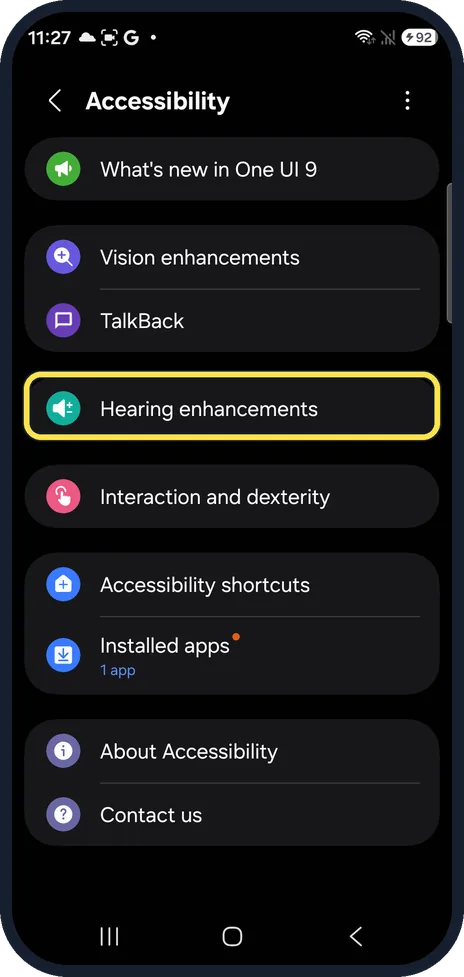
Open Hearing enhancements
Open Settings, Accessibility and tap Hearing enhancements.
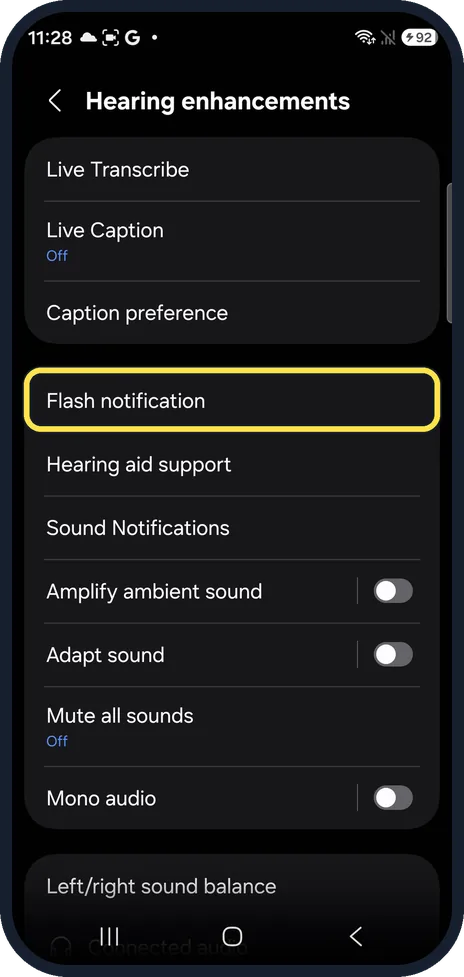
Tap Flash notification
It is below Caption preference.
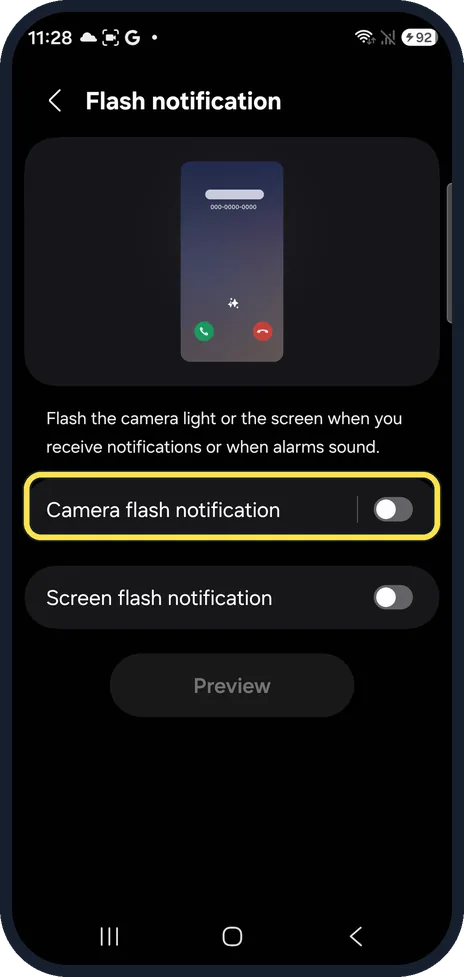
Camera flash
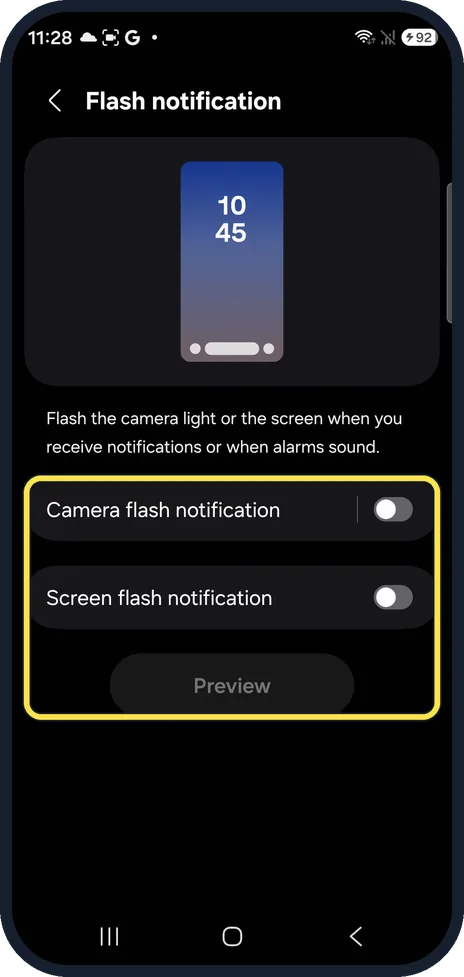
Camera flash notification blinks the light next to the camera. It was off on ours.
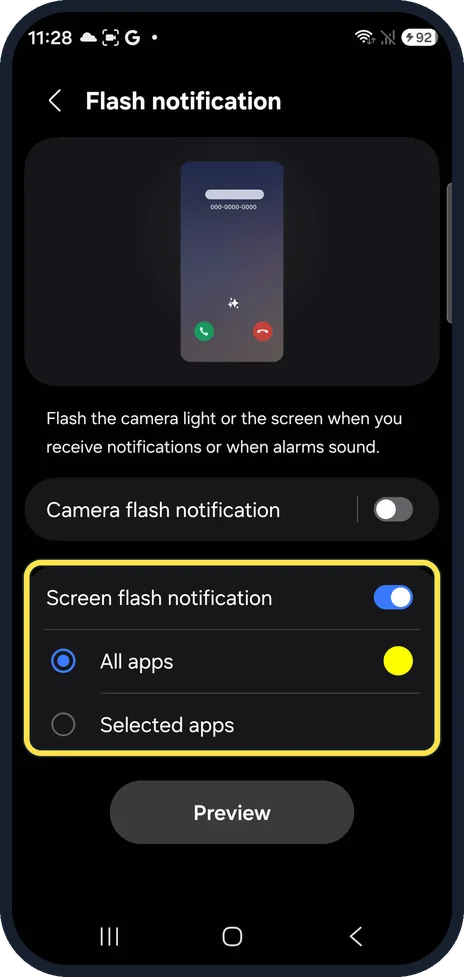
Screen flash
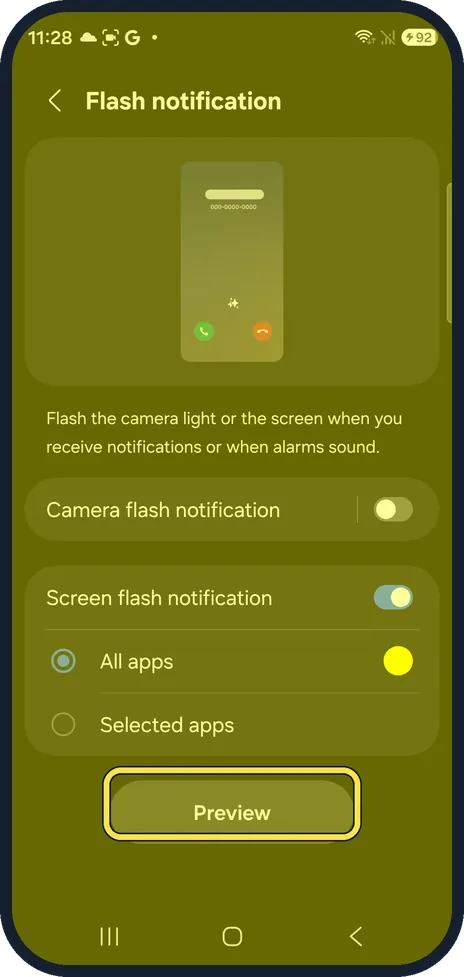
Tap Screen flash notification to switch it on. Choose All apps or Selected apps, and tap the colour dot to change the colour; ours was yellow.
Tap Preview
Preview flashes the screen once in the chosen colour, as ours did in yellow.
What changed: every step re-shot on our own Galaxy S26 (Korean model SM-S942N) on One UI 9, dark mode, with the steps rewritten for the One UI 9 screens.
If you do not see this option
- No Advanced settings in Accessibility Older guides put Flash notification under Accessibility, Advanced settings. On our S26 with One UI 9 there is no Advanced settings; Flash notification is under Hearing enhancements.
- Preview is greyed out Turn on one of the two switches first. With both off, Preview was greyed out on ours.
If this does not work
- Only some apps flash Check that All apps is selected under Screen flash notification, not Selected apps.
- You do not notice the flash The camera light flash is easier to see with the phone face down, the screen flash with the phone face up.
About this guide
Flash notifications help when the phone is on silent, in a loud place, or if you are hard of hearing.
The screenshots are from our Samsung Galaxy S26, the Korean model SM-S942N, with One UI 9 and Android 17 (build S942NKSS4BZIG), in Dark mode. Menus can differ on models sold in other regions. We switched Screen flash notification on, tried Preview, and switched it off again.
In short: Settings, Accessibility, Hearing enhancements, Flash notification: Camera flash notification or Screen flash notification on; Preview to test.
Links checked in October 2026. Menus and features can change after software updates. These steps match the version named at the top.
📷 See real photos from the Galaxy S26 in our Camera Lab, next to 10 other phones.
Did this guide work for you?
Sorry about that. What happened?