GOOGLE PIXEL
How to turn on flash notifications on a Google Pixel (Android 17)

In short
Open Settings, Notifications, Flash notifications and turn on Camera flash, Screen flash or both. Our screen flash colour was Yellow. Google says calls and alarms keep flashing until you answer or dismiss them, and notifications flash a couple of times.
3 of 3 steps show a real screenshot from our Pixel 10a. Each step was checked against the maker's own instructions, linked at the end.
Steps
- 1
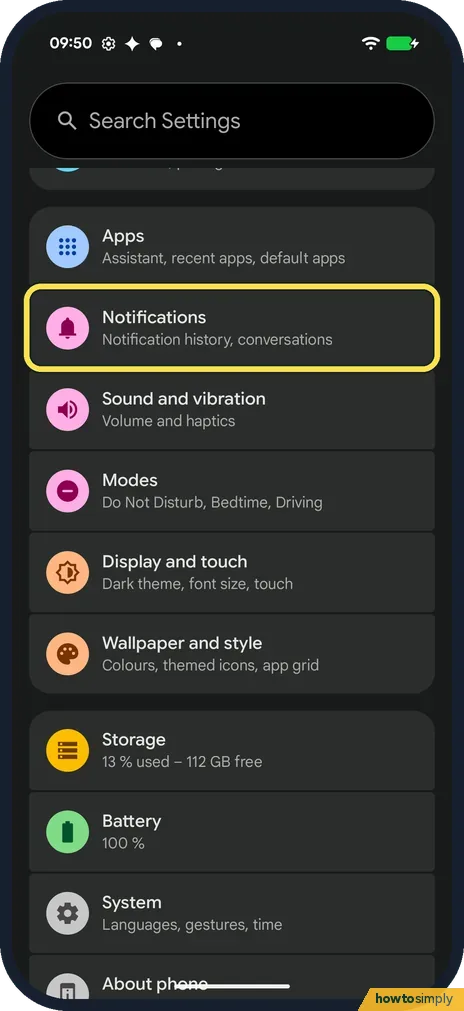
Open Notifications
Open Settings and tap Notifications: Notification history, conversations.
- 2
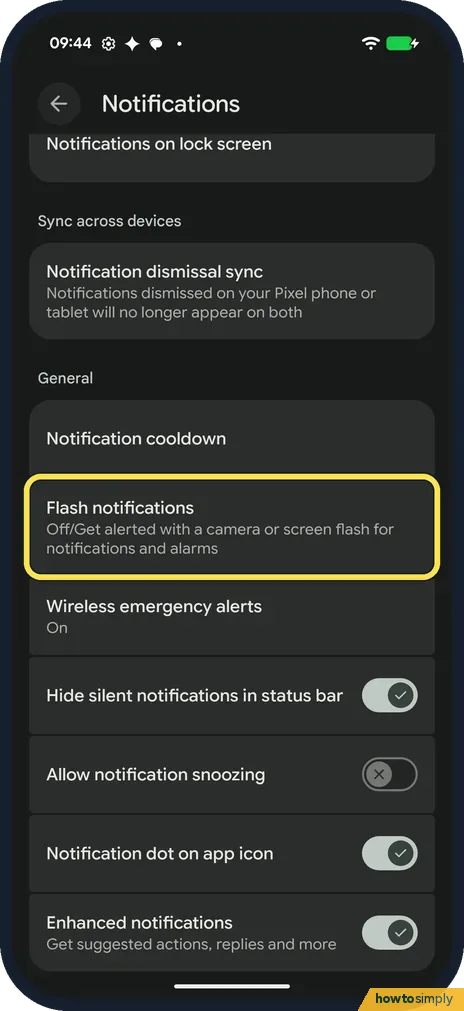
Tap Flash notifications
Scroll down to General. Ours said Off/Get alerted with a camera or screen flash for notifications and alarms. Tap it.
- 3
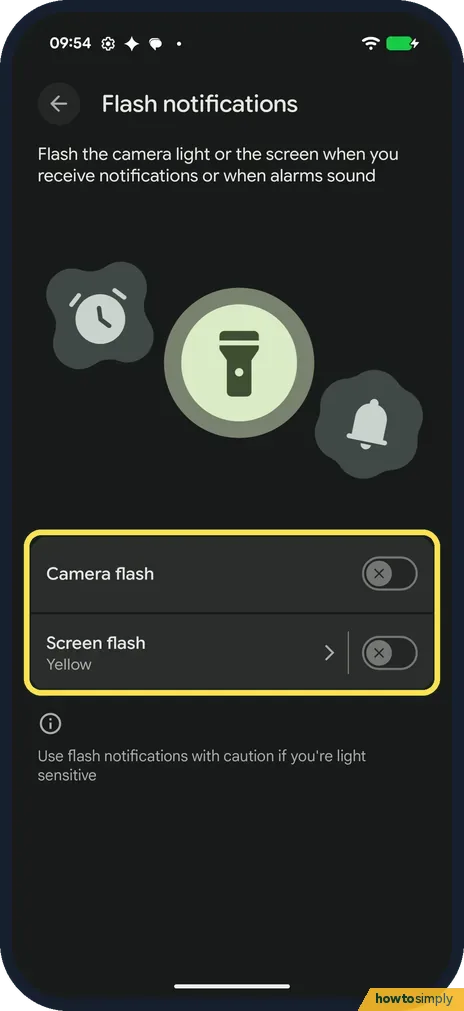
Camera flash or Screen flash
There are two switches, Camera flash and Screen flash, both off on ours. Turn on one or both. Screen flash showed the colour Yellow; Google says to tap Screen flash to pick another. The note below says to use flash notifications with caution if you're light sensitive.
If you do not see this option
- No Preview button? Google says to tap Preview to test the flash, and that Preview is at the bottom when camera flash or screen flash is on. Ours had both off and no Preview button. Source: Learn about Android Flash notifications
- No Camera flash switch? Google says camera flash isn't available on all devices. Our Pixel 10a had both switches. Source: Learn about Android Flash notifications
- Looking in Accessibility? Google says the same settings are also under Settings, Accessibility, Flash notifications. Pixel help gives the Notifications route we used. Sources: Learn about Android Flash notifications, Use advanced notification features
If this does not work
- No flash in Do Not Disturb? Google says flash notifications follow your Do Not Disturb settings, but alarms still flash if they are allowed. See how to use Do Not Disturb and modes.
- Phone on silent and you miss alerts? Google says flash notifications still work in silent mode. If notifications don't arrive at all, see Pixel not getting notifications.
- Flashing bothers you? The page warns to use flash notifications with caution if you're light sensitive. Turn both switches off on the Flash notifications page.
- Screen flash colour didn't change? Google says to tap Screen flash, choose a colour, then tap Done to save it. If you go back without Done, the old colour stays.
- No flash when the phone lies face down? Screen flash lights the display, so you can't see it when the screen faces the table. Use Camera flash, which is on the back, or turn the phone screen up.
- Flash works for calls but not for one app? The flash goes with the notification. If that app's notifications are off or silent, there is nothing to flash for. Check the app under Settings, Notifications, App notifications.
Good to know
Google says a call keeps flashing until you answer, and an alarm until you dismiss or snooze it.
To use the camera light as a torch, see how to change the flashlight brightness.
With flash notifications on, each alert adds a short burst of light to the sound or vibration you already have. Google says notifications flash a couple of times, while a call or alarm keeps flashing until you answer, dismiss or snooze it. That makes it useful if you are hard of hearing, work in a noisy place, or keep the phone on silent. Every flash briefly uses the camera light or lights the screen, so many notifications mean a little more battery use. To stop it, open Flash notifications and turn off the switch you turned on.
If too many alerts arrive at once, notification cooldown softens bursts of notifications, and turning off one app's notifications removes its flashes too.
About this guide
- Device
- Android
- Shown on
- Google Pixel 10a, Android 17 (build CP3A.261005.005)
- App
- Settings
- Path
- Settings › Notifications › Flash notifications: Camera flash › Screen flash (colour)
- Real screenshots
- 3 of 3 steps
- What we did
- Observed: looked at each screen, changed nothing
- Checked
- October 2026
- Sources
- 2 official, linked below
Sources
Links checked October 2026. Menus and features can change with updates.Spotted a mistake? Menus change with updates, and we want every step to match your screen. Email us about this page or use the contact form. We read every report, and fixes are listed on What changed.
Liked this guide?
Follow us for new guides and short how-to videos.
Did this guide work for you?
Sorry about that. What happened?