GOOGLE PIXEL
Pixel not getting notifications? 6 settings to check (Android 17)
Check that the app's notifications are on under Settings, Notifications, App notifications, and that the type of alert you miss is on in the app's categories. Then let the app run in the background under App battery usage, and check that Do Not Disturb is off.

8 of 8 steps show a real screenshot from our Pixel 10a. Each step was checked against the maker's own instructions, linked at the end.
Steps
- 1
Open App notifications
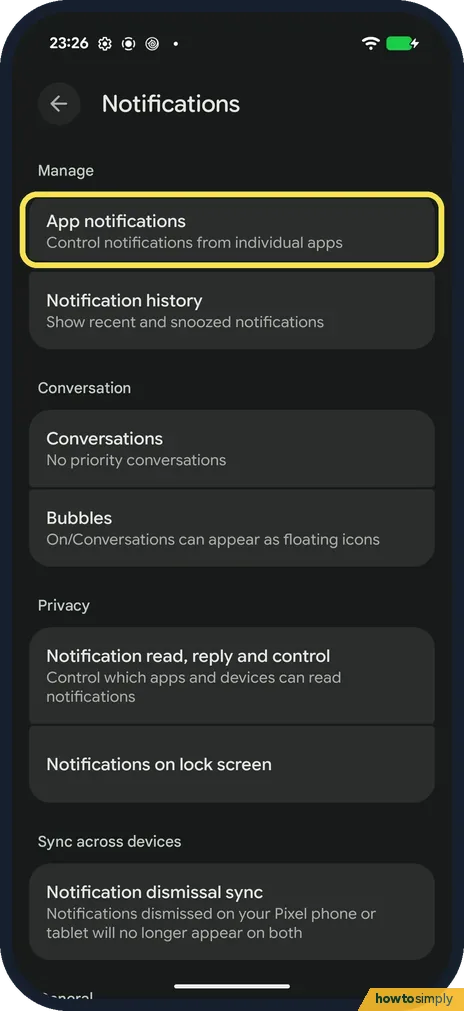
Open Settings, tap Notifications, then App notifications.
- 2
Find the app and check its switch
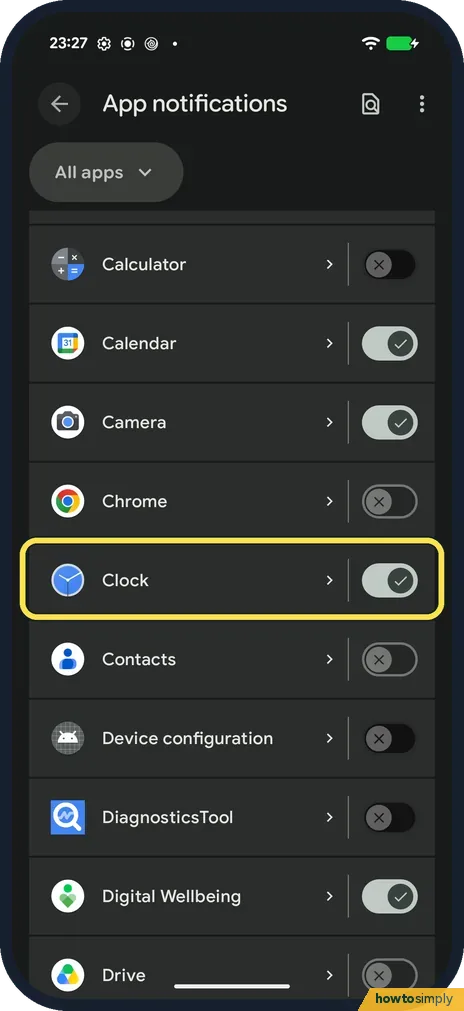
If the list at the top says Most recent, change it to All apps, as here, then scroll to the app. Its switch must be on. Here Clock is on.
- 3
Check the app's notification categories
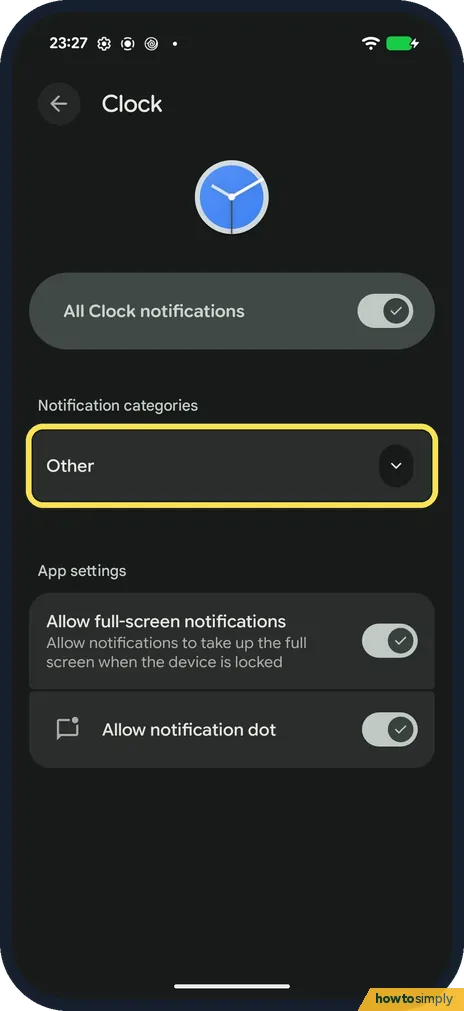
Tap the app's name. Under Notification categories, each type of alert is listed separately, so a message app can send some alerts and not others. Open each category and check it is allowed. Clock had only one category, Other.
- 4
Open the app's battery setting
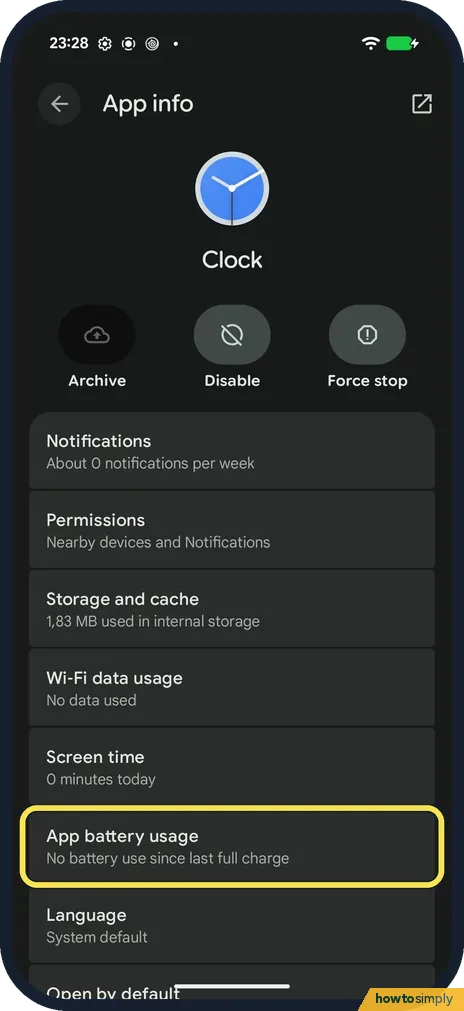
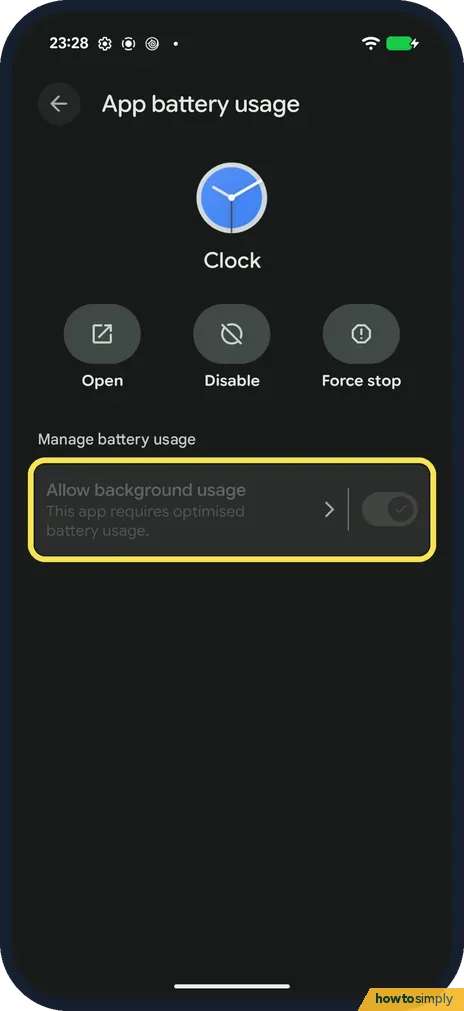
Go back to Settings, tap Apps, then the app. Tap App battery usage.
- 5
Allow background usage
Under Manage battery usage, turn on Allow background usage so the app can check for new alerts while you are not using it. For Clock the row is greyed out with the note This app requires optimised battery usage, so we could not open it.
- 6
Check Do Not Disturb
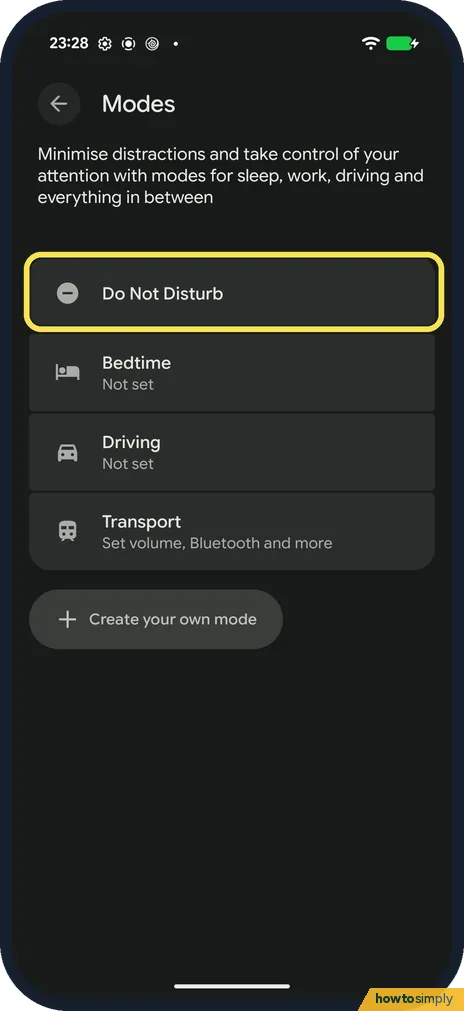
Open Settings and tap Modes. Do Not Disturb silences most notifications. Tap it.
- 7
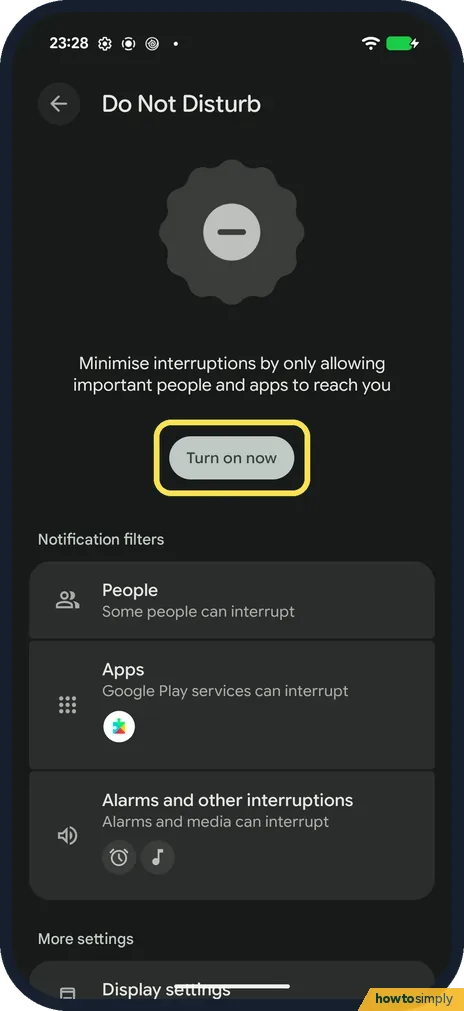
Make sure it is off
If you see Turn on now, Do Not Disturb is off, as on ours. If it says Turn off now, tap that. Back on the Modes page, Bedtime, Driving and your own modes can silence alerts on a schedule too; ours were Not set.
- 8
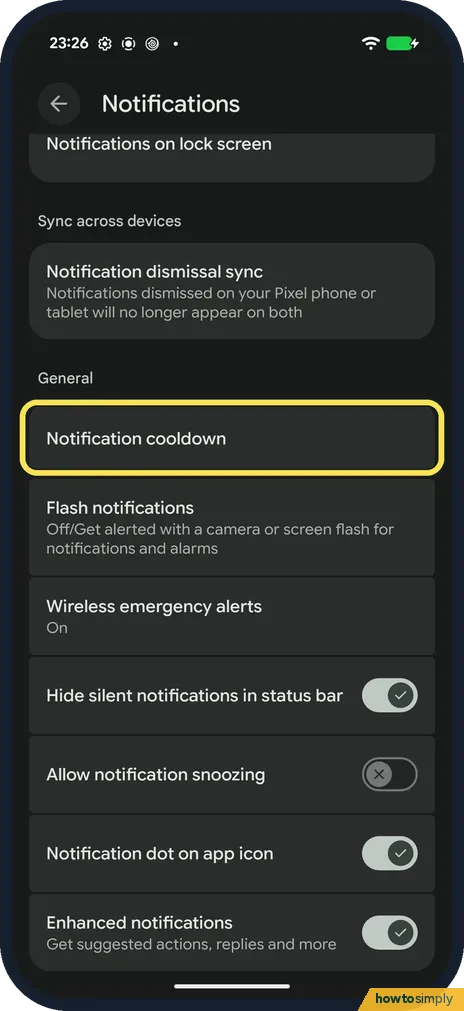
Check Notification cooldown
On the Notifications page, scroll to General and open Notification cooldown. When it is on, alerts get quieter if many arrive in a row. There is no Adaptive notifications option on our Pixel 10a.
If you do not see this option
- No Do Not Disturb in Sound settings? On our Android 17 Pixel it is under Settings, Modes, next to Bedtime and Driving.
- No Adaptive notifications? We searched for it on our Pixel 10a with Android 17 and it is not there.
If this does not work
- Still no alerts with everything on? Google says Battery Saver and Adaptive Battery can stop or delay some alerts. Turn Battery Saver off under Settings, Battery and test again.
- Alerts stop at night or while driving? A mode may be switching on by schedule. Open Settings, Modes and check Bedtime, Driving and any mode you created.
- Alerts arrive but make no sound? Check the category is set to Alerting, not Silent. Google lists both choices; a silent alert arrives without a sound or pop-up.
- An alert vanished, then came back? It may have been snoozed. Google says that with Allow notification snoozing on, you can tap the Down arrow on a notification and snooze it, so it returns later.
Good to know
Missed an alert you swiped away? Turn on notification history; it only keeps alerts that arrive after you turn it on.
Google says Notification cooldown still lets calls, alarms, priority conversations and emergency alerts through, so it mainly quietens bursts of chat messages. Once alerts work again, keep Battery Saver for when you need it, not all the time.
About this guide
- Device
- Android
- Shown on
- Google Pixel 10a, Android 17 (build CP3A.260905.009)
- App
- Settings
- Path
- Settings › Notifications
- Real screenshots
- 8 of 8 steps
- What we did
- Observed: looked at each screen, changed nothing
- Checked
- October 2026
- Sources
- 3 official, linked below
Sources
Links checked October 2026. Menus and features can change with updates.Spotted a mistake? Menus change with updates, and we want every step to match your screen. Email us about this page or use the contact form. We read every report, and fixes are listed on What changed.
Liked this guide?
Follow us for new guides and short how-to videos.
Did this guide work for you?
Sorry about that. What happened?