
howtosimply.com/guides/how-to-update-apps-on-a-samsung-galaxy/ · Checked October 2026 · Samsung Galaxy A57 5G (SM-A576B), One UI 8.5, Android 16
In this guide
Open the Play Store, tap your profile picture, Manage apps & device, and tap Update all, or See details to update one app. Samsung's own apps can also update through the Galaxy Store: Menu, Updates. Galaxy Store needs a Samsung account.
4 of 5 steps with real screenshots · 3 official sources below
- Device
- Android
- Shown on
- Samsung Galaxy A57 5G (SM-A576B), One UI 8.5, Android 16
- App
- Settings
- Real screenshots
- 4 of 5 steps
- What we did
- Observed: looked at each screen, changed nothing
- Our phone
- Shown on Galaxy A57, One UI 8.5
- Checked
- October 2026
- Sources
- 3 official, linked below
Step by step
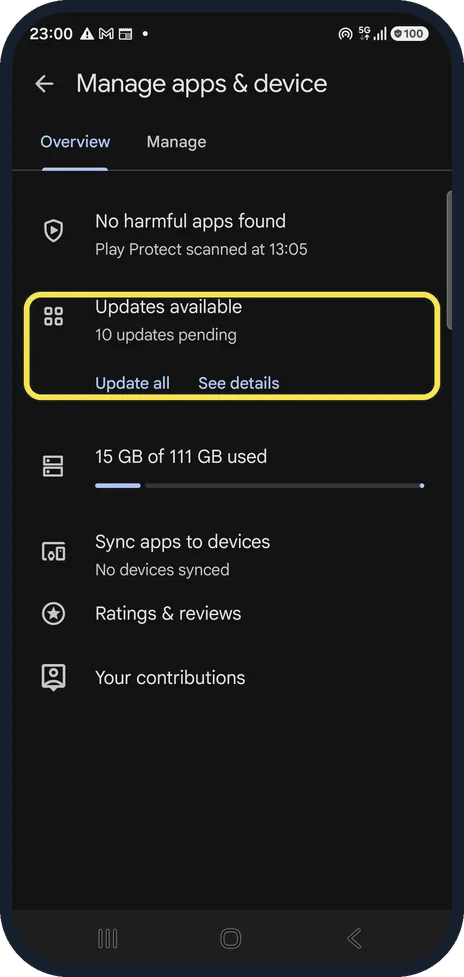
Open Manage apps & device
In the Play Store, tap your profile picture at the top right and Manage apps & device. Ours shows 10 updates pending.
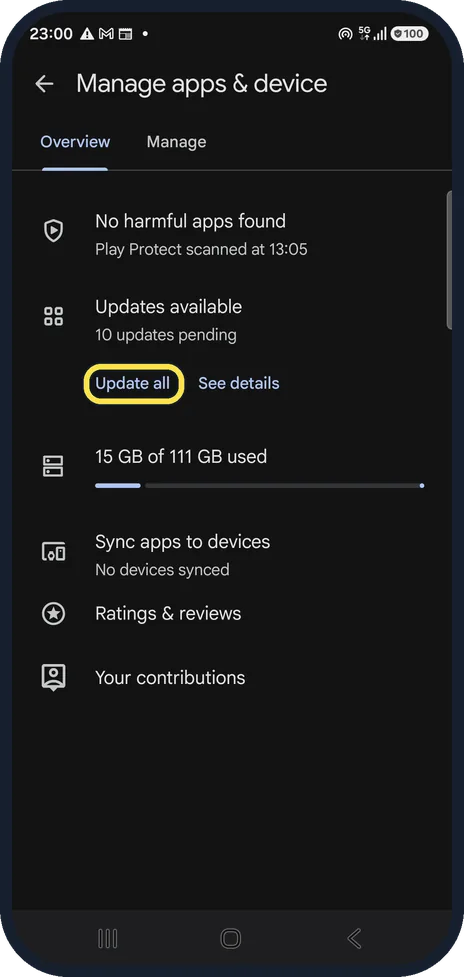
Update all or one app
Tap Update all, or See details to choose single apps. We did not update anything.
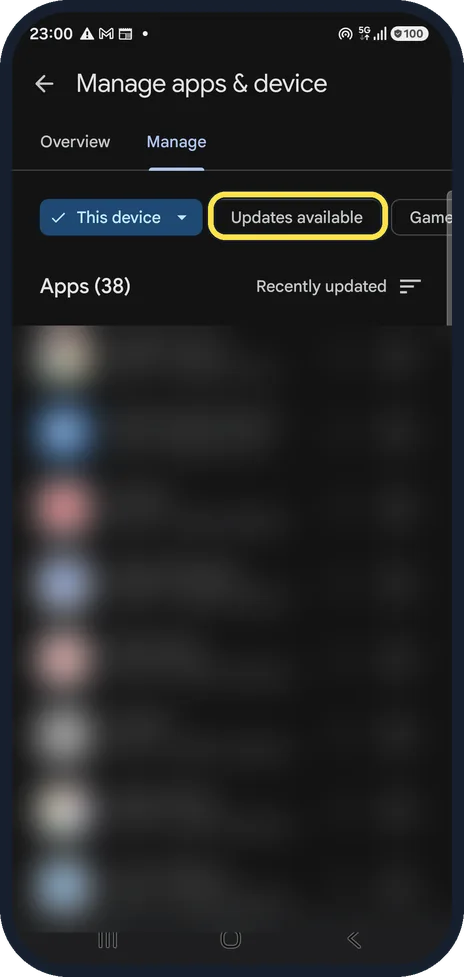
Use the Manage tab
The Manage tab lists every app. The Updates available filter shows only the apps waiting for an update. We blurred our apps.
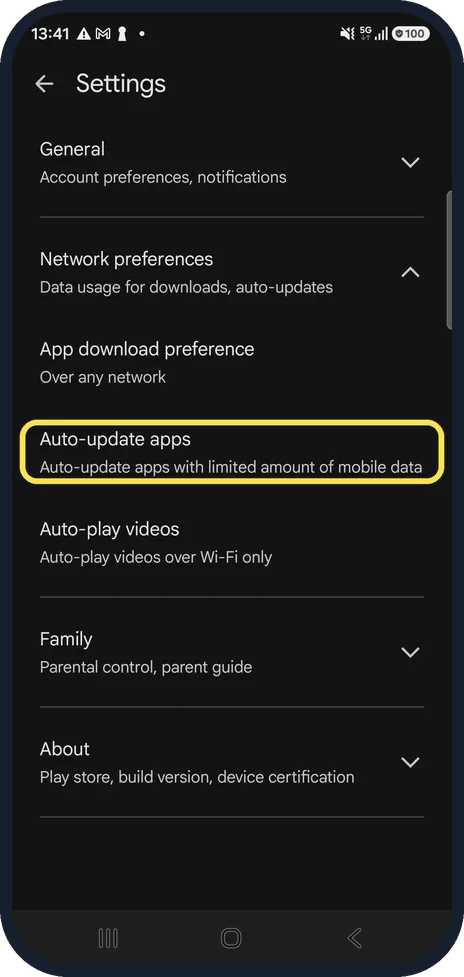
Turn on automatic updates
In the Play Store, profile picture, Settings, Network preferences, Auto-update apps, choose how apps update. Ours was set to Auto-update apps with limited amount of mobile data; the others are Over any network, Over Wi-Fi only and Don't auto-update apps.
Galaxy Store updates
Open Galaxy Store, tap Menu (three lines) at the bottom right and Updates, then Update all or the arrow next to one app. Our phone has no Samsung account, so we could not show this screen.
If you do not see this option
- Galaxy Store asks you to sign in Galaxy Store needs a Samsung account; ours had none, so it asked us to sign in before showing updates. The Play Store route above does not need one. Source: How to update Play Store and Galaxy Store apps on your Galaxy phone
- You want Galaxy Store apps to update by themselves Samsung says to open Galaxy Store, Menu, the Settings icon at the top right, Auto update apps, and choose a setting. Source: How to update Play Store and Galaxy Store apps on your Galaxy phone
If this does not work
- An update will not finish On Android 10 or 11, Samsung says to open Settings, Apps, Google Play Store, Storage, Clear data. This also resets your auto-update choice, so check it again. Source: Manage app updates on a Samsung Galaxy device
- You prefer the old version of an app For some preinstalled apps, Samsung says Settings, Apps, the app, three dots, Uninstall updates goes back to the old version. Source: Manage app updates on a Samsung Galaxy device
About this guide
Most apps update through the Play Store. Some Samsung apps update through the Galaxy Store instead. Both can update apps automatically.
Good to know
If an update causes problems, Samsung suggests Settings, Apps, the app, the three dots, Uninstall updates to go back to the original version.
A download that stays at Pending is waiting in the queue: Download pending in Google Play.
In short: Play Store, profile picture, Manage apps & device, Update all. Galaxy Store, Menu, Updates.
- Samsung Latin: How to update Play Store and Galaxy Store apps on your Galaxy phone
- Samsung US: Manage app updates on a Samsung Galaxy device
- Samsung Latin: Manage app updates and apps on Samsung Galaxy device
Links checked in October 2026. Menus and features can change after software updates. These steps match the version named at the top.
📷 See real photos from the Galaxy A57 in our Camera Lab, next to 10 other phones.
Did this guide work for you?
Sorry about that. What happened?