
howtosimply.com/guides/how-to-change-glyph-ringtones-on-a-nothing-phone/ · Checked October 2026 · 4a) Pro (A069P, EEA), Nothing OS 4.1, Android 16 (build FroggerPro-B4.1-260424-1447-EEA · Nothing Phone
In this guide
Open Settings, Glyph Interface, Ringtones. Choose Classic (one Glyph ringtone for everyone) or Generative (each contact gets a generated sound and light), then tap Default ringtone to change it. Add a contact under Custom contacts to give them their own.
6 of 6 steps with real screenshots · 4 official sources below
- Device
- Android
- Shown on
- Nothing Phone (4a) Pro (A069P, EEA), Nothing OS 4.1, Android 16 (build FroggerPro-B4.1-260424-1447-EEA), Nothing Phone (4a) Pro (A069P, EEA), Nothing OS 4.1, Android 16 (build FroggerPro-B4.1-260907-1153-EEA)
- App
- Settings
- Path
- Settings › Glyph Interface › Ringtones: Classic or Generative
- Real screenshots
- 6 of 6 steps
- Checked
- October 2026
- Sources
- 4 official, linked below
Step by step
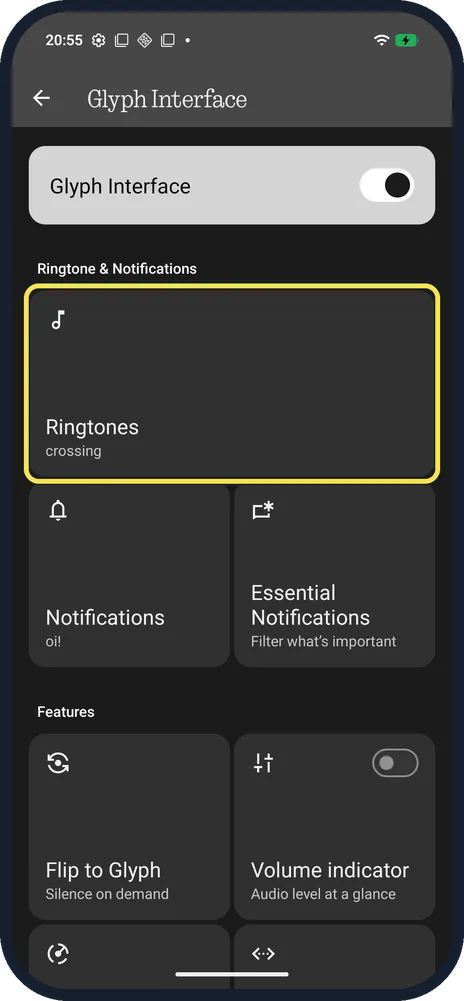
Tap Ringtones
Open Settings, Glyph Interface. Ringtones is the first tile under Ringtone & Notifications.
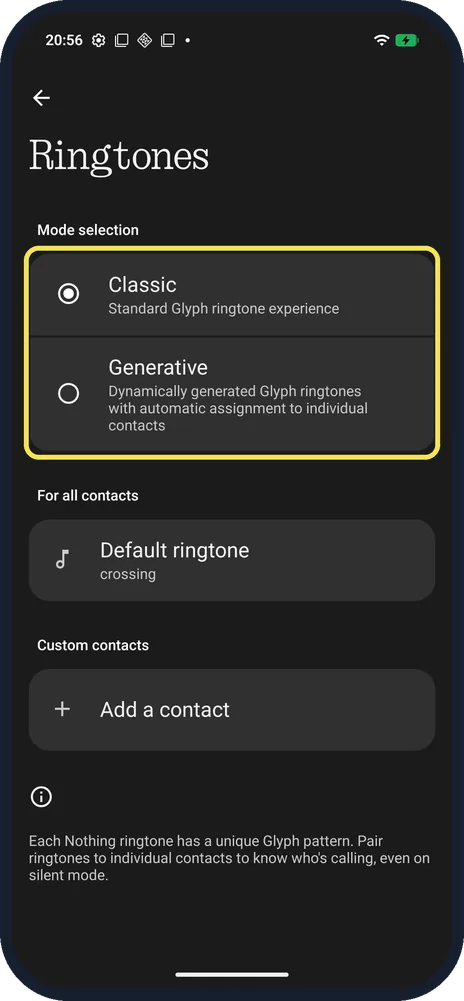
Choose Classic or Generative
Classic: standard Glyph ringtone experience. Generative: dynamically generated Glyph ringtones with automatic assignment to individual contacts. The first visit showed an intro, "A sound and light show".
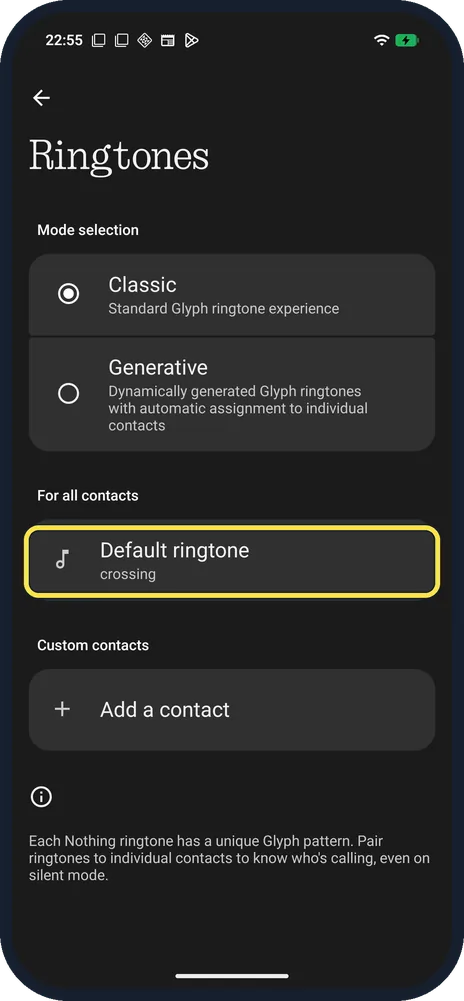
Tap Default ringtone
Under For all contacts. Ours was crossing.
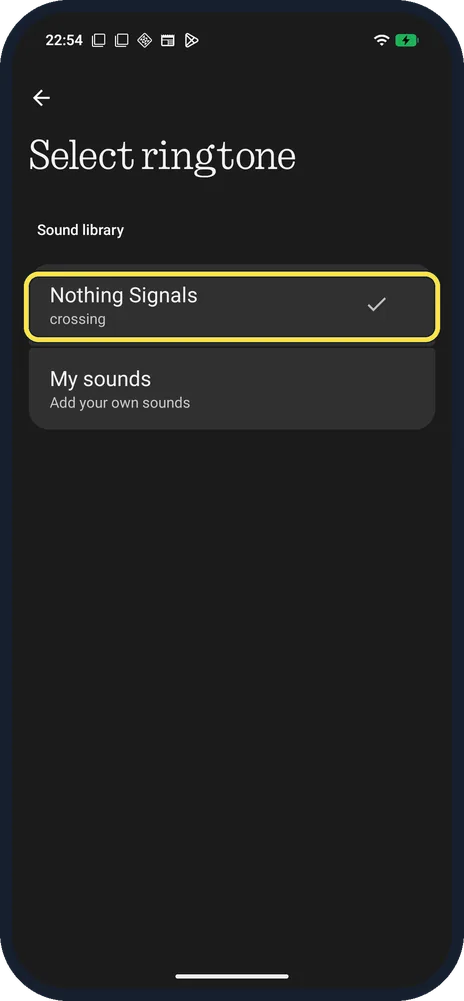
Tap Nothing Signals
Select ringtone has the Sound library, Nothing Signals, with the current tone under it, and My sounds for your own.
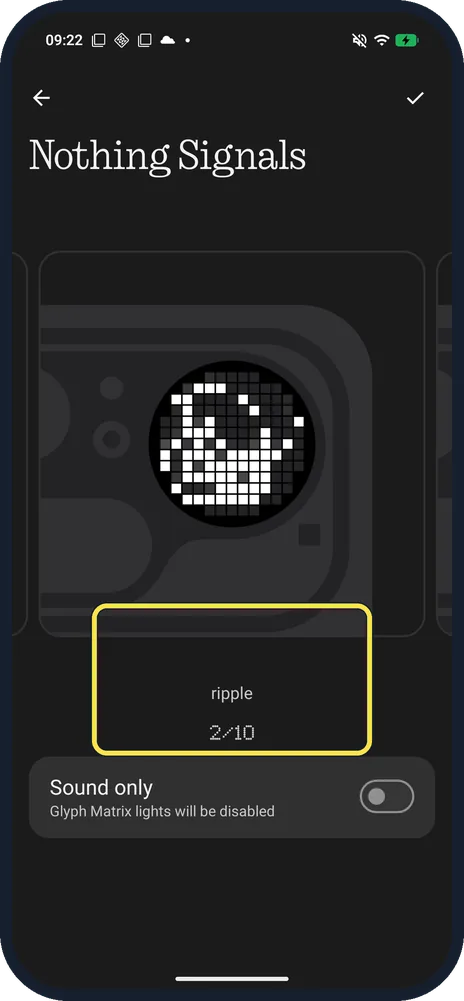
Swipe to a tone and tap the tick
Each tone shows its own Glyph pattern. Ours went from crossing (1/10) to ripple (2/10). Sound only turns the lights off for that tone. Tap the tick at the top right to save.
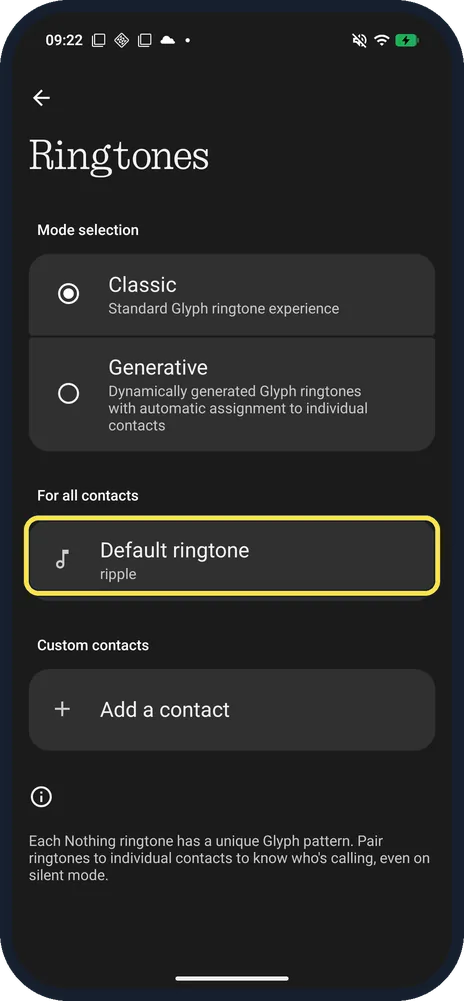
Check Default ringtone
Back on Ringtones, Default ringtone shows the new tone. Ours said ripple.
If you do not see this option
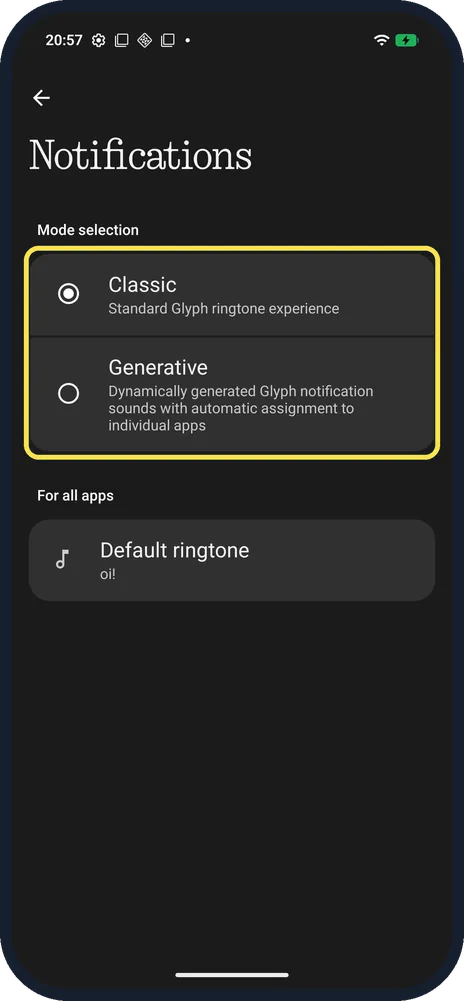
- Notification sounds too? Notifications, the next tile, has the same Classic / Generative choice; ours played oi!. Nothing says each notification sound has its own Glyph pattern. Source: How do I choose the Glyph Interface for notifications?
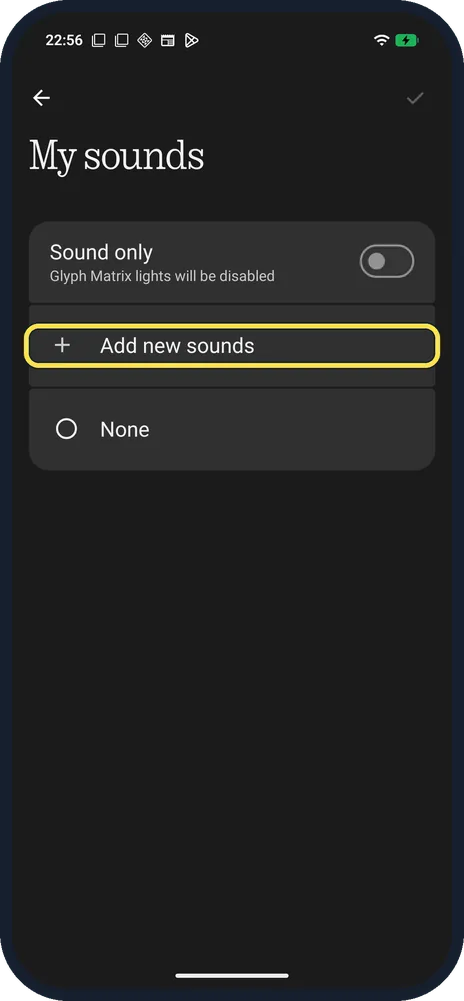
- Use your own ringtone? Nothing says to tap the add icon at the upper left of the Default ringtone page. On ours (build B4.1-260907-1153) there was no add icon: tap My sounds, then Add new sounds. My sounds plays sound only, with Glyph lights disabled. Source: How do I choose the Glyph Interface for ringtones?
- Give one person their own light? Tap Add a contact under Custom contacts and pick a ringtone; its Glyph pattern comes with it.
If this does not work
- Phone silent but you want to see calls? Use Flip to Glyph: with the Glyph side facing up on a flat surface, the phone goes silent and calls show as light only. Source: What is the Flip to Glyph feature?
- No lights at all? Turn on the Glyph Interface in Settings, or tap Glyphs in Quick Settings. See turn on the Glyph Interface. Source: How do I turn the Glyph Interface on/off?
About this guide
Each Nothing ringtone has its own light pattern, so you can tell who is calling from the back of the phone, even on silent. Ours was on Classic with the default ringtone "crossing".
The screenshots are from our Nothing Phone (4a) Pro, the European model A069P, with Nothing OS 4.1 and Android 16 (build FroggerPro-B4.1-260424-1447-EEA), in Dark theme. Steps 3 to 6 and the My sounds picture were taken later, after the phone updated to build B4.1-260907-1153. We switched to ripple for steps 5 and 6, then set it back to crossing.
Good to know
To silence calls but keep the lights, set up Flip to Glyph.
To light up only for important people, use Essential Notifications.
In short: Settings, Glyph Interface, Ringtones: Classic or Generative, then Default ringtone.
- Nothing Support: How do I choose the Glyph Interface for notifications?
- Nothing Support: How do I choose the Glyph Interface for ringtones?
- Nothing Support: What is the Flip to Glyph feature?
- Nothing Support: How do I turn the Glyph Interface on/off?
Links checked in October 2026. Menus and features can change after software updates. These steps match the version named at the top.
Did this guide work for you?
Sorry about that. What happened?